> For AI agents: the complete documentation index is available at https://www.jumpserver.com/docs/v4/llms.txt, the full documentation bundle is available at https://www.jumpserver.com/docs/v4/llms-full.txt.
# Create account backup task
**Account backup** saves local account information and supports unified backup across different asset types. Backups can be stored via Email or SFTP, with optional scheduled backup and password splitting to separate recipients or SFTP servers.
1
At the top-left of the page, select , then click **PAM**.
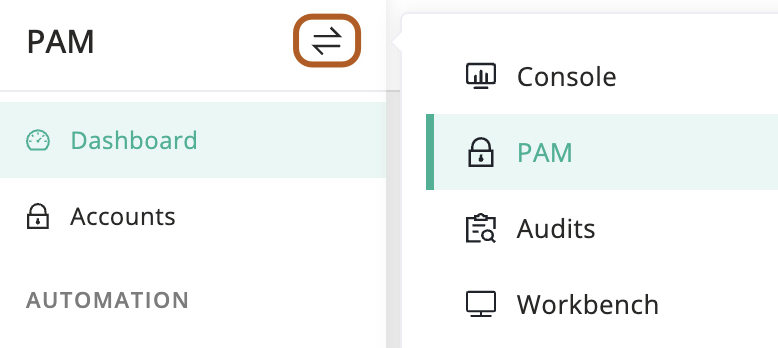
2
In the left menu, click ** Backup accounts**.
3
On the right page, click the **Account backup tasks** tab.
4
Click **+ Create**.
5
In the **Name** field, type the task name.
6
In the **Type** field, check asset categories or asset types to be backed up.
7
In the **Backup type** field, choose how to store the backup.
- `Email`: Send the backup file via email.
- `SFTP`: Send the backup file to the SFTP server.
8
In the **Password divided** field, check and enable password-splitting backup. The account password will be split into two parts and sent separately to two groups of recipients.
9
In the **Recipient a/b**, select one or two recipient groups separately. The backup file will be encrypted using the file encryption password set in the personal settings by default (via email).
10
In the **Receiving server a/b** field, select one or two receiving servers. The backup file will be encrypted using the "Zip encrypt password" (via SFTP).
11
In the **Zip encrypt password** field, type the password to encrypt the backup file (via SFTP).
12
In the **Periodic** field, check to enable scheduled execution.
13
In the **Active** field, check to enable the task.
14
In the **Description** field, type the task description.
15
Click **Submit**.