> For AI agents: the complete documentation index is available at https://www.jumpserver.com/docs/v4/llms.txt, the full documentation bundle is available at https://www.jumpserver.com/docs/v4/llms-full.txt.
# Invite or remove user from an organization
In the Enterprise edition, you can invite a user from one organization to another and assign them specific roles. The user will automatically inherit the permissions associated with those roles in the new organization.
Removing a user from an organization will revoke their access but will not delete the user.
## Bulk invite users to the current organization
1
In the left area of the top navigation bar, click the organization dropdown and switch to the target organization.

2
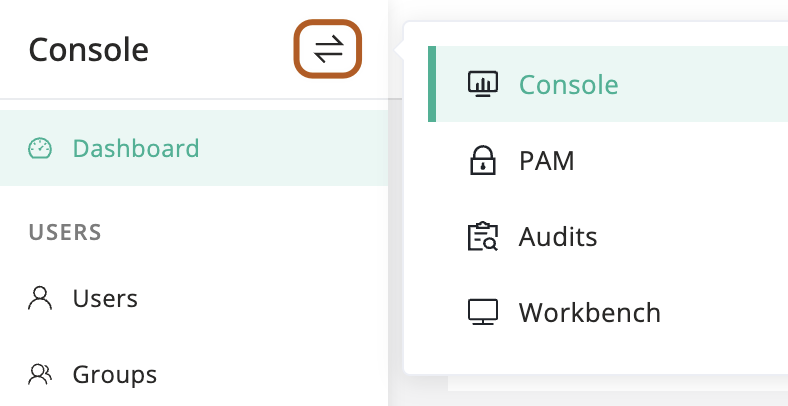
At the top-left of the page, select , then click **Console**.
3
In the left menu, click ** Users**.
4
Above the user table, Click **Invite**.
5
In the **Users** field, select one or more users to invite.
6
In the **Org roles** field, select one or more organization roles.
7
Click **Confirm**.
## Remove a user from the current organization
1
In the left area of the top navigation bar, click the organization dropdown and switch to the target organization.

2
At the top-left of the page, select , then click **Console**.

3
In the left menu, click ** Users**.
4
In the user table, find the user you want to remove.
5
In the Actions column, click the **···** icon, then click **Remove**.
6
Confirm the information and click **OK**.
## Bulk remove users from the current organization
1
In the left area of the top navigation bar, click the organization dropdown and switch to the target organization.

2
At the top-left of the page, select , then click **Console**.

3
In the left menu, click ** Users**.
4
In the user table, check the users you want to remove.
5
Above the user table, select **Actions ** button, then click ** Remove selected**.