> For AI agents: the complete documentation index is available at https://www.jumpserver.com/docs/v4/llms.txt, the full documentation bundle is available at https://www.jumpserver.com/docs/v4/llms-full.txt.
# View user related resources
## View assets authorized to the user
1
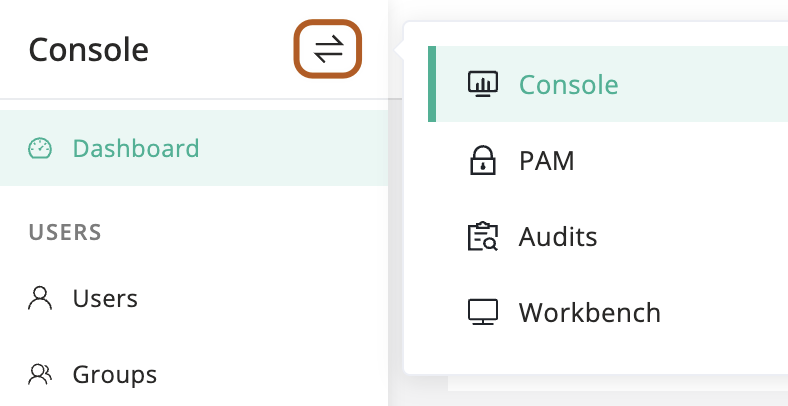
At the top-left of the page, select , then click **Console**.
2
In the left menu, click ** Users**.
3
In the user table, click the name of the user you want to view.
4
On the user details page, click **Authorized assets** tab.
## View the user's authorizations
1
At the top-left of the page, select , then click **Console**.

2
In the left menu, click ** Users**.
3
In the user table, click the name of the user you want to view.
4
On the user details page, click **Authorization rules** tab.
## View the user’s asset sessions
1
At the top-left of the page, select , then click **Console**.

2
In the left menu, click ** Users**.
3
In the user table, click the name of the user you want to view.
4
On the user details page, click **Asset sessions** tab.
## View the user’s activity logs
1
At the top-left of the page, select , then click **Console**.

2
In the left menu, click ** Users**.
3
In the user table, click the name of the user you want to view.
4
On the user details page, click **Activities** tab.