JumpServer Audit Recordings: Management & Best Practices
Storage of Video Files
Description of JumpServer Recording Storage Directory and Retention Duration Configuration
Recording (Persistence) Directory Configuration
The global main configuration file path is: /opt/jumpserver/config/config.txt.
The default persistence directory is: /data/jumpserver. To view the currently configured persistence directory in the environment, you can execute: cat /opt/jumpserver/config/config.txt | grep "VOLUME_DIR" on the JumpServer server.
Note: If you need to change the storage directory for video files, you must adjust the entire persistence directory of JumpServer.
Retention Duration for Audit Data
First, open the system settings page of JumpServer, click on
Here, we can configure the retention period for audit data, including <Session log retention days (day)>, which retains records of sessions, recordings, and commands. This setting only affects database storage and does not impact external storage, such as OSS.
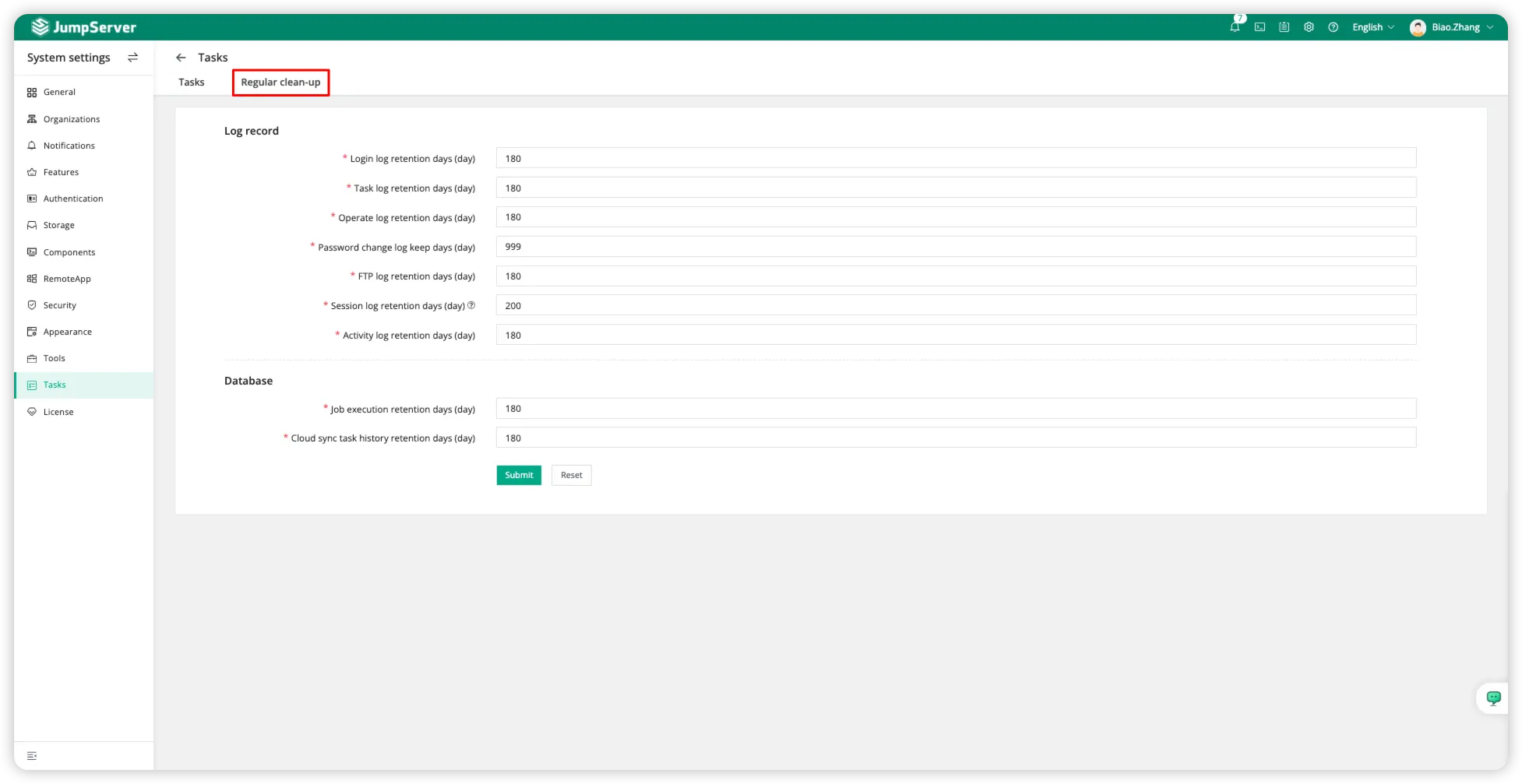
Recording Retention Logic
All successfully uploaded recordings are saved here: /data/jumpserver/core/data/media/replay/
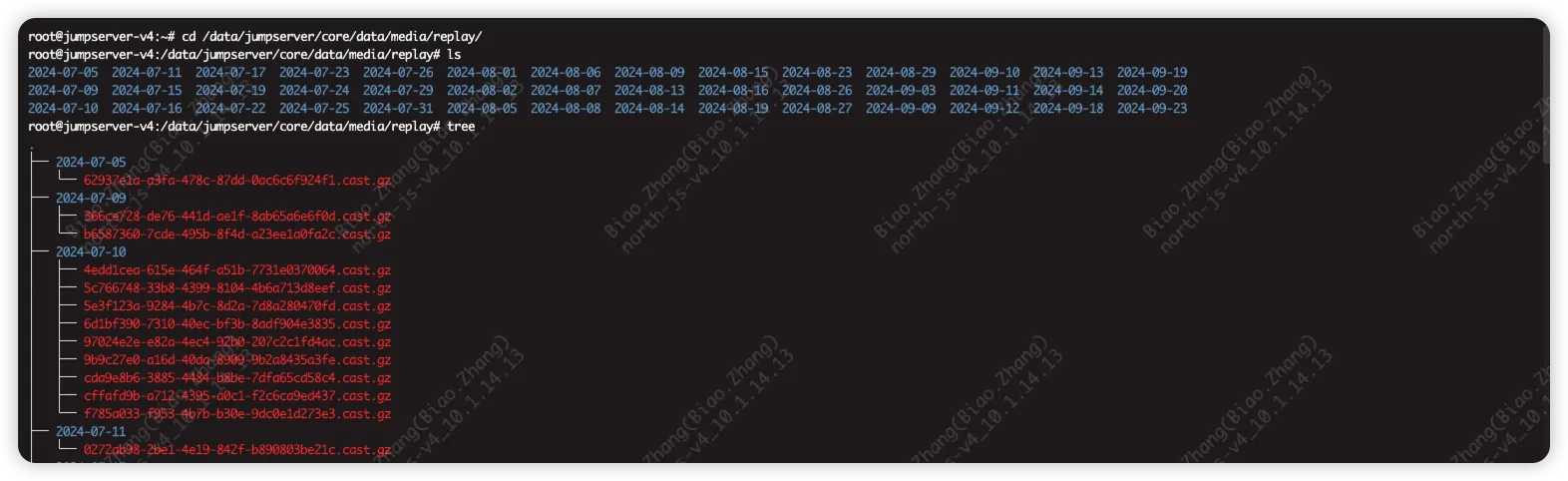
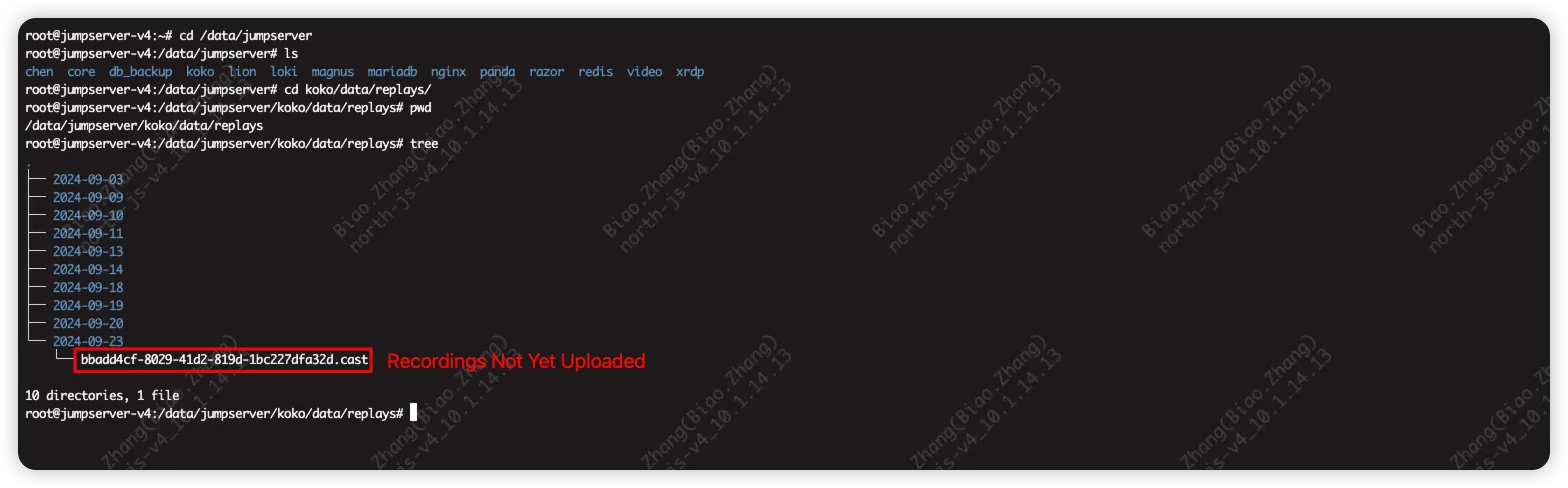
Linux Session Recording
For Linux-type recordings, they are initially generated in the koko directory at /data/jumpserver/koko/data/replays. After compression, they are uploaded to the core storage path at /data/jumpserver/core/data/replays, and then the temporary directory for koko recordings is deleted locally.
Windows Session Recording
For Windows-type recordings, they are initially generated in the lion directory at /data/jumpserver/lion/data/replays. After compression, they are uploaded to the core storage path at /data/jumpserver/core/data/replays, and then the temporary directory for lion recordings is deleted locally.
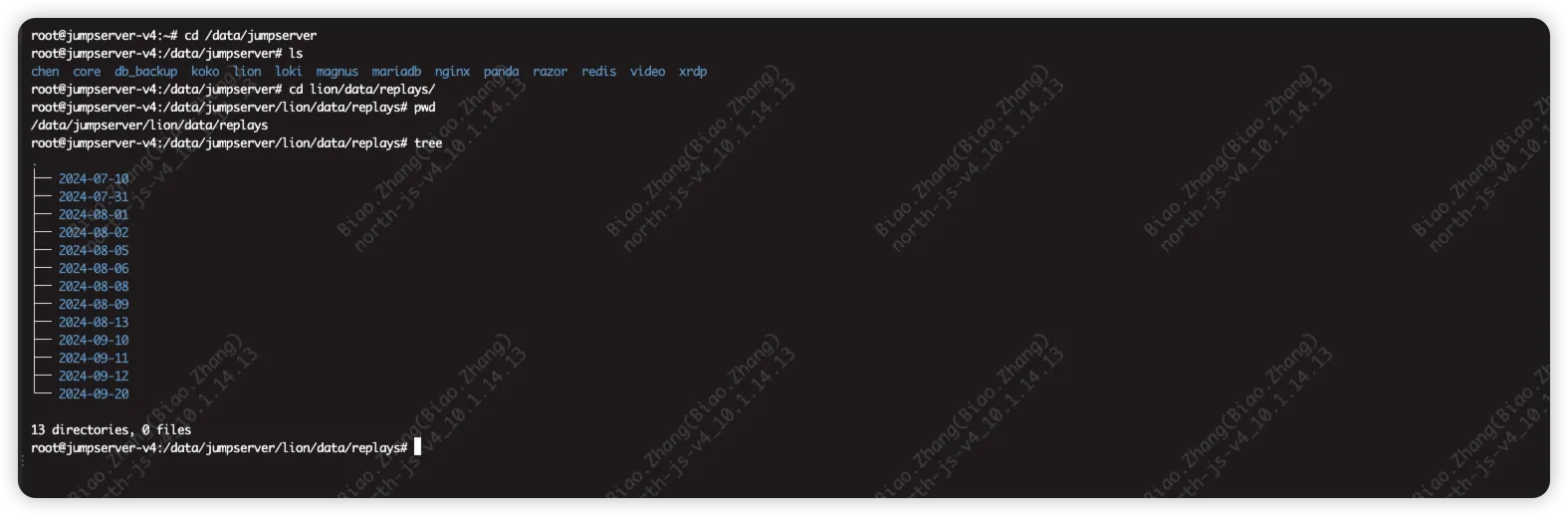
Note: The recording retention logic is similar for other components, such as razor, xrdp, chen, and other connection components.
External Recording Storage
JumpServer supports storing recordings in object storage services. Currently supported external recording storage options include: S3, Ceph, Swift, OSS, Azure, OBS, COS, and SFTP.
Note: Recordings from external storage
- When playing recordings from the browser, the recording file will first be downloaded to the local directory of the server (not the user's local machine).
- The recording will not be deleted after playback is completed (there will be a copy of the recording file both locally and on OSS).
- The browser caches the parsing address of the recording stored on the server.
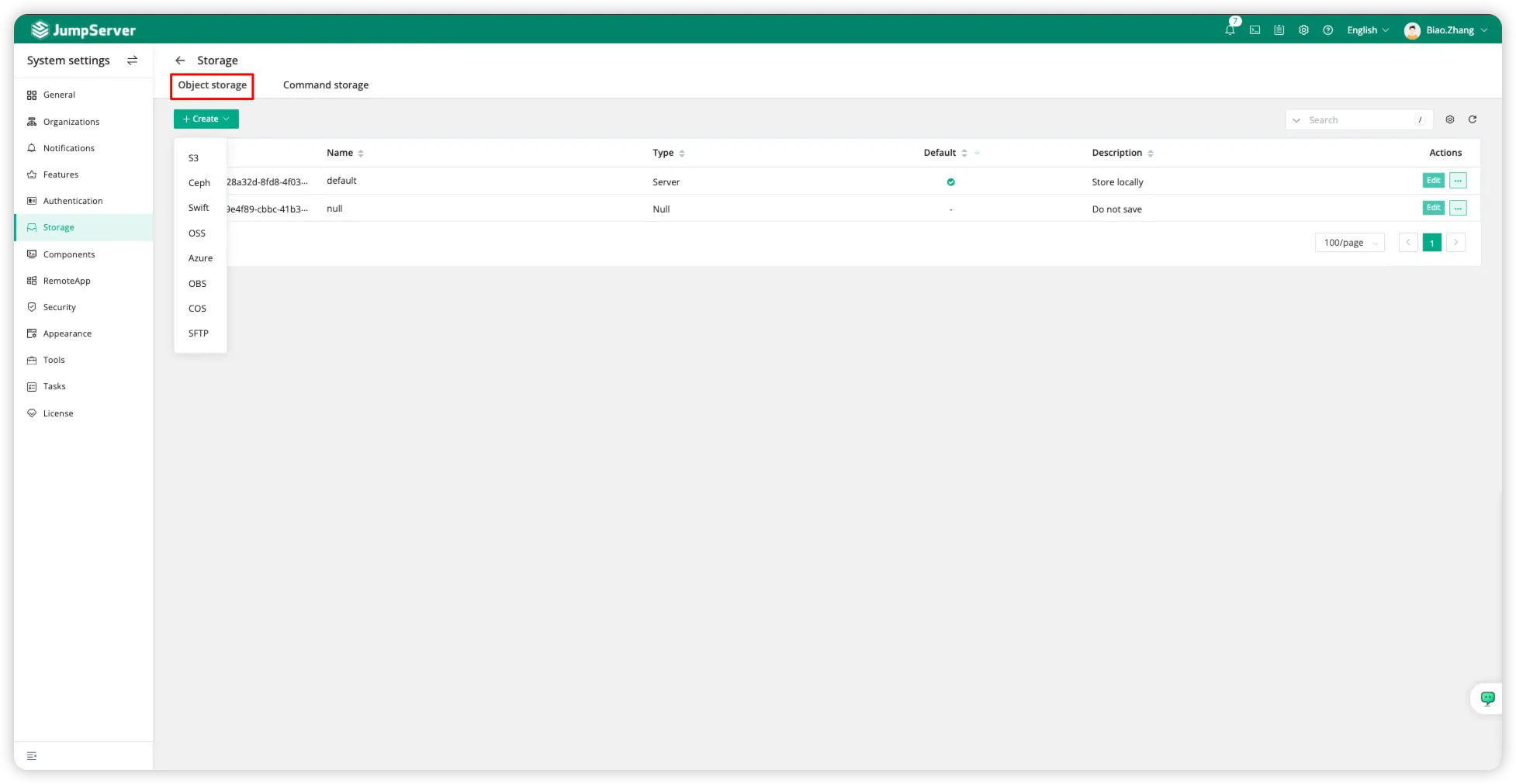
Configure Object Storage Services
Open the System settings page in JumpServer, click
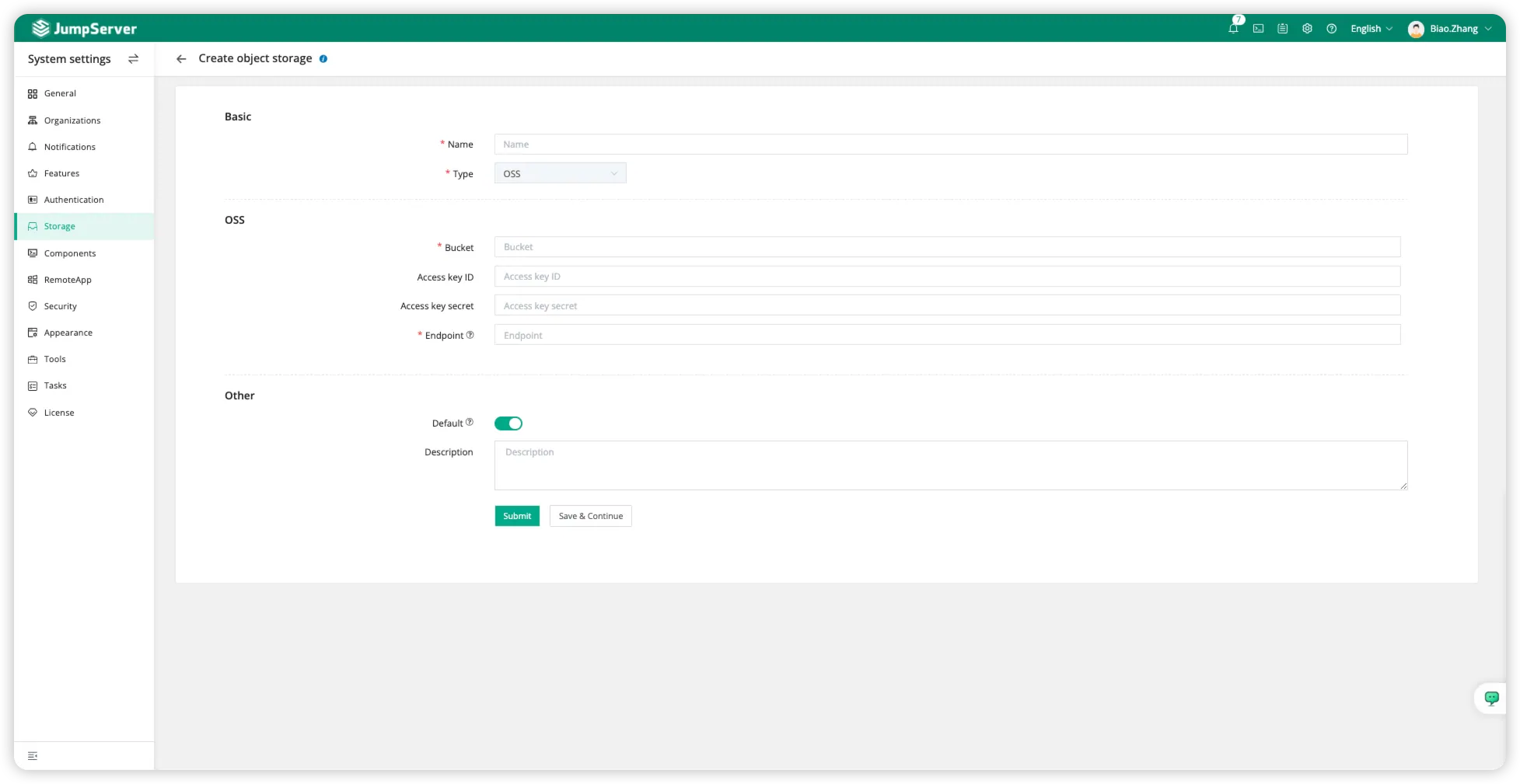
For example, with OSS, fill in the corresponding Bucket, Access Key ID, Access Key Secret, and other information, then save.
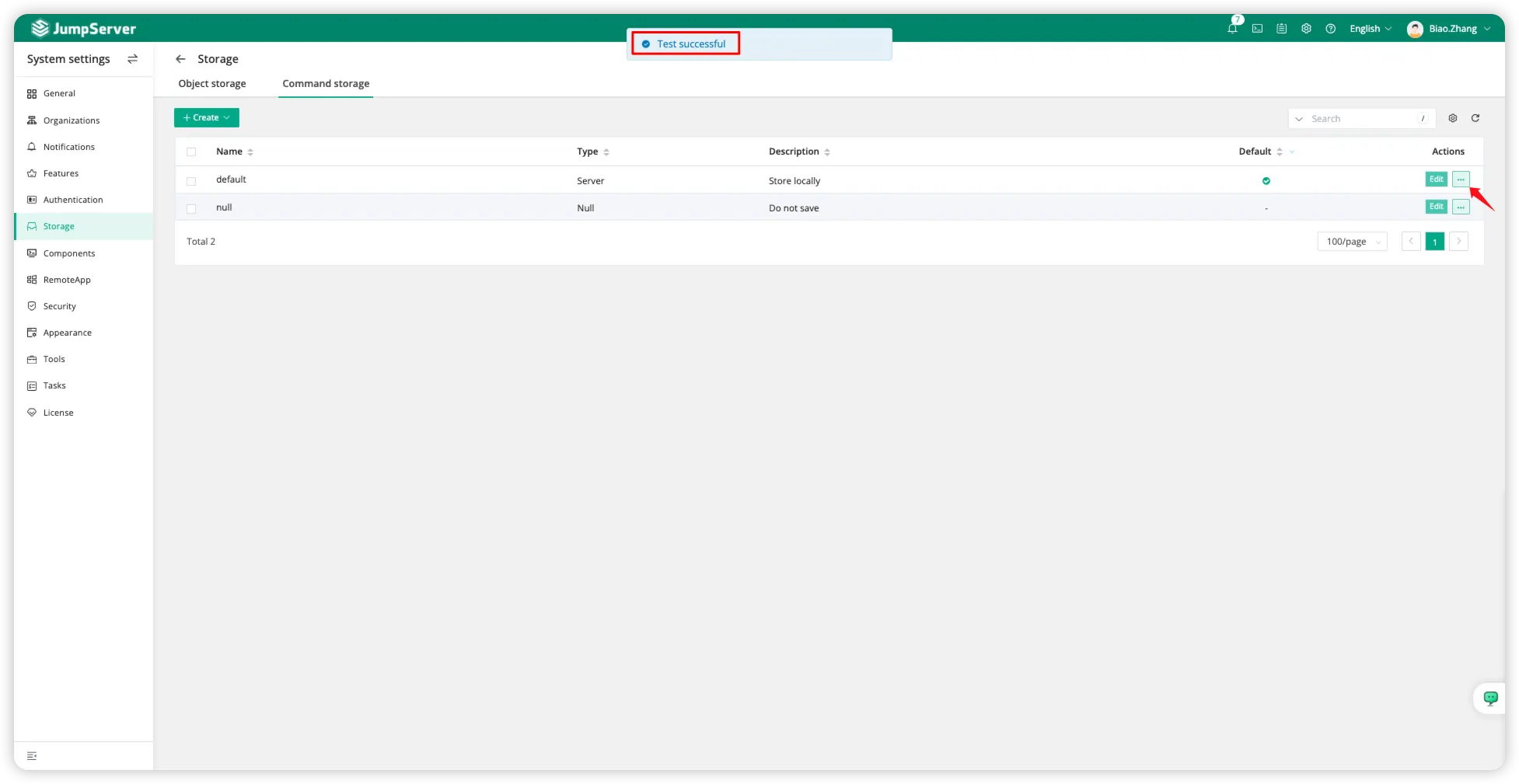
First, click
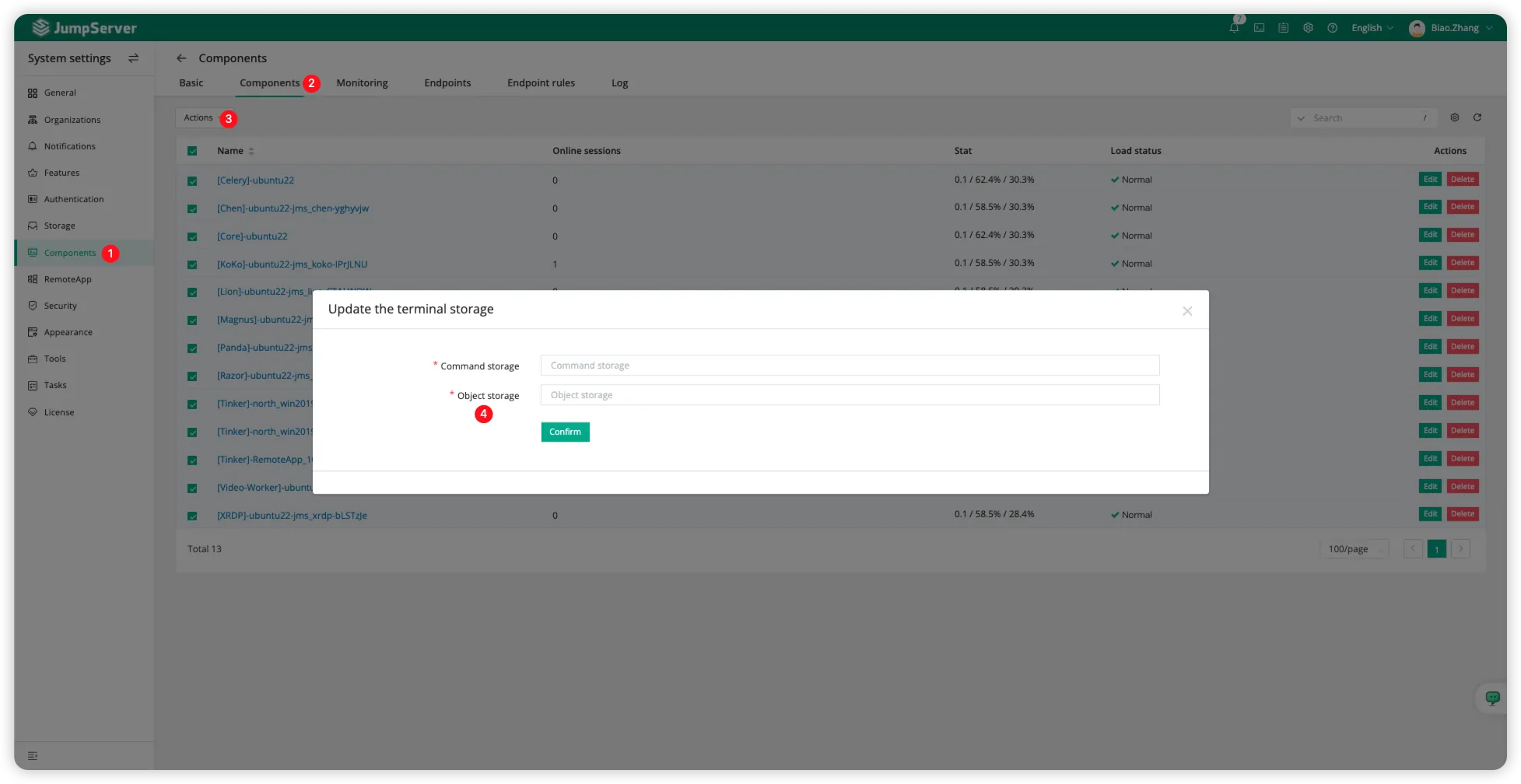
Select all components, click
Play recording files
Audited recording files can be played online through the browser page or downloaded to use with the JumpServer dedicated player for local playback.
Online playback
Note:
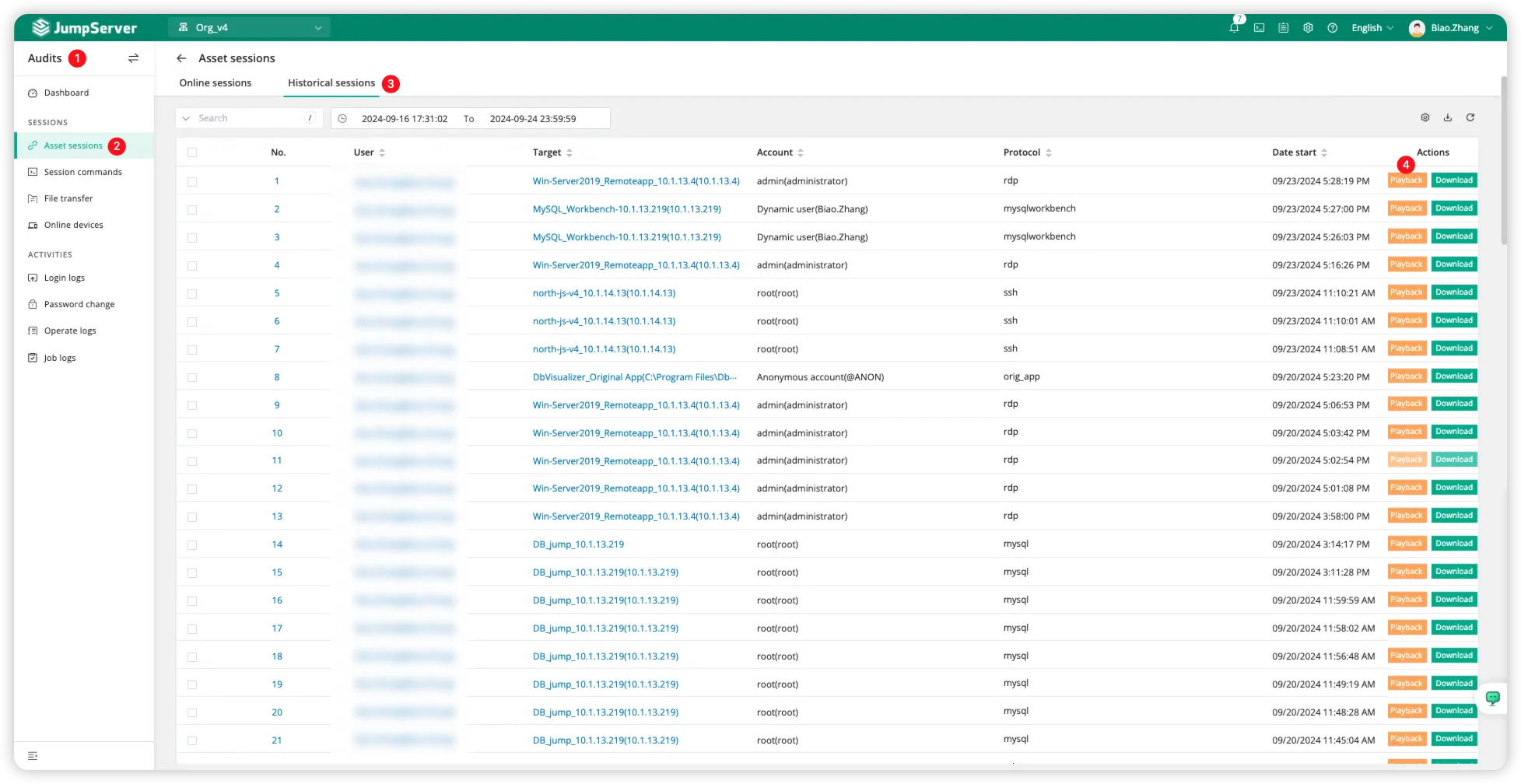
- The Duration in Historical sessions refers to the connection time, not the session duration.
- If the Playback and Download buttons are grayed out, it is because the session has not ended or the connection was not successful; JumpServer does not consider it a successful connection.
To play online, switch to the
Online playback style:
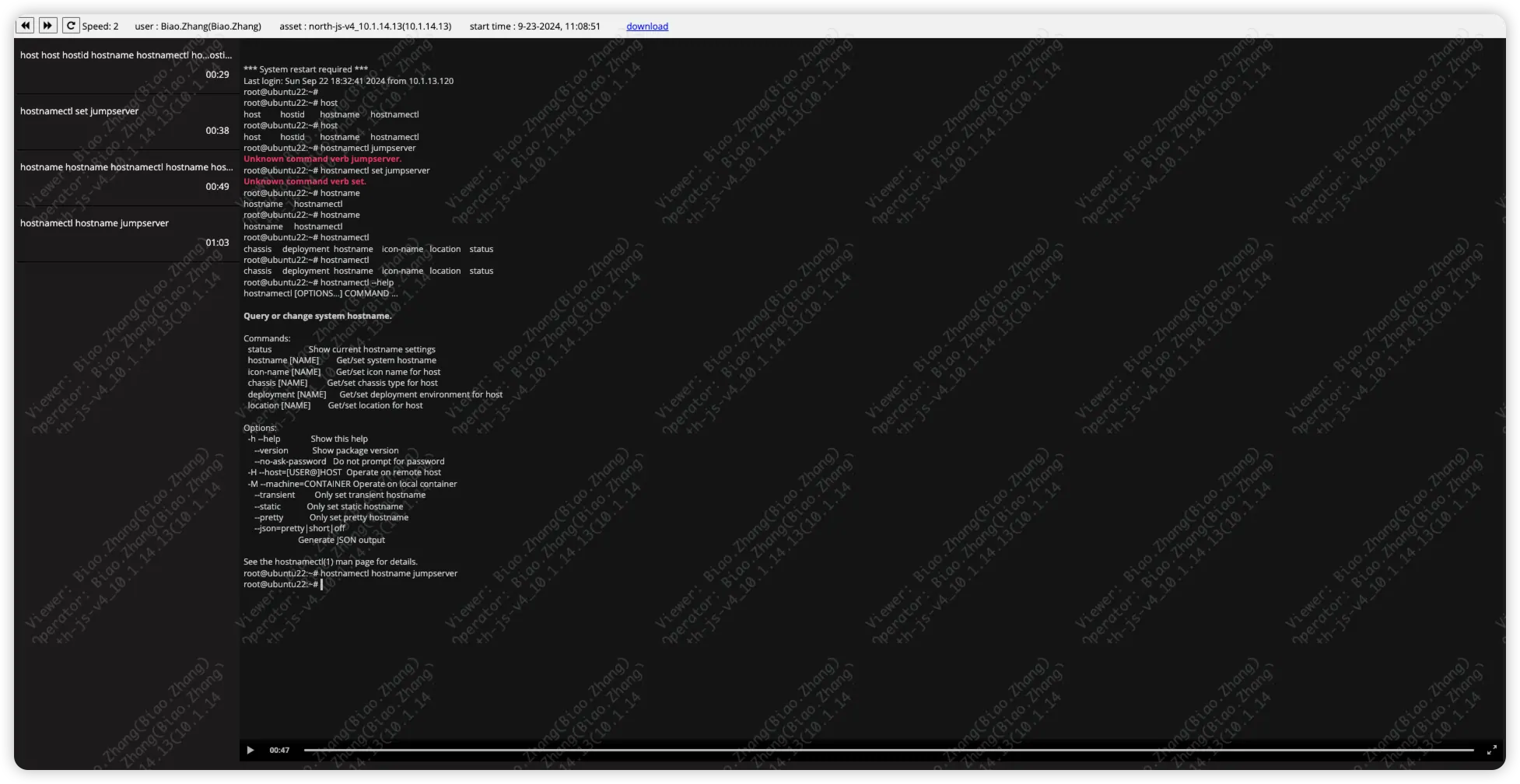
Offline playback
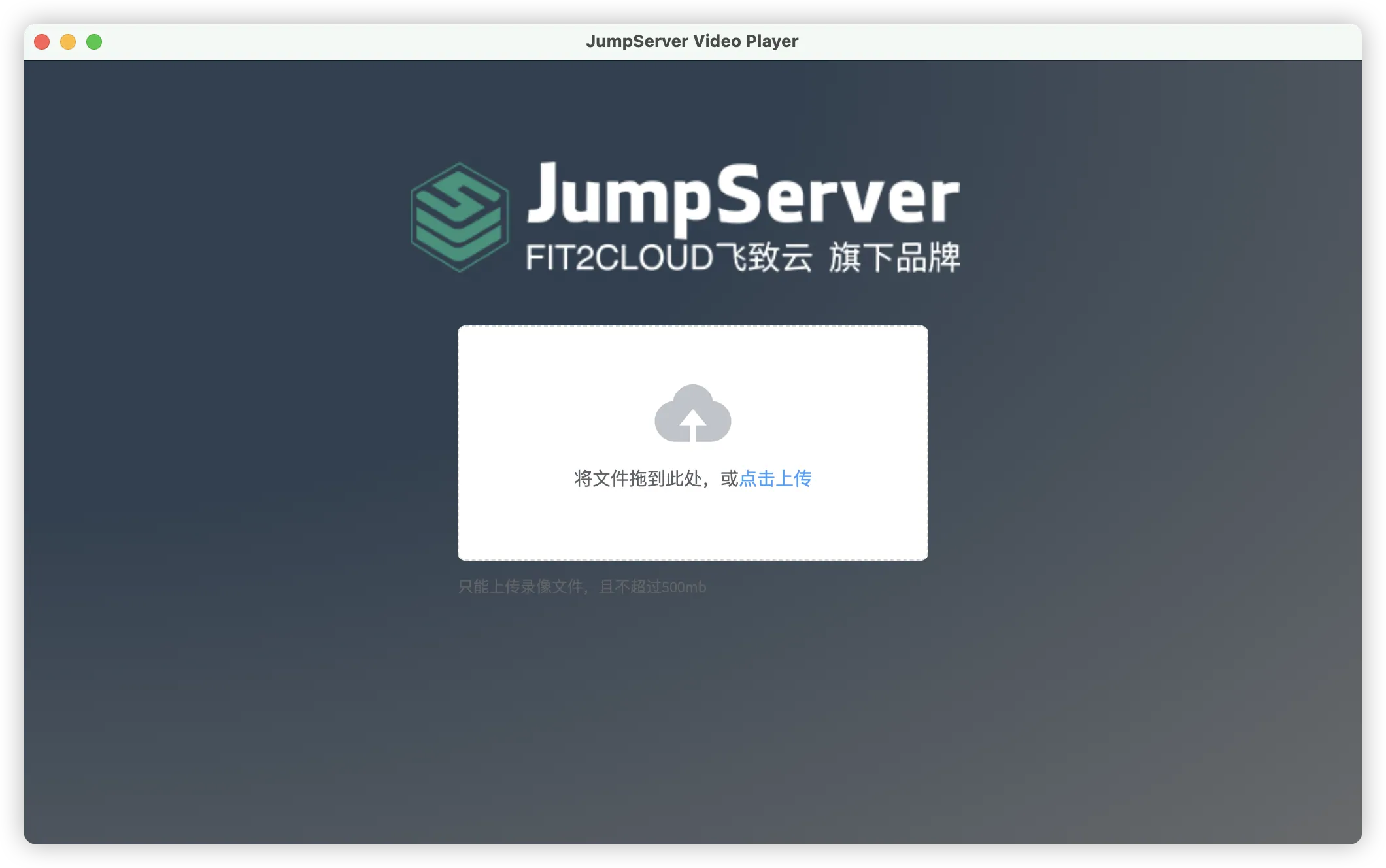
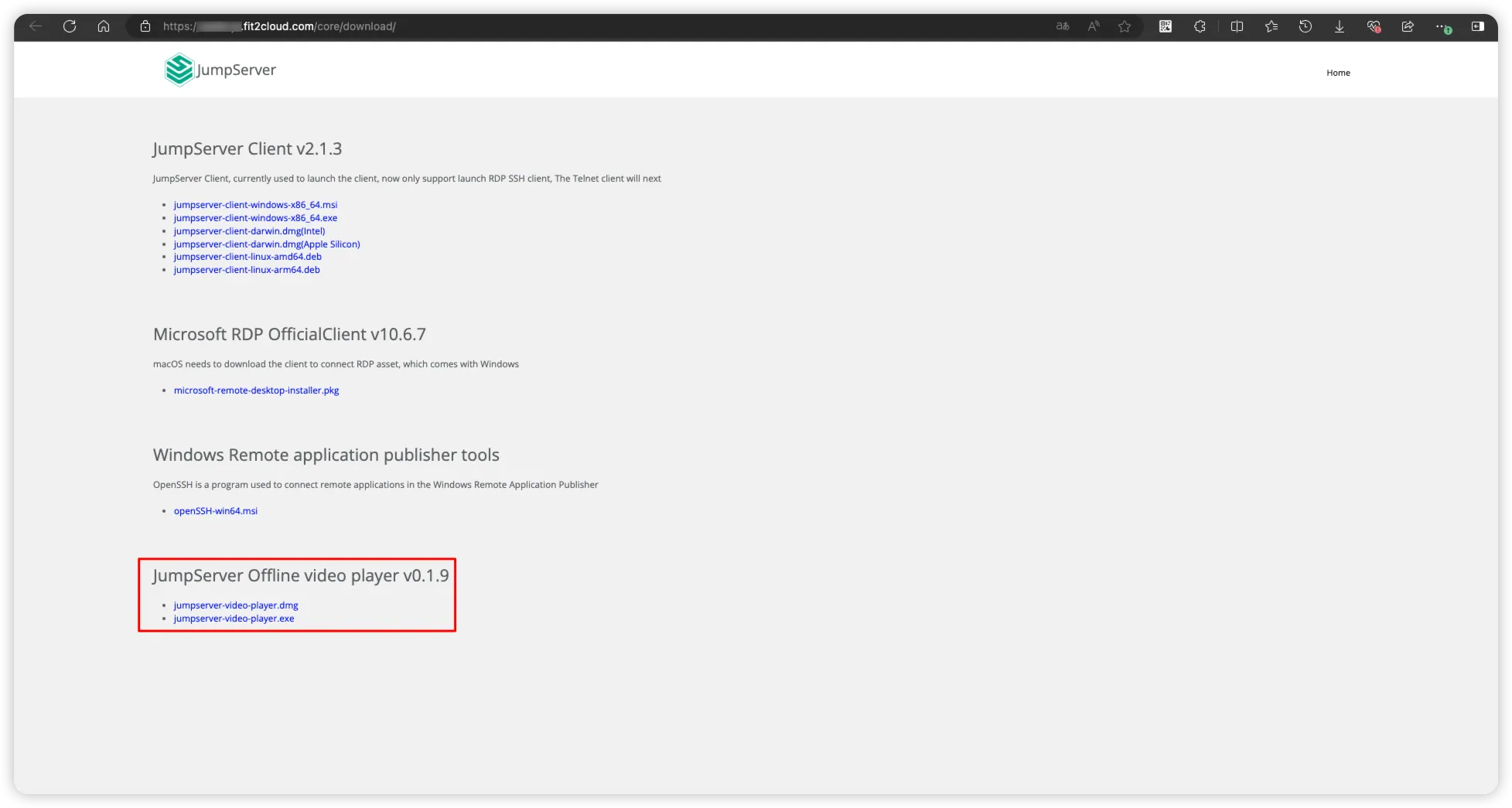
We support offline playback of recordings, but it requires the installation of an application called JumpServer Video Player.
The download address for JumpServer Video Player is https:>
You can also access your own JumpServer address for downloading. Replace "[jumpserver.com](http://jumpserver.com/)" in the URL with your own environment information to access it. We also provide the JumpServer Video Player download at https:>.
After the installation is complete, we can proceed to download the recording files.
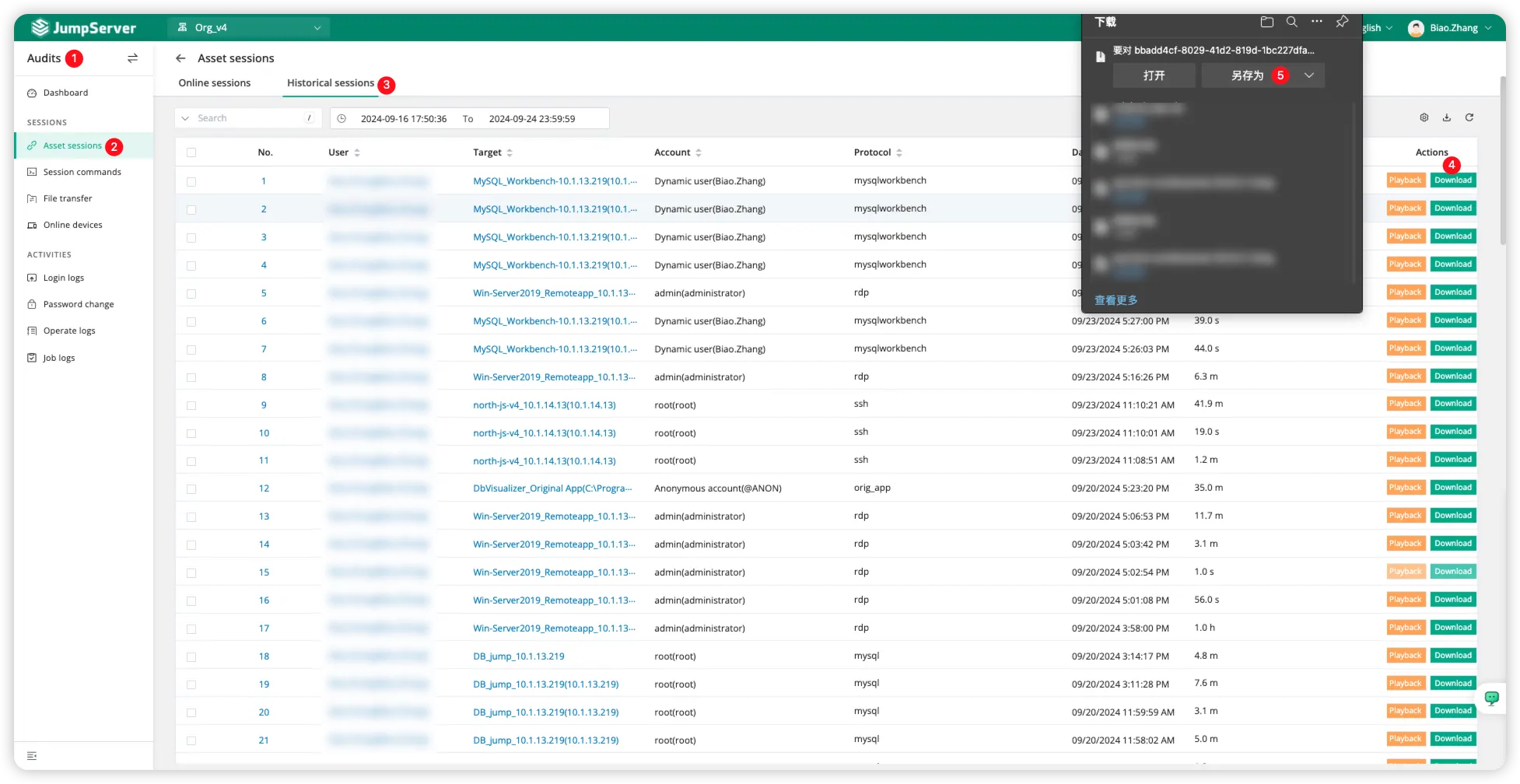
Open the JumpServer Video Player application, upload the recording file, and play the video.