
Scenario Description
When we connect to assets through JumpServer, there is often a need to upload files. Here, we will explain how to customize the SFTP file transfer directory.
Configuration Description
The default file transfer directory for the SFTP protocol is set to /tmp. We can customize this directory by creating a new platform.
Create a New Platform
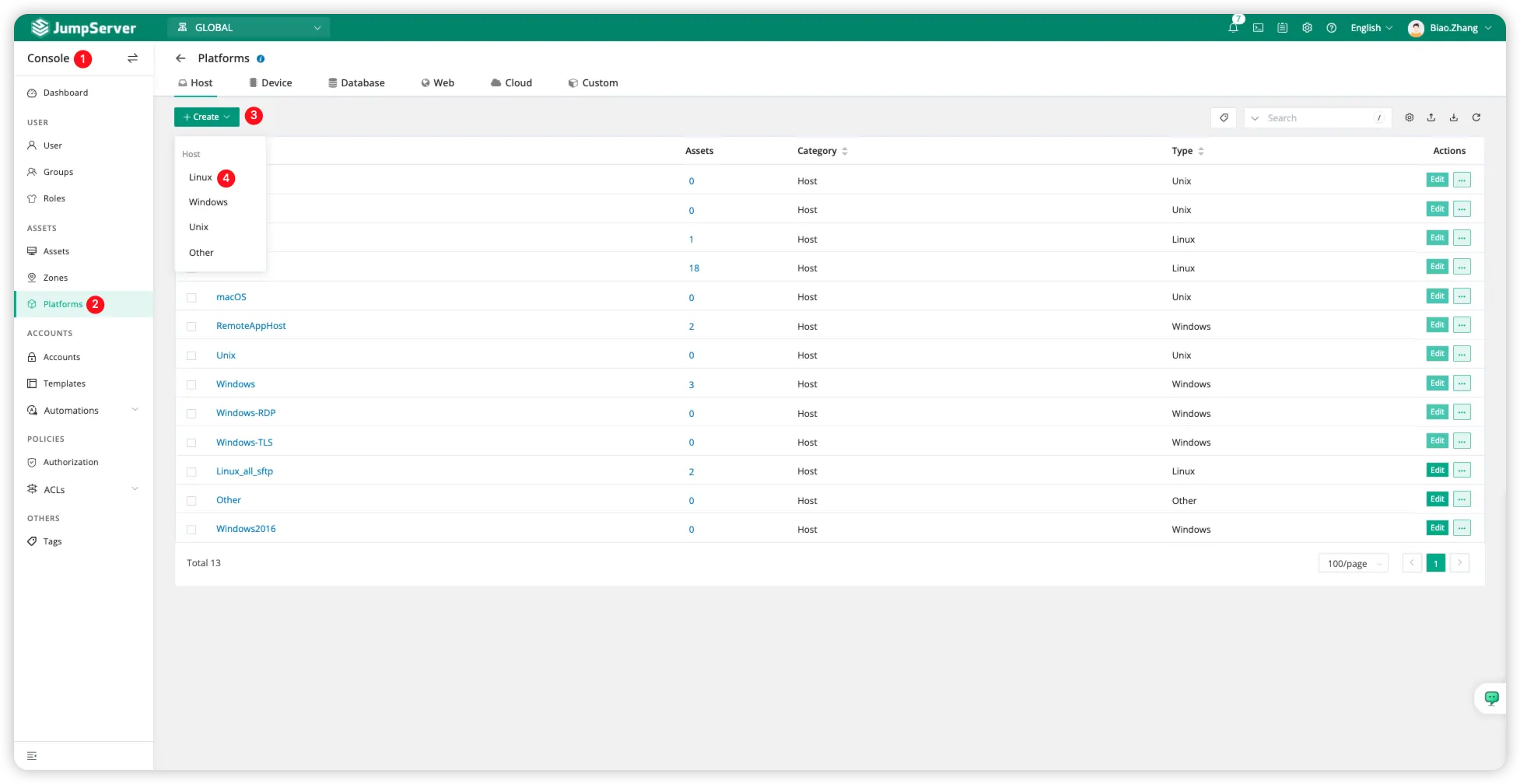
We switch to the JumpServer Console page, click on
Modify SFTP Directory
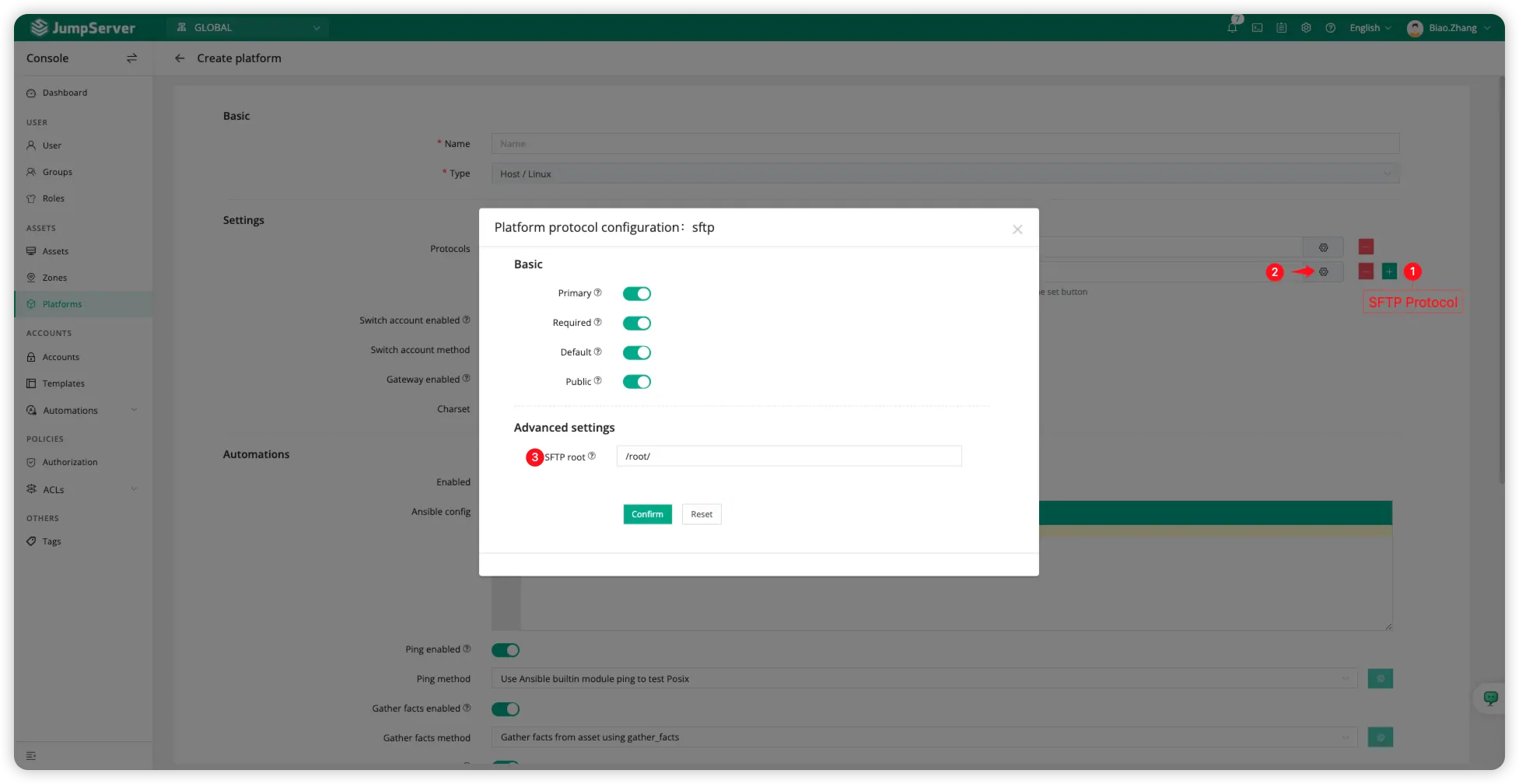
On the new platform page for Linux, we add the SFTP protocol in the protocol group. Then, click the
Apply the Platform to Assets
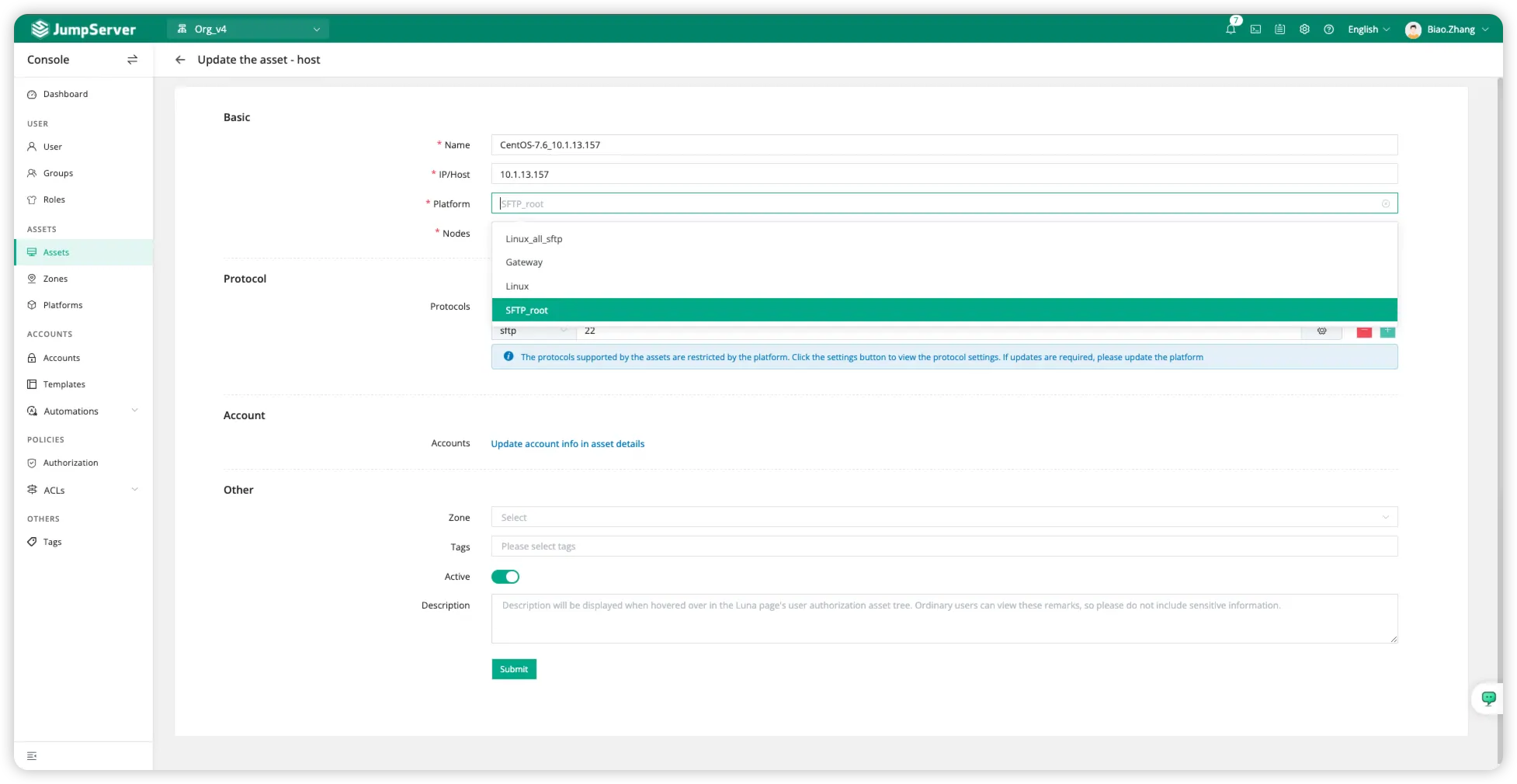
Switch to the asset update page, change the Platform to the new platform we just created, and then click Submit.
Function Verification
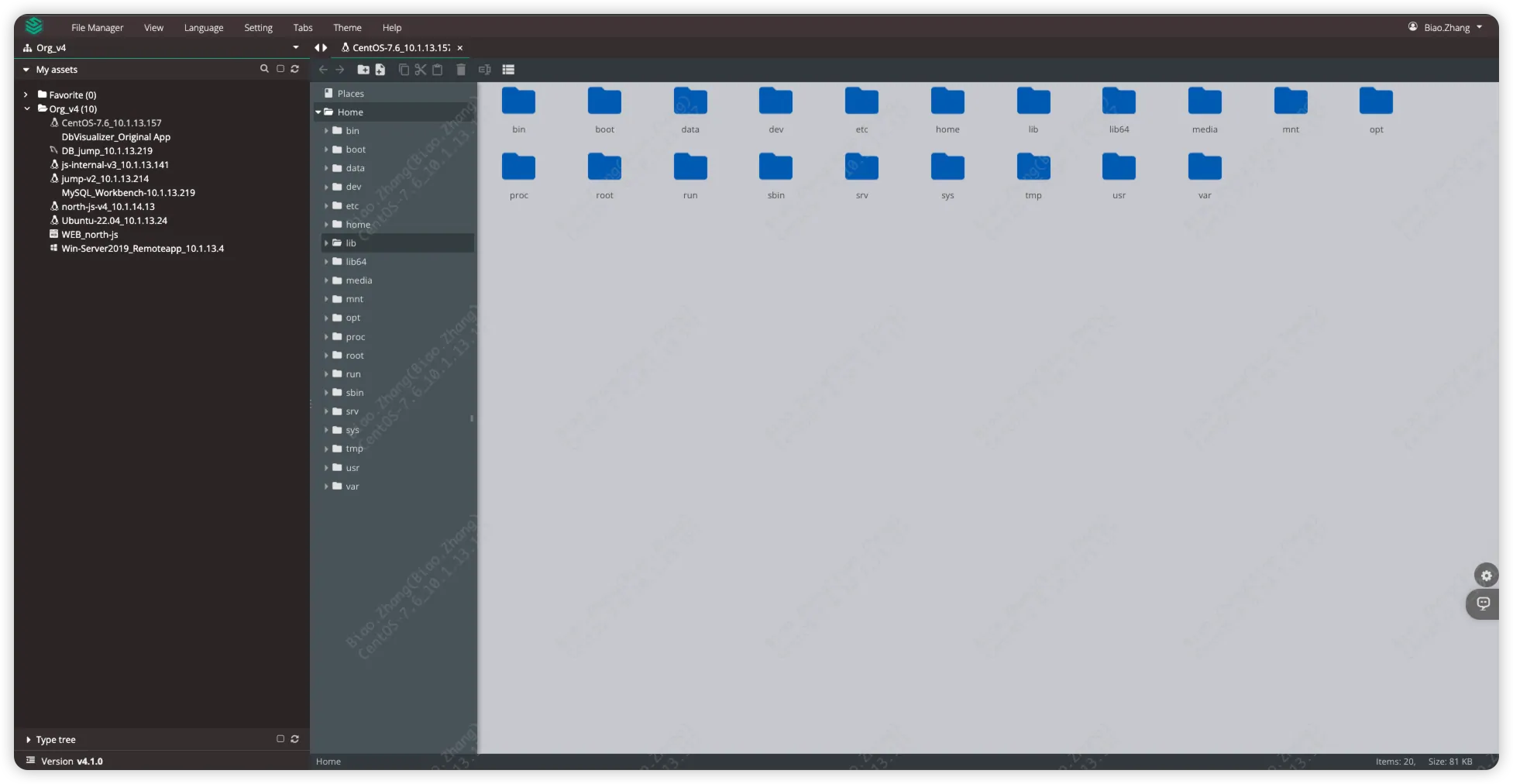
Switch to the Web Terminal page, select the asset, and choose the SFTP protocol to connect.
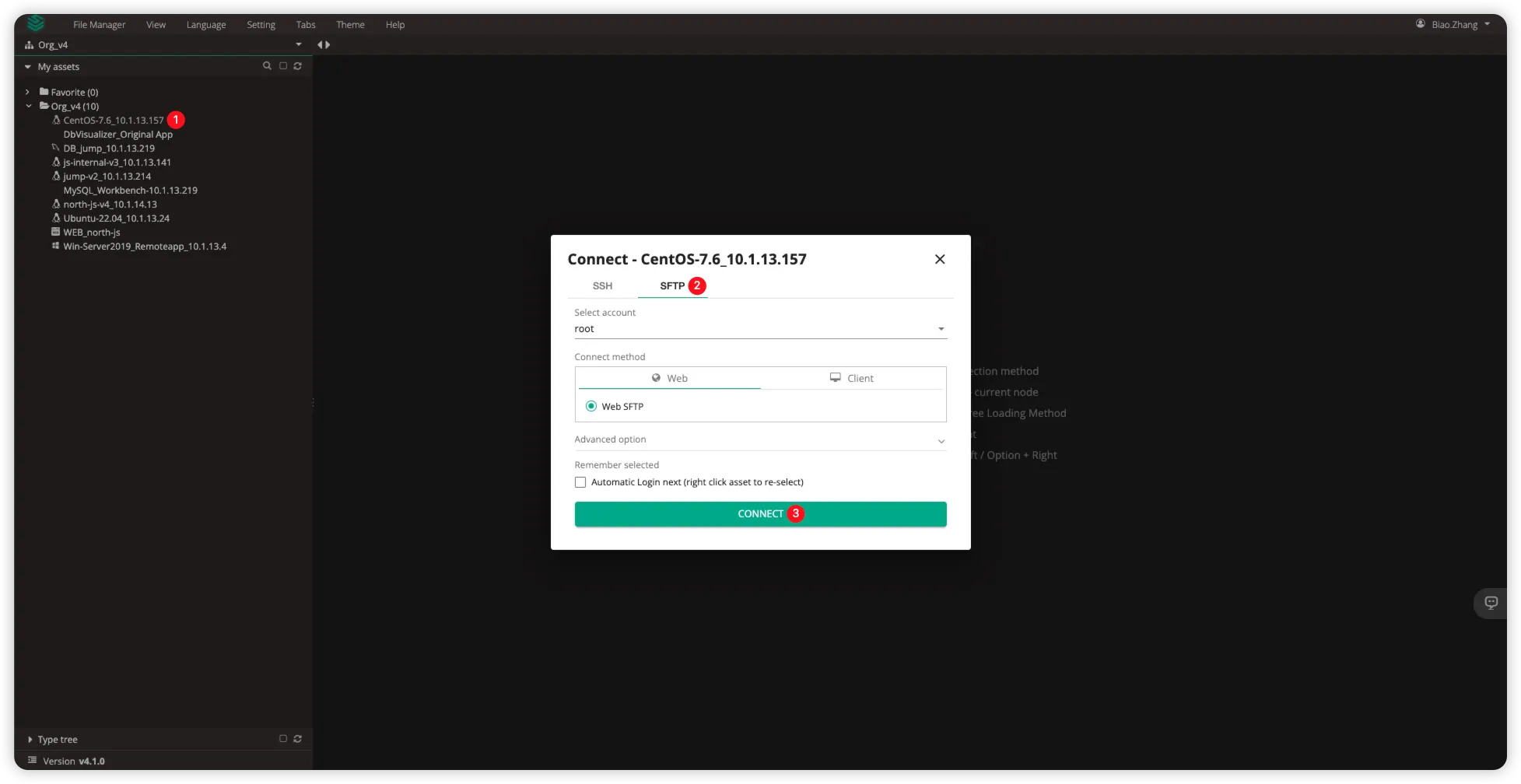
After connecting, you can see the asset's /root/ directory. Use the right-click option on the page to transfer files.