TLDR
SSH keys are the backbone of privileged remote access in modern enterprises, but unmanaged keys create severe security gaps that attackers actively exploit. Effective SSH key management requires centralizing inventory, automating key rotation, enforcing least-privilege policies, and maintaining audit trails for every key pair. JumpServer delivers all of these capabilities as an open-source PAM platform, letting security teams govern SSH access at scale without the cost burden of legacy vendors.
Table of Contents
- What Is SSH Key Management?
- How SSH Keys Work: A Quick Primer
- Why SSH Key Management Matters in 2026
- The 6 Most Dangerous SSH Key Management Risks
- 10 SSH Key Management Best Practices for Enterprise Teams
- SSH Key Management and Compliance Requirements
- SSH Key Management Tools: A Comparison
- How to Manage SSH Keys with JumpServer: Step-by-Step
- Moving Beyond Individual Keys: Certificate-Based Access
- Conclusion and Next Steps
1. What Is SSH Key Management?
SSH key management is the set of processes, policies, and tools that govern the lifecycle of Secure Shell (SSH) cryptographic key pairs within an organization. It covers every stage from key generation and provisioning, through active use, rotation, and auditing, to eventual revocation and deletion.
Unlike passwords, SSH keys do not expire by default. Once a key pair is generated and the public key is placed on a target server, access persists indefinitely unless someone actively removes it. In a small team with a handful of servers, this is manageable. In an enterprise with hundreds of engineers and thousands of servers, it becomes an ungoverned credential sprawl problem.
SSH key management answers a fundamental question: who has access to which systems, using which credentials, and how do we know when access is no longer needed?
2. How SSH Keys Work: A Quick Primer
SSH authentication relies on asymmetric cryptography. Each user or service generates a key pair consisting of a private key and a public key.
- The private key stays on the client machine and must never be shared.
- The public key is placed on the target server, inside the
~/.ssh/authorized_keysfile.
When an SSH client attempts to connect to a server, the server issues a cryptographic challenge encrypted with the public key. The client must decrypt it using the private key, proving it holds the matching credential. The server grants access only if the decryption succeeds.
This handshake provides stronger authentication than passwords because:
- Private keys are mathematically infeasible to brute-force.
- Credentials are never transmitted over the network.
- Key pairs can be scoped to specific commands or source IP addresses.
Common key algorithms in enterprise environments include:
- RSA 4096-bit (legacy but widely supported)
- Ed25519 (recommended for new deployments due to smaller key size and stronger security)
- ECDSA (elliptic curve, good balance of speed and security)
The challenge is not how SSH keys work in theory. The challenge is managing thousands of these key pairs across a distributed infrastructure, without losing track of who has access to what.
3. Why SSH Key Management Matters in 2026
The scale problem has grown dramatically. Modern organizations run hybrid cloud environments spanning on-premise servers, AWS EC2 instances, GCP virtual machines, Kubernetes nodes, and container orchestration platforms. Each of these environments may have its own set of SSH-accessible hosts, each with its own authorized_keys file containing dozens of public keys accumulated over months or years.
Research published by Venafi found that up to 90% of authorized SSH keys in large organizations are no longer in use, and 10% of those inactive keys still grant privileged root-level access. A separate industry study found that 61% of organizations have minimal to no control over SSH privileged access, and only 35% automate SSH key rotation when administrators leave or change roles.
The consequences of poor SSH key management are concrete:
- A departed employee retains server access indefinitely if their key was never revoked.
- A compromised developer laptop exposes all servers where that developer's public key was authorized.
- An automated service account key, created years ago and forgotten, becomes a persistent backdoor.
- Auditors find no trail of who provisioned which keys, triggering compliance failures.
SSH key management has moved from a best practice recommendation to a compliance requirement under frameworks including SOC 2, ISO 27001, PCI DSS, and NIST SP 800-53.
4. The 6 Most Dangerous SSH Key Management Risks
4.1 Key Sprawl
Organizations accumulate SSH keys over time with no systematic inventory. Keys get added to servers by multiple administrators without central tracking. Within two or three years, most enterprises have no reliable picture of how many active key pairs exist or where they are authorized.
4.2 No Expiration or Rotation Policy
By default, SSH keys have no expiration date. Without an enforced rotation policy, keys provisioned years ago persist indefinitely. Former employees, decommissioned services, and long-forgotten test accounts retain active access until someone manually cleans them up.
4.3 Shared Keys and Shared Accounts
When multiple administrators share a common system account (such as a shared deploy or ansible user), they often reuse the same private key. If one person's machine is compromised or that person leaves the organization, invalidating the shared key disrupts all other users who depended on it. Shared keys also eliminate individual accountability in audit logs.
4.4 Unmonitored Machine-to-Machine Keys
DevOps pipelines, backup jobs, and automated scripts rely heavily on SSH keys for machine-to-machine authentication. These service account keys often operate outside normal IT oversight. They may be embedded in configuration files, CI/CD pipeline scripts, or container images, creating hidden privilege escalation paths.
4.5 No Audit Trail
Without centralized logging, there is no record of which user authenticated to which server using which key, when, and what they did during the session. This makes forensic investigation after an incident extremely difficult and leaves organizations unable to demonstrate compliance during audits.
4.6 Lateral Movement Risk
An attacker who compromises one private key gains access to every server where that public key is authorized. In enterprise environments with shared keys or overly broad key authorizations, a single compromised endpoint can provide lateral movement across dozens or hundreds of systems.
5. 10 SSH Key Management Best Practices for Enterprise Teams
Practice 1: Maintain a Complete SSH Key Inventory
Start with visibility. Enumerate every public key in every authorized_keys file across all servers. Document the key fingerprint, the owner, the purpose, the date added, and the systems it grants access to. Without a current inventory, every other best practice collapses.
Tools like ssh-keyscan can help automate discovery. Enterprise PAM platforms, including JumpServer, maintain this inventory automatically as keys are provisioned and revoked through the platform.
Practice 2: Enforce One Key Per User Per Purpose
Each user should have a unique key pair for each distinct access purpose. A developer should not reuse their personal GitHub key to access production servers. A CI/CD pipeline should not share keys with the administrator who deployed it. One key per identity and purpose creates clear accountability and limits blast radius if a key is compromised.
Practice 3: Rotate Keys Regularly and on Access Changes
Establish a rotation schedule for all SSH keys, typically every 90 to 180 days for user keys, and every 30 to 90 days for high-privilege and service account keys. Immediately rotate any key when the associated user leaves the organization, changes roles, or reports a potentially compromised device.
Automation is essential here. Manual rotation is error-prone, and a missed revocation is indistinguishable from a persistent backdoor.
Practice 4: Use Ed25519 Keys and Disable Legacy Algorithms
Ed25519 keys provide stronger security than RSA 2048-bit keys while being smaller and faster to generate. Disable weak algorithms at the SSH daemon level by configuring /etc/ssh/sshd_config to reject legacy key types. A modern baseline configuration looks like this:
HostKeyAlgorithms ssh-ed25519,rsa-sha2-512,rsa-sha2-256
PubkeyAcceptedAlgorithms ssh-ed25519,rsa-sha2-512,rsa-sha2-256
PasswordAuthentication no
PermitRootLogin no
Rejecting password authentication entirely and enforcing key-only access eliminates an entire class of brute-force risk.
Practice 5: Implement Least-Privilege Key Authorization
Each SSH key should authorize the minimum access required for its purpose. Use SSH command restriction in authorized_keys to limit what a key can do:
command="/usr/local/bin/backup.sh",no-pty,no-agent-forwarding ssh-ed25519 AAAA... deploy@ci-server
This entry allows the specified key to run only the backup script, with no interactive terminal and no agent forwarding. Restricting key capabilities reduces the impact of compromise.
Practice 6: Centralize Key Provisioning and Revocation
Replace manual authorized_keys file edits with a centralized provisioning system. Administrators should request access through an approved process, and the system should automatically propagate public keys to the relevant servers and remove them when access expires or is revoked. This eliminates the lag between an offboarding event and actual access removal.
Practice 7: Session Recording and Audit Logging
Every privileged SSH session should generate an immutable audit log recording the user, source IP, target server, timestamp, and session duration. High-risk environments should capture full session recordings, allowing security teams to review exactly what commands were executed.
Audit logs serve both security monitoring and compliance evidence. Without them, demonstrating SOC 2 or PCI DSS compliance for privileged access becomes nearly impossible.
Practice 8: Implement Just-in-Time (JIT) SSH Access
Rather than pre-authorizing permanent SSH key access, implement JIT access workflows where users request access for a specific time window, the key is provisioned temporarily, and it is automatically revoked when the window expires. This approach eliminates standing access entirely, dramatically reducing the attack surface.
Practice 9: Protect Private Keys with Passphrases and Hardware Tokens
Require passphrases on all user private keys. For high-privilege accounts, require hardware security keys (such as YubiKey) for SSH authentication. Hardware-bound private keys cannot be copied off the device, eliminating the risk of key theft through malware or file system access.
Practice 10: Regular Access Reviews
Schedule quarterly reviews of all authorized SSH keys. Identify keys belonging to departed employees, decommissioned systems, or expired service accounts. Use automated tools to flag keys that have not been used within a defined period (typically 60 to 90 days) for investigation and potential revocation.
6. SSH Key Management and Compliance Requirements
SSH key governance is explicitly or implicitly required under several major compliance frameworks. The table below summarizes requirements by standard.
| Compliance Framework | SSH Key Management Requirements |
|---|---|
| SOC 2 (CC6.1, CC6.2) | Logical access controls, key inventory, access provisioning/deprovisioning |
| ISO 27001 (A.9.4) | System and application access control, privileged access management |
| PCI DSS v4.0 (8.2, 8.3) | Unique IDs for all users, MFA for remote access, no shared credentials |
| NIST SP 800-53 (AC-3, IA-3) | Access enforcement, device identification and authentication |
| HIPAA (164.312(a)(1)) | Access control, audit controls, person/entity authentication |
| FFIEC (IT Booklet) | Privileged access management, session monitoring, key lifecycle governance |
| CIS Controls v8 (Control 5) | Account management, removal of dormant accounts and credentials |
Auditors increasingly ask for evidence of centralized SSH key inventory, rotation logs, and session recordings for privileged access. Organizations relying on manual authorized_keys management will struggle to provide this evidence at audit time.
7. SSH Key Management Tools: A Comparison
| Tool | Type | Key Inventory | Session Recording | JIT Access | Price Model |
|---|---|---|---|---|---|
| JumpServer | Open-source PAM | Yes | Yes (full replay) | Yes | Free (CE) / Enterprise tiers |
| CyberArk | Commercial PAM | Yes | Yes | Yes | High ($200k+/yr) |
| BeyondTrust | Commercial PAM | Yes | Yes | Limited | High |
| StrongDM | Commercial proxy | Yes | Yes | Yes | Per-user SaaS |
| Teleport | Open-source access | Yes | Limited | Certificate-based | Free (OSS) / Commercial |
| HashiCorp Vault | Secrets management | SSH secrets engine | No | Certificate-based | Free (OSS) / Commercial |
| Manual management | Ad-hoc | None | None | None | Free (but costly in risk) |
JumpServer stands out for enterprise teams seeking comprehensive PAM capabilities without the licensing cost of traditional vendors. With over 500,000 deployments and 30,000+ GitHub stars, it delivers session recording, key lifecycle management, JIT access, RBAC, and compliance audit logs in a single open-source platform.
8. How to Manage SSH Keys with JumpServer: Step-by-Step
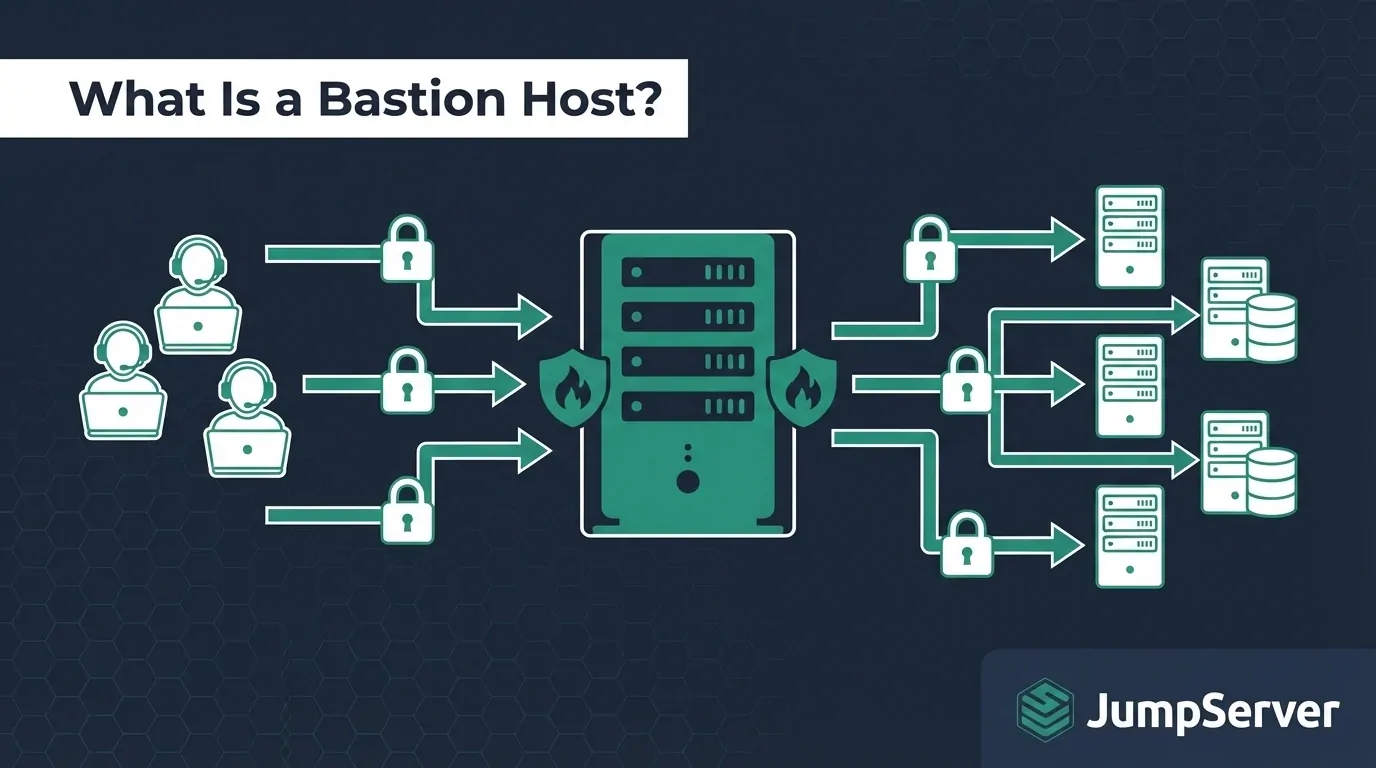
JumpServer acts as a centralized bastion host that proxies all SSH connections through the platform. Users authenticate to JumpServer once using their corporate identity, and JumpServer manages the SSH credentials to backend systems. This approach eliminates direct key distribution to individual users entirely.
Here is how to set up SSH key governance with JumpServer:
Deploy JumpServer on a dedicated server or cloud instance using the official Quick Start installer. JumpServer supports Linux (CentOS, Ubuntu, Debian) and can be deployed via Docker Compose for test environments.
Add your backend hosts in the JumpServer admin console under Assets. Define hostname, IP address, and operating system. JumpServer stores the system-level SSH credentials (root or service account keys) in its encrypted credential vault, not on individual user machines.
Configure credential management. Under Credentials in the admin panel, add the SSH private key for each target system. JumpServer encrypts these credentials at rest using AES-256. Users never see or handle these private keys directly.
Create user accounts and groups. Under Users, create individual accounts for each administrator or developer who needs SSH access. Assign users to permission groups that define which assets they can access and at what privilege level.
Define permission rules. Under Permissions, create rules that map user groups to asset groups with specific access windows. You can set time-based restrictions, source IP restrictions, and command filtering rules.
Enable session recording. In System Settings, enable session audit and recording. All SSH sessions proxied through JumpServer are captured as fully replayable recordings stored in encrypted storage.
Enable JIT access workflows (Enterprise). In the Enterprise edition, configure Access Request workflows that require manager approval before a session is established. The session window automatically expires after the approved duration.
Connect via JumpServer Web Terminal or SSH. Users log into JumpServer via the web UI or via
ssh user@jumpserver-host. They see only the assets they are authorized to access. JumpServer establishes the backend SSH connection using the stored credentials, with full session recording active.Review audit logs. Under Session Audit, security teams can review all sessions: who connected, to which server, at what time, for how long, and replay the full command history. Export logs in CSV or JSON format for compliance reporting.
Automate key rotation (Enterprise). Configure JumpServer to automatically rotate backend SSH credentials on a defined schedule. When a system credential is rotated, JumpServer updates the stored key and re-validates connectivity without requiring any administrator action.
This workflow means individual users never hold private keys to production systems. Access is granted through the PAM platform, logged completely, and revocable instantly from a single interface.
9. Moving Beyond Individual Keys: Certificate-Based SSH Access
A significant evolution in SSH security is the move from persistent key pairs to short-lived SSH certificates issued by a Certificate Authority (CA).
Instead of distributing public keys to every server, organizations configure servers to trust certificates signed by a central CA. Users or services request a certificate with a short validity window (typically 15 minutes to 8 hours). The CA signs the certificate after validating the requester's identity. The user presents the certificate to any server that trusts the CA, without needing to pre-distribute any key.
Benefits of certificate-based SSH access:
- Certificates expire automatically, eliminating standing access.
- No
authorized_keysfiles to manage on individual servers. - Centralized CA provides a single revocation point.
- Certificates can include claims about user role, access scope, and permitted commands.
JumpServer supports certificate-based SSH access in its Enterprise edition, integrating with HashiCorp Vault's SSH Secrets Engine and ACME-compatible CAs. For organizations looking to move fully beyond key sprawl, certificate-based access combined with JIT workflows represents the highest maturity level of SSH access governance.
10. Conclusion and Next Steps
SSH key management is not a one-time configuration task. It is an ongoing operational discipline that demands automated tooling, clear policies, and regular review. As enterprise infrastructure grows more complex, managing individual key pairs manually becomes both operationally unsustainable and a compliance liability.
The organizations that get this right share a few common characteristics: they maintain a real-time inventory of all authorized keys, they automate rotation and revocation workflows, they record every privileged session, and they have a clear process for removing access when it is no longer needed.
JumpServer gives security and DevOps teams the infrastructure to implement all of these practices, free to start, with no vendor lock-in, and backed by an active open-source community of over 30,000 contributors.
Ready to centralize and automate SSH key governance across your infrastructure? Start your free JumpServer trial today at jumpserver.com and have your bastion host running in under 30 minutes.