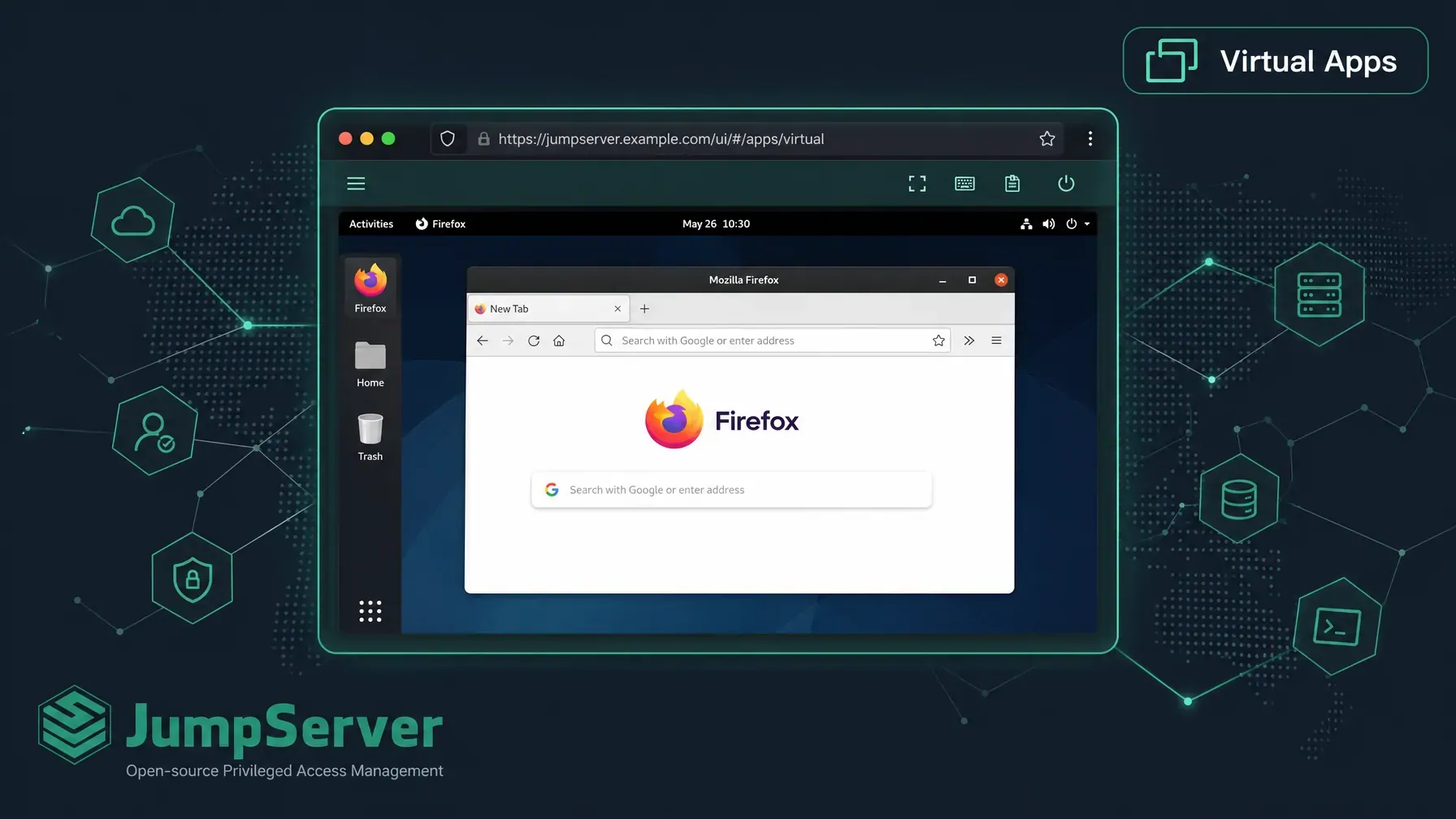
JumpServer Virtual Applications lets you publish containerized desktop apps (like Firefox) directly inside your PAM environment. Users access them through the Web Terminal — no VPN, no local install required. You can run the publisher on the JumpServer host itself (Integrated) or offload it to a dedicated node (External) to reduce resource pressure.
Table of Contents
- What Are JumpServer Virtual Applications?
- How It Works
- Prerequisites
- Method 1: Integrated Deployment
- Method 2: External Deployment
- Publishing Other Applications
- Troubleshooting Tips
- Summary
What Are JumpServer Virtual Applications?
JumpServer Virtual Applications is a feature that publishes lightweight containerized desktop applications — such as a web browser, database client, or file manager — through your JumpServer environment. End users launch these apps directly from the Web Terminal without any local software installation.
This is particularly useful when:
- Users need access to internal web resources that are only reachable from inside the network.
- You want to record privileged sessions that involve desktop applications, not just SSH/RDP.
- You need to deliver consistent, policy-governed app environments to remote or contractor users.
The underlying component that makes this work is Panda, a lightweight application publisher that manages the Docker containers running each virtual app.
How It Works
When a user accesses a Virtual Application through the Web Terminal, JumpServer launches a containerized instance of the app on the Panda node. The session streams back to the browser over VNC (ports 6900–7900). All session activity is recorded and governed by your existing authorization policies.
JumpServer automatically pulls the required Docker images when you upload an application package. If your environment has no internet access, you can pre-load the images manually.
Prerequisites
Before you start, confirm the following:
- JumpServer Enterprise Edition is installed and running.
- Docker is available on the host where Panda will run.
- The required application Docker image is accessible (either pulled directly or imported offline).
- For External Deployment: ports 6900–7900 (VNC) and 9001 (API) are open between the Core node and the external node.
To pull the image on a machine with internet access:
# Image name is listed in manifest.yml inside the app package zip
docker pull jumpserver/vapp:firefox-app-wayland-v0.1.7
If the target server is offline, export the image from a connected machine and transfer it:
docker save jumpserver/vapp:firefox-app-wayland-v0.1.7 | gzip > firefox-app.tar.gz
# Transfer to target, then:
docker load -i firefox-app.tar.gz
Method 1: Integrated Deployment
In Integrated mode, the JumpServer server itself acts as the virtual application publisher. This is the simplest setup and works well when your JumpServer host has sufficient resources to run application containers alongside core services.
Step 1.1 — Configure the Main File
Edit /opt/jumpserver/config/config.txt and add the following parameters:
# Enable Panda component
PANDA_ENABLED=1

# Enable Virtual Application feature
VIRTUAL_APP_ENABLED=1

# Set the IP of the current JumpServer host
PANDA_HOST_IP=<Your_JumpServer_IP>

# Connect to the local Panda instance
PANDA_HOST=http://panda:9001
Replace <Your_JumpServer_IP> with the actual IP address of your JumpServer machine.
Step 1.2 — Restart JumpServer
Apply the configuration changes:
jmsctl restart
Step 1.3 — Enable the Feature in Console
- Log in to the JumpServer console.
- Navigate to System Settings > Features > Virtual Application.
- Click Enable.
Step 1.4 — Publish an Application and Create an Asset
- Upload the app package: Go to System Settings > Remote App > Virtual App. Upload the application image package (e.g.,
firefox_app_wayland.zip).- Download link:
https://apps-assets.fit2cloud.com/stable/jumpserver/firefox_app_wayland/1.7/firefox_app_wayland.zip
- Download link:
- Add a Web asset: In Console, go to Assets > Assets > Web and create a new asset that points to the virtual app.
- Authorize access: Assign the asset to users or groups under Policies > Authorization.
- Connect: Users can now open the virtual application directly from the Web Terminal.
Method 2: External Deployment
In External mode, a separate machine hosts the Panda publisher. This offloads container workloads from the main JumpServer node, which is the recommended approach for production environments with significant user load.
Network Requirements
Before you proceed, ensure these firewall/network rules are in place:
| Traffic | Ports | Direction |
|---|---|---|
| VNC (virtual app streams) | 6900–7900 | JumpServer Core → External Node |
| API communication | 9001 | Bidirectional between Core and External Node |
| HTTP access to Core | 80 / 443 | External Node → JumpServer Core |
Step 2.1 — Configure the JumpServer Core Node
On your main JumpServer machine, edit /opt/jumpserver/config/config.txt:
# Disable local Panda
PANDA_ENABLED=0

# Point to the external publisher
PANDA_HOST=http://<External_Node_IP>:9001
Restart the service:
jmsctl restart
Step 2.2 — Configure the External Node (Publisher)
a. Upload and extract the Enterprise Edition package
Transfer the JumpServer Enterprise Edition installer to the external machine and extract it.
b. Install Docker
Run the bundled install script:
bash <extracted_folder>/scripts/2_install_docker.sh
c. Load the Panda image
# The exact filename may vary by version
docker load -i <extracted_folder>/scripts/images/panda:v4.10.x-ee.zst
d. Create the Docker Compose file
Create a docker-compose.yaml with the following content. Replace the placeholder values with your actual environment details:
version: '2.4'
services:
  panda:
    image: jumpserver/panda:v4.10.x-ee   # Match the version of your Core node
    container_name: jms_panda
    hostname: jms_panda
    restart: always
    ports:
      - 9001:9001
    environment:
      - BOOTSTRAP_TOKEN=<Your_Bootstrap_Token>      # Copy from Core node config.txt
      - CORE_HOST=http://<JumpServer_Core_IP>        # Core node IP
      - PANDA_HOST_IP=<This_Machine_IP>             # This external machine's IP
      - NAME=panda
    volumes:
      - /opt/jumpserver/panda/data:/opt/panda/data
      - /var/run/docker.sock:/var/run/docker.sock
    healthcheck:
      test: "curl -fsL http://localhost:9001/panda/health/ > /dev/null"
      interval: 10s
      timeout: 5s
      retries: 3
Where to find
BOOTSTRAP_TOKEN: Open/opt/jumpserver/config/config.txton the Core node and copy the value.
e. Start the Panda service
docker-compose -f <path_to_compose_file> up -d
Verify it is running:
docker ps | grep jms_panda
curl http://localhost:9001/panda/health/
Step 2.3 — Publish Application and Create Asset
The steps are identical to the Integrated method:
- Upload app: Go to System Settings > Remote App > Virtual Applications and upload the app package.
- Firefox Wayland download:
https://apps-assets.fit2cloud.com/stable/jumpserver/firefox_app_wayland/1.7/firefox_app_wayland.zip
- Firefox Wayland download:
- Add a Web asset: Go to Assets > Assets > Web.
- Authorize: Set permissions under Policies > Authorization.
- Connect: Users access the app through the Web Terminal.
Publishing Other Applications
Firefox is just one example. JumpServer supports a growing library of virtual applications — database clients, file managers, code editors, and more. Browse the full catalog at jumpserver.com/apps.
Each application has its own Docker image. Check the manifest.yml file inside the app package zip to find the correct image name, then pull or import it before uploading the package:
# Example — replace with the image name from manifest.yml
docker pull jumpserver/vapp:firefox-app-wayland-v0.1.7
The rest of the publish, authorize, and connect workflow is the same for all applications.
Troubleshooting Tips
| Symptom | Likely Cause | Fix |
|---|---|---|
| Virtual app fails to launch | Docker image not loaded | Pull or import the image before uploading the package |
| Connection timeout after login | VNC ports blocked | Open ports 6900–7900 between Core and Panda node |
| External Panda not registering | Wrong CORE_HOST or token |
Verify BOOTSTRAP_TOKEN and CORE_HOST in docker-compose.yaml |
| Feature toggle missing in UI | VIRTUAL_APP_ENABLED not set |
Add VIRTUAL_APP_ENABLED=1 to config.txt and restart |
Summary
JumpServer Virtual Applications brings containerized desktop access inside your PAM perimeter. Users get seamless, policy-governed access to privileged apps through a browser. Admins get full session recording and centralized authorization — no extra VPN or client required.
- Integrated Deployment is a quick setup for smaller environments or testing.
- External Deployment is the production-grade choice for environments where you want to isolate container workloads from the core service.
Ready to get started? Download JumpServer and explore the full virtual app catalog at jumpserver.com/apps.
Try JumpServer Enterprise Edition Free
Virtual Applications is an Enterprise Edition feature. Get full access with a free trial — no credit card required.
JumpServer Enterprise Edition includes:
- Virtual Applications — publish containerized desktop apps through the Web Terminal
- Just-in-Time Access — grant time-limited, zero-standing privileges on demand
- SSO & MFA Integration — SAML 2.0, OIDC, and hardware token support
- Role-Based Access Control — fine-grained policies across assets, users, and teams
- Priority Support — dedicated technical support and SLA guarantees
Start Your Free Enterprise Trial →
Already running Community Edition? Upgrading takes under 10 minutes and preserves all existing assets, users, and policies. See upgrade guide →