Table of Contents
- Overview
- 1. Core Component Startup Failure
- 2. Web Page Error: "Server Error Occur, Contact Administrator"
- 3. Web Login Failures
- 4. Privileged User Issues
- Quick Reference Table
Overview
JumpServer is an open-source Privileged Access Management (PAM) platform widely used by DevOps and IT security teams to control access to SSH, RDP, Kubernetes, and database endpoints through a unified web interface.
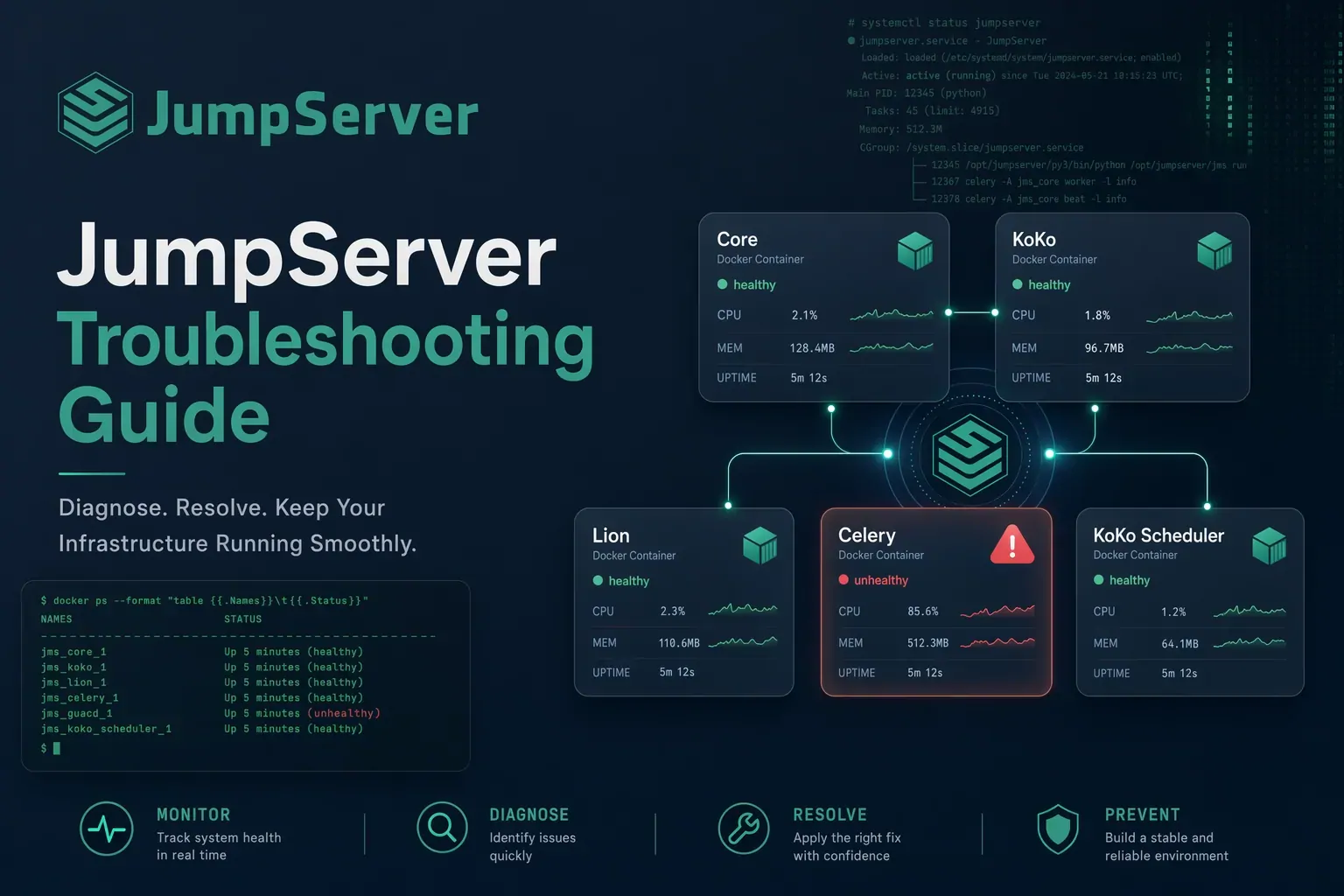
JumpServer uses a multi-component architecture. Core is the central application that runs database migrations and serves the API. All other components — KoKo (SSH/SFTP), Lion (RDP), Celery (async tasks), and the Web (Nginx) container — depend on Core being healthy before they can start. This dependency chain means a single Core failure can cascade into errors across every other component.
This guide covers the most common component issues reported by JumpServer administrators, with exact remediation steps sourced from the official FIT2CLOUD knowledge base.
1. Core Component Startup Failure
Symptoms
After running ./jmsctl.sh start, you see output similar to:
Creating network "jms_net" with driver "bridge"
Creating jms_postgresql ... done
Creating jms_redis ... done
Creating jms_core  ... done
ERROR: for celery  Container "76b2e315f69d" is unhealthy.
ERROR: for lion    Container "76b2e315f69d" is unhealthy.
ERROR: for koko    Container "76b2e315f69d" is unhealthy.
ERROR: for web     Container "76b2e315f69d" is unhealthy.
ERROR: Encountered errors while bringing up the project.
All dependent containers report unhealthy because Core has not passed its health check yet. The first step is always to inspect the Core logs:
docker logs -f jms_core --tail 200
The log output will tell you which of the two scenarios below applies.
1.1 Initialization Timeout — Migrations Still Running
On first install or after a version upgrade, JumpServer runs Django database migrations. On large databases this can take several minutes, causing Core to exceed Docker's health check window before it finishes.
The log output looks like this:
2025-03-16 18:15:08 Check database structure change ...
2025-03-16 18:15:08 Migrate model change to database ...
Operations to perform:
  Apply all migrations: accounts, acls, admin, applications, assets, ...
Running migrations:
  Applying contenttypes.0001_initial... OK
  Applying contenttypes.0002_remove_content_type_name... OK
  Applying auth.0001_initial... OK
  ...
  Applying terminal.0026_auto_20201027_1905... OK
  Applying terminal.0027_auto_20201102_1651... OK

After migration, update builtin role permissions
  - Update builtin roles
complete
Every migration line must end in OK — none should show ERROR. Once you see:
After migration, update builtin role permissions
  - Update builtin roles
complete
Migration is finished. Re-run the start command:
./jmsctl.sh start
1.2 Startup Timeout — Core Starting Normally but Slowly
In this scenario, no migrations are pending and there are no errors. Core is simply taking longer than Docker's health check timeout to fully initialize all its internal services.
The log output looks like this:
2025-03-16 18:20:22 JumpServer version v4.10.5, more see https://www.jumpserver.org

- Start Flower as Task Monitor
- Start Gunicorn WSGI HTTP Server
- Start heartbeat thread => ([Core]-ab-jms1-174)
2025-03-16 18:20:23 Check service status: flower -> running at 26
2025-03-16 18:20:24 Check service status: gunicorn -> running at 27
Wait until the log shows Check service status with running status for all services, then re-run:
./jmsctl.sh start
2. Web Page Error: "Server Error Occur, Contact Administrator"
Symptoms
Users accessing the JumpServer web interface see:
Server error occur, contact administrator
Diagnosis
Check the Core container logs first:
docker logs -f jms_core --tail 200
If the output is incomplete or does not show a clear error, enter the container and read the application log directly:
docker exec -it jms_core /bin/bash
tail -f logs/jumpserver.log
Resolve the issue based on the actual error reported in jumpserver.log.
3. Web Login Failures
3.1 Forgotten or Expired Password
If a user forgets their password or the password has expired, they can use the "Forgot Password" link on the login page to reset via email. If email-based reset is not available, an admin can reset the password directly from the Core container:
docker exec -it jms_core /bin/bash
cd /opt/jumpserver/apps
python manage.py shell
Inside the Python shell:
from users.models import User
u = User.objects.get(username='admin')
u.reset_password('password')
u.save()
Replace admin with the target username and password with the new password.
3.2 Account Locked After Too Many Failed Login Attempts
When an account is locked due to repeated failed login attempts, an administrator can unlock it from the user's profile page in the JumpServer UI. Alternatively, clear all login blocks via the console:
docker exec -it jms_core /bin/bash
cd /opt/jumpserver/apps
python manage.py shell
Then in the Python shell:
from django.core.cache import cache
cache.delete_pattern('_LOGIN_BLOCK_*')
cache.delete_pattern('_LOGIN_LIMIT_*')
If you need to create an additional admin account to manage locked users:
docker exec -it jms_core /bin/bash
cd /opt/jumpserver/apps
python manage.py createsuperuser --username=user [email protected]
3.3 Admin Forgot MFA
If an administrator loses access to their MFA device and cannot log in, reset MFA from the Core container:
docker exec -it jms_core /bin/bash
cd /opt/jumpserver/apps
python manage.py shell
Then in the Python shell:
from users.models import User
u = User.objects.get(username='admin')
u.mfa_level = '0'
u.otp_secret_key = ''
u.save()
This disables MFA and clears the OTP secret key for the specified account.
3.4 Cannot Login After Configuring LDAP
An incorrect LDAP configuration can prevent all users — including local admins — from logging in. To recover, disable LDAP authentication directly in the database and cache.
Step 1 — Disable LDAP in PostgreSQL:
psql -U postgres
Then run:
\c jumpserver;
UPDATE settings_setting SET value='false' WHERE name='AUTH_LDAP';
UPDATE settings_setting SET enabled='0' WHERE name='AUTH_LDAP';
Step 2 — Clear the cached LDAP setting from Redis:
redis-cli -a $REDIS_PASSWORD
Then run:
select 4
keys *LDAP*
del :1:_SETTING_AUTH_LDAP
After completing both steps, log in with a local user account and reconfigure LDAP from within the JumpServer settings panel.
If another identity provider (e.g., SAML, OIDC, CAS) caused the lockout, use the local user login path to access the UI and fix the configuration from there.
4. Privileged User Issues
4.1 Permission Denied / Authentication Failure
Error: Permission denied or Authentication failure when testing asset connectivity or updating hardware information.
Cause: The privileged user's account credentials stored in JumpServer do not match the actual credentials on the target asset. Verify and correct the privileged user's username and password.
4.2 Python Not Found on Ubuntu Assets
Error: /usr/bin/python: not found when testing connectivity or updating hardware information.
Cause: This error typically occurs on Ubuntu assets where Python is not installed or the Python environment is broken. Install or repair Python on the target asset to resolve it.
4.3 SSH Connection Timeout
Error: Connection to the asset times out.
Fix — on the target asset server, disable DNS reverse lookups in the SSH daemon configuration:
vi /etc/ssh/sshd_config
Set the following:
UseDNS no
Then restart Docker and the KoKo component on the JumpServer host:
systemctl restart docker
docker restart jms_koko
4.4 Connect WebSocket Server Error
Error: Connect WebSocket server error
Cause: Nginx has not been configured to proxy WebSocket connections.
Fix: Update your Nginx configuration following the Reverse Proxy - JumpServer Documentation, then restart Nginx.
Quick Reference Table
| Problem | First Step | Fix |
|---|---|---|
| All containers unhealthy on start | docker logs -f jms_core --tail 200 |
Wait for migrations to finish or for Check service status: running, then re-run ./jmsctl.sh start |
| "Server error occur" on web page | docker logs -f jms_core then tail -f logs/jumpserver.log |
Resolve based on actual error in jumpserver.log |
| Forgotten / expired password | Enter Core container | python manage.py shell then u.reset_password('newpass') |
| Account locked out | Enter Core container | Clear _LOGIN_BLOCK_* and _LOGIN_LIMIT_* from Django cache |
| Admin lost MFA device | Enter Core container | Set mfa_level='0' and otp_secret_key='' via shell |
| LDAP locks everyone out | PostgreSQL + Redis | Set AUTH_LDAP to false in DB; delete LDAP key from Redis |
| Permission denied on asset | Check privileged user config | Correct the account credentials stored in JumpServer |
/usr/bin/python: not found (Ubuntu) |
Check target asset | Install or repair Python on the target server |
| SSH connection timeout | Target asset sshd config | Set UseDNS no, restart docker and jms_koko |
| WebSocket server error | Nginx config | Add WebSocket proxy headers per reverse proxy docs |
Start Managing Privileged Access With JumpServer
The issues in this guide are most common during initial JumpServer deployment or after version upgrades. JumpServer Community Edition is free, open-source, and already trusted by 3,000+ enterprises across 190+ countries — with 30,000+ GitHub stars and 500,000+ deployments worldwide.
For organizations that need high availability, centralized audit search, and professional support, JumpServer Enterprise Edition is available with multiple tiers to match your scale.