Why Command Filtering Matters
A single privileged session without guardrails can undo weeks of infrastructure work. Commands like rm -rf /, DROP DATABASE, or mkfs are perfectly legitimate in the right hands, but catastrophic when run by mistake or by a compromised account. If you want the background on why each of these commands is dangerous, start with High-Risk Linux Server Commands: A Comprehensive Security Guide. This article picks up where that one stops: how to actually stop the command from executing.
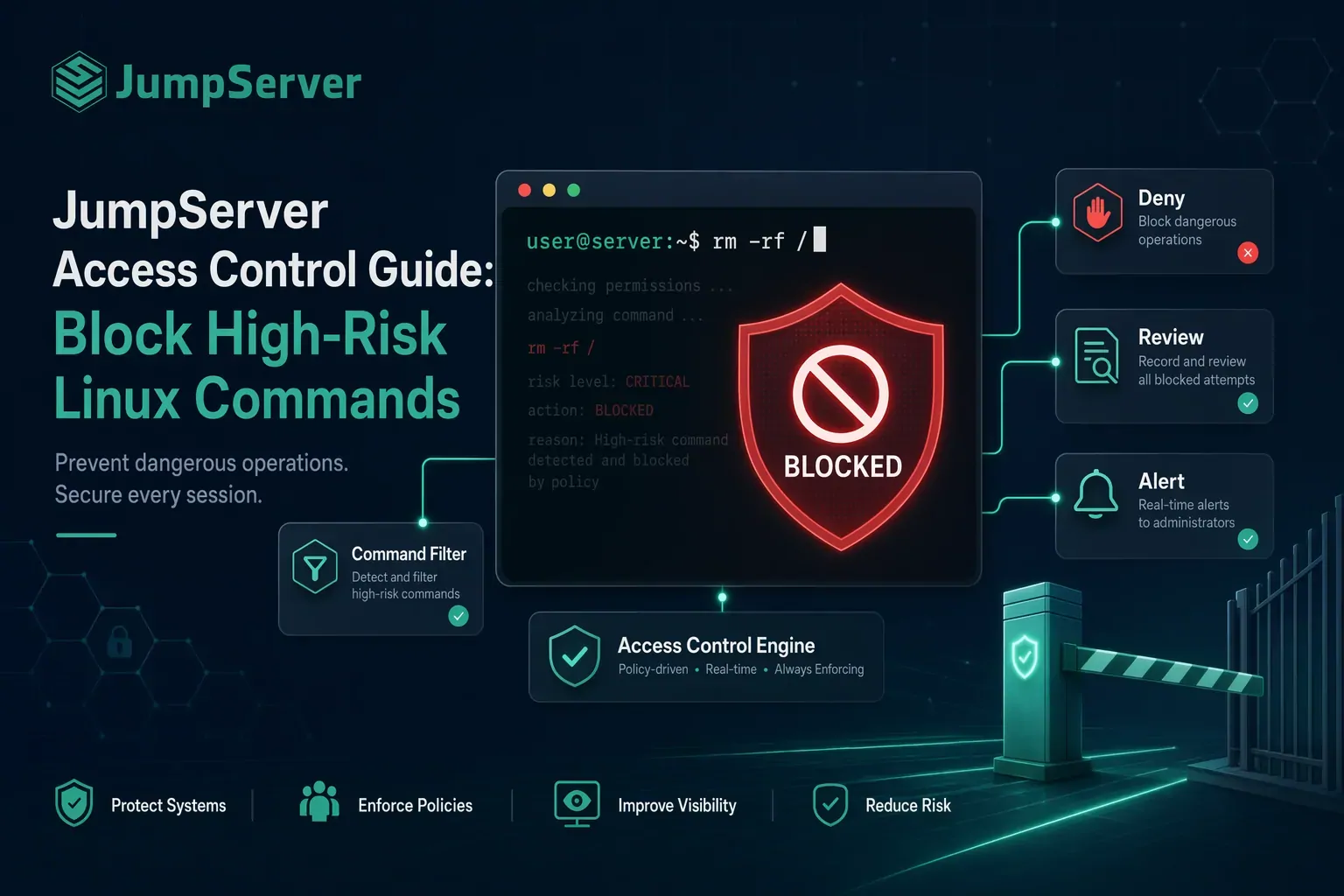
Blanket blocking does not work in practice. A database administrator genuinely needs DROP TABLE in some contexts; a sysadmin may need reboot during a maintenance window. What you actually need is a policy layer that can:
- Block the most destructive commands outright
- Route borderline commands through a human approver before execution
- Alert a security team when a sensitive command is attempted
- Log every matched command for audit purposes
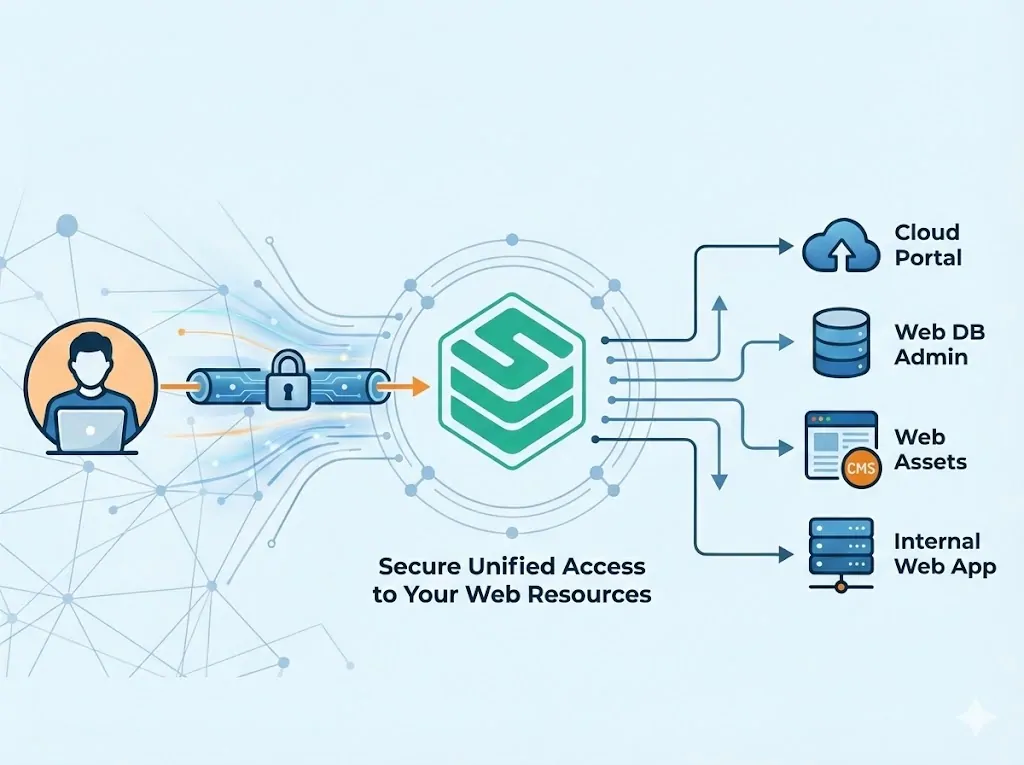
JumpServer’s Access Control module provides exactly this: a flexible, priority-based rule engine that sits between the user and the asset, evaluating every command before it reaches the target server.
How JumpServer Access Control Works
JumpServer’s Access Control operates at five layers:
| ACL Type | What It Controls | Edition |
|---|---|---|
| Command Filter | Commands executed during a session | Community + Enterprise |
| User Login | Who can log in to JumpServer, from where, and when | Community + Enterprise |
| Asset Connection | Who can connect to which asset, when, and from which IP | Enterprise (X-Pack) |
| Data Masking | Which database query result columns are masked | Enterprise (X-Pack) |
| Connection Method | Which connection types (Web CLI, SSH, RDP) are allowed | Enterprise (X-Pack) |
Command filtering is the core mechanism for blocking high-risk commands and is available in both the Community and Enterprise editions. It works the same way for Linux, Windows, database, and network device assets, because the filter matches the text of the command that flows through the session.
How command matching works:
- A user connects to an asset and executes a command.
- JumpServer checks all command filters bound to that combination of user, asset, and account.
- Filters are evaluated in priority order (lower number = evaluated first).
- The first matching rule’s action is executed: Deny, Accept, Review, or Alert.
- If no rule matches, the command executes normally.
Command Regex Syntax That Actually Works
A command group can use two matching types. Use Command when you need an exact string match, and Regex when you need to cover argument variants. Regex matching is a search against the command line rather than a strict full-line match, so where you place the anchor determines how tightly the rule binds. Everything in the reference tables below uses the building blocks in this section.
| Pattern | Meaning | Example |
|---|---|---|
^\s* |
The command must appear at the start of the line; leading whitespace is allowed | ^\s*rm -rf /.* |
.* |
Any character, any number of times; covers trailing arguments | ^\s*rm -rf.* |
(?i) |
Case-insensitive matching, which is essential for Windows, database, and network device CLI | (?i)^\s*format.* |
\b |
Word boundary, so the pattern matches a whole word instead of a substring | ^\s*\bdd\b |
(?:a|b) |
Non-capturing group, matches either form | (?:cl|clear-log), (?:off|delete) |
[06] |
Character set, matches any one of the listed characters | init\s+[06] |
\ |
Regex metacharacters must be escaped to be matched literally | rm -rf /\* |
Three rules of thumb before you enable anything:
- Test on a small scope first. Apply the new filter to a test asset, then run both the destructive command and a harmless lookalike such as
rm -rf /tmp/build. Confirm that what you want blocked is blocked and what you want allowed still runs. - Separate deny from review. Dual-use commands such as
dd,curl,wget,scp, andrsyncare frequently needed for legitimate operations. Route them to Review or to an explicit allow rule instead of a hard deny, or you will block real maintenance work. - Anchor tightly when you want precision.
^\s*rm -rf /.*matches any path under root, while^\s*rm -rf /(?:\s.*)?$matches only the root directory itself, sorm -rf /tmp/cacheis still permitted.
The High-Risk Command Reference
The tables below are the patterns we recommend as a starting point. They cover 226 commands grouped by risk scenario across Linux, Windows, database, and network device assets.
Not every entry should be denied. Use the tables as an inventory of what to review, then choose the action (Deny, Review, or Alert) based on your own risk tolerance and operational needs. Patterns that we do not recommend enabling without a review are called out in the description column.
Linux and Unix Commands (100)
Data Destruction and Irreversible Deletion (16)
| Command | Recommended Regex | What It Does |
|---|---|---|
rm -rf / |
^\s*rm -rf /.* |
Deletes the root directory and every path under it |
rm -rf /* |
^\s*rm -rf /\*.* |
Deletes everything under the root directory |
rm -rf . |
^\s*rm -rf \..* |
Deletes everything in the current directory |
rm -rf (any path) |
^\s*rm -rf.* |
Any recursive forced deletion |
rmdir |
^\s*rmdir.* |
Removes a directory |
unlink |
^\s*unlink.* |
Deletes a file |
mkfs |
^\s*mkfs.* |
Formats a filesystem; covers the mkfs.* family, review before enabling |
mkfs.ext4 / other |
^\s*mkfs(?:\.\S+)?(?:\s+.*)? |
Formats a specific filesystem |
wipefs |
^\s*wipefs.* |
Wipes partition and filesystem signatures |
shred |
^\s*shred.* |
Overwrites files or disks to destroy them |
fdisk |
^\s*fdisk.* |
Disk partitioning |
parted |
^\s*parted.* |
Disk partitioning and maintenance |
dd |
^\s*\bdd\b |
Matches every dd call, including legitimate use; review before enabling |
dd if=/dev/zero of=device |
^\s*dd\s+if=/dev/zero.* |
Zeroes an entire disk |
dd if=/dev/urandom of=device |
^\s*dd\s+if=/dev/urandom.* |
Random overwrite of an entire disk |
> /dev/sda |
^\s*>\s+/dev/sda(?:\s|$) |
Redirect write to a raw disk device |
Business Availability (27)
| Command | Recommended Regex | What It Does |
|---|---|---|
reboot |
^\s*reboot.* |
Reboot |
shutdown |
^\s*shutdown.* |
Shutdown or halt |
shutdown -h now |
^\s*shutdown\s+-h\s+now.* |
Immediate shutdown |
shutdown -r now |
^\s*shutdown\s+-r\s+now.* |
Immediate reboot |
poweroff |
^\s*poweroff.* |
Powers off the system |
halt |
^\s*halt.* |
Halts the system |
init 0 / init 6 |
^\s*init\s+[06].* |
Runlevel: shutdown or reboot |
telinit 0 / telinit 6 |
^\s*telinit\s+[06].* |
Same as init; compatibility command |
systemctl poweroff |
^\s*systemctl\s+poweroff.* |
systemd shutdown |
systemctl reboot |
^\s*systemctl\s+reboot.* |
systemd reboot |
systemctl stop |
^\s*systemctl\s+stop.* |
Stops any service |
systemctl disable |
^\s*systemctl\s+disable.* |
Disables any service |
systemctl mask |
^\s*systemctl\s+mask.* |
Masks any service |
service stop |
^\s*service\s+stop.* |
Stops a SysV service |
kill -9 |
^\s*kill\s+-9.* |
Force kills any process |
killall -9 |
^\s*killall\s+-9.* |
Force kills processes by name |
pkill -9 |
^\s*pkill\s+-9.* |
Force kills processes by pattern |
fuser -k |
^\s*fuser\s+-k.* |
Force kills processes holding a file or mount point |
crontab -r |
^\s*crontab\s+-r.* |
Removes all cron jobs |
systemctl daemon-reload |
^\s*systemctl\s+daemon-reload.* |
Reloads the systemd manager configuration |
grub2-mkconfig |
^\s*grub2-mkconfig.* |
Rebuilds the boot configuration |
grub-install |
^\s*grub-install.* |
Rewrites the boot loader |
umount / |
^\s*umount\s+/.* |
Unmounts the root filesystem |
mount -o remount,rw / |
^\s*mount\s+-o\s+.*remount,rw.* |
Remounts the root filesystem read-write |
vgremove |
^\s*vgremove.* |
Removes a volume group |
lvremove |
^\s*lvremove.* |
Removes a logical volume |
pvremove |
^\s*pvremove.* |
Removes a physical volume |
Privilege and Escalation (21)
| Command | Recommended Regex | What It Does |
|---|---|---|
useradd |
^\s*useradd.* |
Creates a user; can be added to a privileged group |
userdel |
^\s*userdel.* |
Deletes a user |
usermod |
^\s*usermod.* |
Modifies user attributes |
passwd |
^\s*passwd.* |
Changes a password |
groupadd |
^\s*groupadd.* |
Creates a group |
groupdel |
^\s*groupdel.* |
Deletes a group |
gpasswd |
^\s*gpasswd.* |
Modifies group membership |
chmod 777 |
^\s*chmod\s+777.* |
Opens permissions; can include a path |
chmod -R 777 |
^\s*chmod\s+-R\s+777.* |
Recursively opens permissions |
chmod -R (any path) |
^\s*chmod\s+-R.* |
Recursively changes permissions; review before enabling |
chown |
^\s*chown.* |
Changes file ownership; supports -R |
chown -R root / |
^\s*chown\s+-R\s+root\s+/.* |
Recursively takes ownership of the root directory |
sudo su |
^\s*sudo\s+su.* |
Switches to root |
sudo -i |
^\s*sudo\s+-i.* |
Obtains an interactive root shell |
visudo |
^\s*visudo.* |
Edits sudo authorization |
vi /etc/sudoers |
^\s*vi\s+/etc/sudoers.* |
Edits /etc/sudoers directly |
vim /etc/sudoers |
^\s*vim\s+/etc/sudoers.* |
Edits /etc/sudoers directly |
append to /etc/sudoers |
^\s*>>\s*/etc/sudoers\b |
Appends privileges; possible backdoor |
> /etc/passwd |
^\s*>\s*/etc/passwd(?:\s|$) |
Writes to a critical account file |
> /etc/shadow |
^\s*>\s*/etc/shadow(?:\s|$) |
Writes to the password file |
> /etc/sudoers |
^\s*>\s*/etc/sudoers(?:\s|$) |
Overwrites sudoers |
Security Control Bypass (10)
| Command | Recommended Regex | What It Does |
|---|---|---|
setenforce 0 |
^\s*setenforce\s+0.* |
Disables SELinux |
iptables -F |
^\s*iptables\s+-F.* |
Flushes rule chains |
iptables --flush |
^\s*iptables\s+--flush.* |
Flushes rule chains (long option) |
iptables -X |
^\s*iptables\s+-X.* |
Deletes custom chains |
iptables -P |
^\s*iptables\s+-P.* |
Modifies the default chain policy |
ufw disable |
^\s*ufw\s+disable.* |
Disables the ufw firewall |
ufw reset |
^\s*ufw\s+reset.* |
Resets the firewall |
nft flush |
^\s*nft\s+flush.* |
Flushes nftables rules |
insmod |
^\s*insmod.* |
Loads a kernel module; possible rootkit |
rmmod |
^\s*rmmod.* |
Unloads a kernel module |
Network and Configuration (5)
| Command | Recommended Regex | What It Does |
|---|---|---|
ifdown |
^\s*ifdown.* |
Brings down a network interface |
nmcli connection down |
^\s*nmcli\s+connection\s+down.* |
Brings down a NetworkManager connection |
ip link set <nic> down |
^\s*ip\s+link\s+set.*down |
Brings down a specific network interface |
route del |
^\s*route\s+del.* |
Deletes a route |
ip route del |
^\s*ip\s+route\s+del.* |
Deletes a route |
Data Exfiltration and Lateral Movement (9)
| Command | Recommended Regex | What It Does |
|---|---|---|
tcpdump |
^\s*tcpdump.* |
Packet capture; audit sensitive traffic |
nmap |
^\s*nmap.* |
Port scanning; requires approval |
nc |
^\s*\bnc\b |
nc reverse shell or port forwarding |
netcat |
^\s*netcat.* |
Same as nc |
socat |
^\s*socat.* |
Port forwarding or proxy; dual use tool |
wget |
^\s*wget.* |
External download or data transfer; review the use case |
curl |
^\s*curl.* |
External request or data transfer; review the use case |
scp |
^\s*scp.* |
Cross host copy; exfiltration review |
rsync |
^\s*rsync.* |
Sync or exfiltration review |
Anti-Forensics (3)
| Command | Recommended Regex | What It Does |
|---|---|---|
history -c |
^\s*history\s+-c.* |
Clears command history |
rm ~/.bash_history |
^\s*rm\s+.*bash_history.* |
Deletes shell history |
shred (history or logs) |
^\s*shred.* |
Overwrites files to destroy them |
Package Removal (9)
| Command | Recommended Regex | What It Does |
|---|---|---|
rpm -e |
^\s*rpm\s+-e.* |
Removes an installed package |
dpkg -r |
^\s*dpkg\s+-r.* |
Removes an installed package |
dpkg --purge |
^\s*dpkg\s+--purge.* |
Removes a package and its configuration |
yum remove |
^\s*yum\s+remove.* |
Removes an installed package |
yum erase |
^\s*yum\s+erase.* |
Removes an installed package |
dnf remove |
^\s*dnf\s+remove.* |
Removes an installed package |
dnf erase |
^\s*dnf\s+erase.* |
Removes an installed package |
apt-get remove |
^\s*apt-get\s+remove.* |
Removes an installed package |
apt-get purge |
^\s*apt-get\s+purge.* |
Removes a package and its configuration |
Windows Commands (49)
| Command | Recommended Regex | What It Does |
|---|---|---|
shutdown /s |
(?i)^\s*shutdown\s+/s.* |
Shutdown; covers /t, /f and other switches |
shutdown /r |
(?i)^\s*shutdown\s+/r.* |
Reboot |
del /f, /s or /q |
(?i)^\s*del\s+/[fsq].* |
Forced, recursive or quiet deletion |
rmdir /s |
(?i)^\s*rmdir\s+/s.* |
Recursively deletes a directory |
rd /s |
(?i)^\s*rd\s+/s.* |
Recursively deletes a directory (short form) |
format |
(?i)^\s*format.* |
Formats any drive letter |
diskpart |
(?i)^\s*diskpart.* |
Disk partitioning or wipe, including clean |
cipher /w |
(?i)^\s*cipher\s+/w.* |
Wipes deleted data and free space |
sdelete |
(?i)^\s*sdelete.* |
Sysinternals secure delete |
net user /delete |
(?i)^\s*net\s+user.*/delete.* |
Deletes a user |
net localgroup administrators |
(?i)^\s*net\s+localgroup.*administrators.* |
Modifies administrator group membership |
net group |
(?i)^\s*net\s+group.* |
Modifies global group membership |
net stop |
(?i)^\s*net\s+stop.* |
Stops a service |
reg delete |
(?i)^\s*reg\s+delete.* |
Deletes registry keys; can break the system or clear logs |
reg add |
(?i)^\s*reg\s+add.* |
Adds a registry key; possible Run key persistence |
reg save |
(?i)^\s*reg\s+save.* |
Exports the registry (SAM/SYSTEM credentials) |
reg export |
(?i)^\s*reg\s+export.* |
Registry export; data exfiltration |
sc stop |
(?i)^\s*sc\s+stop.* |
Stops a service |
sc delete |
(?i)^\s*sc\s+delete.* |
Deletes a service |
sc config |
(?i)^\s*sc\s+config.* |
Modifies service configuration |
taskkill /f |
(?i)^\s*taskkill\s+/f.* |
Force kills a process |
taskkill /im |
(?i)^\s*taskkill\s+/im.* |
Force kills by image name |
tskill |
(?i)^\s*tskill.* |
Force kills a process |
wmic process call terminate |
(?i)^\s*wmic\s+process\s+call\s+terminate.* |
Terminates a process |
powershell -enc |
(?i)^\s*powershell.*\s+-enc.* |
Encoded execution; a common evasion entry point |
powershell -encodedcommand |
(?i)^\s*powershell.*\s+-encodedcommand.* |
Encoded execution (long form) |
IEX download and execute |
(?i)^\s*downloadstring.* |
PowerShell download and execute |
Remove-Item |
(?i)^\s*remove-item.* |
Deletes objects; -Recurse -Force is stricter |
Clear-EventLog |
(?i)^\s*clear-eventlog.* |
Clears event logs; anti forensics |
wevtutil cl / clear-log |
(?i)^\s*wevtutil\s+(?:cl|clear-log).* |
Clears a specific event log |
Stop-Service |
(?i)^\s*stop-service.* |
Stops a service (PowerShell) |
Disable-Service |
(?i)^\s*disable-service.* |
Disables a service |
Set-Service |
(?i)^\s*set-service.* |
Changes a service start type or state |
Set-ExecutionPolicy |
(?i)^\s*set-executionpolicy.* |
Relaxes or changes the execution policy |
Set-MpPreference |
(?i)^\s*set-mppreference.* |
Modifies Defender settings; can disable real time protection |
Add-MpPreference exclusion |
(?i)^\s*add-mppreference.*-exclusionpath.* |
Adds a Defender exclusion path; can whitelist malware |
netsh advfirewall off |
(?i)^\s*netsh\s+advfirewall.*(?:off|delete).* |
Disables or deletes firewall rules |
netsh firewall reset |
(?i)^\s*netsh\s+firewall\s+reset.* |
Resets the firewall |
vssadmin delete shadows |
(?i)^\s*vssadmin\s+delete\s+shadows.* |
Deletes volume shadow copies; anti forensics |
schtasks /create |
(?i)^\s*schtasks\s+/create.* |
Creates a scheduled task; possible persistence |
schtasks /delete |
(?i)^\s*schtasks\s+/delete.* |
Deletes a scheduled task |
certutil -urlcache |
(?i)^\s*certutil\s+-urlcache.* |
Downloads a remote file |
bitsadmin /transfer |
(?i)^\s*bitsadmin\s+/transfer.* |
Downloads or exfiltrates files |
icacls |
(?i)^\s*icacls.* |
Modifies ACL permissions |
takeown |
(?i)^\s*takeown.* |
Takes ownership of files or directories |
auditpol /clear |
(?i)^\s*auditpol\s+/clear.* |
Clears audit policy; anti forensics |
rundll32 |
(?i)^\s*rundll32.* |
LOLBin; often abused for execution and persistence |
regsvr32 |
(?i)^\s*regsvr32.* |
LOLBin; can execute external scripts |
mshta |
(?i)^\s*mshta.* |
LOLBin; can execute scripts or download payloads |
Database Commands (55)
| Command | Recommended Regex | What It Does | Applies To |
|---|---|---|---|
DROP DATABASE |
(?i)^\s*drop\s+database.* |
Drops a database | Cross-database |
DROP TABLE |
(?i)^\s*drop\s+table.* |
Drops a table | Cross-database |
DROP SCHEMA |
(?i)^\s*drop\s+schema.* |
Drops a schema | Cross-database |
DROP VIEW |
(?i)^\s*drop\s+view.* |
Drops a view | Cross-database |
DROP TRIGGER |
(?i)^\s*drop\s+trigger.* |
Drops a trigger | Cross-database |
DROP USER |
(?i)^\s*drop\s+user.* |
Deletes a user | Cross-database |
DROP ROLE |
(?i)^\s*drop\s+role.* |
Drops a role | Cross-database |
DROP LOGIN |
(?i)^\s*drop\s+login.* |
Drops a login (SQL Server) | SQL Server |
DROP TABLESPACE |
(?i)^\s*drop\s+tablespace.* |
Drops a tablespace | Oracle |
DROP INDEX |
(?i)^\s*drop\s+index.* |
Drops an index; performance impact | Cross-database |
DROP KEYSPACE |
(?i)^\s*drop\s+keyspace.* |
Drops a keyspace (Cassandra) | Cassandra |
TRUNCATE TABLE |
(?i)^\s*truncate\s+table.* |
Truncates a table | Cross-database |
TRUNCATE |
(?i)^\s*truncate.* |
Truncates data, including Cassandra tables | Cross-database |
DELETE FROM |
(?i)^\s*delete\s+from.* |
Deletes rows; also matches full table deletes | Cross-database |
UPDATE ... SET |
(?i)^\s*update\s+\w+\s+set.* |
Full table update risk; use database auditing to catch missing WHERE clauses | Cross-database |
GRANT ALL |
(?i)^\s*grant\s+all.* |
Grants all privileges | Cross-database |
REVOKE |
(?i)^\s*revoke.* |
Revokes privileges; can lock out accounts | Cross-database |
ALTER USER |
(?i)^\s*alter\s+user.* |
Modifies user attributes or authentication | Cross-database |
ALTER ROLE |
(?i)^\s*alter\s+role.* |
Modifies a role | Cross-database |
ALTER LOGIN |
(?i)^\s*alter\s+login.* |
Modifies a login (SQL Server) | SQL Server |
ALTER SYSTEM |
(?i)^\s*alter\s+system.* |
Modifies instance level parameters (PostgreSQL/Oracle) | PostgreSQL / Oracle |
SET PASSWORD |
(?i)^\s*set\s+password.* |
Changes a password | Cross-database |
SET GLOBAL |
(?i)^\s*set\s+global.* |
Changes global parameters; can disable logging or escalate privileges | MySQL |
SHUTDOWN |
(?i)^\s*shutdown.* |
Shuts down the database instance (MySQL/Redis/SQL Server) | MySQL/Redis/SQL Server |
mysqldump --all-databases |
(?i)^\s*mysqldump\b.*--all-databases\b.* |
Full database export; data exfiltration | MySQL |
mysqladmin shutdown |
(?i)^\s*mysqladmin\b.*(?:shutdown|stop)\b.* |
Shuts down the MySQL instance | MySQL |
SELECT ... INTO OUTFILE |
(?i)^\s*select\b.*\binto\s+outfile\b.* |
Exports to a file; possible WebShell write | MySQL |
SELECT ... INTO DUMPFILE |
(?i)^\s*select\b.*\binto\s+dumpfile\b.* |
Exports to a file; possible WebShell write | MySQL |
UPDATE mysql.user |
(?i)^\s*update\s+mysql.user.* |
Edits the grant tables directly | MySQL |
pg_ctl stop |
(?i)^\s*pg_ctl\s+stop.* |
Stops PostgreSQL | PostgreSQL |
pg_ctl restart |
(?i)^\s*pg_ctl\s+restart.* |
Restarts PostgreSQL | PostgreSQL |
pg_resetwal |
(?i)^\s*pg_resetwal.* |
Resets the WAL; possible data loss | PostgreSQL |
initdb |
(?i)^\s*initdb.* |
Initializes or rebuilds the data directory | PostgreSQL |
shutdown abort |
(?i)^\s*shutdown\s+abort.* |
Oracle abnormal shutdown | Oracle |
shutdown immediate |
(?i)^\s*shutdown\s+immediate.* |
Oracle immediate shutdown | Oracle |
sqlplus / as sysdba |
(?i)^\s*sqlplus\b.*\bas\s+sysdba\b.* |
Direct SYSDBA login | Oracle |
sqlcmd -Q |
(?i)^\s*sqlcmd\s+-Q\b.* |
sqlcmd direct SQL execution | SQL Server |
osql -Q |
(?i)^\s*osql\s+-Q\b.* |
osql direct SQL execution | SQL Server |
xp_cmdshell |
(?i)^\s*(?:exec(?:ute)?\s+)?(?:\[\w[\].]+\]\s*\.\s*)?xp_cmdshell\b.* |
SQL Server OS command execution | SQL Server |
sp_configure |
(?i)^\s*(?:exec(?:ute)?\s+)?(?:\[\w[\].]+\]\s*\.\s*)?sp_configure\b.* |
SQL Server instance configuration | SQL Server |
sp_addrolemember |
(?i)^\s*(?:exec(?:ute)?\s+)?(?:\[\w[\].]+\]\s*\.\s*)?sp_addrolemember\b.* |
Adds a role; can escalate to sysadmin | SQL Server |
BACKUP DATABASE |
(?i)^\s*backup\s+database.* |
Backup; data exfiltration risk | SQL Server |
RESTORE DATABASE |
(?i)^\s*restore\s+database.* |
Restore overwrite; availability risk | SQL Server |
FLUSHALL |
(?i)^\s*flushall.* |
Clears all Redis data | Redis |
FLUSHDB |
(?i)^\s*flushdb.* |
Clears the current Redis database | Redis |
CONFIG SET |
(?i)^\s*config\s+set.* |
Changes Redis service configuration | Redis |
DEBUG |
(?i)^\s*debug.* |
Redis DEBUG and system level commands | Redis |
EVAL |
(?i)^\s*eval.* |
Redis Lua script execution | Redis |
db.dropDatabase() |
(?i)^\s*db.dropdatabase.* |
Drops a MongoDB database | MongoDB |
db.<collection>.drop() |
(?i)^\s*db\.\w+\.drop\b.* |
Drops a MongoDB collection | MongoDB |
db.shutdownServer() |
(?i)^\s*db.shutdownserver.* |
Shuts down the MongoDB service | MongoDB |
mongod --shutdown |
(?i)^\s*mongod.*--shutdown.* |
Shuts down the mongod instance | MongoDB |
db.createUser |
(?i)^\s*db.createuser.* |
Creates a MongoDB user | MongoDB |
db.grantRolesToUser |
(?i)^\s*db.grantroles.* |
Grants a role to a MongoDB user | MongoDB |
_delete_by_query |
(?i)^\s*(?:.*\s)?_delete_by_query\b.* |
Deletes documents by query (Elasticsearch) | Elasticsearch |
Network Device Commands (22)
| Command | Recommended Regex | What It Does |
|---|---|---|
reload |
(?i)^\s*reload.* |
Device reboot |
reboot |
(?i)^\s*reboot.* |
Reboots Huawei/H3C devices |
erase startup-config |
(?i)^\s*erase\s+startup-config.* |
Erases the startup configuration (Cisco) |
write erase |
(?i)^\s*write\s+erase.* |
Erases configuration (Cisco) |
erase flash: |
(?i)^\s*erase\s+flash.* |
Erases flash contents |
format flash: |
(?i)^\s*format\s+flash.* |
Formats flash |
delete flash: |
(?i)^\s*delete\s+flash.* |
Deletes files from flash |
no boot system |
(?i)^\s*no\s+boot\s+system.* |
Removes a boot loader entry |
copy startup-config running-config |
(?i)^\s*copy\s+startup-config\s+running-config.* |
Overwrites the running configuration with the saved one |
reset saved-configuration |
(?i)^\s*reset\s+saved-configuration.* |
Deletes the saved configuration (Huawei/H3C) |
reset recycle-bin |
(?i)^\s*reset\s+recycle-bin.* |
Empties the recycle bin |
reset factory-configuration |
(?i)^\s*reset\s+factory-configuration.* |
Restores factory configuration |
restore startup-configuration |
(?i)^\s*restore\s+startup-configuration.* |
Restores the startup configuration; can corrupt it |
clear configuration |
(?i)^\s*clear\s+configuration.* |
Clears the configuration |
clear startup-configuration |
(?i)^\s*clear\s+startup-configuration.* |
Clears the startup configuration |
shutdown |
(?i)^\s*shutdown.* |
Shutdown in interface view; one typo can cut network access |
delete /unreserved |
(?i)^\s*delete\s+/unreserved.* |
Permanently deletes files (H3C) |
delete /force |
(?i)^\s*delete\s+/force.* |
Force deletes files (Huawei) |
ftp |
(?i)^\s*\bftp\b |
Configuration file transfer or download |
tftp |
(?i)^\s*\btftp\b |
Configuration file transfer or download |
reset session |
(?i)^\s*reset\s+session.* |
Resets sessions or connections |
super (privilege escalation) |
(?i)^\s*\bsuper\b |
Enters privileged mode; audit required |
Step 1 Create a Command Group
A command group is the list of commands (or patterns) that a filter will match against. One filter can reference multiple command groups, so grouping patterns by risk scenario keeps the rules readable.
Navigation: Access Control > Command Filter > Command Group tab > Create
| Parameter | Description |
|---|---|
| Name | A descriptive name for this command group |
| Type | Command: exact string match. Regex: regular expression match |
| Content | Multi-line text, where each line is one matching rule |
| Case Insensitive | When enabled, matching ignores letter case |
Example: irreversible file and disk operations
Create a command group with type Regex and this content, one pattern per line:
^\s*rm -rf /.*
^\s*mkfs.*
^\s*wipefs.*
^\s*shred.*
^\s*dd\s+if=/dev/zero.*
^\s*dd\s+if=/dev/urandom.*
Example: cross-database destructive statements
Database commands are a good fit for Regex with Case Insensitive enabled, because drop database, DROP DATABASE, and Drop Database all reach the server the same way and should all be caught by the same rule:
(?i)^\s*drop\s+database.*
(?i)^\s*drop\s+table.*
(?i)^\s*truncate.*
(?i)^\s*flushall.*
Note that a bare (?i)^\s*truncate.* pattern is intentionally broad. It also matches TRUNCATE TABLE, which is why the reference tables do not list both variants in the same group.
Step 2 Create a Command Filter
A command filter binds one or more command groups to a specific combination of users, assets, and accounts.
Navigation: Access Control > Command Filter > Command Filter tab > Create
| Parameter | Description |
|---|---|
| Name | A descriptive name for this filter |
| User | All users / Specified users / Attribute filter |
| Asset | All assets / Specified assets / Attribute filter |
| Account | All accounts / Specified accounts |
| Command Group | The command group or groups this filter will match against |
| Action | What happens when a command matches (see below) |
| Priority | 1-100. Lower number = evaluated first. Default: 50 |
Binding logic: the filter applies when the specified user connects to the specified asset using the specified account. When a command is entered, it is evaluated against all matching filters in priority order. The first matching rule’s action fires.
A practical pattern is to keep one group per risk scenario and then compose filters from them, for example a “DBA change window” filter that binds the database groups only to the DBA user group and the production database assets.
Step 3 Choose the Right Action
JumpServer supports four actions for matched commands, not just block or allow:
| Action | Behavior |
|---|---|
| Deny | The command is blocked immediately. The user sees a rejection message. |
| Accept | The command is explicitly allowed, which is useful for whitelisting safe commands in a strict environment. |
| Review (Approval) | An approver receives a notification and must approve or reject the command before it executes. |
| Alert | The command executes, but the designated recipients receive an alert notification. |
Practical configuration strategy:
- Use Deny for commands that have no legitimate use case in your environment, for example
mkfson production servers orDROP DATABASEfor read-only accounts. - Use Review for commands that are occasionally necessary but require a second pair of eyes, for example
userdel,chmod 777, orGRANT. - Use Alert for commands you want visibility into but do not want to interrupt, for example
history,export, orrebootduring business hours. - Use Accept for narrow exceptions that must be evaluated before a broader deny rule, for example
^\s*rm -rf /tmp/.*for a build agent account.
This layered approach avoids the blanket ban problem while still protecting critical systems.
Understanding Priority (1-100)
Every command filter and access control rule in JumpServer has a priority value between 1 and 100. Lower numbers are evaluated first.
When multiple filters match the same user-asset-account combination:
- The filter with the lowest priority number is evaluated first.
- If a command matches a rule in that filter, the action fires and evaluation stops.
- If no rule matches, JumpServer moves to the next filter in priority order.
- If no filter matches at all, the command executes normally.
The most common mistake is to place an exception rule at a high priority number and then wonder why it never takes effect. An exception must be evaluated before the rule it is an exception to, so it needs a lower priority number than the deny rule.
A Complete Three-Tier Policy Example
The table below shows a working policy for a mixed production environment. The exception rule runs first, then the hard blocks, then the review and visibility layers.
| Priority | Filter Name | Command Group Patterns | Action | What It Covers |
|---|---|---|---|---|
| 5 | Ops-Allow | ^\s*rm -rf /tmp/.*, ^\s*rm -rf /var/tmp/.* |
Accept | Build and deployment cleanup paths |
| 10 | Critical-Block | ^\s*rm -rf /.*, ^\s*mkfs.*, ^\s*wipefs.*, (?i)^\s*drop\s+database.*, ^\s*flushall.* |
Deny | Irreversible destruction of hosts and data stores |
| 30 | Change-Review | (?i)^\s*drop\s+table.*, (?i)^\s*truncate.*, ^\s*userdel.*, ^\s*chmod\s+-R.* |
Review | Destructive but occasionally legitimate change work |
| 50 | Security-Alert | ^\s*history\s+-c.*, ^\s*setenforce\s+0.*, ^\s*iptables\s+-F.*, (?i)^\s*set-mppreference.* |
Alert | Security control tampering and anti-forensics |
| 70 | Exfil-Alert | ^\s*scp.*, ^\s*rsync.*, (?i)^\s*backup\s+database.*, ^\s*certutil\s+-urlcache.* |
Alert | Bulk data movement and remote payload retrieval |
With this setup, rm -rf /tmp/build is allowed at priority 5, rm -rf / is blocked at priority 10, DROP TABLE goes to an approver at priority 30, and scp runs but generates a notification at priority 70.
Rollout Checklist
- Inventory first. Export your current command groups and filters before you change anything, so you have a rollback path.
- Stage the rollout. Apply new filters to a small set of non-production assets and a pilot user group before the broad rollout.
- Pilot for 24 to 48 hours. Review the command execution logs to see what the new rules actually catch. Expect at least one legitimate command to surface.
- Tune the false positives. Split the rule rather than deleting it. Keep the deny for the dangerous form and add a narrowly scoped Accept rule with a lower priority number for the safe form.
- Prefer review over removal. When a dual-use tool is genuinely required, move the rule from Deny to Review instead of disabling it.
- Verify coverage. Test alternative paths that users could take, including shell wrappers, editors, and script files, and confirm the result is what you expect.
- Review quarterly. New tooling introduces new commands. Re-check the reference tables against your asset estate and adjust.
Additional Access Control Rules
User Login Rules
User login rules control who can log in to JumpServer itself, from which IP addresses, and during which time windows.
Navigation: Access Control > User Login > Create
| Parameter | Description |
|---|---|
| Name | Rule name |
| Priority | 1-100, default 50 |
| User | All users / Specified users / Attribute filter |
| IP Group | Comma-separated IPs, CIDR ranges, or IP ranges. * matches all. Example: 192.168.10.1, 192.168.1.0/24, 10.1.1.1-10.1.1.20 |
| Time Period | Restricts the rule to specific hours or days |
| Action | Deny / Accept / Review (Enterprise) / Notify |
| Active | Enables or disables the rule |
Note: The Review (approval workflow) action for user login is an Enterprise (X-Pack) feature.
Asset Connection Rules (Enterprise)
Asset connection rules add a second review layer specifically for connecting to assets, separate from the command filter that applies during a session.
Navigation: Access Control > Asset Connection > Create
Available actions:
| Action | Behavior |
|---|---|
| Deny | Blocks the connection attempt |
| Accept | Explicitly allows the connection |
| Review | Routes the connection request to an approver |
| Notify | Sends a notification when the connection is made |
| Password Rotation | Automatically rotates the account password after the session ends |
Note: Password Rotation requires adding
CHANGE_SECRET_AFTER_SESSION_END=trueto the JumpServer configuration file and restarting the service.
Data Masking (Enterprise)
Data masking rules apply to database asset sessions. When a query returns results, specified columns are automatically obscured before they reach the user’s screen. This is a useful complement to command filtering, because it limits what a privileged user can read even when the query itself is allowed.
Navigation: Access Control > Data Masking > Create
The masking rule uses column names with optional wildcard support:
- Single column:
passwordmasks only thepasswordcolumn - Multiple columns:
password,secretmasks both columns - Prefix wildcard:
password*masks all columns whose names start withpassword - Suffix wildcard:
.*passwordmasks all columns whose names end withpassword
Note: Data masking is not supported for database assets connected via the Magnus component (client mode), except for MySQL.
Connection Method Control (Enterprise)
Connection method rules let you restrict which protocols and interfaces users can use to reach an asset.
Navigation: Access Control > Connection Method > Create
Supported connection methods include Web CLI, Web SFTP, SSH, Web GUI, and database client. The only available action is Deny, which blocks the matched connection method for the specified users.
Quick Reference of All Five ACL Types
| ACL Type | Scope | Actions Available | Edition |
|---|---|---|---|
| Command Filter | Commands within a session | Deny, Accept, Review, Alert | Community + Enterprise |
| User Login | JumpServer login | Deny, Accept, Review*, Notify | Community + Enterprise* |
| Asset Connection | Connecting to an asset | Deny, Accept, Review, Notify, Password Rotation | Enterprise only |
| Data Masking | Database query results | Mask specified columns | Enterprise only |
| Connection Method | Protocol or interface type | Deny | Enterprise only |
*The Review action for User Login requires Enterprise (X-Pack).
Start Controlling Privileged Commands With JumpServer
The commands in this guide represent the highest-risk operations across Linux, Windows, database, and network device estates. Without a policy layer between your operators and your assets, a single mistyped rm -rf or an unreviewed DROP DATABASE can cause damage that takes hours or days to recover from.
JumpServer Community Edition ships with full command filtering and user login access control at no cost. The Enterprise edition adds asset connection review, data masking, connection method control, and the full approval workflow across all ACL types.
- Compare the editions and capability boundaries on the features page
- Start a 30-day Enterprise test drive through the free trial
- New to privileged access management? Read What Is PAM and RBAC in PAM first
- Related reading: JumpServer Audit Recordings Management