
If your team distributes .rdp files to users, one question always appears in security reviews: can critical connection parameters be tampered with before launch?
In JumpServer Enterprise Edition, the answer is yes, you can protect that path. By enabling RDP_SIGN_ENABLED=1, JumpServer signs key RDP settings when generating client connection files, adding a practical integrity layer for enterprise remote access.
This article explains what the feature does, why it matters, and exactly how to enable it in production.
Why This Is Urgent in 2026
Microsoft classifies CVE-2026-26151 as a Remote Desktop spoofing vulnerability related to insufficient UI warning of dangerous operations.
Microsoft also introduced updated RDP file warning behavior beginning with the April 2026 security update. The official guidance highlights that opening untrusted RDP files can expose sensitive local resources if users approve risky redirection options. See: Understanding security warnings when opening Remote Desktop (RDP) files.
For JumpServer administrators, this means RDP signing is no longer a nice-to-have hardening option. It should be part of your baseline remote access security controls.
Why RDP Signing Matters for Enterprise Access
RDP files can carry sensitive connection attributes, such as target address, gateway behavior, and remote app options. In high-compliance environments, these fields should not be silently modified after issuance.
With JumpServer EE RDP signing enabled, generated RDP files include signed metadata so the client-side file has integrity protection on selected security-relevant fields.
Microsoft's latest warning model reinforces this operational reality:
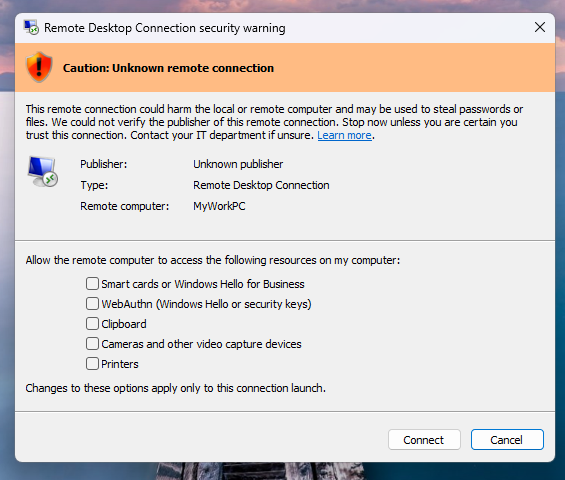
- Unsigned files may display unknown publisher context.
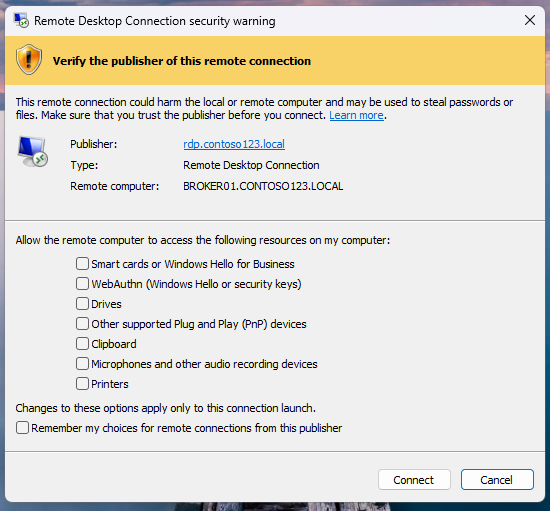
- Signed files can display a verifiable publisher.
- Signature improves authenticity and integrity, but does not guarantee the connection target is safe by itself.
That last point is important: users still need verification discipline, and security teams still need policy and monitoring.
Quick Start: Enable in 4 Steps
Step 1: Prepare Your Signing Certificate and Key
Use PEM files and place them in:
/opt/jumpserver/config/certs/rdp_signer.crt/opt/jumpserver/config/certs/rdp_signer.key
You can use custom filenames if you also update the related settings.
Step 2: Set Runtime Configuration
Set the following environment variables:
RDP_SIGN_ENABLED=1
RDP_SIGN_CERT=/opt/jumpserver/data/certs/rdp_signer.crt
RDP_SIGN_CERT_KEY=/opt/jumpserver/data/certs/rdp_signer.key
Because the certificate is loaded inside the container, the paths configured here differ from the paths on the host machine in the previous step. Make sure the certificate and private key files are present in the /opt/jumpserver/data/certs directory inside the jms_core container.
Step 3: Restart JumpServer Services
Use command jmsctl restart to restart JumpServer and reload runtime settings.
Step 4: Verify in a Real User Flow
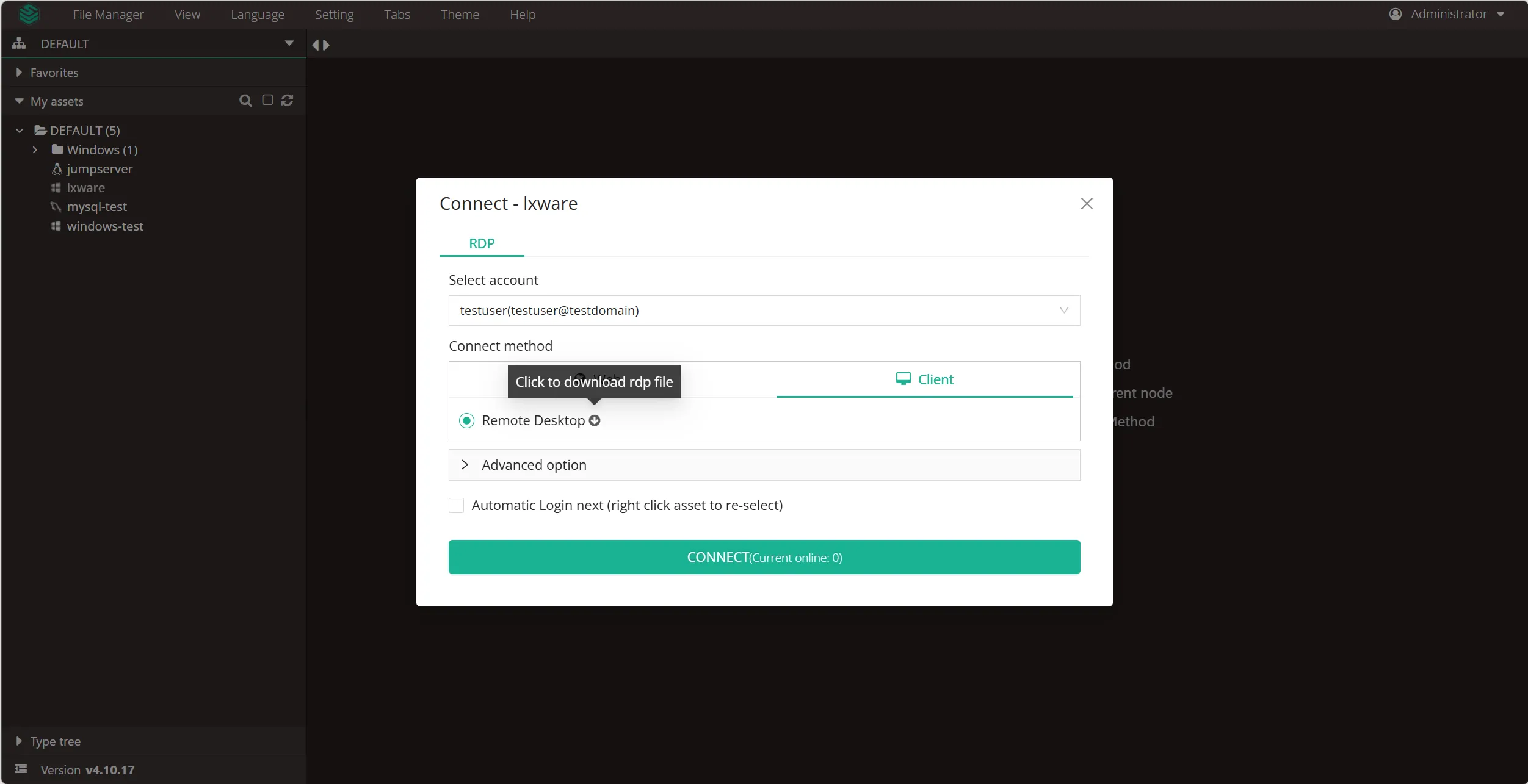
Generate and download an RDP file through the native client connection flow, then open the .rdp file in a text editor. You should see both lines:
signscope:s:...signature:s:...
If these lines are missing, the file was not signed.
Then validate user-facing behavior on a patched Windows endpoint:
- Open a signed RDP file generated by JumpServer.
- Confirm the Remote Desktop security dialog reflects a verifiable publisher context.
- Confirm users only allow required redirections and keep unnecessary local resource sharing disabled.
Mapping Microsoft Guidance to JumpServer Controls
Based on Microsoft Learn and CVE-2026-26151 advisory context, use the following control mapping:
- Risk: Users open unexpected or phishing-delivered RDP files.
JumpServer control: Standardize distribution through JumpServer-generated files and signed RDP output. - Risk: File publisher cannot be verified.
JumpServer control: EnableRDP_SIGN_ENABLED=1and maintain a managed signing certificate lifecycle. - Risk: Overly broad local resource redirection increases data exposure.
JumpServer control: Minimize redirection settings, allow only business-required options, and train users to review prompts. - Risk: Security degradation goes unnoticed after cert/key issues.
JumpServer control: Alert on signing failures and treat unsigned fallback as a security event.
Operational Behavior You Should Know
- RDP signing is applied to generated RDP files for client-based RDP sessions.
- If signing prerequisites are not met, files may be generated without signature metadata.
- Because this can silently weaken your security posture, log monitoring is strongly recommended.
- The mechanism complements, but does not replace, endpoint-side warning dialogs and user verification behavior.
Troubleshooting Checklist
- Confirm
RDP_SIGN_ENABLED=1is present in runtime config. - Confirm your certificate directory is mounted correctly in the
jms_corecontainer. - Confirm cert/key filenames match
RDP_SIGN_CERTandRDP_SIGN_CERT_KEY. - Confirm both files are valid PEM.
- Confirm your connection path actually generates an
.rdpfile. - Confirm output includes
signscope:s:andsignature:s:.
Security Best Practices
- Apply strict filesystem permissions to the private key.
- Rotate signing cert/key periodically.
- Alert on repeated signing failures in logs.
- Pair RDP signing with least privilege, endpoint hardening, and gateway controls.
- Keep Windows clients fully patched for current RDP file warning protections.
- Train users to reject unexpected RDP files and verify publisher and destination before connecting.
Suggested Policy Statement for Security Teams
You can adopt the following baseline policy in enterprise environments:
"All RDP files used for privileged or production access must be generated by JumpServer and digitally signed. End users must not open unexpected RDP files from email or chat. Local resource redirection must follow least-privilege policy and be explicitly approved per use case."
This policy aligns with Microsoft's latest RDP warning guidance and strengthens practical resilience against spoofing and phishing-driven connection abuse.
References
- Microsoft Learn: Understanding security warnings when opening Remote Desktop (RDP) files
- Microsoft MSRC: CVE-2026-26151: Remote Desktop Spoofing Vulnerability
Final Thoughts
RDP_SIGN_ENABLED=1 is a small configuration change with meaningful security impact. For organizations using native RDP client workflows, enabling RDP signing in JumpServer EE strengthens trust in connection artifacts and helps align remote access operations with enterprise security requirements.
If you are hardening a production bastion environment, this should be on your short list.