1. Home
  2. Tutorials
  3. Integrating JumpServer with Syslog: A Step-by-Step Guide for Enhanced SIEM Security Auditing

Integrating JumpServer with Syslog: A Step-by-Step Guide for Enhanced SIEM Security Auditing

  • Published on 2026-02-02
  • 16 views

In the realm of enterprise security, centralized log management is crucial for real-time monitoring and compliance. JumpServer, as a premier Privileged Access Management (PAM) solution, supports seamless integration with the Syslog logging system. By configuring JumpServer to push logs to a Syslog server, organizations can easily forward critical security data to SIEM (Security Information and Event Management) systems for advanced threat analysis.

This guide details how to configure a Linux-based Syslog server and connect it with your JumpServer environment.

Prerequisites

Before starting the configuration, ensure you have a server dedicated to receiving Syslog messages.

  • OS: Linux (e.g., CentOS 7).

  • Hardware: Recommended specifications are 2 CPU cores, 4GB RAM, and 200GB storage.

  • Network: Ensure the server's firewall allows traffic on UDP port 514.

Step 1: Configure the Syslog Server

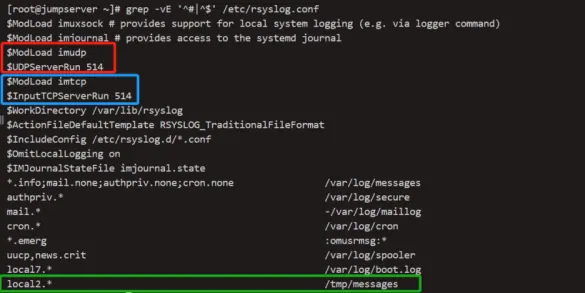
To prepare the destination server to receive logs from JumpServer, you must modify the rsyslog configuration.

  • Edit the Configuration File: Open the /etc/rsyslog.conf file on your Syslog server.

  • Enable UDP Reception: Locate and uncomment the following lines to allow log input via UDP on port 514.

  • Define Log Output Location: Add the following rule to direct the logs to a specific file (e.g., /tmp/messages) using the local2 facility.

  • Restart the Service: Apply the changes by restarting the Syslog service.

  • Test Connectivity: You can verify the configuration by sending a test message from the JumpServer host to the Syslog server (replace 10.1.12.116 with your Syslog server IP).

  • Check the output file on the Syslog server to confirm the message was received.

Step 2: Configure JumpServer

Once the Syslog server is ready, configure JumpServer to start sending logs.

  • Modify the Config File: Locate the JumpServer configuration file, typically found at /opt/jumpserver/config/config.txt.

  • Add Syslog Parameters: Append or modify the following settings to enable Syslog, define the target address, and set the facility.

# Configure syslog
SYSLOG_ENABLE=true
SYSLOG_ADDR=10.1.12.116:514 # The IP address and port of the Syslog server
SYSLOG_FACILITY=local2 #Based on the Syslog configuration file
  • Apply Changes: Restart JumpServer to load the new configuration.

jmsctl restart

Step 3: Verify and Analyze Logs

After restarting, perform operations within JumpServer (such as logging in) to generate new logs. Check your Syslog server to ensure the data is arriving correctly.

Log Data Structure for SIEM Parsing JumpServer exports logs in a structured format suitable for SIEM parsing. The logs include rich metadata such as IP addresses, user details, and operation types. Supported log categories include:

  • Login Logs: Records user authentication details, including success status and MFA usage.

  • File Transfer Logs: Tracks file uploads and downloads with filenames and timestamps.

  • Operation Logs: Audits system changes, such as modifying organizational settings.

  • Session Logs: Captures SSH or Web Terminal session details, including command execution flags.

  • Command Logs: detailed records of commands executed during sessions (e.g., free -h) along with their output.

Log name

Syslog output sample

Login logs

April 19,2015:15:25:11 | 10.1.14.125 | jumpserver: login_log- {"backend": "Password", "backend_display": "Password", "city": "LAN", "datetime": "2023/04/19 15:18:36 +0800", "id": "cfc378e5-6337-4bf9-a8ac-15f33c2b0314", "ip": "10.1.10.35", "mfa": {"label": "Disabled", "value": 0}, "reason": "", "reason_display": "", "status": {"label": "Success", "value": true}, "type": {"label": "Web", "value": "W"}, "user_agent": "Mozilla/5.0 (Windows NT 10.0; Win64;  x64) AppleWebKit/537.36 (KHTML, like Gecko) Chrome/112.0.0.0 Safari/537.36 Edg/112.0.1722.48", "username": "admin"}

Upload file logs

April 19,2015:15:27:26 | 10.1.14.125 jumpserver: ftp_log- {"account": "root(root)", "asset": "10.1.12.182-root(10.1.12.182)", "date_start": "2023/04/19 15:20:51 +0800", "filename": "/tmp/vmware-root/上传示例.pdf", "id": "6e7721c0-2091-49fb-8853-fc18e0a2e432", "is_success": true, "operate": {"label": "upload file", "value": "upload"}, "org_id": "00000000-0000-0000-0000-000000000002", "remote_addr": "10.1.10.35", "user": "Administrator(admin)"}

Download file logs

April 19,202315:28:08 | 10.1.14.125 jumpserver: ftp_log- {"account": "root(root)", "asset": "10.1.12.182-root(10.1.12.182)", "date_start": "2023/04/19 15:21:33 +0800", "filename": "/tmp/vmware-root/下载示例.pdf", "id": "113c0601-80c1-47d1-a053-5038fd89698c", "is_success": true, "operate": {"label": "download file", "value": "download"}, "org_id": "00000000-0000-0000-0000-000000000002", "remote_addr": "10.1.10.35", "user": "Administrator(admin)"}

Operation Log

Apr 19 15:28:44 10.1.14.125 jumpserver: operation_log- {"action": {"label": "Update", "value": "update"}, "datetime": "2023/04/19 15:22:09 +0800", "id": "f844f014-2ac5-459d-abd0-ec8f853fa09c", "org_id": "00000000-0000-0000-0000-000000000004", "org_name": "SYSTEM", "remote_addr": "10.1.10.35", "resource": "[Basic] Global Organization Name", "resource_type": "System Setting", "user": "Administrator(admin)"}

Re-encrypt log

April 19,2015:15:29:58 | 10.1.14.125 jumpserver: password_change_log- {"change_by": "Administrator (admin)", "datetime": "2023/04/19 15:23:23 +0800", "id": "0cd278ed-8335-49d5-a0c3-0211e9858441", "remote_addr": "10.1.10.35", "user": "MFA global (MFA)"}

Session Log

Apr 19 15:31:29 10.1.14.125 jumpserver: host_session_log - {"account": "root(root)", "account_id": "49536b5e-bf06-4d16-bacd-7d628de3a3f2", "asset": "10.1.12.182-root(10.1.12.182)", "asset_id": "dfba9962-7988-4d29-9b04-6f82dd8e02c3", "can_join": true, "can_replay": false, "can_terminate": true, "comment": null, "date_end": null, "date_start": "2023/04/19 15:24:54 +0800", "has_command": false, "has_replay": false, "id": "4896b882-299a-4759-804e-32250f5b05b7", "is_finished": false, "is_success": true, "login_from": {"label": "Web Terminal", "value": "WT"}, "org_id": "00000000-0000-0000-0000-000000000002"}, "org_name": "Default", "protocol": "ssh", "remote_addr": "10.1.10.35"}, "terminal": {"id": "7076d4aa-4050-4a2f-855b-2af7a7bd6674", "name": "[KoKo]-jumpserver-v3-86c4b2fc7167"}, "type": {"label": "normal", "value": "normal"}, "user": "Administrator(admin)"}, "user_id": "cdeb8352-9f45-46d9-8873-b3c7c53022fd"}

Apr 19 15:31:29 10.1.14.125 jumpserver: host_session_log - {"account": "root(root)", "account_id": "49536b5e-bf06-4d16-bacd-7d628de3a3f2", "asset": "10.1.12.182-root(10.1.12.182)", "asset_id": "dfba9962-7988-4d29-9b04-6f82dd8e02c3", "can_join": true, "can_replay": false, "can_terminate": true, "comment": null, "date_end": null, "date_start": "2023/04/19 15:24:54 +0800", "has_command": false, "has_replay": false, "id": "4896b882-299a-4759-804e-32250f5b05b7", "is_finished": false, "is_success": true, "login_from": {"label": "Web Terminal", "value": "WT"}, "org_id": "00000000-0000-0000-0000-000000000002"}, "org_name": "Default", "protocol": "ssh", "remote_addr": "10.1.10.35"}, "terminal": {"id": "7076d4aa-4050-4a2f-855b-2af7a7bd6674", "name": "[KoKo]-jumpserver-v3-86c4b2fc7167"}, "type": {"label": "normal", "value": "normal"}, "user": "Administrator(admin)"}, "user_id": "cdeb8352-9f45-46d9-8873-b3c7c53022fd"}

Command Log

Apr 19 15:34:00 10.1.14.125 jumpserver: session_command_log- {"account": "root(root)", "asset": "10.1.12.182-root(10.1.12.182)", "id": "28400256-e9e2-4454-8127-4880fe5b9684", "input": "free-h", "org_id": "00000000-0000-0000-0000-000000000002", "output": "free-h\r\n total used free shared buff/cache available\r\nMem: 7.6G 4.3G 136M 28M 3.2G 3.0G", "remote_addr": "10.1.10.35", "risk_level":{"label": "普通", "value":0}}  "session": "4896b882-299a-4759-804e-32250f5b05b7", "timestamp": 1681889159, "timestamp_display": "2023/04/19 15:25:59 +0800", "user": "Administrator(admin)"}

By forwarding these JSON-structured logs via Syslog, your security team can gain full visibility into privileged activities directly within your SIEM dashboard.


Contact