
Introducing the KOTL Component in JumpServer v4.10.19: A Visual O&M Console for Self-Management

JumpServer v4.10.19 LTS introduces KOTL, a new component that gives administrators a built-in visual console for operating and maintaining the JumpServer platform itself. KOTL brings network configuration, domain and certificate management, disk expansion, service settings, encrypted data backup, container lifecycle controls, and live application logs into a single, browser-based interface. It does not require SSH access to the JumpServer host, and every action is recorded in the same audit pipeline that already covers user activity.
What You Will Learn
- What KOTL is and the operational gap it fills
- The seven management areas it covers, with annotated screenshots
- How to back up JumpServer, expand disk, and watch container health from the browser
- Availability, upgrade path, and best practices
- Frequently asked questions for teams planning an upgrade
Why JumpServer Needed a Self-Management Console
Historically, JumpServer administrators managed the platform itself by SSHing to the host, editing Nginx and config files, rotating certificates by hand, and tailing container logs through docker commands. That worked for platform engineers with Linux access, but it left day-to-day tasks out of reach for operators without shell privileges, and it scattered health signals across multiple log files, containers, and CLI tools.
KOTL consolidates these tasks into one place inside the JumpServer web UI. It runs under the same role-based access control that protects user-facing actions, so the just-in-time access and privileged account management policies you already use for managed assets apply here as well.
What Is KOTL?
KOTL is a new component in the JumpServer application container set. The release notes describe it as the "visualized operations and maintenance" module for JumpServer itself. It is delivered as part of the v4.10.19 application containers, so no separate installation is required. After upgrading, KOTL is available from the left navigation under two parent groups: System Management and Application Management.
The seven KOTL screens are described below. Each screenshot in this article is the live v4.10.19 interface.
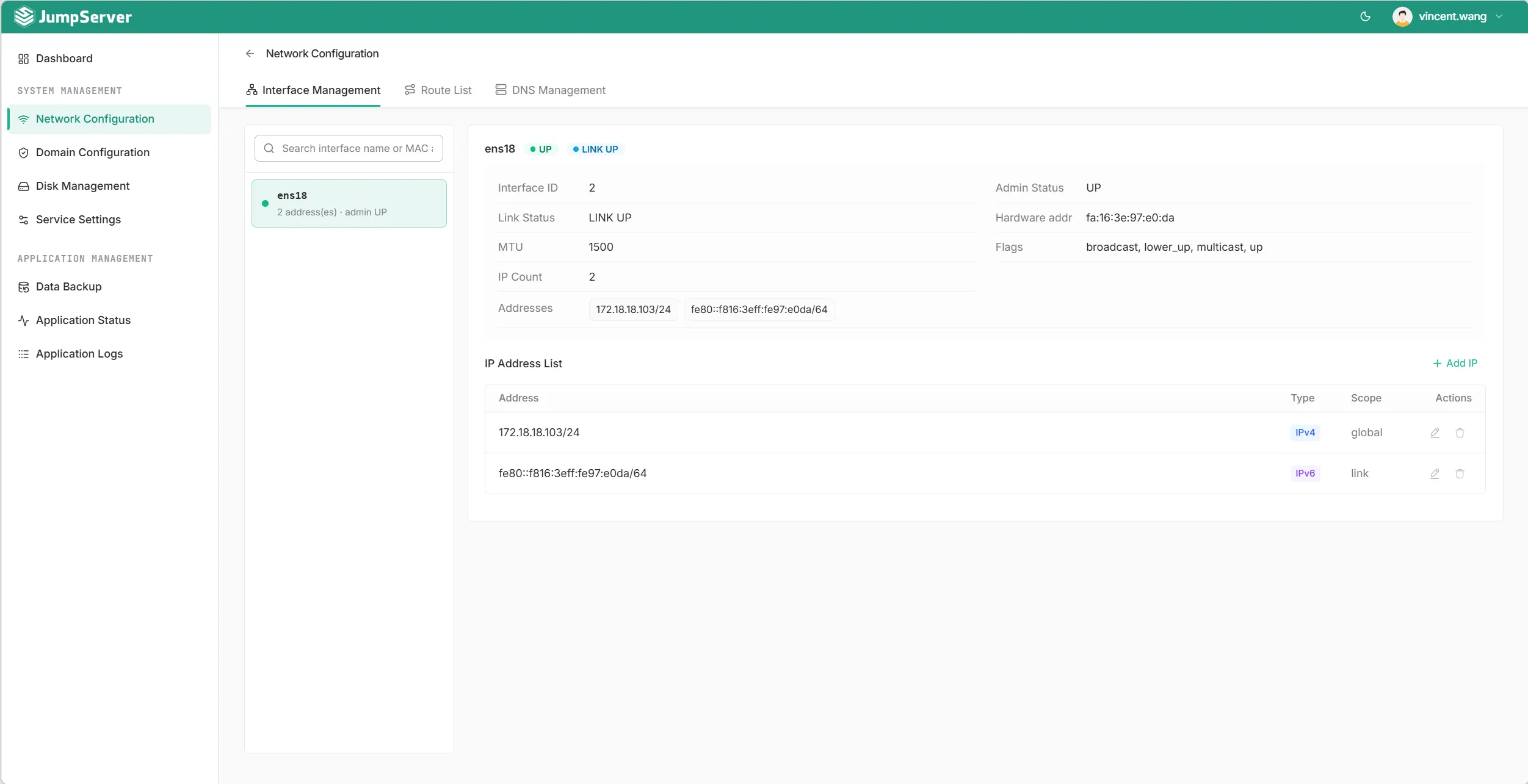
1. Network Configuration
The Network Configuration screen groups three tabs: Interface Management, Route List, and DNS Management. From Interface Management, operators can review interface IDs, link state, MTU, MAC address, IP count, and assigned addresses (both IPv4 and IPv6), and add or remove IPs without leaving the UI. Route List and DNS Management expose the corresponding host-level settings under the same parent page.
2. Domain Configuration
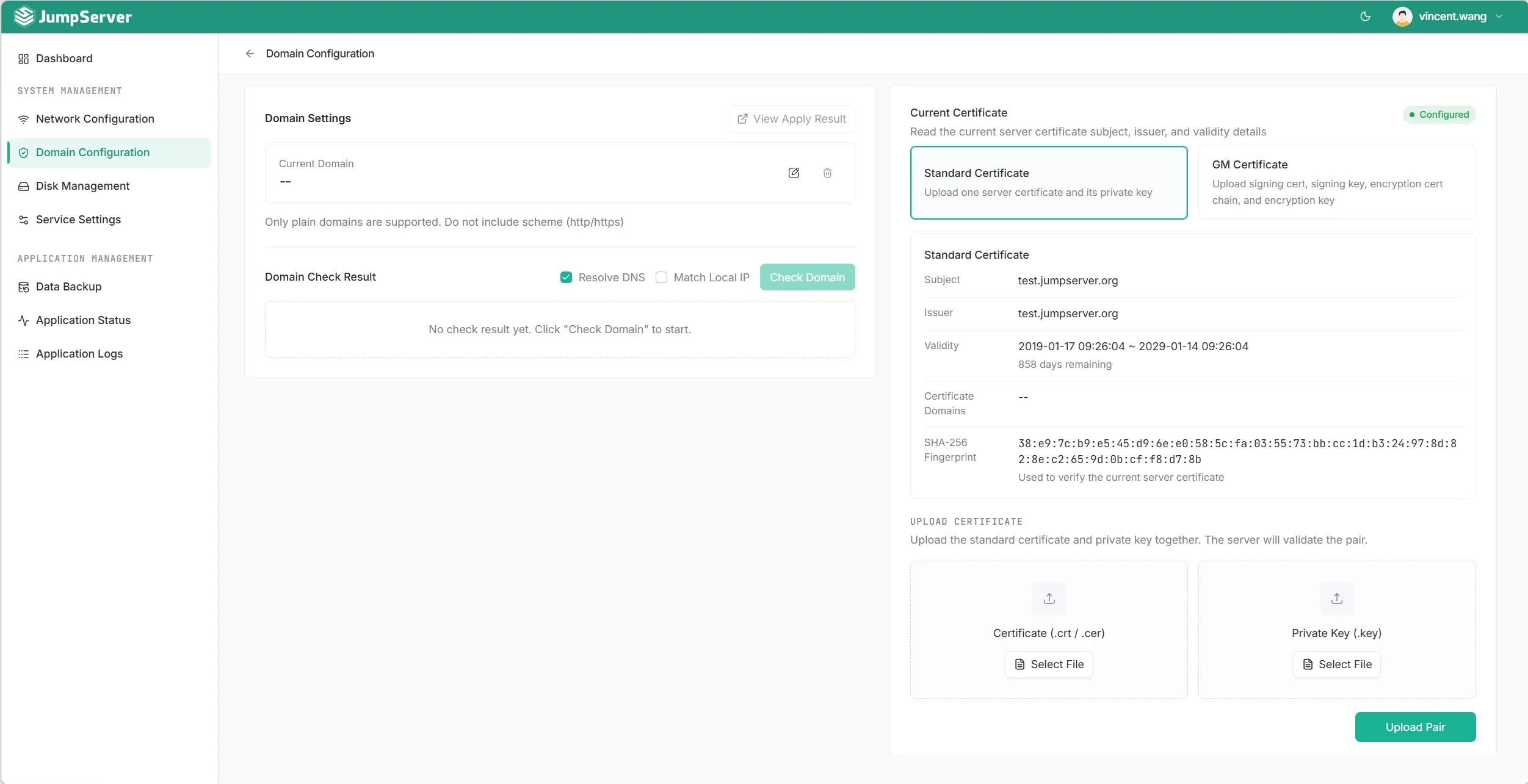
Domain Configuration pairs a "Current Domain" editor with a "Current Certificate" inspector. The certificate panel shows subject, issuer, validity window, SHA-256 fingerprint, and chain, and exposes two upload flows:
- Standard Certificate: upload a standard server certificate and its private key.
- GM Certificate: upload a SM2 signing key, signing certificate, encryption certificate chain, and encryption key, suitable for environments that must meet Chinese commercial cryptography requirements.
A built-in Check Domain action resolves DNS, optionally matches the local IP, and surfaces results inline so operators can confirm a domain is bound to the right host before swapping a certificate.
3. Disk Management
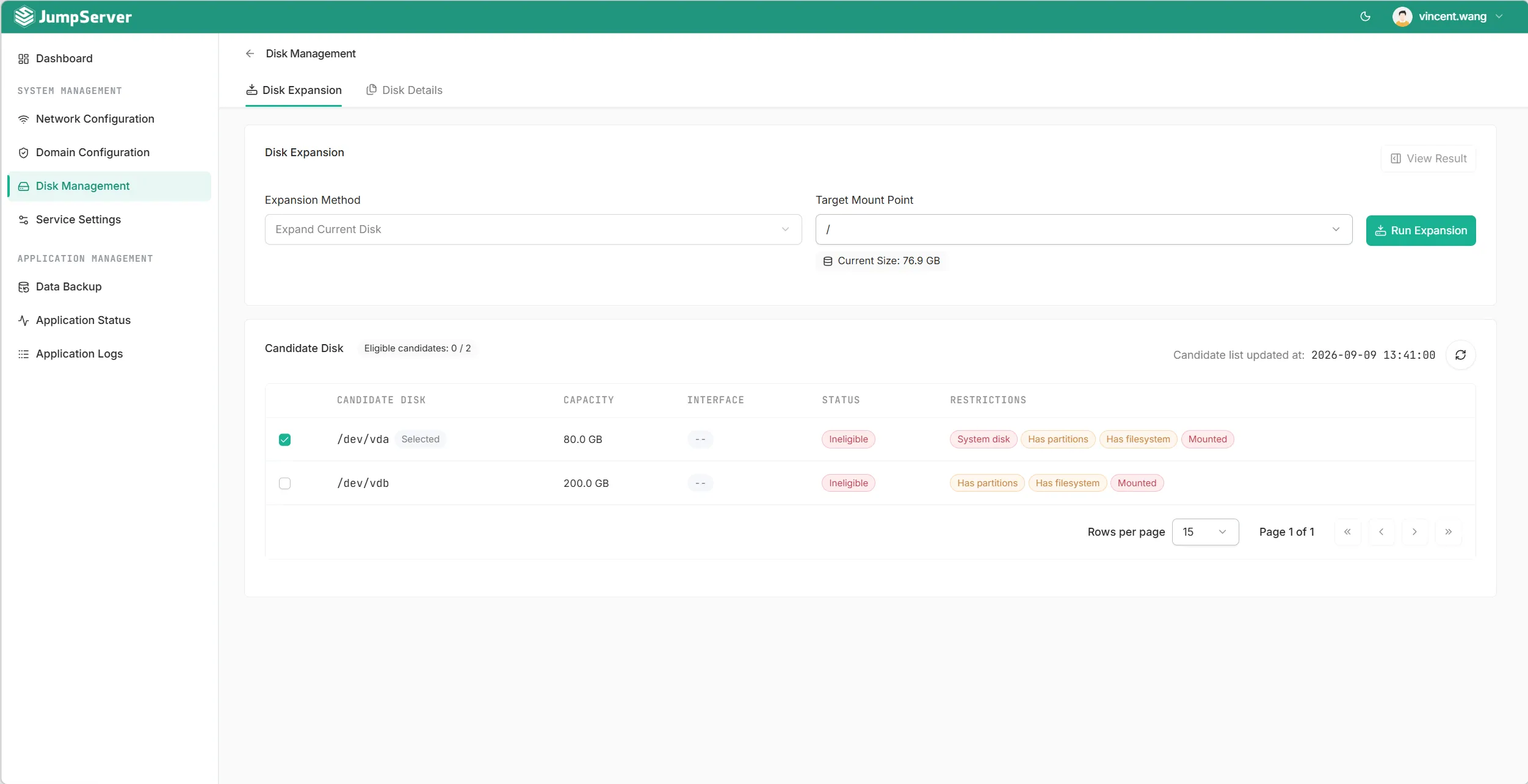
Disk Management surfaces two tabs: Disk Expansion and Disk Details. In Disk Expansion, operators pick an expansion method (Expand Current Disk is the default), select a target mount point, and review the candidate disks auto-discovered by KOTL. Each candidate row reports capacity, interface, status, and any restrictions (system disk, has partitions, has filesystem, mounted) so it is clear at a glance which disk is safe to attach. Disk Details provides a per-device breakdown of partitions, filesystems, and current usage.
4. Service Settings
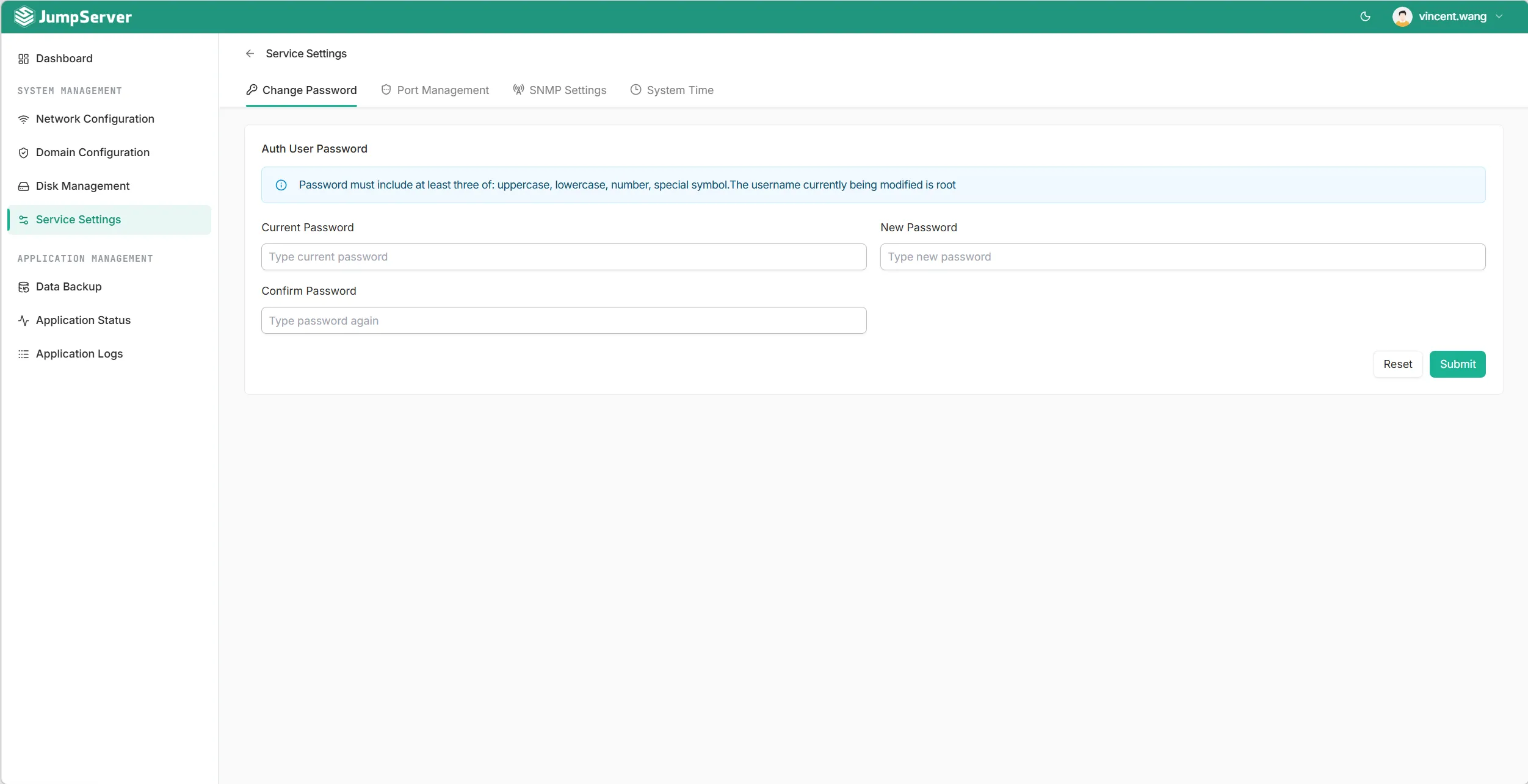
Service Settings brings day-to-day platform administration into the UI with four tabs:
- Change Password: rotate the root password of the JumpServer host. Built-in policy enforcement requires uppercase, lowercase, digit, and special character.
- Port Management: review and change the published ports of core services.
- SNMP Settings: configure SNMP polling for the JumpServer host so it can be scraped by an existing network management system.
- System Time: review and correct the system clock, which matters for audit replay timestamps and OIDC token validation.
5. Data Backup
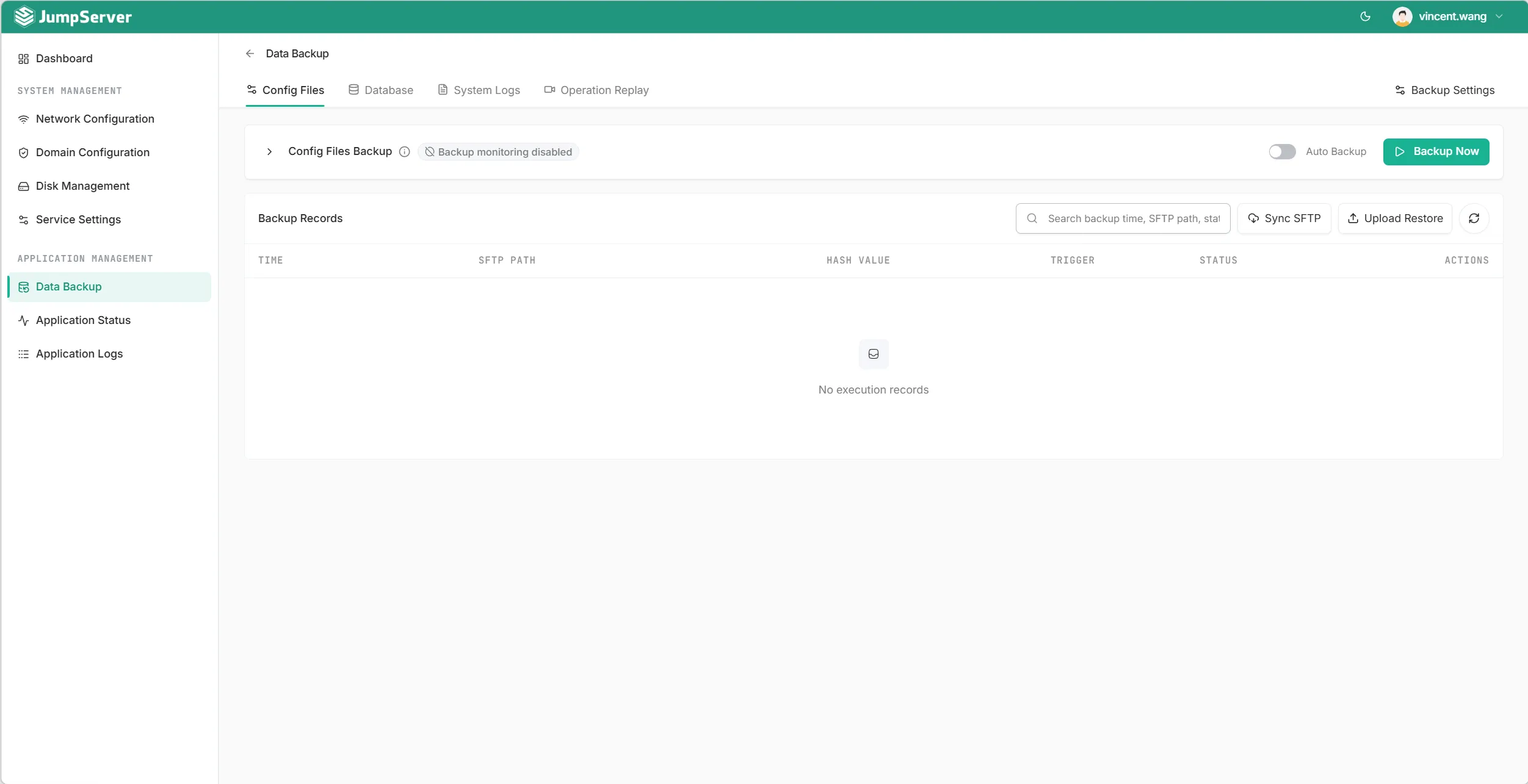
Data Backup is KOTL's centerpiece. It groups the four backup targets that matter for JumpServer itself into a single record table: Config Files, Database, System Logs, and Operation Replay. Each record shows time, SFTP path, hash value, trigger (manual or scheduled), and status.
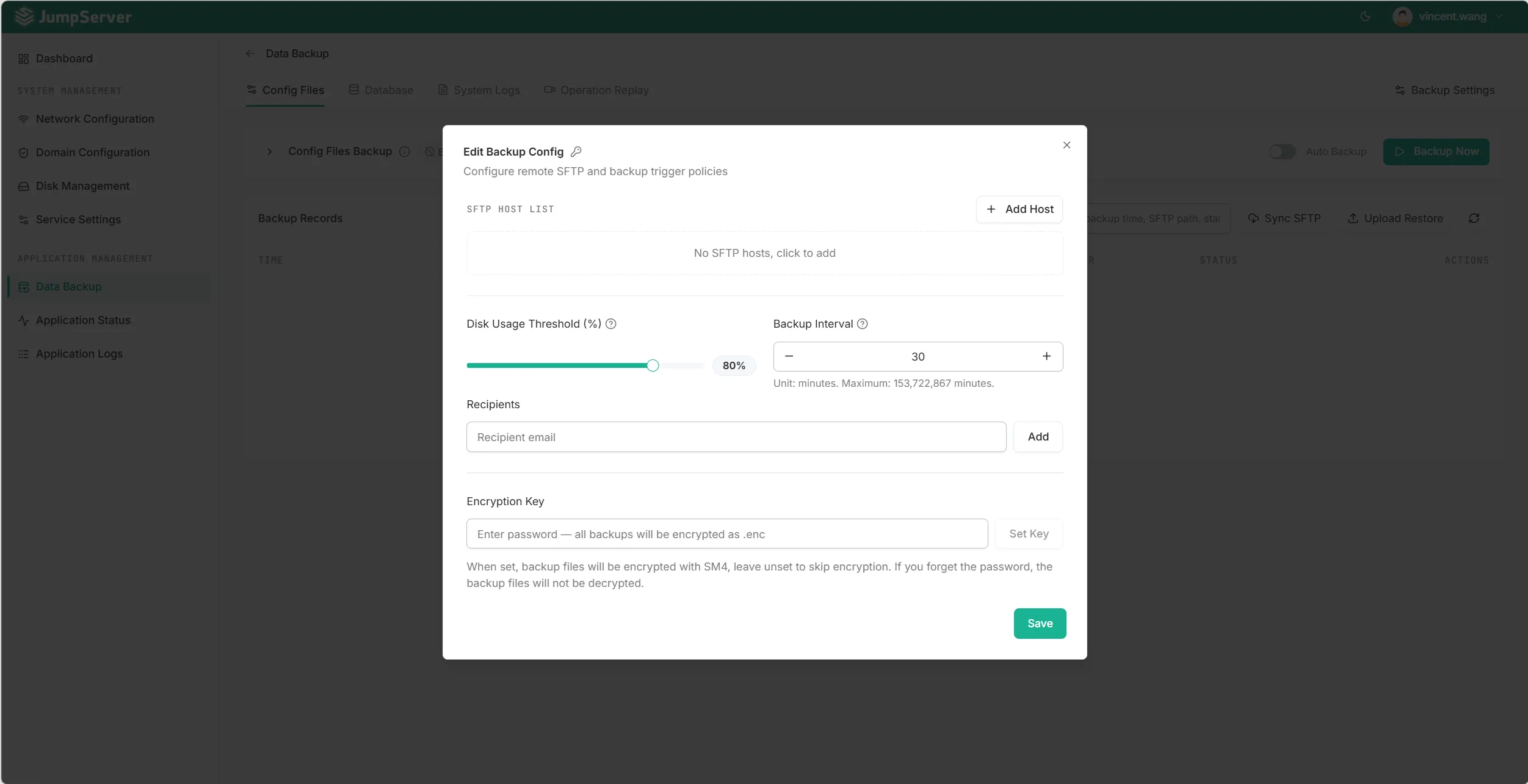
The Backup Settings dialog drives every backup target at once:
- SFTP Host List: one or more remote targets. The toolbar exposes Sync SFTP and Upload Restore actions.
- Disk Usage Threshold (%): when the host disk is at or above this percentage, KOTL automatically stops further backups to keep the platform online.
- Backup Interval (minutes): schedule cadence, 1 to 153,722,867 minutes.
- Recipients: email addresses to notify on backup success or failure.
- Encryption Key: a passphrase that encrypts the backup archive as
.enc. If lost, the file cannot be decrypted; KOTL never stores this passphrase on the server.
Backups are AES-encrypted at rest on the remote SFTP target. Restore is a one-click action from the same panel, and the Upload Restore flow accepts a previously downloaded archive for off-host recovery.
6. Application Status
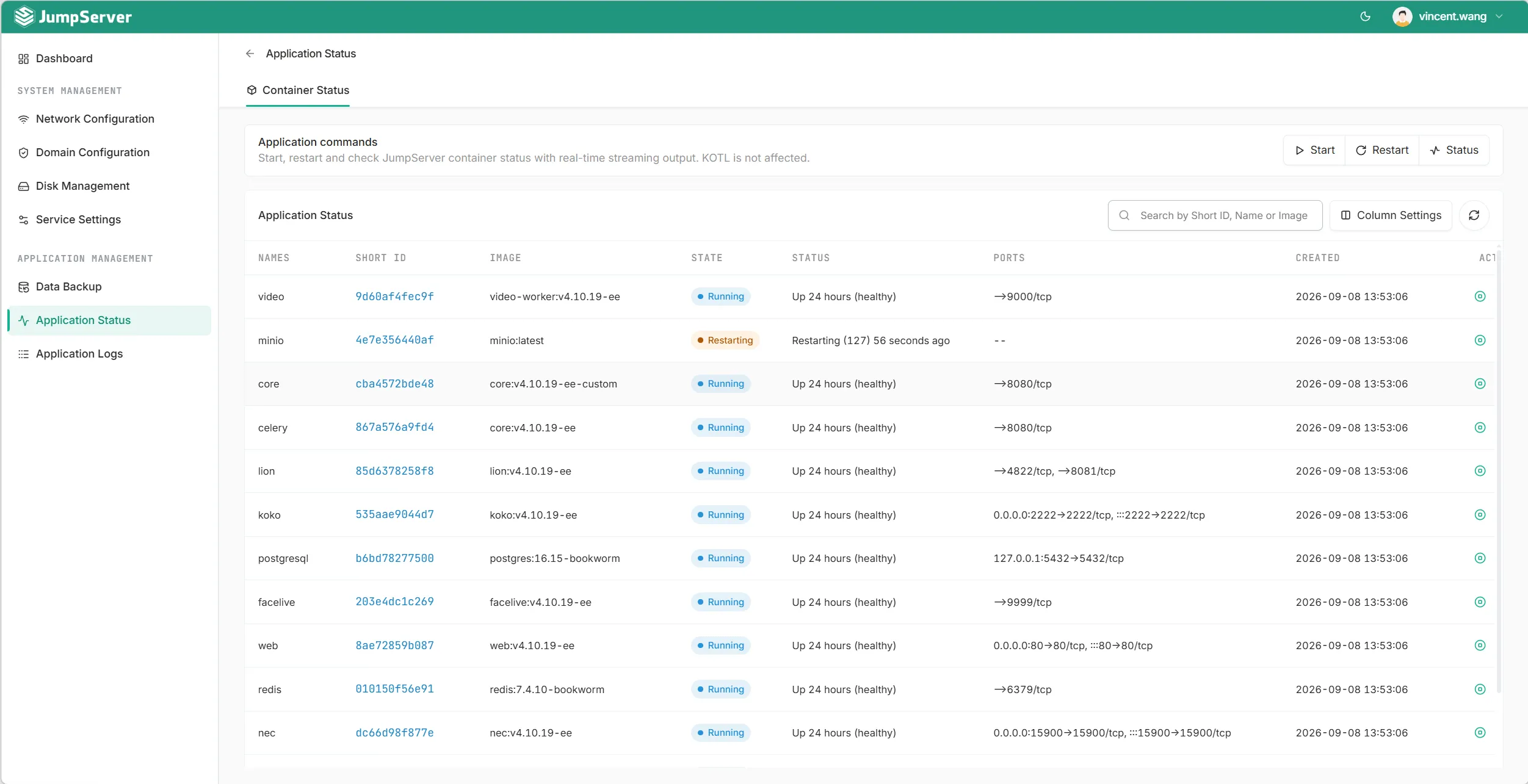
Application Status is a real-time container health board. It lists every container that makes up the JumpServer deployment, including core, koko, lion, chen, web, video, facelve, celery, postgresql, redis, minio, and nec, with their short ID, image tag, state (Running, Restarting, Stopped), health message, port mappings, and creation timestamp. The toolbar runs Start, Restart, or Status queries against the selected container with streaming output, so operators do not need to attach to the Docker socket from a separate shell. A note at the top of the panel makes it clear that KOTL is unaffected by these commands; you can keep an eye on the platform while you restart the things it runs.
7. Application Logs
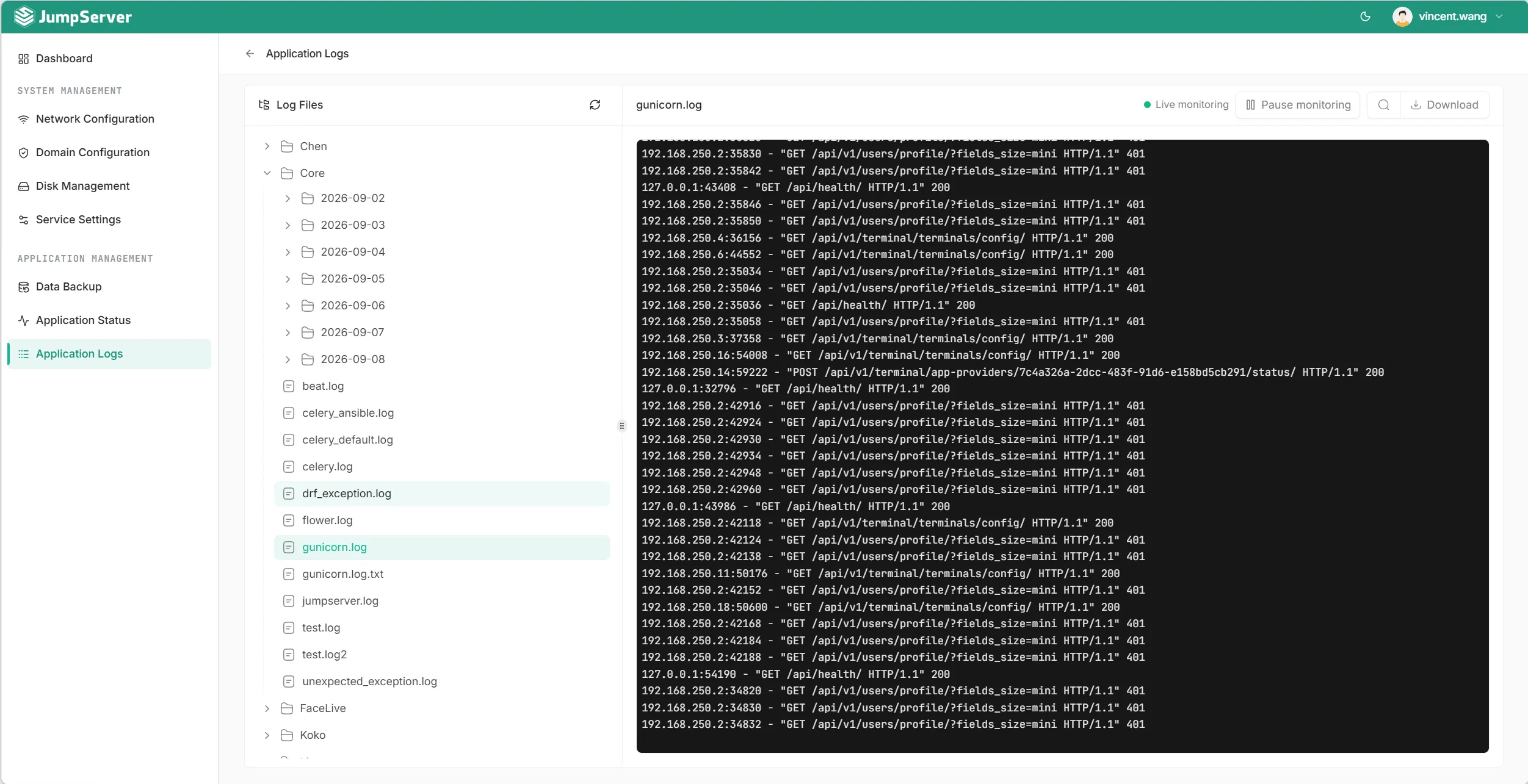
Application Logs is a structured log browser. The left pane organizes logs by component (Core, Chen, Koko, Lion, FaceLive, and others) and then by date, so historical digging is one click away. The right pane shows a live tail with three modes: Live monitoring, Pause monitoring, and Download. The selected file in the screenshot, gunicorn.log, streams Gunicorn access lines; every /api/v1/... call, status code, and client IP is captured, which is invaluable when correlating user-visible behavior with what the platform itself is doing.
Common Use Cases
- Onboarding a new operator without granting SSH access to the JumpServer host.
- Responding to disk-pressure alerts by running Disk Expansion from the browser.
- Replacing an expiring certificate through Domain Configuration without opening Nginx config files.
- Scheduling nightly backups of Config Files, Database, System Logs, and Operation Replay to an SFTP target, with email notification and disk usage guardrails.
- Diagnosing an API failure by tailing
gunicorn.logordrf_exception.logdirectly in the UI. - Restarting a misbehaving container, for example a stuck
kokoorceleryworker, with the streaming Start/Restart action.
Availability
KOTL ships in JumpServer v4.10.19 LTS. The same version is also the safe release for the recently published security advisory JS-2026.09.09 covering the API filtering vulnerability, so a single upgrade unlocks both the KOTL capability and the fix. KOTL is included in the standard application container set, so both in-place upgrades and fresh installs activate it automatically.
Best Practices
- Pair KOTL with a dedicated admin account that has only the System Management and Application Management permissions. KOTL is itself protected by JumpServer's existing access control, so the same just-in-time access and privileged account management policies you already use for managed assets apply here.
- Enable the Disk Usage Threshold before scheduling backups. A runaway log archive should not be able to fill the host disk and take the platform down.
- Store the Encryption Key in an external secret manager. The passphrase is the only way to decrypt the
.encarchive; KOTL cannot recover it. - After every backup, run an Upload Restore drill on a separate host at least once per quarter to confirm the chain is intact and the encryption key is still in a known place.
- Watch the Application Status panel after every upgrade. KOTL keeps it open while a container restarts, so you see the new "Up X minutes (healthy)" row in real time.
- Combine KOTL with JumpServer's audit replay when investigating incidents; both run through the same operation log.
Conclusion
KOTL turns JumpServer from a PAM platform into a self-managing one. Network, disk, certificate, backup, container, and log operations that previously required Linux shell access are now available to any operator with the right JumpServer role, and every action is auditable through the same replay pipeline that already covers user activity. If you have not upgraded to v4.10.19 yet, the KOTL capability is one more reason to plan the move; if you are already on it, the workflows above are the quickest way to put the new console to work on day one.
Related Reading
- Important Notice: JumpServer Vulnerability Advisory and Remediation (JS-2026.09.09)
- Important Notice: JumpServer Vulnerability Advisory and Remediation (JS-2026.7.29)
- What Is a Bastion Host
- Just-in-Time Access
- Core Privileged Access Management Benefits
- JumpServer Audit Recordings Introduction
- JumpServer API Authentication: A Complete Guide
JumpServer is the open-source bastion host and privileged access management platform trusted by thousands of organizations worldwide. Try JumpServer free or explore the features to see KOTL in your own deployment.