
Client-Side Recording Player and Transcoding Tool: JumpServer v4.10.17 LTS Release

Client-Side Recording Player and Transcoding Tool: JumpServer v4.10.17 LTS Release
On July 16, 2026, JumpServer open-source bastion host officially released version v4.10.17 LTS. As a routine iteration of the v4.10 LTS series, this version includes numerous bug fixes and updates, along with several feature optimizations. All users are encouraged to upgrade to the new version.
In v4.10.17 LTS, JumpServer has integrated a recording player and a replay transcoding tool into the client, enabling local playback of session recordings and batch conversion of compressed recording files to MP4 format — significantly improving the efficiency of auditing recording viewing and circulation. Additionally, JumpServer introduces UKey authentication (Enterprise Edition X-Pack) based on SM2 algorithm certificate signing and device binding, providing hardware-level identity authentication for enterprises with stringent login security requirements. The new version also supports custom favorite asset node trees, allowing users to freely create folders and categorize favorited assets for clearer and more efficient management of frequently used assets. Furthermore, the new version supports custom Single Sign-On (SSO) authentication.
New Features
1. Client-Side Recording Player and Transcoding Tool
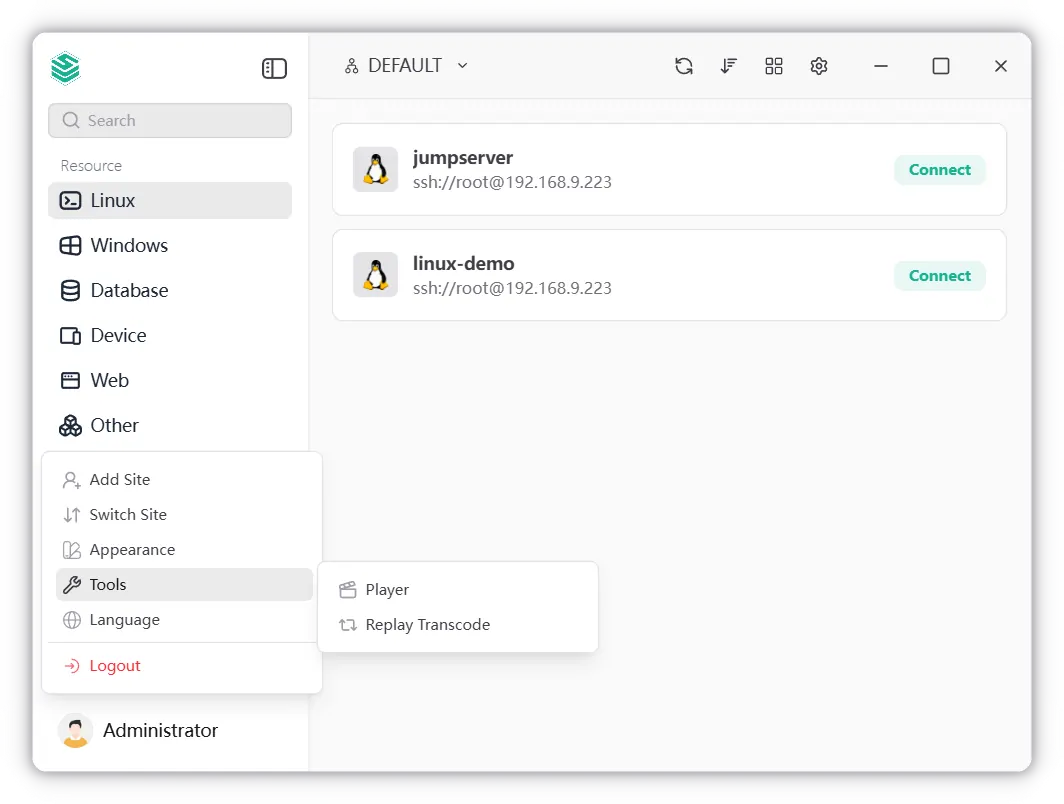
In v4.10.17 LTS, two new tools — "Player" and "Replay Transcode" — have been added to the "Tools" menu in the JumpServer client.
Player: Users can directly import and play back session recording files locally (currently supporting .mp4, .gz, and .tar formats), with a playlist for quick switching between recording segments. This means operators can review session recordings locally without logging into the web console — particularly useful in network-isolated or offline scenarios for audit playback.
Replay Transcoding Tool: Users can select one or more compressed recording files (.tar) and batch-convert them to MP4 format. The transcoded MP4 files can be opened with any standard media player, making it convenient for local archiving, sharing, and submitting audit recordings to external audit firms or compliance inspectors.
The integration of these two tools further enriches the client's local capabilities, extending session recording management beyond the web interface and greatly enhancing flexibility in recording viewing and distribution.
2. UKey Authentication Support (Enterprise Edition X-Pack)
In JumpServer v4.10.17 LTS, a new UKey authentication method has been introduced. UKey is a hardware-based cryptographic token that implements strong two-factor authentication by combining digital certificates with PIN codes. It is widely used in industries with extremely high security requirements, such as finance and government.
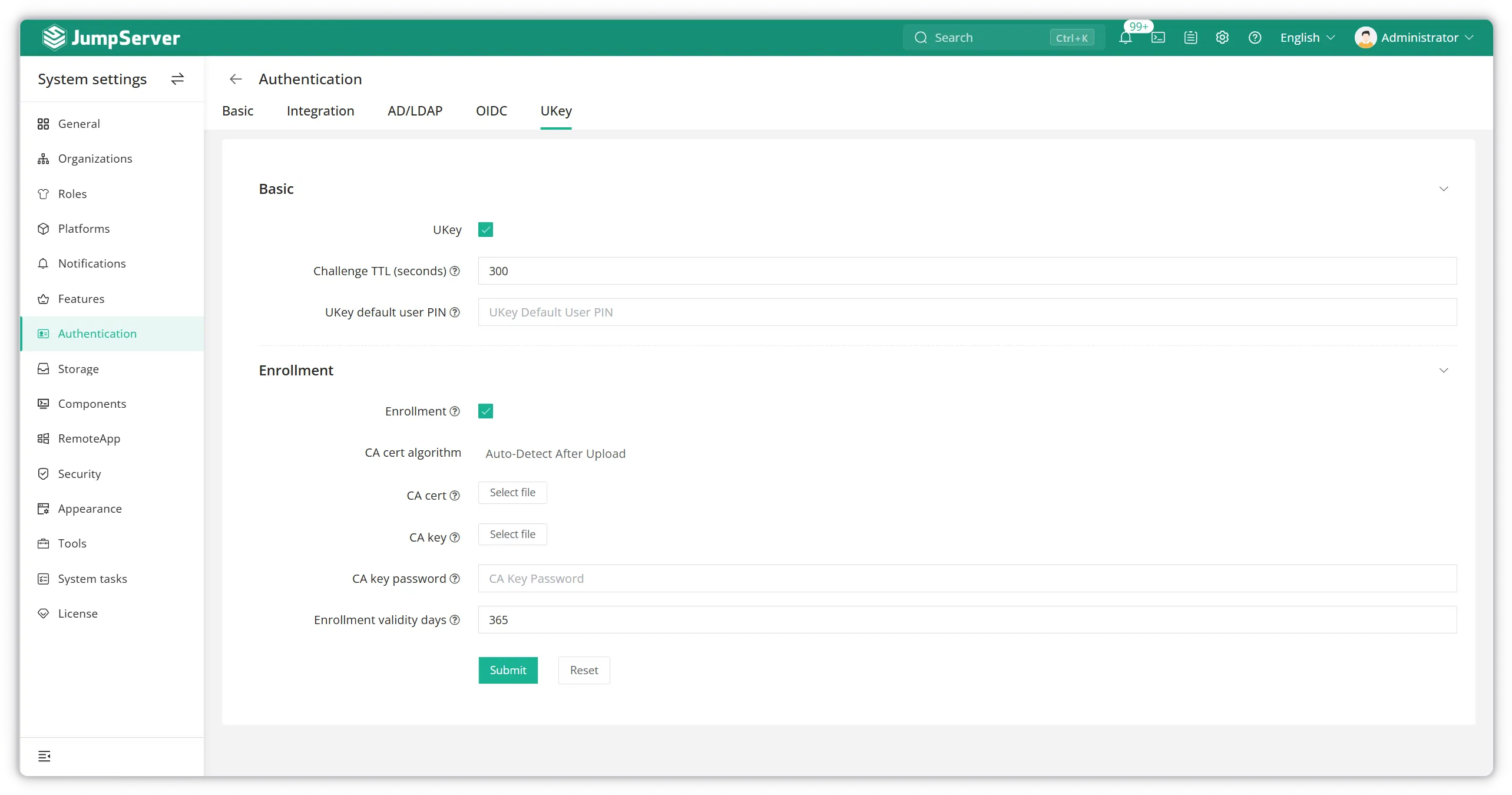
Configuration: Administrators navigate to "System Settings" → "Authentication" → "UKey" to enable UKey authentication and configure the following parameters:
- Challenge code validity period
- Default user PIN code
- Certificate signing information (supports SM2 national cryptographic algorithm CA certificates)
Device Binding: In the "User UKey" page under user details, administrators can bind a UKey device to a user (one user can only bind one UKey), generate key pairs, and issue digital certificates.
Login Flow: Once configured, users select the UKey authentication method on the login page, insert the UKey device, and verify their PIN to log in to JumpServer. The login log records the authentication method as "UKey" for audit traceability.
The introduction of UKey authentication further extends JumpServer's coverage of hardware-level identity authentication scenarios, building upon existing methods such as username/password, MFA, LDAP, and OIDC.
3. Custom Favorite Asset Node Trees
JumpServer v4.10.17 LTS supports user-defined favorite asset node trees. Prior to this version, users could only add assets to a flat favorites list, which became inefficient as the number of favorited assets grew.
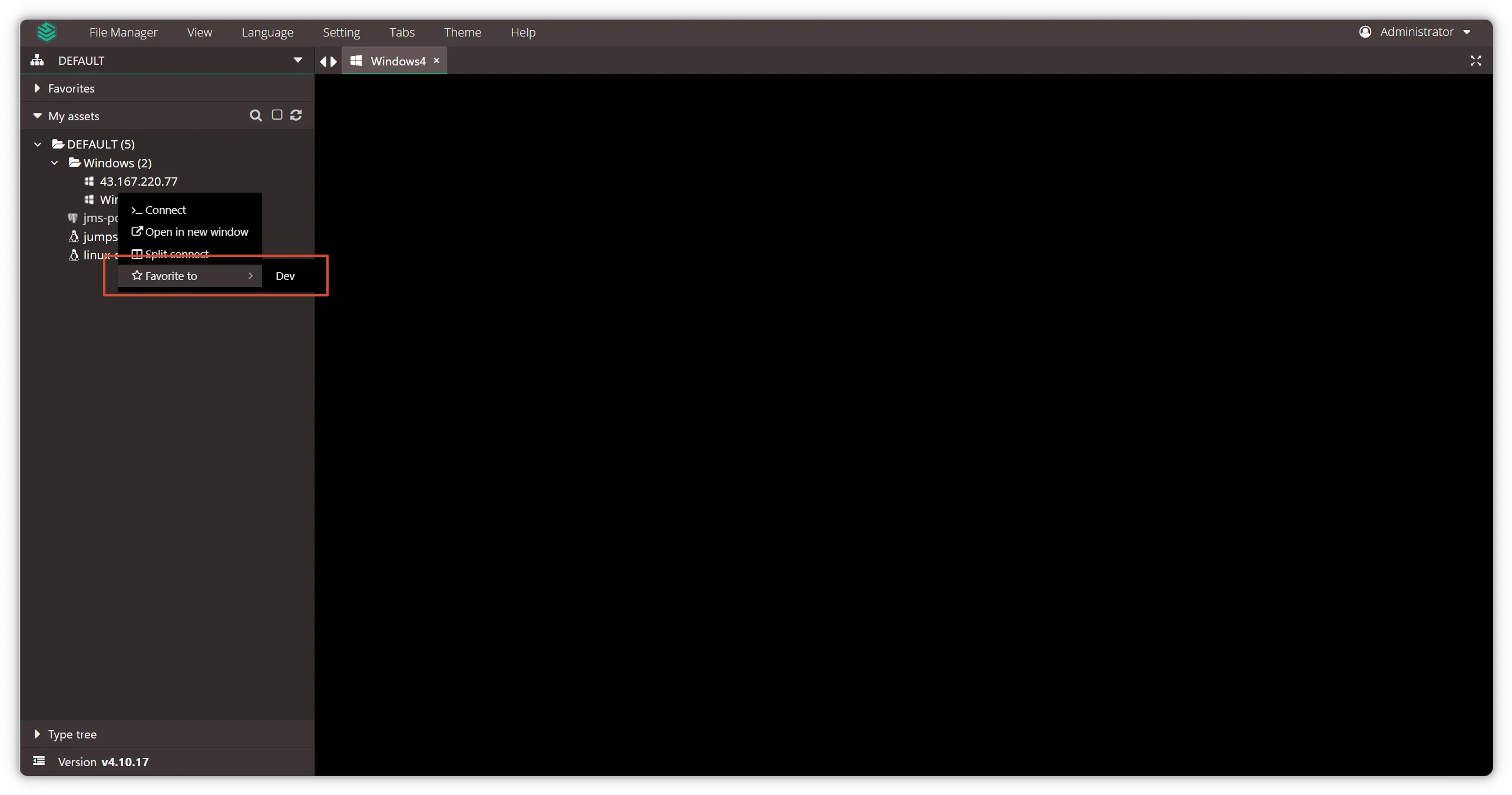
In the new version, users can right-click in the favorites area to create folders, then right-click an asset in the asset list and select "Add to Favorites" to place it in a specific folder. This allows assets to be freely categorized by business line, environment (development/testing/production), geographic region, and other dimensions — making the management of frequently used assets clearer and more organized.
This improvement is a continuous UX optimization that reduces the cost of locating assets in large-scale asset management scenarios.
4. Custom Single Sign-On (SSO) Authentication
In v4.10.17 LTS, JumpServer supports custom Single Sign-On (SSO) authentication. Previously, JumpServer had built-in support for standard SSO protocols including OIDC, OAuth2, CAS, and SAML 2.0. However, in real-world enterprise environments, some internal systems may use non-standard authentication protocols or customized identity authentication systems.
The introduction of custom SSO authentication enables enterprises to flexibly integrate non-standard authentication methods without restructuring their existing identity authentication systems. This allows JumpServer to be seamlessly incorporated into a unified login portal, meeting the diverse identity authentication needs of various enterprises.
5. Configurable Real Client IP Address Retrieval
The new version adds support for configuring how the real client IP address is obtained. In deployment architectures involving reverse proxies, CDNs, or load balancers, JumpServer needs to extract the client's real IP address from HTTP request headers. This feature allows administrators to flexibly configure IP retrieval strategies (e.g., extracting from X-Forwarded-For, X-Real-IP headers), ensuring that IP information in login logs, ACL rules, and audit records is accurate and reliable.
6. SECURITY_DISABLE_VIEW_SECRET: Preventing Export of Sensitive Information
In JumpServer v4.10.17, a new SECURITY_DISABLE_VIEW_SECRET configuration option has been added, enabling administrators to globally disable the viewing and export of asset plaintext passwords and SSH private keys.
Background and Security Value: In traditional operations scenarios, operators or administrators who are granted asset access permissions can often view and copy asset plaintext passwords or SSH private keys through the bastion host console or API. This introduces two security risks:
- Credential Retention: After personnel departures or role changes, individuals may use privately recorded plaintext passwords to bypass the bastion host and directly connect to target servers.
- Credential Leakage: Plaintext credentials exported to local files lack encryption protection, making them highly susceptible to leakage.
Design Principle: This feature follows the "Usable but Invisible" security design principle. When enabled, users can still use account credentials to connect to assets normally, but cannot view, copy, or export asset plaintext passwords and private keys through the web interface or API — cutting off the pathway for plaintext credential outflow at the source.
Configuration: Administrators edit the configuration file on the JumpServer deployment node at /opt/jumpserver/config/config.txt and add the following:
SECURITY_DISABLE_VIEW_SECRET=true
After configuration, restart the JumpServer service for the changes to take effect. This feature is suitable for Zero Trust architecture deployments and high-security compliance scenarios such as ISO 27001.
You can refer to the complete release notes for JumpServer v4.10.17 LTS at https://www.jumpserver.com/blog/jumpserver-v4.10.17-lts.
Upgrade Recommendations
v4.10.17 LTS is a routine iteration of the v4.10 LTS series. All v4.10.x users are advised to upgrade to this version as soon as possible to benefit from the latest feature optimizations and security fixes.
Upgrade Notes:
- This version upgrades Django to 5.2 and Python to 3.14. Please fully test the compatibility of custom plugins or scripts with the new framework before upgrading.
- To enable the
SECURITY_DISABLE_VIEW_SECRETfeature, modify the configuration file and restart the service after upgrading. - Back up your database before upgrading to ensure quick rollback in case of any issues.
Upgrade Method:
# Change to the /opt directory.
# Download the latest installation package.

wget https://github.com/jumpserver/installer/releases/download/v4.10.17/jumpserver-installer-v4.10.17.tar.gz

# Extract the installation package.

tar -zxvf jumpserver-installer-v4.10.17.tar.gz

# Change to the extracted directory.

cd jumpserver-installer-v4.10.17

# Perform the upgrade.

./jmsctl.sh upgrade

# Start all services.

./jmsctl.sh start

# For offline upgrades, download the corresponding package from the official website
For more details, please refer to the JumpServer Official Documentation.