Connecting to Web Assets in JumpServer V5: Built-in Browser, No Windows Host Required
JumpServer has always treated internal web dashboards, cloud consoles, and administrative backends as first-class assets, so teams could reach them through the platform instead of handing out direct network access. The original guide to connecting web assets walked through that workflow end to end: deploy a publisher, register the site as a Web asset, configure autofill, and open the session through the Web Terminal.
JumpServer V5 removes the part of that workflow operators complained about most. The rebuilt V5 native client can now open a Web asset in a built-in browser, launched from the same desktop client used for SSH, RDP, and databases. There is no Windows machine to stand up as a relay, and no detour through a separate remote session just to reach a web page.
This article explains what changed in V5, how to connect to a Web asset with the built-in browser, and where the older publisher model still makes sense.
What You Will Learn
- How Web assets were published before V5, and what that architecture required
- What the V5 native client adds: a built-in browser for Web assets
- How to connect to a Web asset directly from the client, step by step
- How autofill and interactive CAPTCHA prompts keep the whole login flow in one place
- When RemoteApp or VirtualApp is still the right choice
- Availability, upgrade path, and answers to common questions
How Web Assets Were Published Before V5
JumpServer Web assets exist so that users reach internal web systems through the platform rather than directly. The target URL and the credentials stay hidden from the end user, and the session is fully audited. That model has not changed in V5, and it is the reason web assets matter: a dashboard, an admin console, or a SaaS back office becomes just another entry in the asset tree, governed by the same permissions and recorded by the same session pipeline as SSH and RDP.
What changed is how the browser is provided. Before V5, JumpServer relied on a publisher to launch the browser on the user’s behalf, and there were two options:
- RemoteApp, a Windows host running the browser. JumpServer deploys and maintains it with the Tinker component, which installs Chrome and manages sessions over
sshorwinrm. - VirtualApp, a Linux host running browsers inside Docker containers managed by the Panda component, available in the Enterprise Edition and enabled by setting
PANDA_HOST_IPin/opt/jumpserver/config/config.txt.
Both options work, and both demand infrastructure. A RemoteApp deployment needs a Windows Server with Remote Desktop Services licensing, plus compute sized for a browser session per user. A VirtualApp deployment needs a Linux host with Docker and the Panda service running. For teams that just wanted to reach an internal web console, that meant standing up and maintaining a dedicated machine, and for the end user it meant connecting through one system to reach another.
| Dimension | Before V5 (publisher model) | V5 native client |
|---|---|---|
| Where the browser runs | On a RemoteApp Windows host or a VirtualApp Linux container | In the native client on the operator’s own workstation |
| Relay infrastructure | Windows Server with RDS licensing, or a Linux host with Docker and Panda | None required for browser access |
| Connection path | Client, Web Terminal, publisher, then target site | Client, JumpServer gateway, then target site |
| Devices to manage | Operator device plus one or more relay hosts | Operator device only |
| Login experience | Autofill configured per asset | Autofill plus interactive CAPTCHA input |
What the V5 Native Client Adds for Web Assets
The V5 native client is a rebuilt desktop application that reaches every asset type from one interface. For Web assets, it adds a built-in browser, so the site opens inside the client instead of inside a published remote browser.
Two changes follow from that.
No relay device for web access. Because the browser runs locally in the client, reaching a web dashboard no longer requires a Windows host, a Linux publisher container, or any other intermediate machine. Teams that keep a relay host purely so users can browse internal sites can retire it.
Fewer context switches. The asset tree, the connection dialog, the browser tab, and the session status all live in one window. Operators stop moving between a remote desktop, a browser, and the platform console. The client keeps the target site in a tab next to the connections the user already has open, with the session state visible in the status bar.
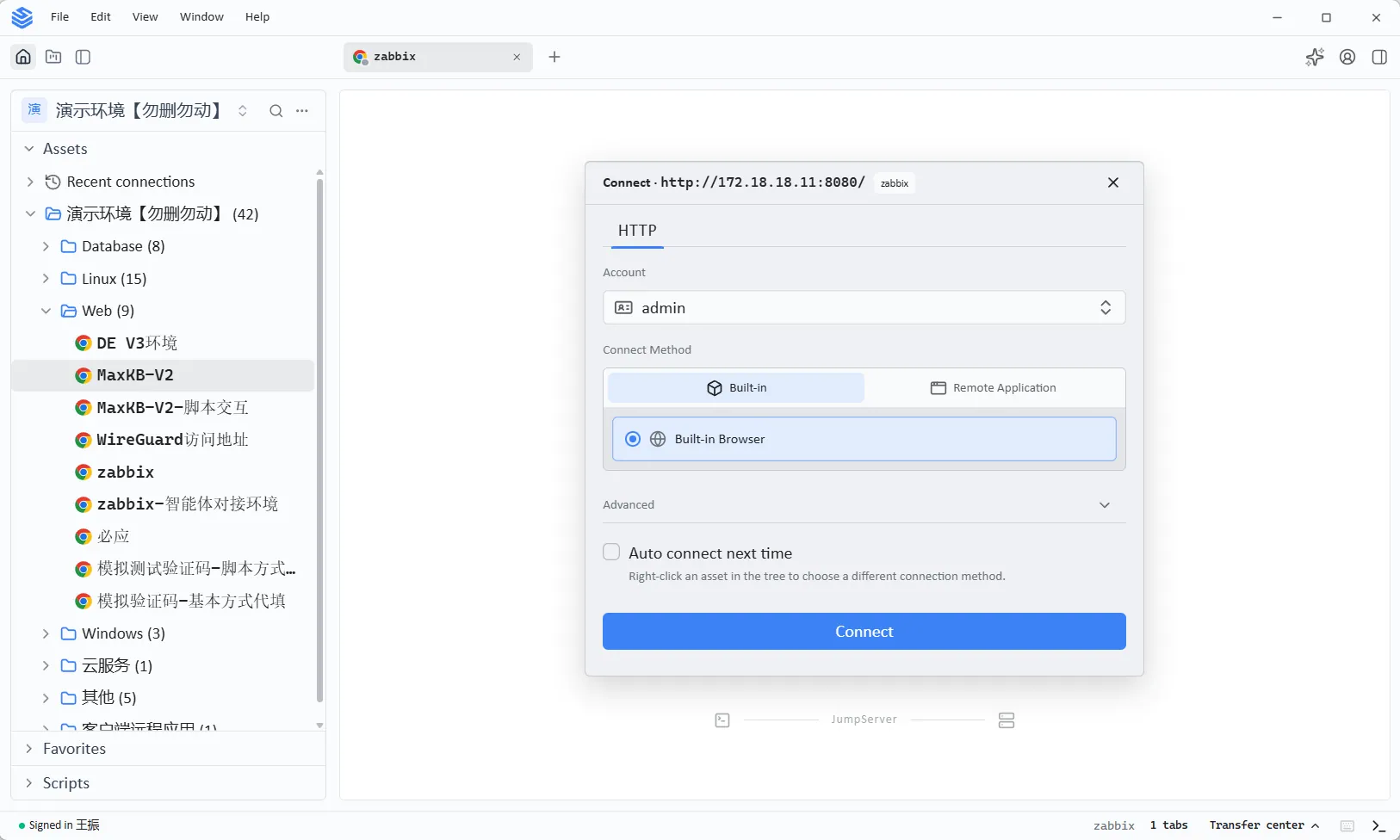
Figure 1. The connection dialog for a Web asset in the V5 native client. Connect Method offers Built-in and Remote Application. Under Built-in, selecting Built-in Browser opens the site directly in the client, with no remote host involved.
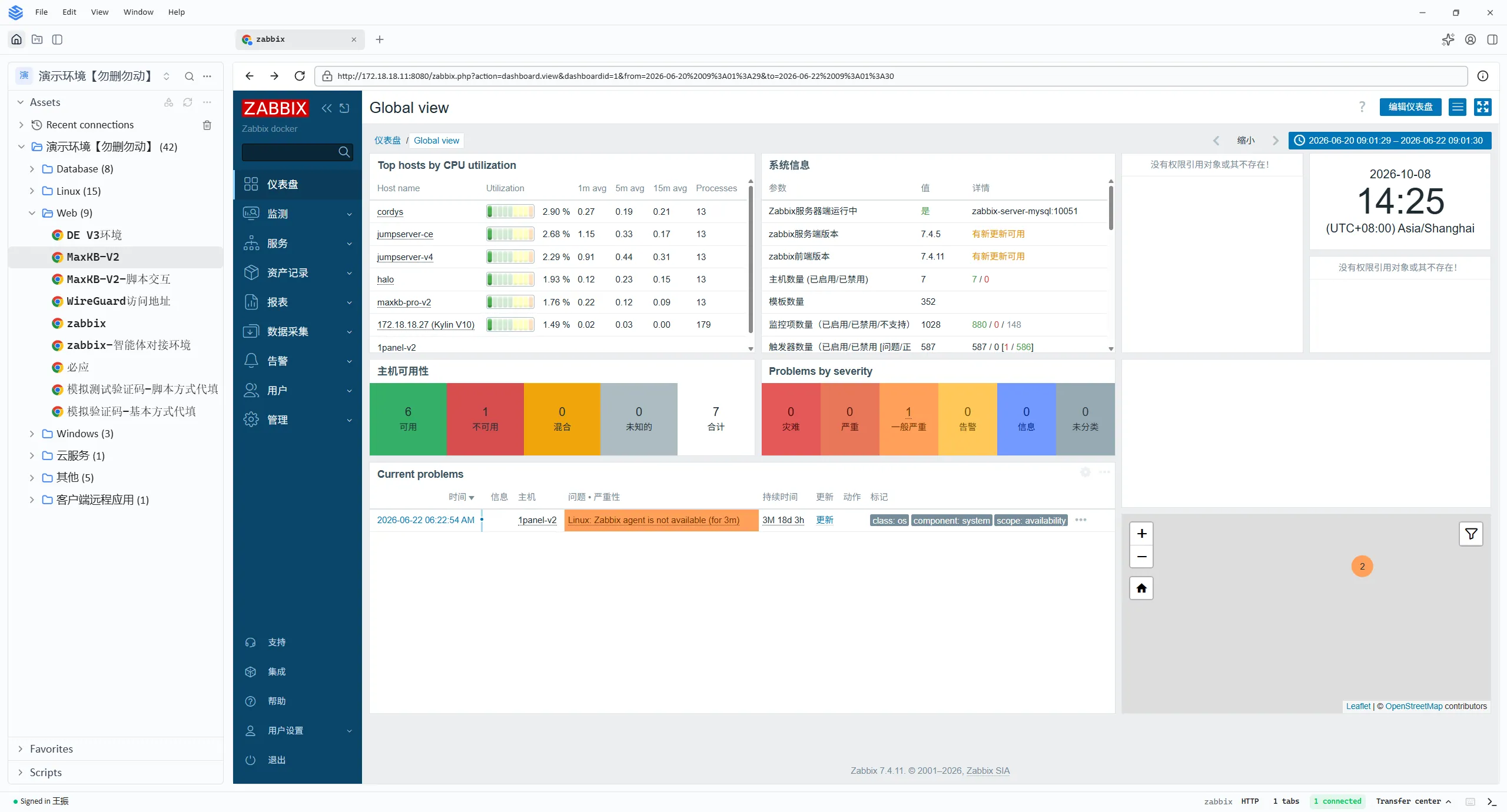
Figure 2. A Zabbix dashboard rendered inside the built-in browser. The asset tree stays on the left, the target site fills the main pane, and the session appears as a tab at the bottom alongside the connection status.
Connecting to a Web Asset with the Built-in Browser
The workflow is short, because the client already knows the asset, the account, and the connection method.
- Sign in to the native client. The asset tree loads with your authorized nodes, including Web assets under the Web group.
- Locate the Web asset. Browse the tree or search for it. Each Web asset is listed with the same details as any other asset type.
- Start the connection. Select the asset to open the connection dialog.
- Choose the account. The Account selector lists the credentials bound to the asset. Pick the account to use.
- Select Built-in Browser. Under Connect Method, choose Built-in, then select Built-in Browser. Choosing Remote Application instead falls back to the publisher path described above, which is useful when a site behaves better in a published browser.
- Click Connect. The site opens in a new tab inside the client.
The Advanced section exposes Auto connect next time, which remembers the account and the connection method for that asset so subsequent sessions skip the dialog.
For administrators, the setup work is limited to the asset itself. On the asset definition, the Website URL must be the full address, including the port when it is not 80 or 443, for example https://console.aws.amazon.com or http://10.0.0.12:8080. Accounts bound to the asset enable autofill, as described next.
Autofill and Interactive CAPTCHA
Logging in is where web assets usually cost the most time, and V5 addresses both halves of it.
Autofill enters credentials automatically. When an account is associated with the asset, the client fills the username and password from the stored credential. The user never sees the password, which is the point: the credential stays in JumpServer and the login happens on the user’s behalf. Autofill supports three modes configured on the asset:
- Disabled, for public sites that need no login.
- Basic, for simple single-screen login forms, using selectors (ID, name, CSS, or XPath) to identify the username field, the password field, and the submit button.
- Script, for multi-step logins, iframes, and dynamic pages, driven by an ordered list of steps such as
click,type,sleep, andselect_frame, with the built-in{USERNAME}and{SECRET}variables resolved at run time.
Interactive CAPTCHA input keeps the user in the loop. Some sites require a verification code that only a human can read or receive. Instead of breaking the session, the client prompts for the code inside the connection flow and passes it to the page, following the on-screen instructions the site provides. Autofill handles what can be automated; the client handles the step that genuinely needs a person, in the same window.
The net effect is that a user can go from selecting a web asset to being logged in to the application without retyping credentials, without memorizing a password, and without leaving the client.
When RemoteApp and VirtualApp Still Make Sense
The built-in browser covers the common case: reaching a web application on the network. The publisher model remains the right tool for two situations.
- Native desktop applications. Some tools have no web interface and only ship as Windows programs, for example database clients such as DBeaver or Navicat. RemoteApp publishes those applications, and the VirtualApp configuration guide covers the Linux equivalent for browser-based workloads that must run server-side.
- Browser behavior that depends on a managed host. If a site requires a specific managed browser build, a particular network position, or isolation from the operator’s own workstation, running the browser on a controlled publisher host is still the stronger choice.
In short, the built-in browser removes the relay host when the goal is simply to open a web page; RemoteApp and VirtualApp stay available when the goal is to publish a Windows application or to control where the browser executes.
What This Means for Operations and Security Teams
For operations, the change is measured in steps and devices. A team that manages business systems and admin backends through the browser no longer provisions a machine just for web access, and users no longer switch between devices and connection methods to reach a dashboard.
For security, the model is unchanged where it matters. The target URL stays hidden behind the platform, credentials stay in JumpServer and are never exposed to the end user, and the session is recorded and available for replay exactly as before. Removing the relay host also removes a host from the attack surface and from the patch cycle.
Availability and Upgrade Path
The built-in browser is part of the JumpServer V5 native client. Database migrations between v4 and v5 are continuous and forward-rolling, so any v4 release upgrades directly to v5 without an intermediate version.
Online upgrade, for installs created with the one-line installer:
cd /opt
wget https://github.com/jumpserver/installer/releases/download/v5.0.0/jumpserver-installer-v5.0.0.tar.gz
tar -zxvf jumpserver-installer-v5.0.0.tar.gz
cd jumpserver-installer-v5.0.0
./jmsctl.sh upgrade
./jmsctl.sh start
Fresh install, on a clean 64-bit Linux host with at least 4 cores and 8 GB of memory:
curl -sSL https://github.com/jumpserver/jumpserver/releases/latest/download/quick_start.sh | bash
The full procedure is documented in the JumpServer upgrade guide. To evaluate V5 against your own environment, review the feature list or start a free trial.
FAQ
Do I still need a RemoteApp or VirtualApp publisher to connect to Web assets?
No, not for browser access. The V5 native client opens Web assets in a built-in browser, so a relay host is not required to reach a web page. Publishers are still needed to deliver native Windows applications and to run browsers on a managed host when a site requires it.
Which connection methods appear for a Web asset in the V5 client?
Two: Built-in, which includes the Built-in Browser option, and Remote Application, which routes the session through a publisher as before. The Advanced section can remember the choice with Auto connect next time.
Can the client fill in login credentials automatically?
Yes. When an account is bound to the asset, autofill enters the username and password using the asset’s Disabled, Basic, or Script configuration. The end user does not see the password.
What happens when a site requires a CAPTCHA?
The client prompts for the verification code inside the connection flow and submits it to the page, following the site’s on-screen instructions, so the login stays in one window.
Is the session still audited?
Yes. Web asset sessions are recorded and replayable through the same audit pipeline that covers SSH, RDP, and database sessions.
JumpServer is the open-source bastion host and privileged access management platform used by thousands of organizations worldwide. Explore the feature set or start a free trial.