
How to Manage AWS IAM Accounts and Connect to the AWS Console with JumpServer

Cloud teams rarely lose sleep over their Linux servers. They lose sleep over the AWS Management Console, because a single IAM user with console access can change a security group, delete a bucket, or spin up resources in minutes. The credentials for those IAM users are usually shared, rarely rotated, and almost never audited at the session level.
JumpServer v4.10.19 closes that gap. With the custom platform and platform automation features introduced in this release, you can register the AWS Management Console as a managed web asset, let JumpServer discover the IAM users behind it, rotate their console passwords automatically, and open the console through the bastion host with full session recording. This guide walks through the whole setup.
What You Will Learn
- How to import a custom AWS Console platform package into JumpServer
- How to create a dedicated AWS IAM user with the minimum permissions JumpServer needs
- How to register the AWS Management Console as a web asset
- How to add the privileged API account that runs the automation tasks
- How to create and schedule account discovery and password rotation
- How to verify stored credentials with the built-in verification action
- How to open the AWS Console through JumpServer with auto sign-in and session audit
Prerequisites
- A running JumpServer v4.10.19 (or later) instance with the custom platform and PAM automation features available
- An AWS account with permission to create IAM users and policies
- Administrator access to JumpServer
- The AWS Console platform installation package supplied with this guide
- A deployed publisher (RemoteApp or VirtualApp), which every Web type asset in JumpServer requires
Before you start: Web assets need a publisher.
The AWS Console is registered as a Web type asset, and JumpServer opens Web assets through a publisher that hosts the browser session. You must deploy and publish that publisher before Step 6 will work. Two options are available:
- RemoteApp runs the browser on a Windows host. It needs Windows Server 2019 (Standard or Datacentre), at least 4 CPU cores and 8 GB RAM, plus OpenSSH or WinRM and activated Remote Desktop Services licensing.
- VirtualApp runs the browser in Docker containers on a Linux host. It is lighter and a better fit for browser-only assets, and it is an Enterprise Edition feature.
Both paths are covered step by step in How to Configure and Connect Web Assets in JumpServer. Complete that guide first, then come back here and continue with Step 1.
Note: If the Platforms or Automation menus are not visible in your deployment, your edition or license may not include custom platforms and PAM automation. Contact your account representative to confirm.
Why Manage AWS Console Accounts Through JumpServer
Before the automation, the typical pattern looks like this: an IAM user named ops-console is created once, the password is pasted into a wiki page, five people use it, and nobody can answer who changed the S3 policy last Tuesday.
Moving the console behind JumpServer changes four things at once:
| Problem without a PAM layer | What JumpServer adds |
|---|---|
| Console credentials shared across the team | One JumpServer account per operator, credential never exposed |
| Passwords rotated manually, if at all | Scheduled password rotation with a platform automation task |
| No record of what happened in the session | Session recording and command-level audit on console access |
| Orphaned IAM users nobody owns | Account discovery keeps the IAM inventory in sync |
The rest of this guide builds that setup step by step.
Step 1: Import the AWS Console Platform Package
JumpServer ships platforms for common asset types, and v4.10.19 lets you add your own. The AWS Console platform package is a single archive that defines the asset type, its icon, the automation actions it supports, and the auto sign-in selectors for the AWS sign-in form.
- Download the AWS Console platform package aws_console.zip.
- In JumpServer, go to System Settings → Platforms, then choose Import and select the package.
- Confirm the platform appears in the list. It is registered under the Web asset type with the name AWSConsole.
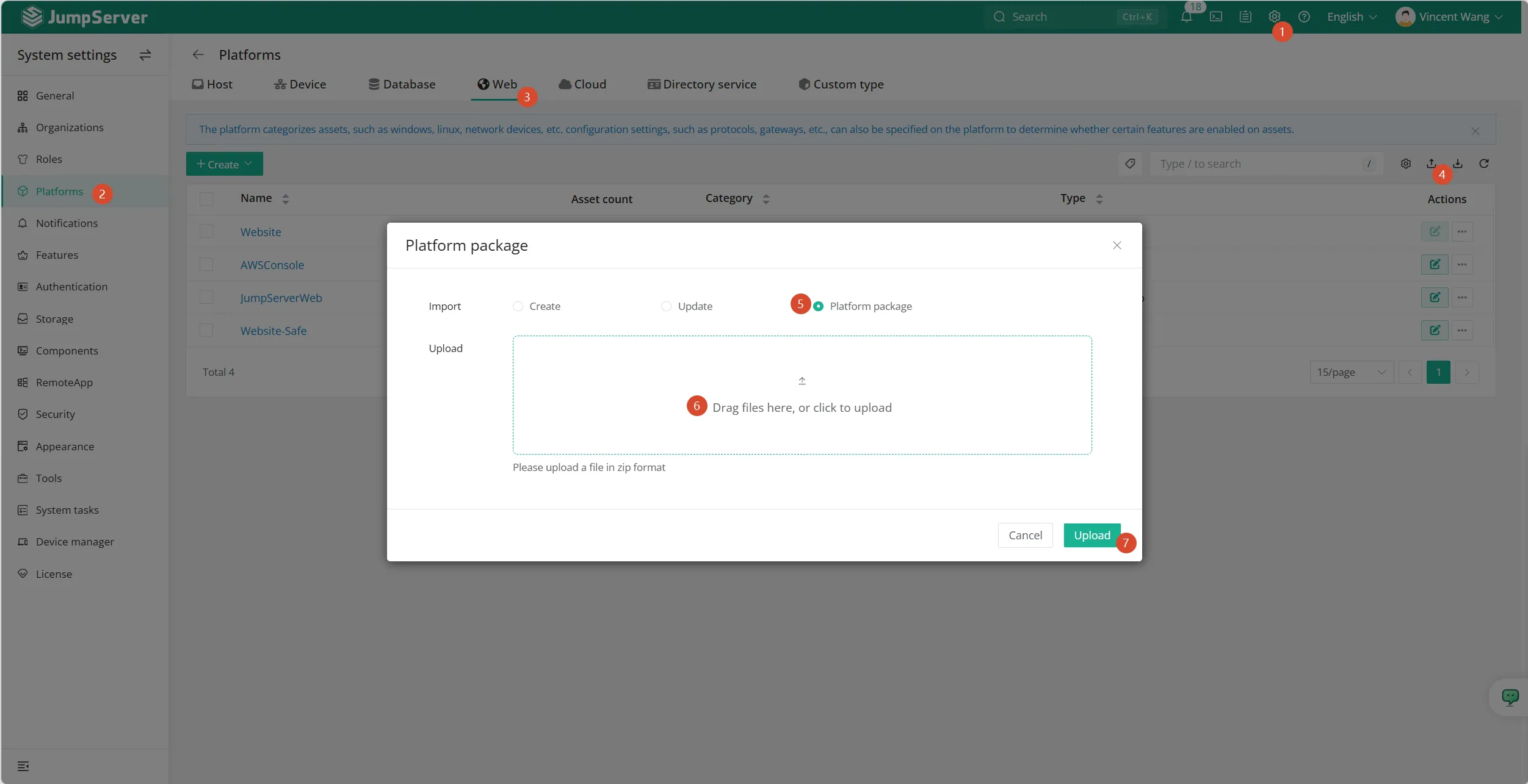
Figure 1. Importing the platform package under System Settings → Platforms. The upload dialog accepts a zip archive; once the import completes, AWSConsole is listed alongside the built-in platforms under the Web asset type.
Once imported, the platform is available when you create a web asset.
Step 2: Create a Dedicated IAM User in AWS
JumpServer calls the AWS IAM API to discover users and rotate passwords, so it needs its own IAM identity. Do not reuse an existing admin user for this.
2.1 Create the IAM user
- Sign in to the AWS Management Console and open IAM → Users → Create user.
- Give it a recognizable name, for example
jumpserver-pam. - Do not enable console access for this user. It is an API-only identity.
2.2 Attach a scoped permission policy
The automation needs to list IAM users, read their current state, and change their console passwords or access keys. Create an inline or customer-managed policy with the following document, replacing <ACCOUNT-ID> with your 12-digit AWS account ID:
{
  "Version": "2012-10-17",
  "Statement": [
    {
      "Sid": "JumpServerPAMRead",
      "Effect": "Allow",
      "Action": [
        "iam:ListUsers",
        "iam:ListAccessKeys",
        "iam:GetLoginProfile",
        "iam:GetUser",
        "iam:ListAccountAliases",
        "iam:GetAccountSummary",
        "iam:ListAttachedUserPolicies",
        "iam:ListUserPolicies"
      ],
      "Resource": "*"
    },
    {
      "Sid": "JumpServerPAMRotate",
      "Effect": "Allow",
      "Action": [
        "iam:CreateLoginProfile",
        "iam:UpdateLoginProfile",
        "iam:DeleteLoginProfile",
        "iam:CreateAccessKey",
        "iam:UpdateAccessKey",
        "iam:DeleteAccessKey"
      ],
      "Resource": "arn:aws:iam::<ACCOUNT-ID>:user/*"
    }
  ]
}
The first statement uses Resource: "*" because AWS requires a wildcard resource for IAM list and get actions. The second statement is scoped to users in your account, which keeps rotation away from roles, groups, and policies.
Tip:
IAMFullAccessalso works and takes one click, but it grants far more than JumpServer needs. A scoped policy is the safer default, and it makes the audit conversation much shorter later.
2.3 Create an access key
Open the user, go to Security credentials → Access keys → Create access key, choose the Command Line Interface (CLI) use case, and copy both values:
- Access key ID, for example
AKIA.... This becomes the JumpServer account username. - Secret access key. This becomes the JumpServer account password.
Store them somewhere safe for the next few minutes. The secret is only shown once.
Step 3: Create the AWS Console Asset in JumpServer
3.1 Get the AWS console sign-in URL
In the AWS console, open IAM → Users and select any IAM user. The user summary shows a Console sign-in link in the form:
https://<account-id-or-alias>.signin.aws.amazon.com/console
This is the URL to use for the JumpServer asset. Using the account-specific sign-in link means JumpServer opens directly at the right AWS account instead of the generic global sign-in page, which is what makes reliable auto sign-in possible.
3.2 Create the asset
- In JumpServer, go to Console → Assets → Asset List → Create.
- Set Asset type to Web.
- Set Platform to AWSConsole.
- Paste the console sign-in link into the URL field.
- Fill in the remaining fields (name, nodes, and so on) and save.
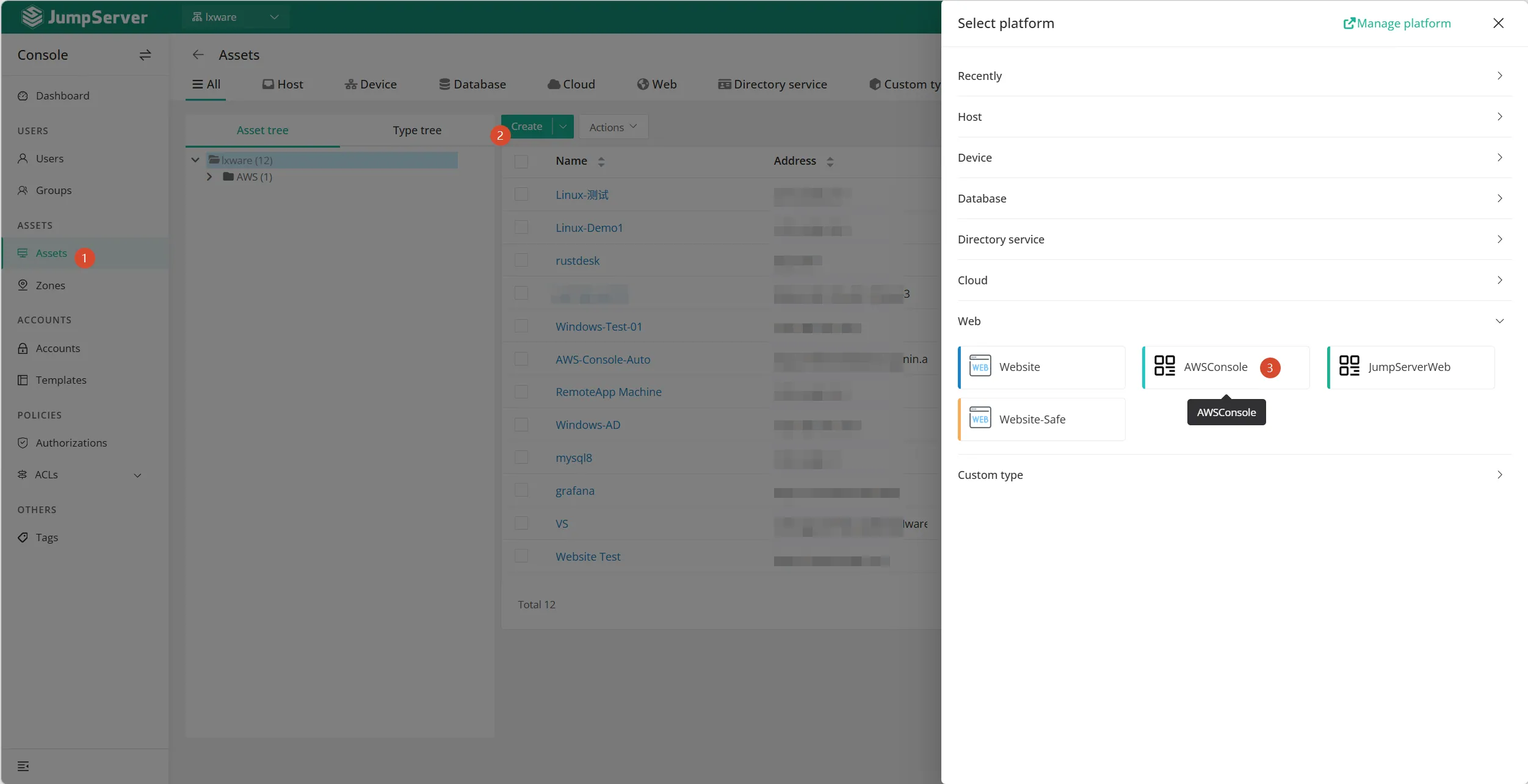
Figure 2. Starting the asset. The Create button opens the platform picker, where AWSConsole appears under the Web category next to the built-in Web platforms.
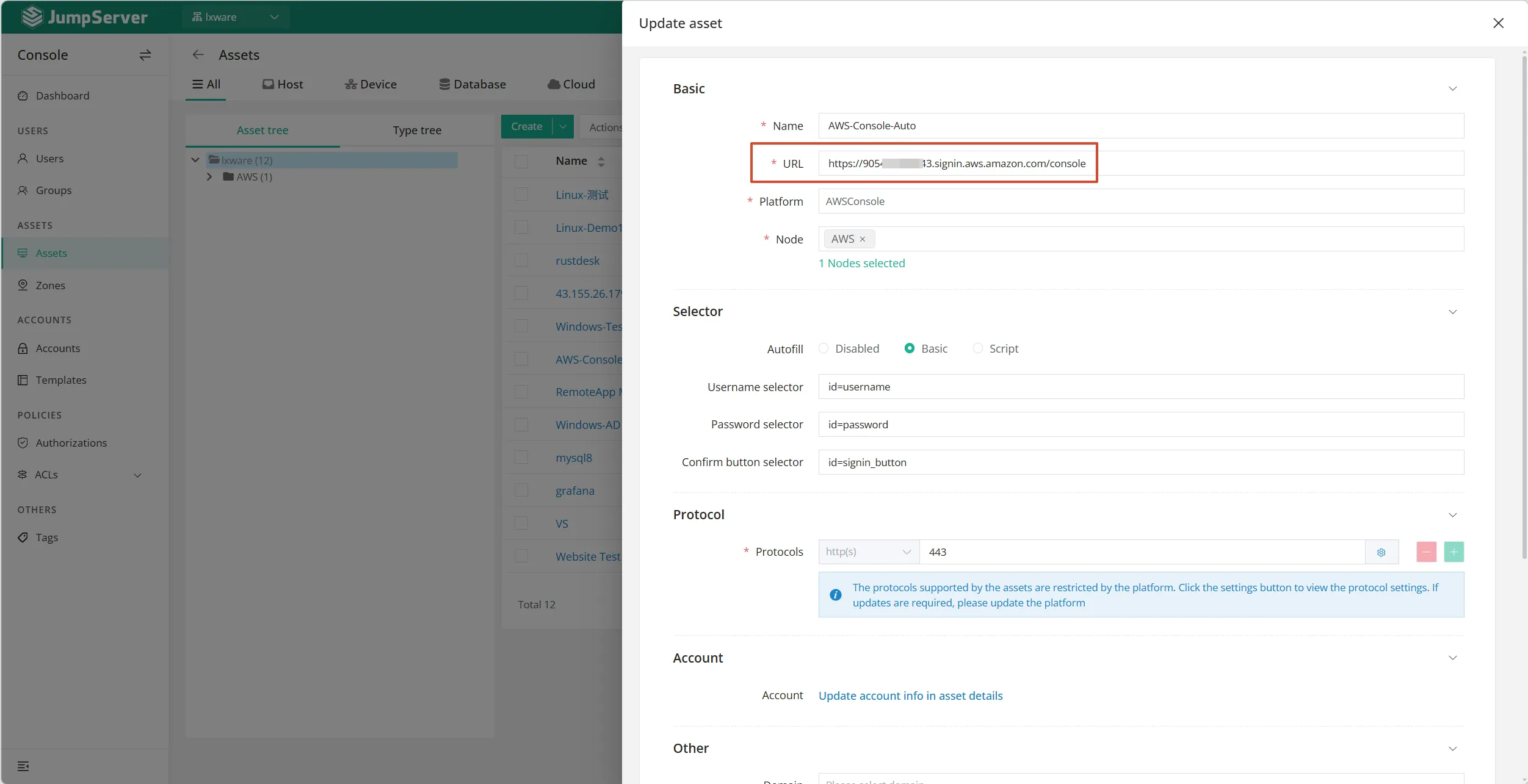
Figure 3. The asset form for AWS-Console-Auto. The URL field holds the account-specific console sign-in link, the platform is AWSConsole, and the Selector section shows the autofill values the platform package supplies by default:
idusername,idpassword, andidsignin_button.
The auto sign-in selectors are already defined in the platform package as defaults, so you can leave the automation and auto-fill configuration untouched. Only edit them if your AWS sign-in page is localized or customized and the sign-in does not complete.
Step 4: Add the Privileged Account
The privileged account is the credential JumpServer uses to call the AWS API on this asset. It is not a console login.
- Open the asset you created and go to the Accounts tab, then Create.
- Set Username to the IAM Access key ID from Step 2.3.
- Set Password to the IAM Secret access key.
- Mark the account as Privileged so JumpServer selects it for automation tasks.
- Save.
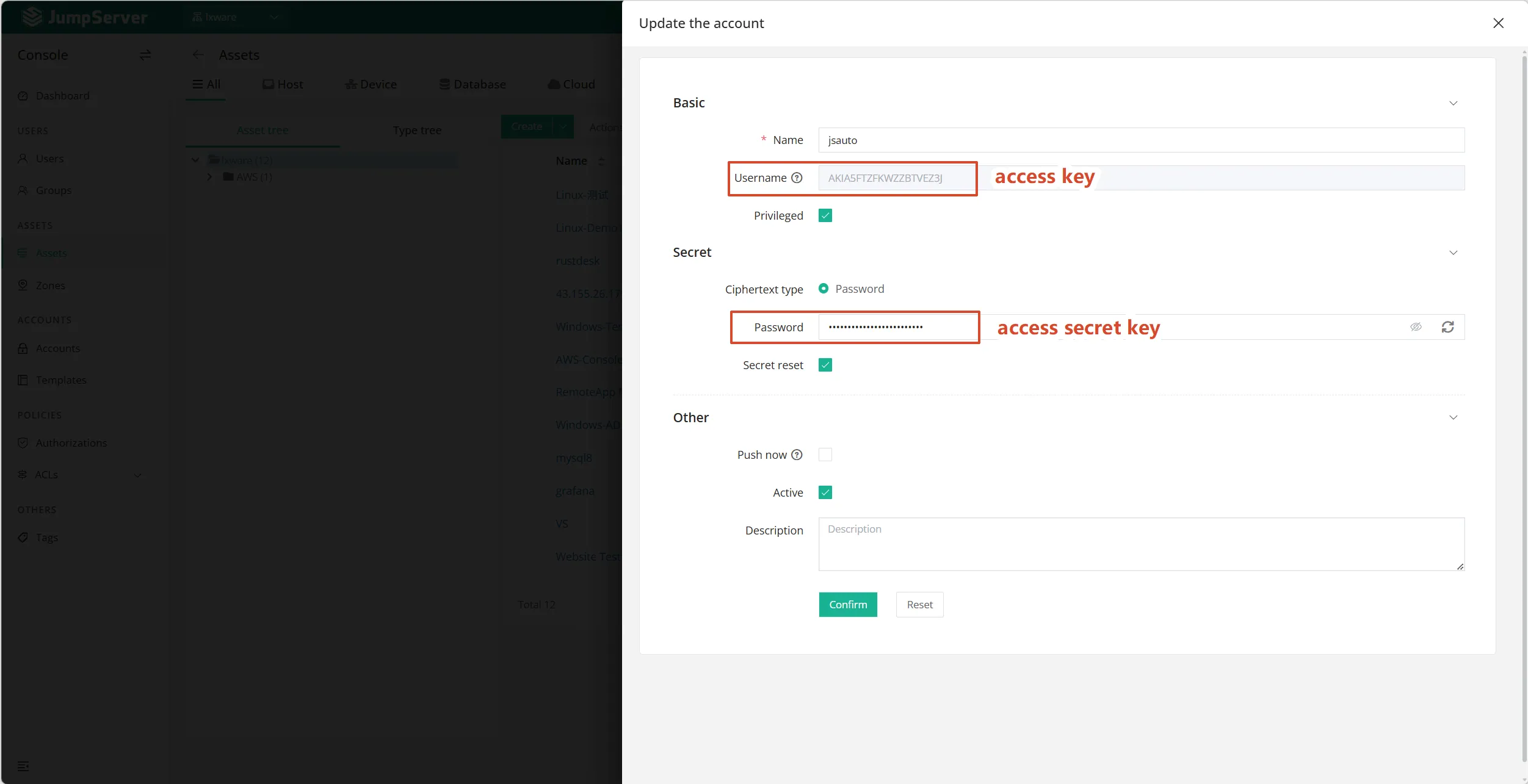
Figure 4. The privileged account on AWS-Console-Auto. The Username field carries the IAM access key ID and the Password field carries the secret access key. Privileged is enabled so the discovery and rotation tasks can use this account.
Important: Treat this privileged account the way you would treat an AWS root credential. It can create and rotate other IAM credentials in your account. Restrict who can view it in JumpServer, and rotate the underlying access key on a schedule.
Step 5: Run the Automation Tasks
With the asset and the privileged account in place, the automation actions defined by the platform package are ready to use. Two of them are tasks you create and schedule:
- Account discovery (Section 5.1)
- Password change, also called rotation (Section 5.2)
5.1 Account discovery
Account discovery calls the IAM API, lists the users in your AWS account, and registers each one as a managed account on the asset in JumpServer.
Go to Accounts → Account Discovery → Create, select the AWS Console asset and the privileged account, and run the task. When it finishes, the task report lists every IAM user found, including users you may have forgotten about.
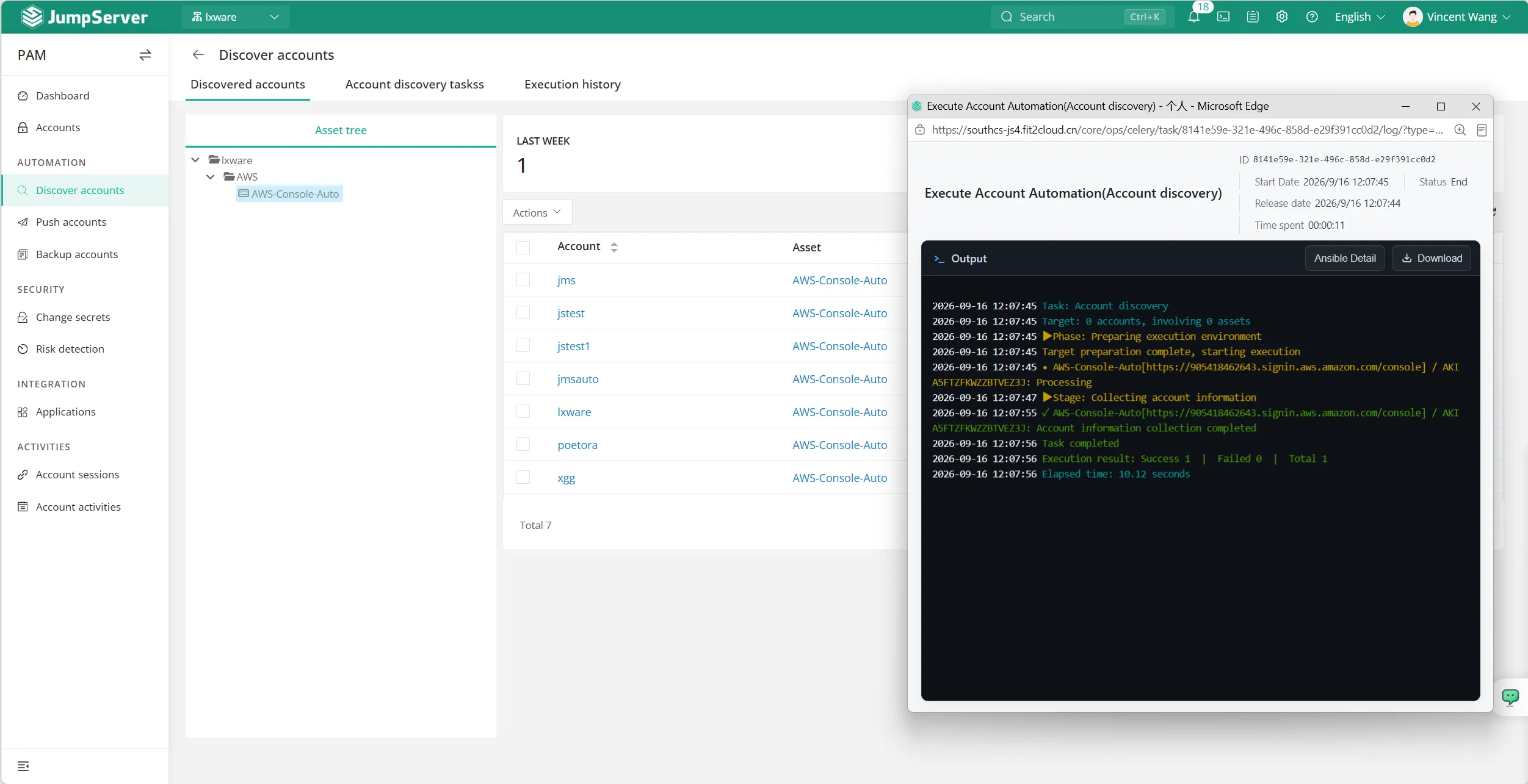
Figure 5. Account discovery on AWS-Console-Auto. The Discovered accounts tab lists the accounts the task registered on the asset, and the execution output on the right confirms the run finished successfully with no failures.
This is the step that gives you a real inventory. Run it on a schedule so new IAM users are picked up automatically.
5.2 Password change (rotation)
Password change rotates the console password of the discovered IAM users through the IAM API, then stores the new value in JumpServer's credential vault.
Go to Accounts → Change Password → Create, select the asset and the accounts you want to rotate, set a schedule (for example every 30 days), and enable the task.
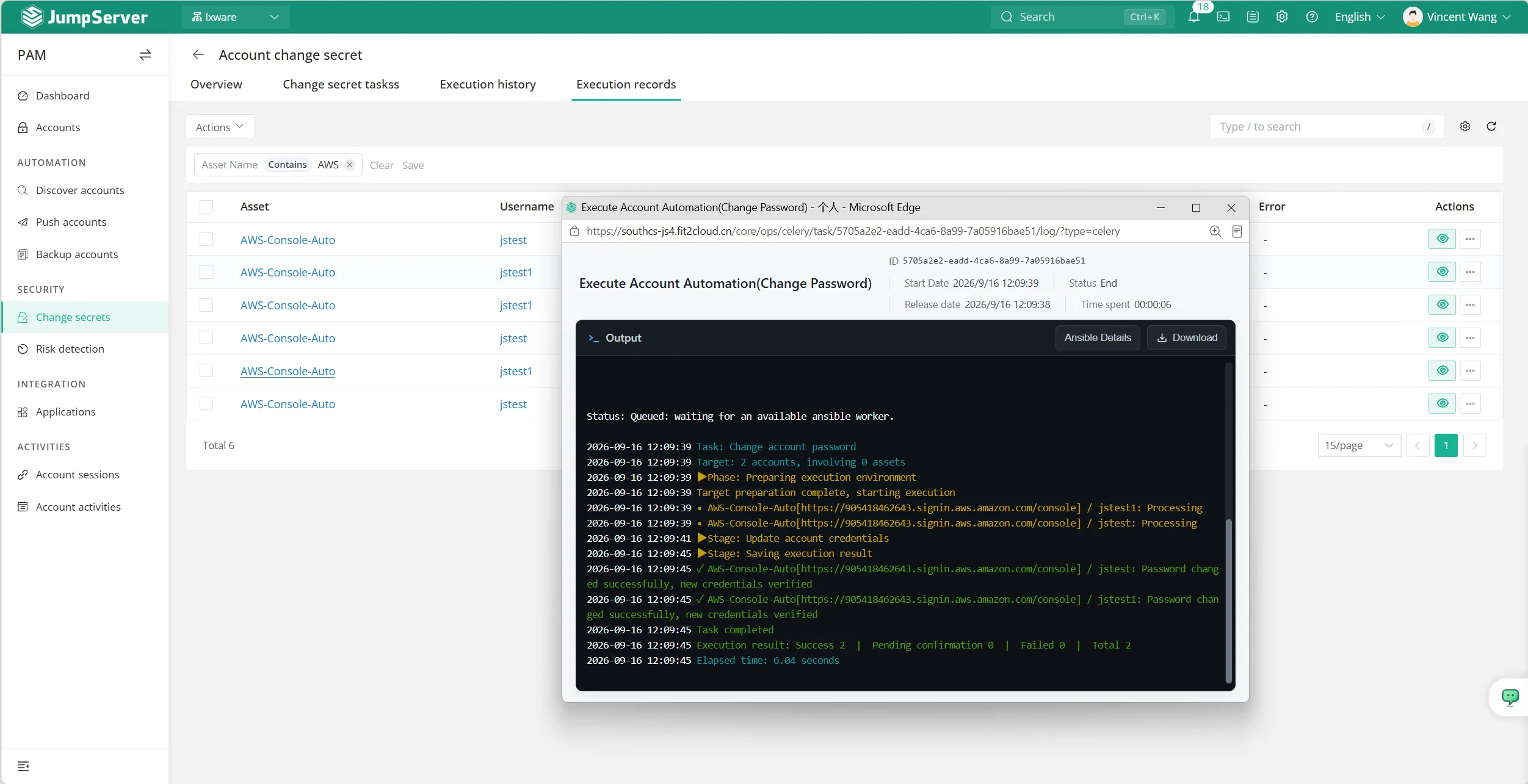
Figure 6. Change password execution records for AWS-Console-Auto. The task output shows each account being processed and then confirmed, ending with "Password changed successfully, new credentials verified".
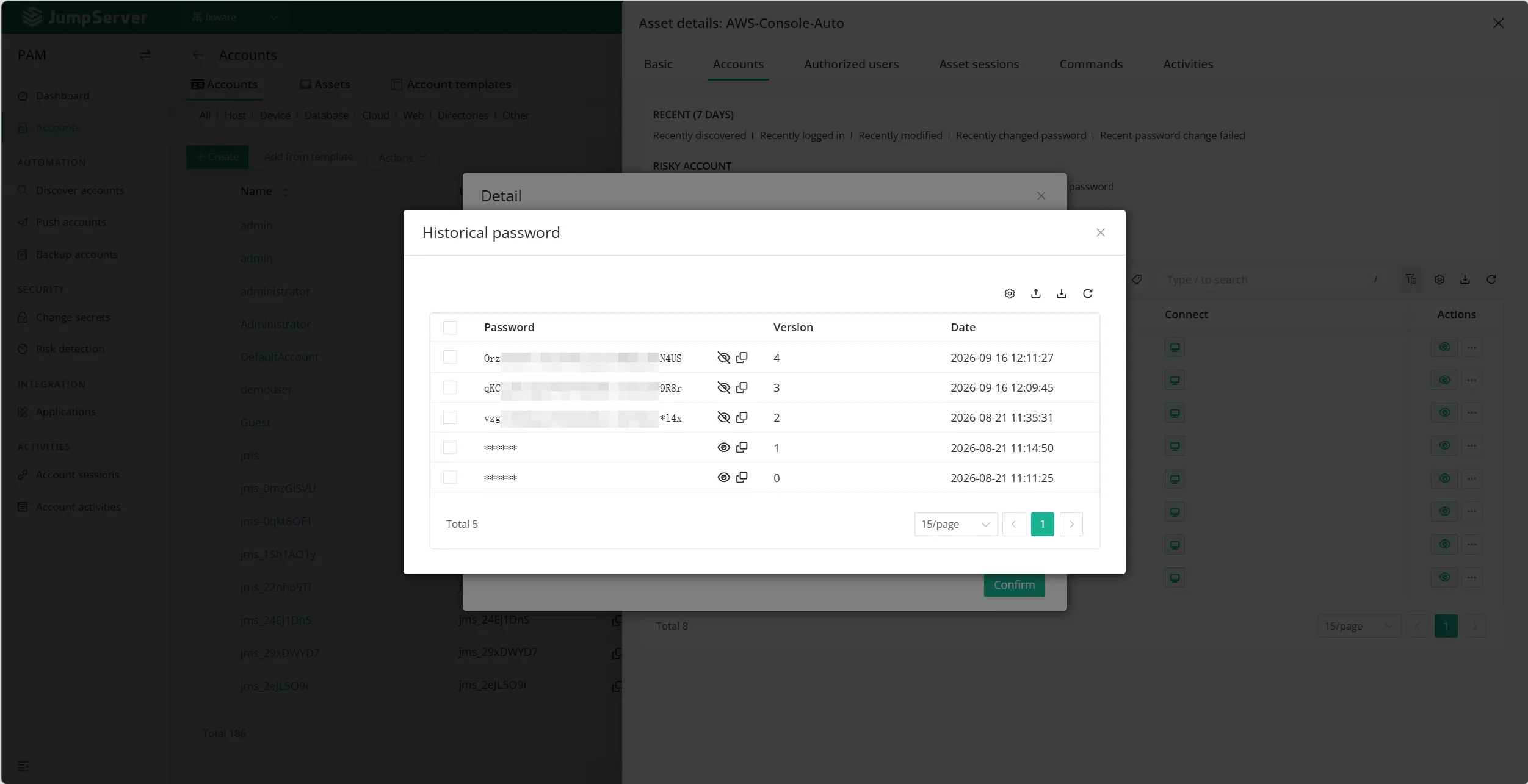
Figure 7. The password history of a rotated account on AWS-Console-Auto. Every run stores a new versioned entry with its timestamp, so you can see exactly when the credential changed.
Because JumpServer owns the new password, operators never see it. They request console access, JumpServer signs in for them, and the credential stays in the vault.
5.3 Account verification (built-in)
Account verification is built into the platform, so there is no separate task to create. You do not need to schedule it either: every password change validates the new credential before it is stored, which is what the task output in Figure 6 records as "new credentials verified".
If you want to test an account outside of a rotation, go to Accounts → Account List, select the accounts, and click Verify. JumpServer attempts to authenticate each one and reports the result per account.
Step 6: Connect to the AWS Console Through JumpServer
This is the payoff. Open Console → Assets → Asset List, find the AWS Console asset, and click Connect.
JumpServer calls the publisher you deployed, opens a remote browser window, fills the AWS sign-in form using the selectors from the platform package, and lands you in the AWS Management Console. You never type the IAM password, and the session is recorded like any other JumpServer session.
Prerequisite check: If nothing happens when you click Connect, or no browser window appears, the publisher is not ready. Web assets cannot open without one. Work through How to Configure and Connect Web Assets in JumpServer to deploy a RemoteApp or VirtualApp publisher, then retry.
Figure 8. Connect to the AWS Management Console from JumpServer Web Terminal.
Combine this with just-in-time access so operators request console access for a fixed window instead of holding it permanently.
Troubleshooting
| Symptom | Likely cause | Fix |
|---|---|---|
| Platform does not appear after import | Package incompatible with the running version | Confirm JumpServer is on v4.10.19 or later and re-import |
| Discovery task fails with an access denied error | IAM policy missing list or get permissions | Check the JumpServerPAMRead statement and the trust on the IAM user |
| Discovery returns zero users | Wrong privileged account, or access key from another account | Verify the access key belongs to the AWS account you expect |
| Password change fails | Rotation permissions missing, or the target user has no console profile | Add the JumpServerPAMRotate statement; the first rotation creates the profile |
| Auto sign-in does not complete | Sign-in page localized, or the URL points at the generic console | Use the account-specific sign-in link and review the auto-fill selectors |
| Connect does nothing, or no browser window opens | No publisher deployed for Web assets | Deploy a RemoteApp or VirtualApp publisher; see How to Configure and Connect Web Assets in JumpServer |
| Console session opens but shows the global sign-in page | Asset URL is the generic console address | Replace the URL with the IAM console sign-in link from Step 3.1 |
Security Best Practices
- Scope the IAM policy. Start with the policy in Step 2.2 and add permissions only when a task fails.
- Rotate the privileged access key. The API credential behind the automation deserves the same rotation cadence as any other privileged secret.
- Never enable console access for the JumpServer service user. It only needs programmatic access.
- Run discovery on a schedule. Discovery keeps the IAM inventory current, and every rotation verifies the credential it writes. Use the built-in Verify action for an ad hoc check on any account.
- Use one JumpServer login per operator. The whole point is that nobody shares the IAM credential.
- Review session replays. Console access is recorded, so make replay review part of your regular audit. See JumpServer audit recordings for how to work with them.
FAQ
Does this replace AWS IAM Identity Center (SSO)?
No. This approach manages IAM users that already exist and gives you console access with audited, rotated credentials. If your organization has standardized on Identity Center and federated roles, use that for human access and keep this pattern for the IAM users that still need lifecycle management.
Which JumpServer editions support custom platforms?
Custom platforms and PAM automation are part of the platform feature set introduced in v4.10.19. If you do not see the Platforms or Automation menus, check your edition and license.
Can I rotate access keys instead of console passwords?
Yes. The same privileged account can create and delete access keys, which is why the rotation policy includes iam:CreateAccessKey and iam:DeleteAccessKey. Configure the platform action to target the credential type your policy allows.
What happens to the AWS console password after rotation?
JumpServer stores it in its encrypted vault. Operators do not see it; they connect through JumpServer, which signs in on their behalf.
Can I manage more than one AWS account?
Yes. Create one asset per AWS account, each with its own console sign-in URL and privileged account.
Conclusion
Putting the AWS Management Console behind JumpServer turns an unmanaged shared credential into an audited, rotated, individually granted access path. The custom AWS Console platform in v4.10.19 does the heavy lifting: it registers the console as a web asset, wires up account discovery and password rotation, verifies every credential it rotates, and handles the sign-in form so operators never touch the IAM password.
If your team already uses JumpServer for servers, extending it to the AWS console is the natural next step. Start with discovery to see what you actually have, then turn on rotation for the accounts that matter most.
Related Reading
- How to Configure and Connect Web Assets in JumpServer
- What Is Privileged Access Management (PAM)?
- How Does PAM Work?
- Just-in-Time Access
- Core Privileged Access Management Benefits
- JumpServer Audit Recordings Introduction
- What Is a Bastion Host?
- Introducing the KOTL Component in JumpServer v4.10.19
JumpServer is the open-source bastion host and privileged access management platform trusted by thousands of organizations worldwide. Try JumpServer free or explore the features to bring your AWS console access under control.