

Invite or remove user from an organization
In the Enterprise edition, you can invite a user from one organization to another and assign them specific roles. The user will automatically inherit the permissions associated with those roles in the new organization.
Removing a user from an organization will revoke their access but will not delete the user.
Bulk invite users to the current organization
In the left area of the top navigation bar, click the organization dropdown and switch to the target organization.

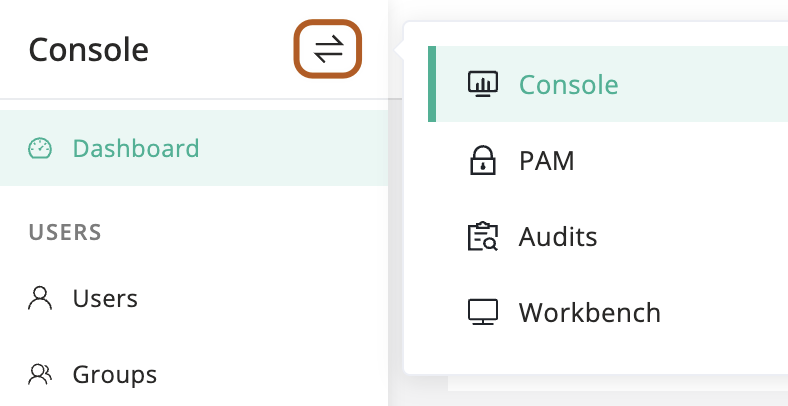
At the top-left of the page, select , then click Console.
In the left menu, click Users.
Above the user table, Click Invite.
In the Users field, select one or more users to invite.
In the Org roles field, select one or more organization roles.
Click Confirm.
Remove a user from the current organization
In the left area of the top navigation bar, click the organization dropdown and switch to the target organization.
At the top-left of the page, select , then click Console.
In the left menu, click Users.
In the user table, find the user you want to remove.
In the Actions column, click the ··· icon, then click Remove.
Confirm the information and click OK.
Bulk remove users from the current organization
In the left area of the top navigation bar, click the organization dropdown and switch to the target organization.
At the top-left of the page, select , then click Console.
In the left menu, click Users.
In the user table, check the users you want to remove.
Above the user table, select Actions button, then click Remove selected.