

Reset user password
When a user forgets their password and cannot log in, the administrator can reset the password by sending a reset email. The user can then set a new login password.
At the top-left of the page, select , then click Console.
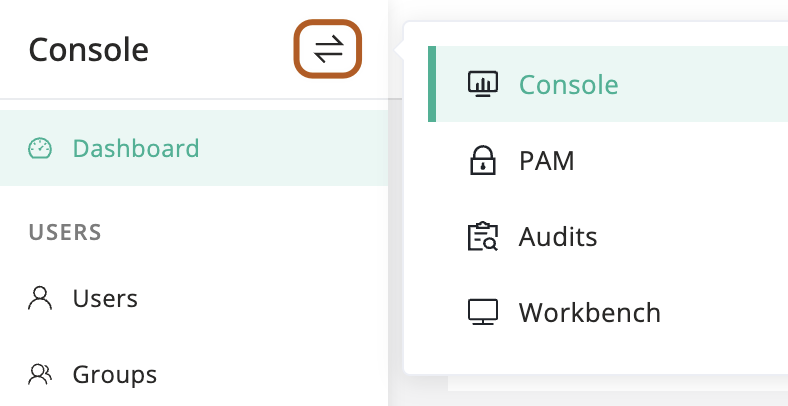
In the left menu, click Users.
In the user table, click the name of the user you want to reset.
On the user details page, click Basic tab.
In the Quick update card, find the "Reset password" section and click Send.
Confirm the information and click OK.
A reset password email will be sent to the user by the system.
In the email, the user clicks the Click here reset password link to open the password reset page.
Type a new password and confirm it, then click Submit.
The user will receive a password reset success notification email.