

Login Logs
Login Logs records every sign-in attempt to JumpServer, successful or failed. Use it to confirm who signed in, from where, with which method, and why an attempt failed.
Open the page from Audits > Activities > Login Logs.
Overview
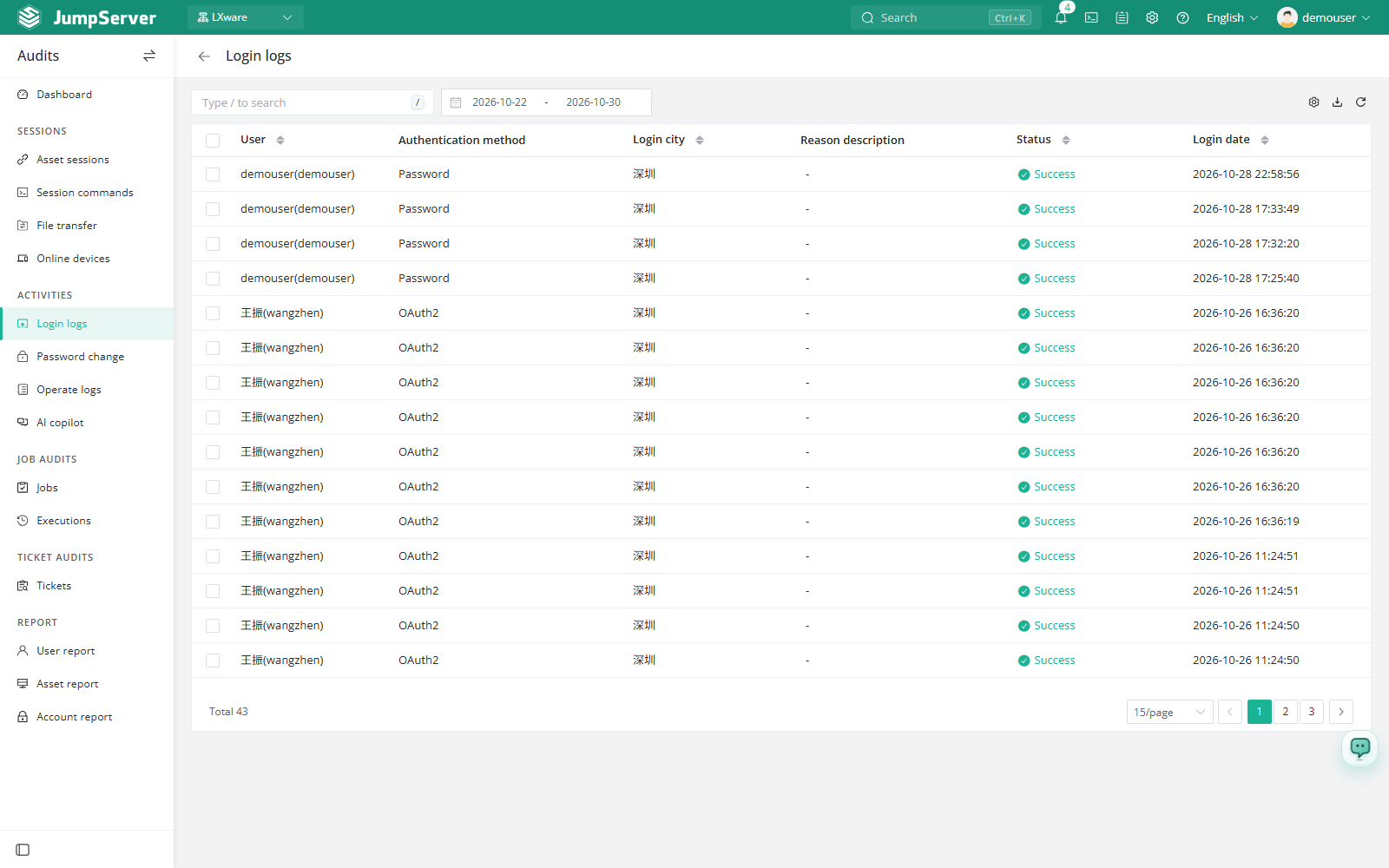
Each row shows the username, authentication method, login city, reason description, status, and login date. Failed rows include the reason, which makes this page the first place to check when users report that they cannot sign in.
The toolbar provides search, a date range, column settings, export, and refresh.
Prerequisites
- Sign in with an account that has the
audits.view_userloginlogpermission, such as a system administrator or auditor. - Users must have attempted to sign in at least once.
Investigate sign-ins
Set the date range to the period you want to review.
Search for a username or filter the list with the toolbar.
Read the Status and Reason description columns to separate successful sign-ins from failed attempts.
If a web session needs to be closed, continue in Online Devices.
Customize columns and export
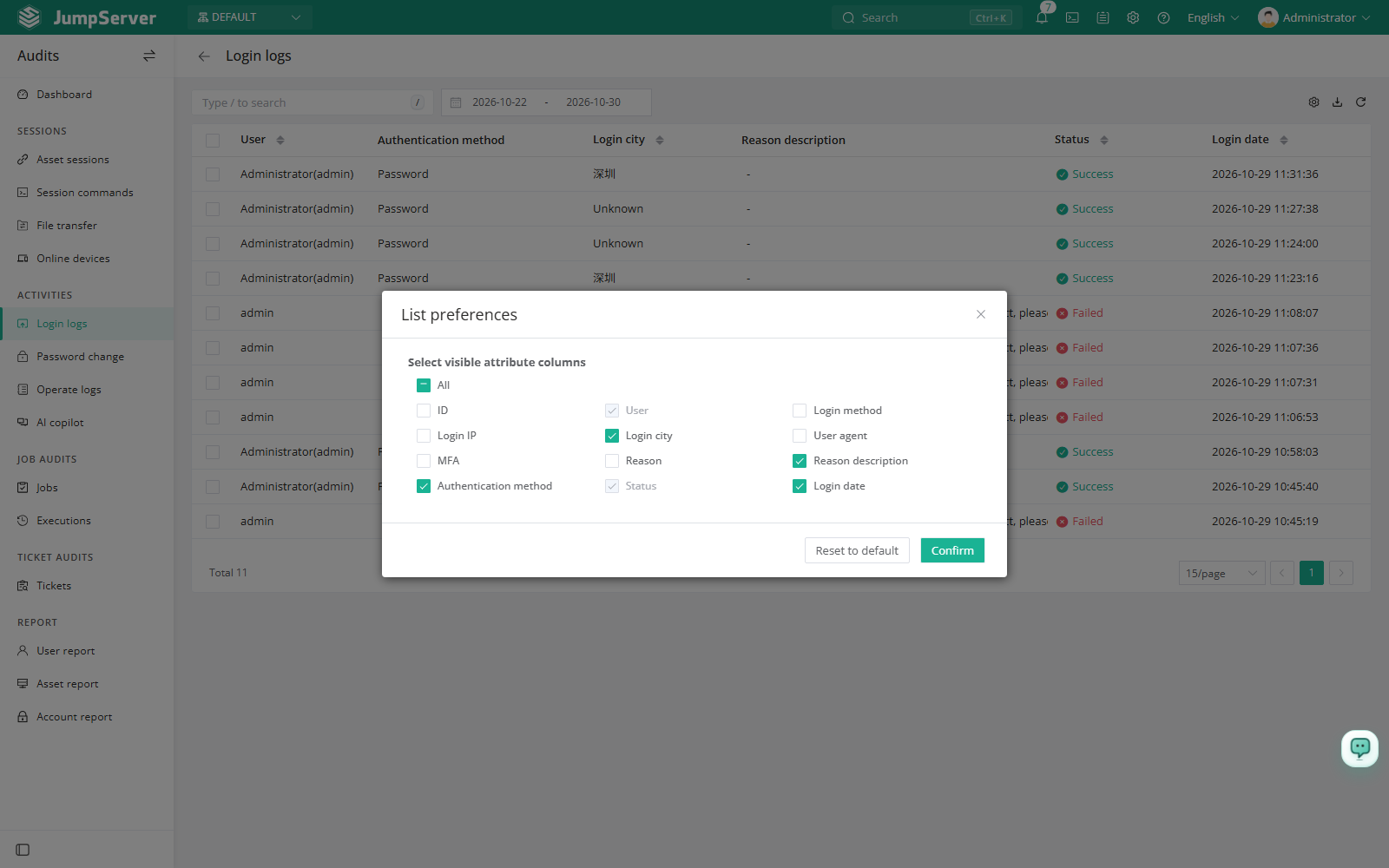
Open List preferences, select the columns to display, and click Confirm. Extra columns include ID, type, login IP, user agent, MFA, and reason. Restore defaults returns to the standard set.
Click Export, choose CSV or Excel, select Export all, Export selected, or Export search results, and click Confirm.
Field reference
Notes
A burst of failed attempts from one address or against one account is a useful early warning. Export the filtered rows and include them in your security review.