

Asset Connection
Desktop database, RDP, VNC, RemoteApp, and VirtualApp connections require JumpServer Enterprise Edition. Desktop SSH and SFTP connections are included in Community Edition.
JumpServer Client lists the assets authorized to your account. Open an asset, choose a protocol and account, and confirm the connection.
Prerequisites
- JumpServer Client is installed and you are signed in.
- You have an authorization for the asset and account.
- For database or application connections, the local client path is configured.
Unified connection entry
New in v5.0.0The client uses a unified entry point for SSH, RDP, Kubernetes, database, and RemoteApp assets. Select any of these assets from the same client asset list and choose the protocol, account, and connection method. The connection opens in the client window, and the same authorization and ACL rules apply as for the Web Terminal.
Kubernetes assets open the Kubernetes workspace. RemoteApp assets open a published remote application, and the RemoteApp connection requires JumpServer Enterprise Edition. SFTP Server connections use the same entry but open a file session; see Workspace, Files, and Scripts.
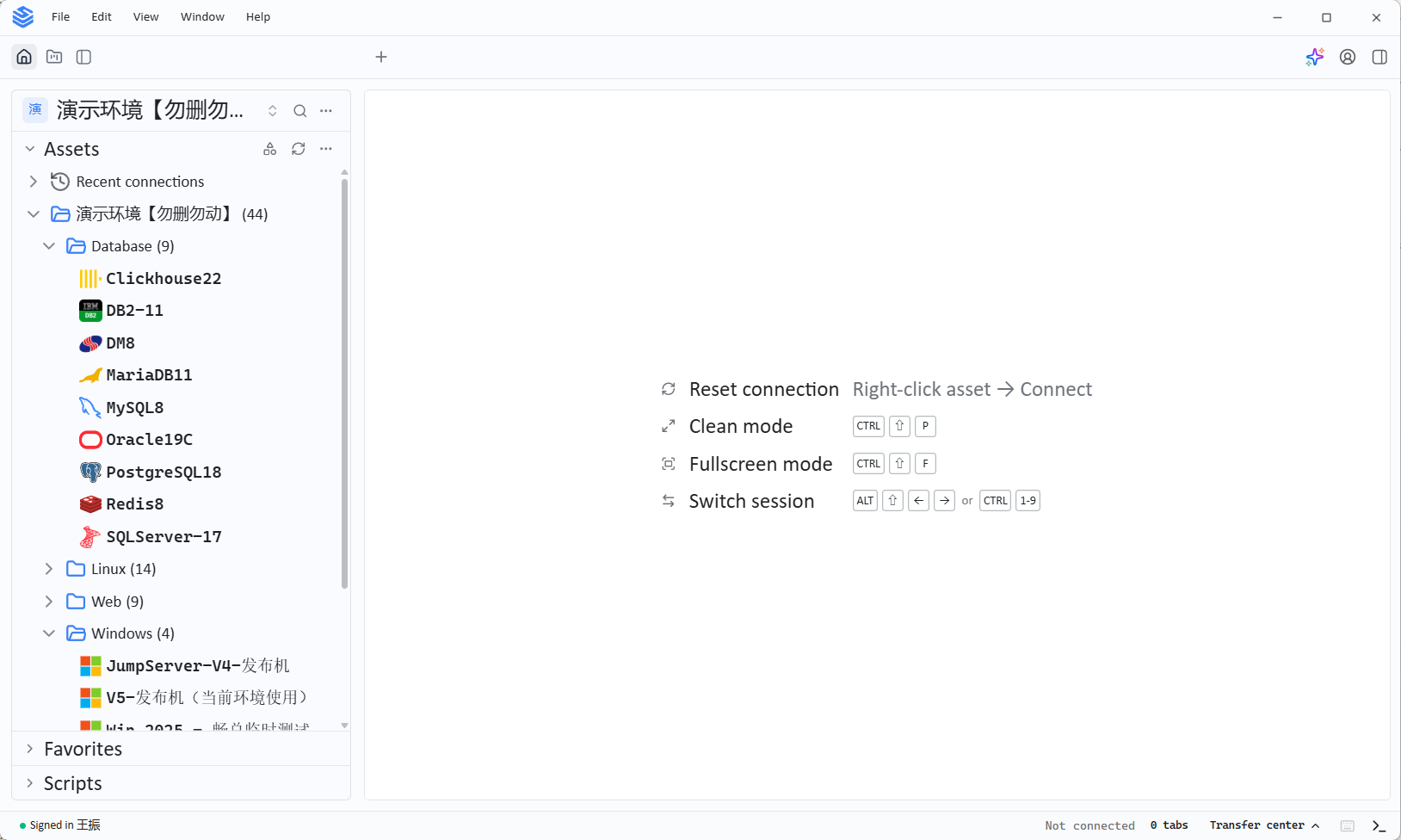
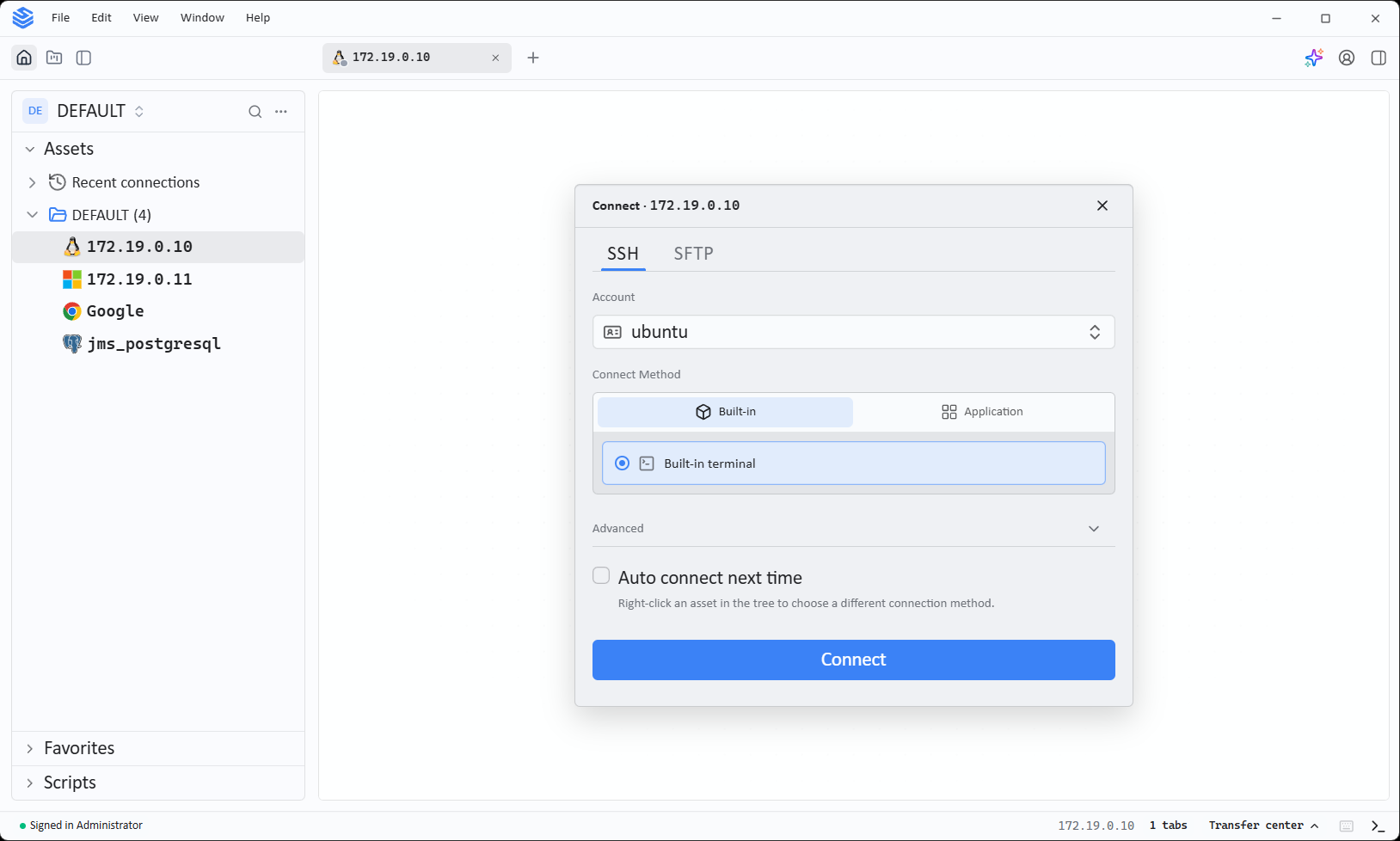
Connect to a Linux asset
- Find the Linux asset in the client asset list.
- Select Connect next to the asset name.
- Choose a protocol: SSH, SFTP, or VNC.
- Select an authorized account.
- Select Confirm.
After connecting, run commands and upload or download files in the session.
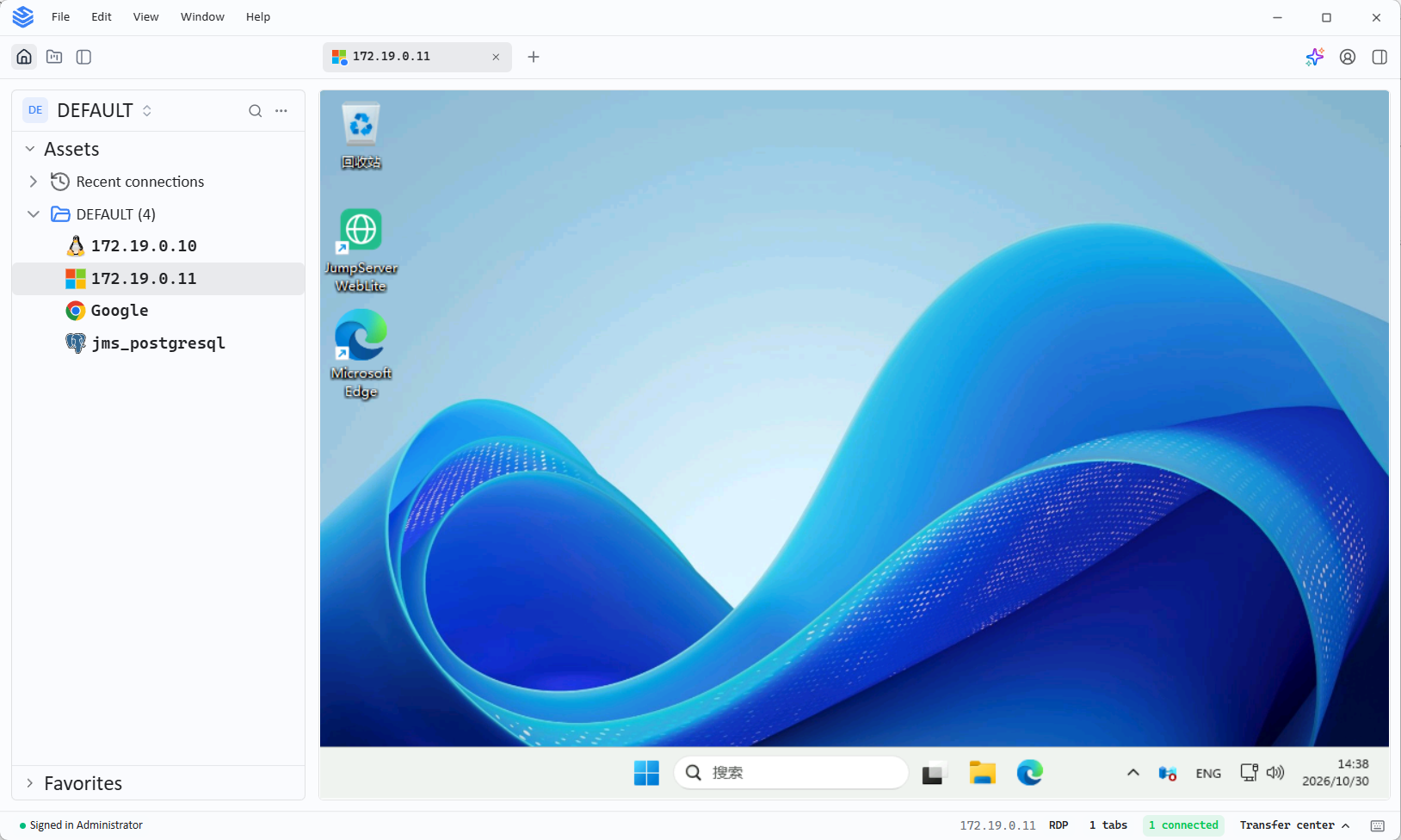
Connect to a Windows asset
- Select Connect next to the Windows asset.
- Choose RDP, VNC, SSH, or SFTP.
- Select the account and confirm the connection.
The available protocols depend on the asset platform and the enabled components.
Connect to a Kubernetes asset
New in v5.0.0Kubernetes cloud assets use the k8s protocol. Connect to them from the same client
asset list:
- Select Connect next to the Kubernetes asset.
- Select the authorized account.
- Select Confirm.
The Kubernetes workspace opens in the client, with a resource browser for the Kubernetes resources you are authorized to see and a terminal for the selected container.
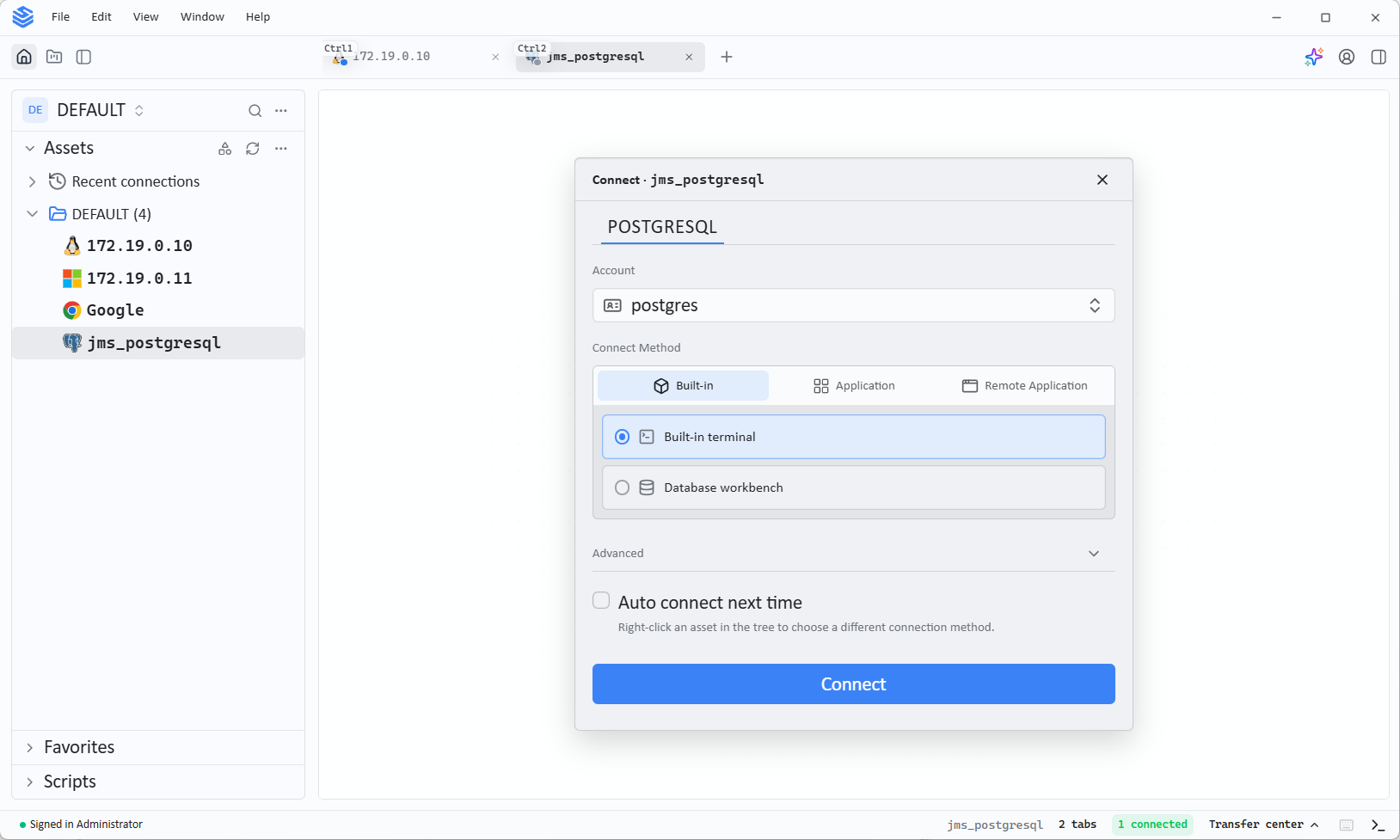
Connect to a database asset
Changed in v5.1.0Database assets use a local database client. Configure the application path once:
- Open the client settings.
- Select Database and choose the database type, for example MySQL.
- Download and install a supported database application if needed.
- Select Select path and choose the installed application.
Then connect to the database asset from the asset list. The connection opens in the configured local client.
DBX replaces DBeaver as the default remote database application for these connections. To use a different database application, configure its executable path in Connection Settings.
Connect to a web asset
Web assets use the platform type Website and the HTTP or HTTPS protocol.
- Select Connect on the web asset.
- Choose Built-in > Built-in browser.
- Confirm the connection.
The site opens in a WebView window, and traffic is forwarded through the JumpServer Web proxy. The built-in browser is available only in JumpServer Client; the browser Web terminal uses a published WebLite application instead.
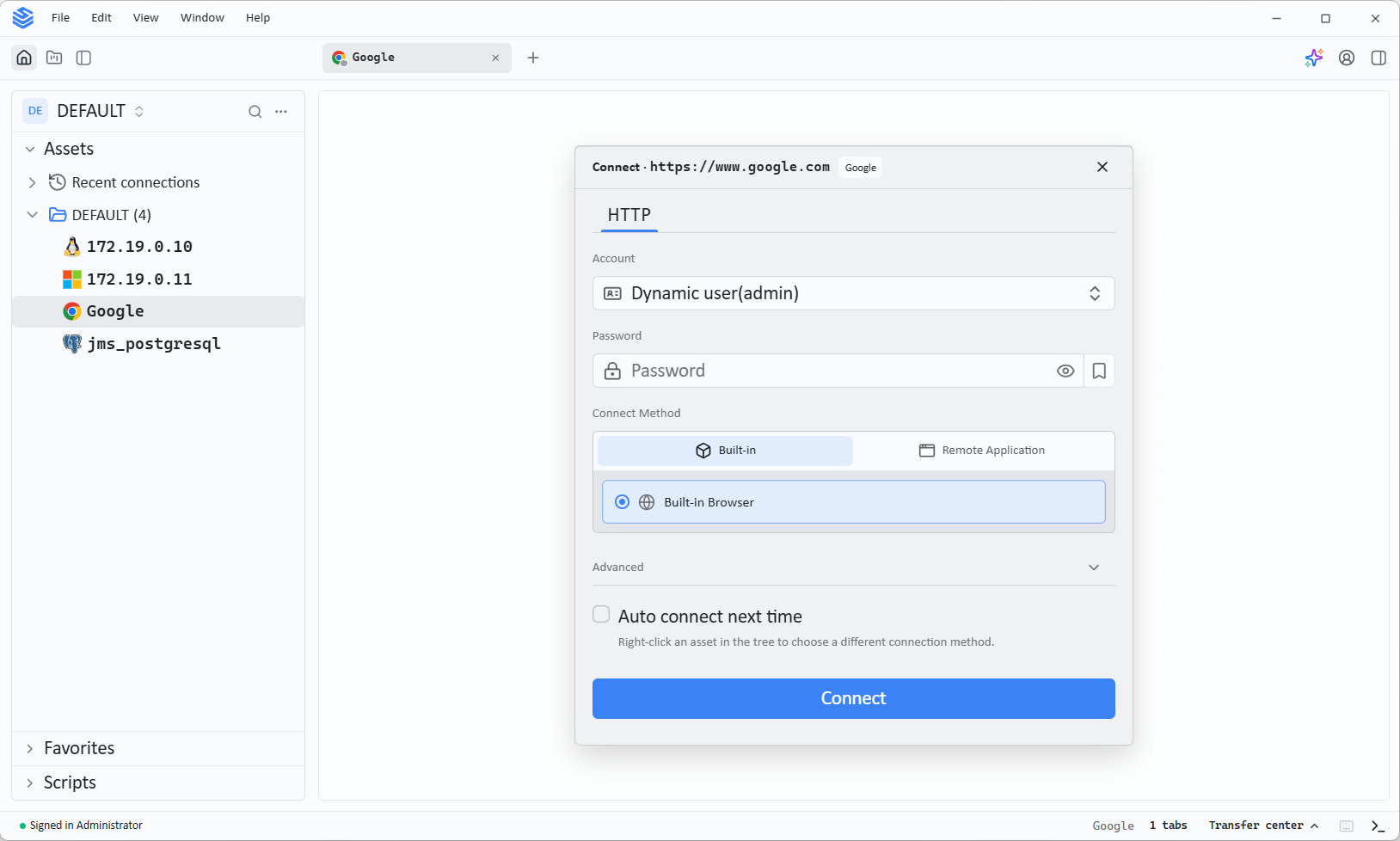
The site address and account are configured by the administrator on the Web asset; the client does not provide an edit entry.
Notes
- Connection methods and protocols depend on the asset platform, enabled components, license, and the account authorization.
- If an asset or account is missing, ask an administrator to review your authorization.