

Authorizations
An authorization maps users or user groups to assets or nodes. It answers "who can reach what, with which account, using which protocols, and for which actions." Once a rule is active, the authorized assets appear in the user's Workbench and can be connected according to the rule's constraints.
Open the page from Console > Authorizations.
Overview
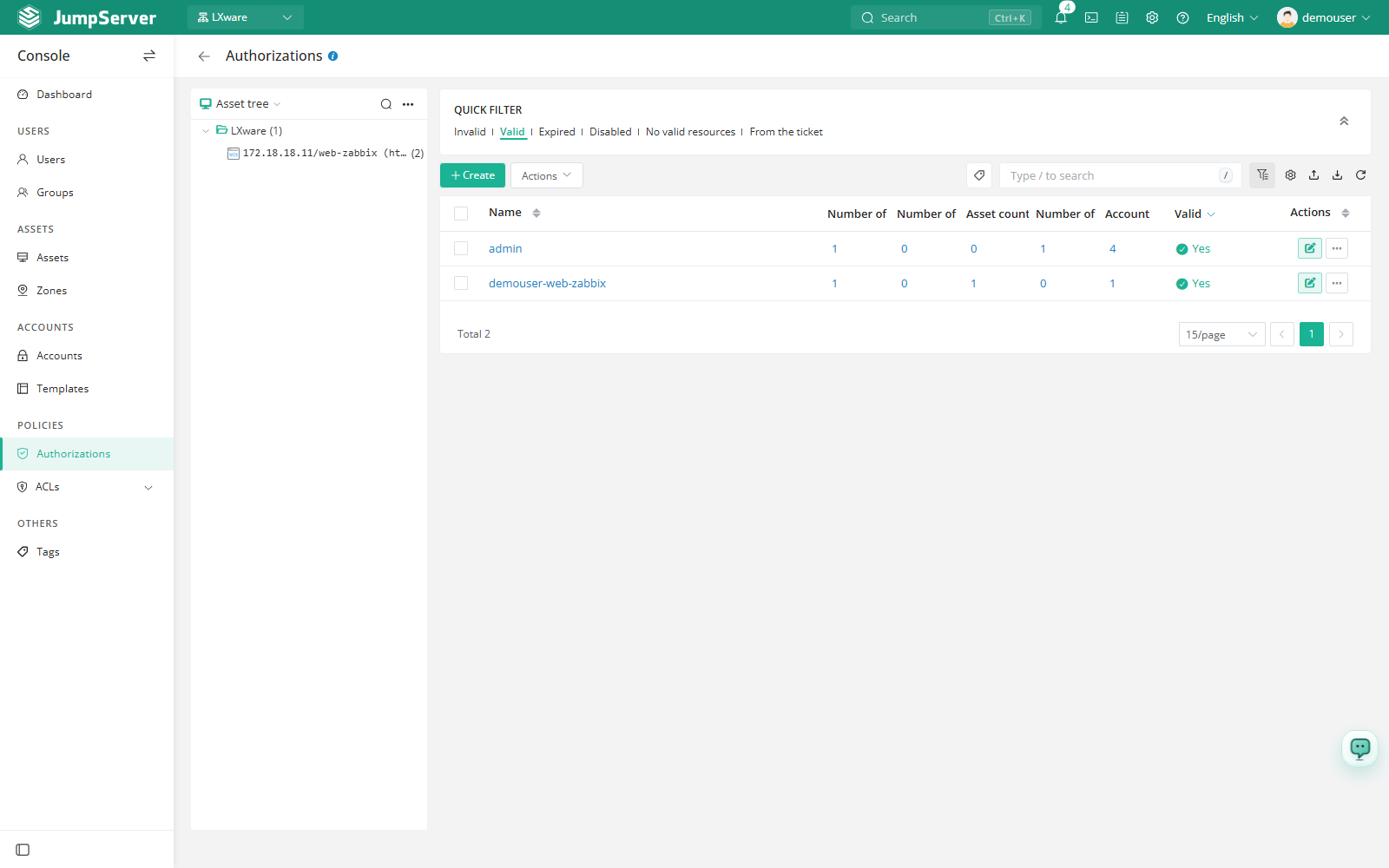
The asset tree on the left filters rules by node or asset. Columns are Name, Users, User groups, Assets, Nodes, Accounts, Active, and Actions; the user, group, asset, node, and account columns show counts rather than names.
Quick filters include Invalid, Valid, Expiration date, Disabled, and No valid resources.
Before you begin
- Sign in with an account that can manage authorizations.
- The users or groups and the assets or nodes must already exist. See Users, Groups, and Assets.
The list shows only authorizations in the current organization, and rules apply only to users and assets in the active organization.
Create an authorization
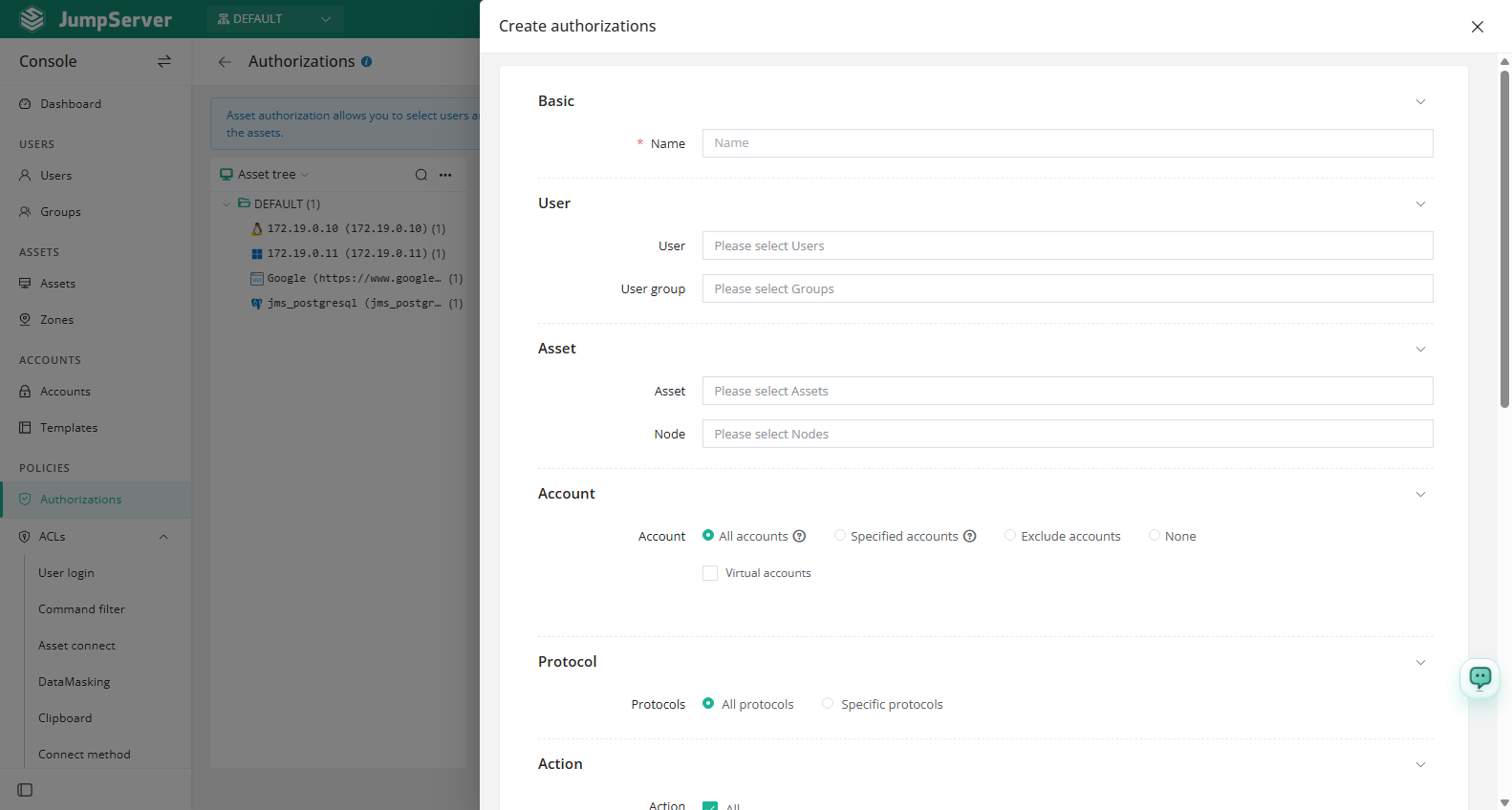
Click Create.
Expand Other settings, confirm the activation state and validity period, then click Submit. Use Save and continue adding for more rules.
Field reference
Users and groups can be selected together, and so can assets and nodes. A common pattern is one group and one node, with users and assets left empty.
Account options
Protocols and actions
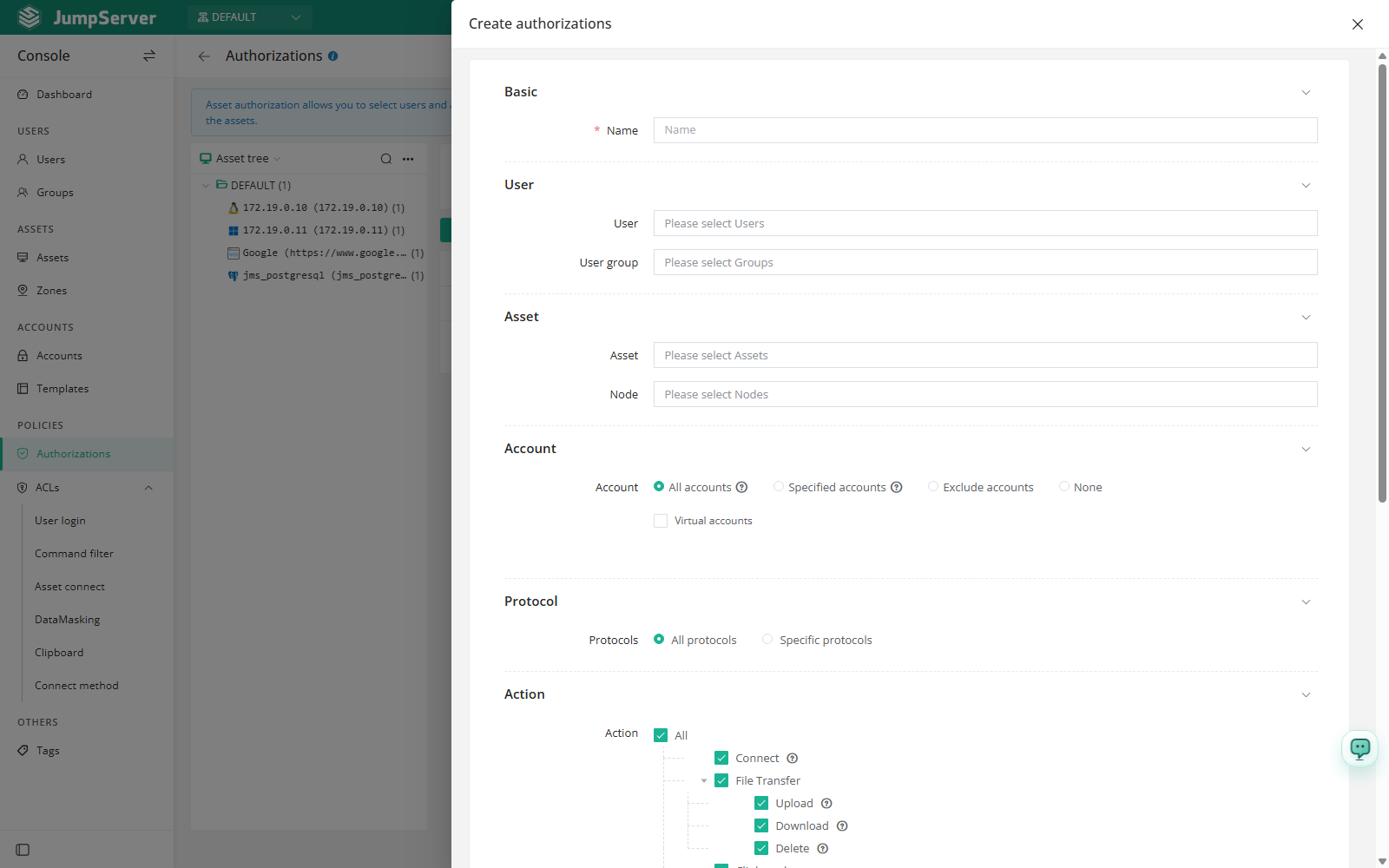
Select Specified protocols to limit the rule to particular protocols. Actions default to All and include Connect, File transfer (upload, download, delete), Clipboard (copy, paste), and Share. Action availability differs by protocol.
Expiration reminders
New in v5.1.0An asset authorization can carry a configurable expiration reminder. When the rule has an Expiration date, JumpServer sends a reminder ahead of that date so the rule can be extended in time or allowed to expire as planned.
- Reminders are configured per authorization; a rule without an expiration date has no reminder to send.
- Use reminders for rules that grant temporary access, so access does not lapse without notice.
Import and export
The toolbar provides column settings, export, import, and refresh. Import opens the Import & create dialog, where you choose Create or Update, download the CSV or XLSX template, and upload a file up to 10 MB.
Authorization details
Click a rule's Name to open the detail drawer. Tabs include Basic, Users/groups, Assets/nodes, Authorized accounts, and Activity.
- Basic shows identity, actions, start and expiration dates, and creator. Quick update toggles Active.
- Users/groups and Assets/nodes add or remove members with Add.
- Authorized accounts switches between all and specified accounts.
- Activity shows the most recent 30 operations.
Row actions and bulk actions
The row menu (...) provides Delete and Duplicate. Select checkboxes and click More actions to delete or edit several rules.
Deleting an authorization removes the access it granted, so users may lose access immediately. If the rule only needs to pause, clear Active instead.