

Connect Assets
Desktop database, RDP, VNC, RemoteApp, and VirtualApp connection methods require JumpServer Enterprise Edition. Web-based built-in terminal, Remote Desktop, and database access are included in Community Edition.
The Web Terminal connects to an asset from the left sidebar. The connection dialog shows the protocols configured for that asset, the accounts you may use, and the connection methods available to your account.
Connection flow
- Select the target asset in the left sidebar. The connection dialog opens.
- Choose a Protocol tab. Assets with multiple protocols, such as SSH and SFTP, show one tab per protocol.
- Choose an Account authorized for the asset. Manual input lets you enter an account and password yourself.
- Choose a Connection method. Methods are grouped by category.
- Open Advanced options when you need to change the character set, terminal behavior, resolution, or remote application method.
- Select Connect to open a session. For application methods, the button reads Open client instead.
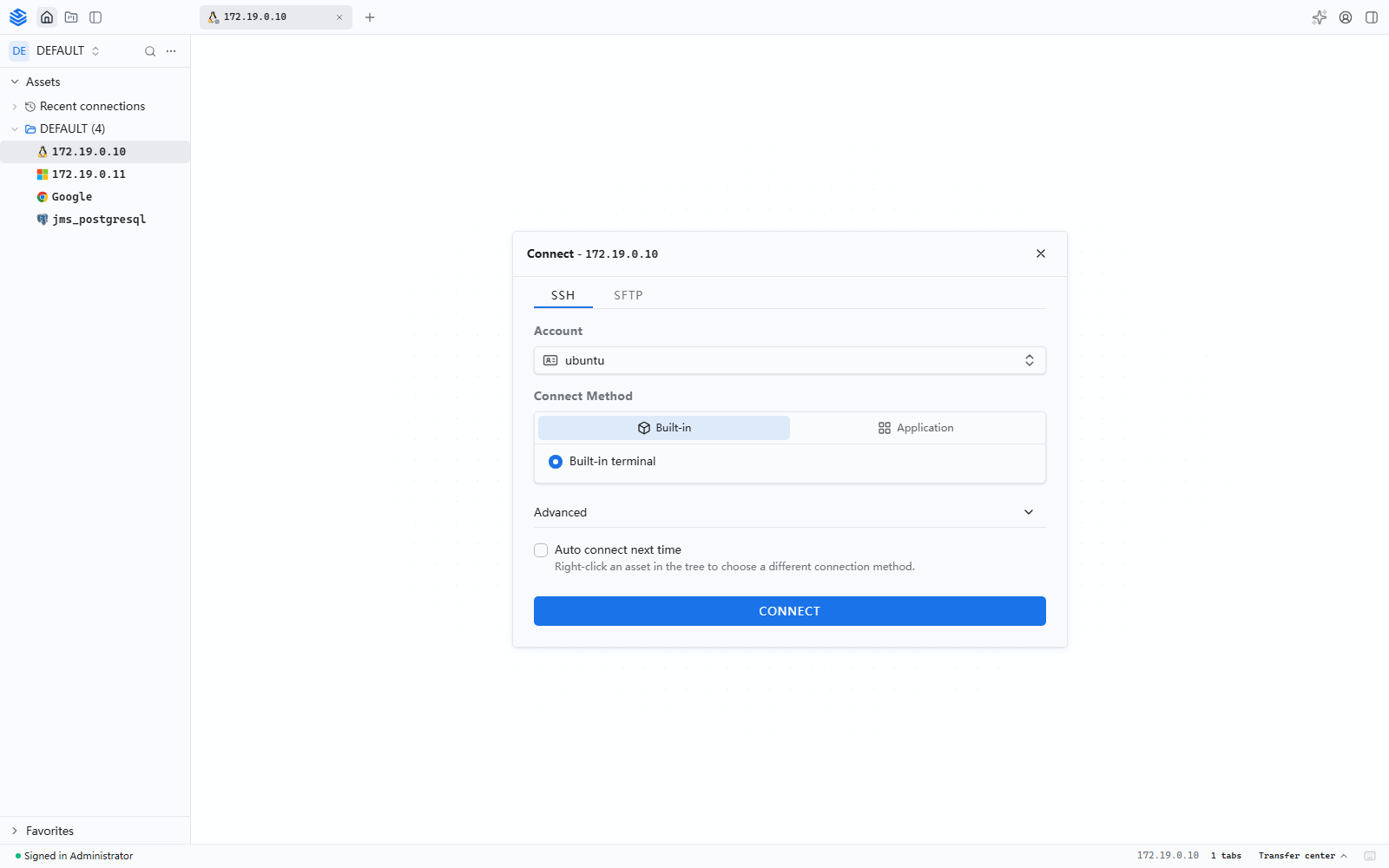
Connection settings
Auto connect next time is convenient for repeated access. To choose a different account or method later, right-click the asset in the sidebar and select Connect again.
Connection methods
Available methods depend on the asset protocol, enabled components, license, and the methods assigned to your account.
- Built-in — JumpServer renders the session in the browser. Examples: Terminal, Remote Desktop, File Manager, File Editor, and Database Workbench.
- Application — JumpServer Client launches a local program and fills in the connection details. Examples: SSH Client, SFTP Client, Remote Desktop Client, and SSH Wizard. Install JumpServer Client first and configure local application paths in Connection Settings.
- Remote application — an administrator publishes the application on an application host. Examples: DBeaver and JumpServer WebLite. See RemoteApp.
- Virtual application — an administrator publishes a Linux graphical application. See Feature Settings.
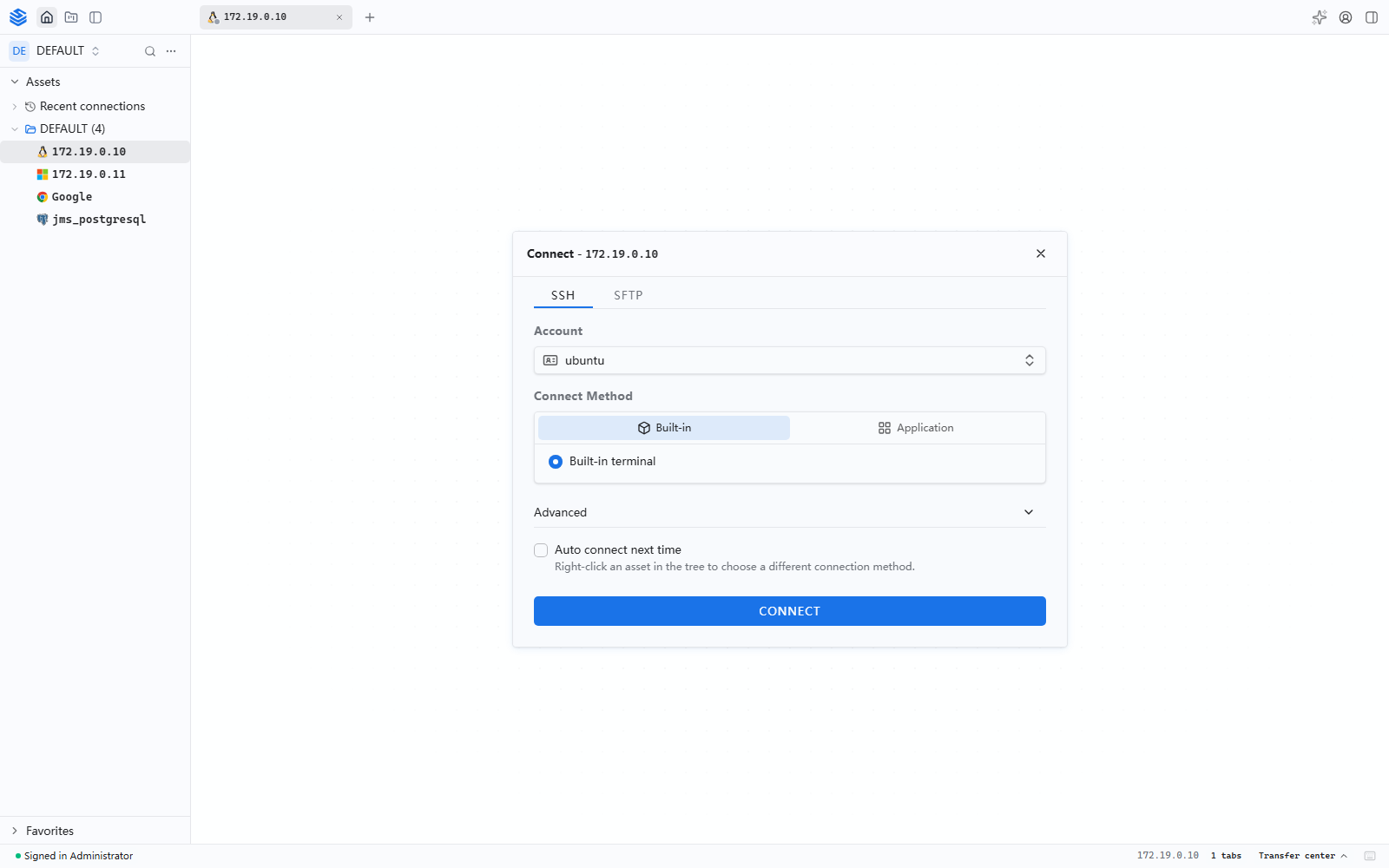
Common asset types
JumpServer groups assets into categories, and each category has one or more
platform types. The platform template determines which protocols the asset can
enable; an asset type is not itself a protocol. For example, a MySQL database
uses the mysql protocol, while a Kubernetes cloud asset uses k8s.
Protocol and workspace mapping
The built-in workspace is selected from the protocol, not from the asset name:
Protocols such as SSH, SFTP, and RDP may also be opened with an Application method when a local client is configured. The exact application list comes from the server and the local client configuration; it is not fixed per asset type. Remote Application and Virtual Application are separate published-application methods and are described in Connection methods.
Typical choices
- Linux or Unix host: Built-in terminal for SSH or Telnet, File Manager or File Editor for SFTP, and an SSH/SFTP client when native tooling is preferred.
- Windows host: Remote Desktop for RDP or VNC, built-in terminal for SSH or WinRM, and the local RDP client for multi-monitor or redirected devices.
- Database: Database Workbench for schema browsing and SQL work, built-in terminal for character access, or a configured local database client.
- Network device: Built-in terminal for SSH or Telnet; SFTP is available only when the device platform and device configuration support it.
- Web application: Built-in Browser in the Web Terminal, or a Remote Application such as JumpServer WebLite when the site must open in an isolated published application.
- Kubernetes: The Kubernetes workspace is available only for cloud assets created from a Kubernetes platform; a public or private cloud asset normally uses HTTP instead.
- Directory service: General directory services use SSH; Windows Active Directory assets can also expose RDP, VNC, and WinRM.
The connection dialog only lists protocols and methods that are enabled on the platform, licensed, and authorized for the current account. Two assets of the same category may therefore show different choices.
SQL execution plans
Changed in v5.1.0In Database Workbench, the SQL execution plan view includes a summary view and quick-access actions in the toolbar. Use the summary to read the plan first, then open the detailed view when you need the full plan tree.
Windows PowerShell over WinRM
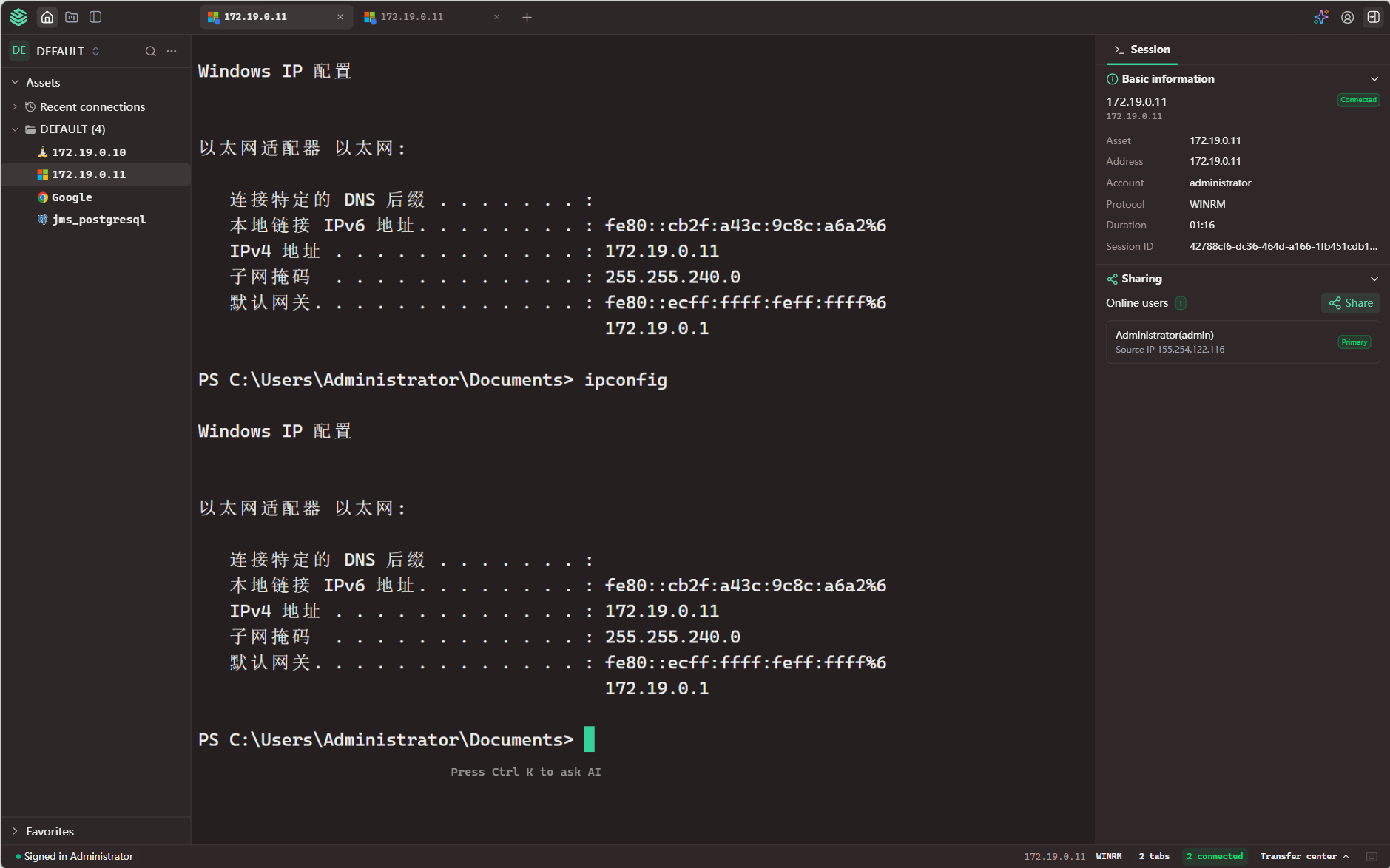
New in v5.1.0KoKo supports Windows PowerShell over WinRM. When a Windows asset platform enables the WinRM protocol, the asset can open a PowerShell session in the built-in terminal of Luna Web or JumpServer Client.
WinRM sessions use the same controls as other built-in terminal sessions: command auditing records the commands, access control rules are enforced for the connection, and the session is recorded. The AI Assistant can work beside a WinRM session as it does for an SSH session.
Dameng Database Web CLI
New in v5.1.0KoKo supports the Dameng Database Web CLI. A Dameng database asset can open a browser-based command-line session, so you can run database commands from the Web Terminal instead of only using the Database Workbench.
Select the Dameng asset, choose Web CLI as the connection method, select the authorized account, and connect. The session opens in the session area like other terminal sessions.
Session management
Sessions open as tabs in the session area.
- Switch sessions with
Alt + Shift + ← / →orCtrl + 1…9. - Drag tabs to reorder them.
- Drop one tab onto another to group them; grouped tabs can be restored in a future session. See Web Terminal Settings.
- Right-click a tab for pure mode, full screen, duplicate window, reconnect, rename, vertical split, horizontal split, and close actions.
- Use New Connection to reopen a recent asset, or Transfer Center to review file transfers.
Notes
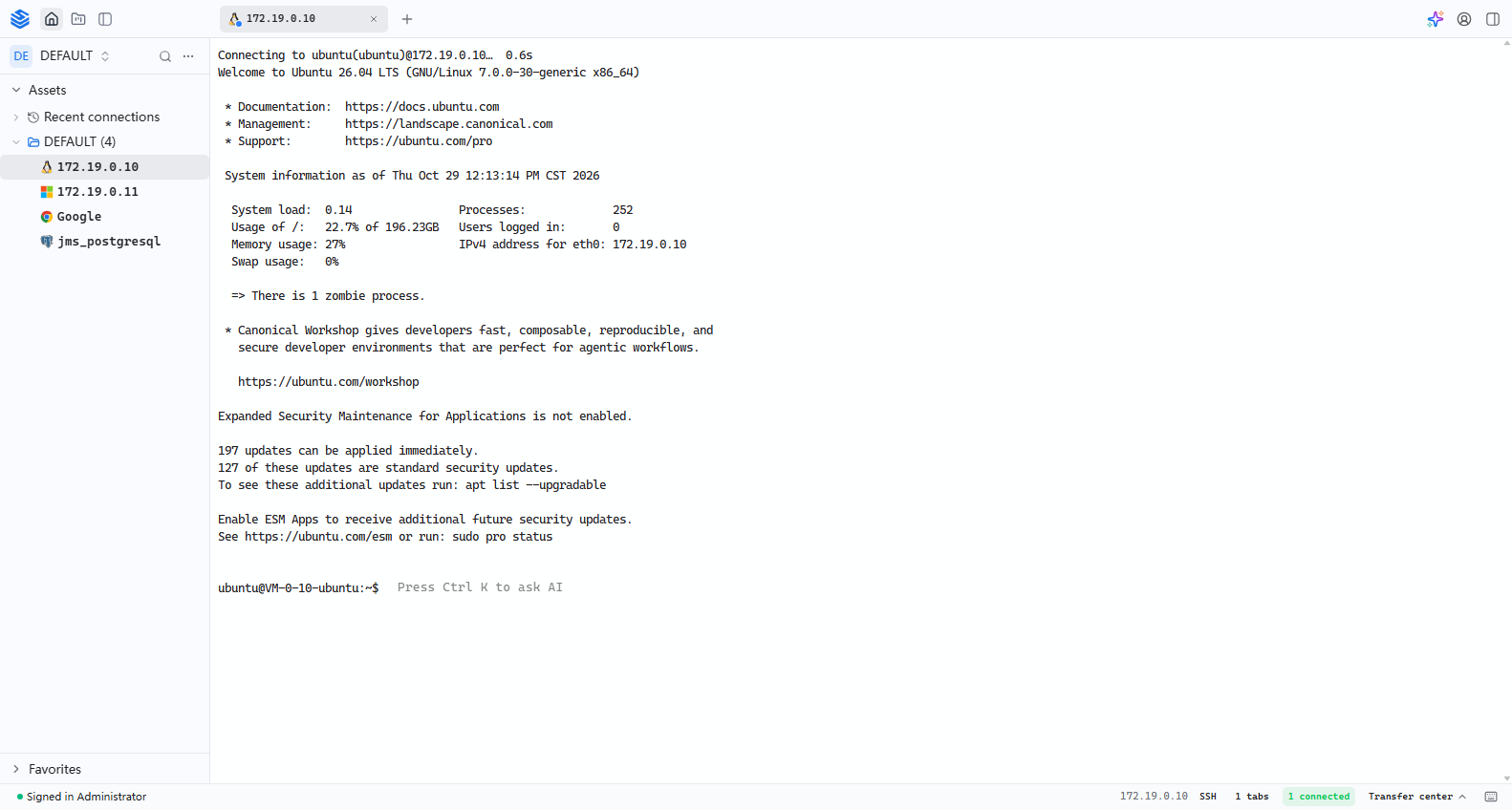
- If the connection dialog reports no available account, ask an administrator to check the account authorization.
- If a protocol is missing, the asset platform may not support it or the asset was not created with that protocol enabled.
- If an application method is missing, install JumpServer Client and configure the local application path.