

Organizations
Multi-organization management requires JumpServer Enterprise Edition. Check the entitlement on the License page before creating additional organizations.
Organizations partition one JumpServer deployment into isolated working spaces. Each organization owns its users, user groups, assets, domains, labels, zones, accounts, and authorizations, while authentication methods and system settings remain global.
Overview
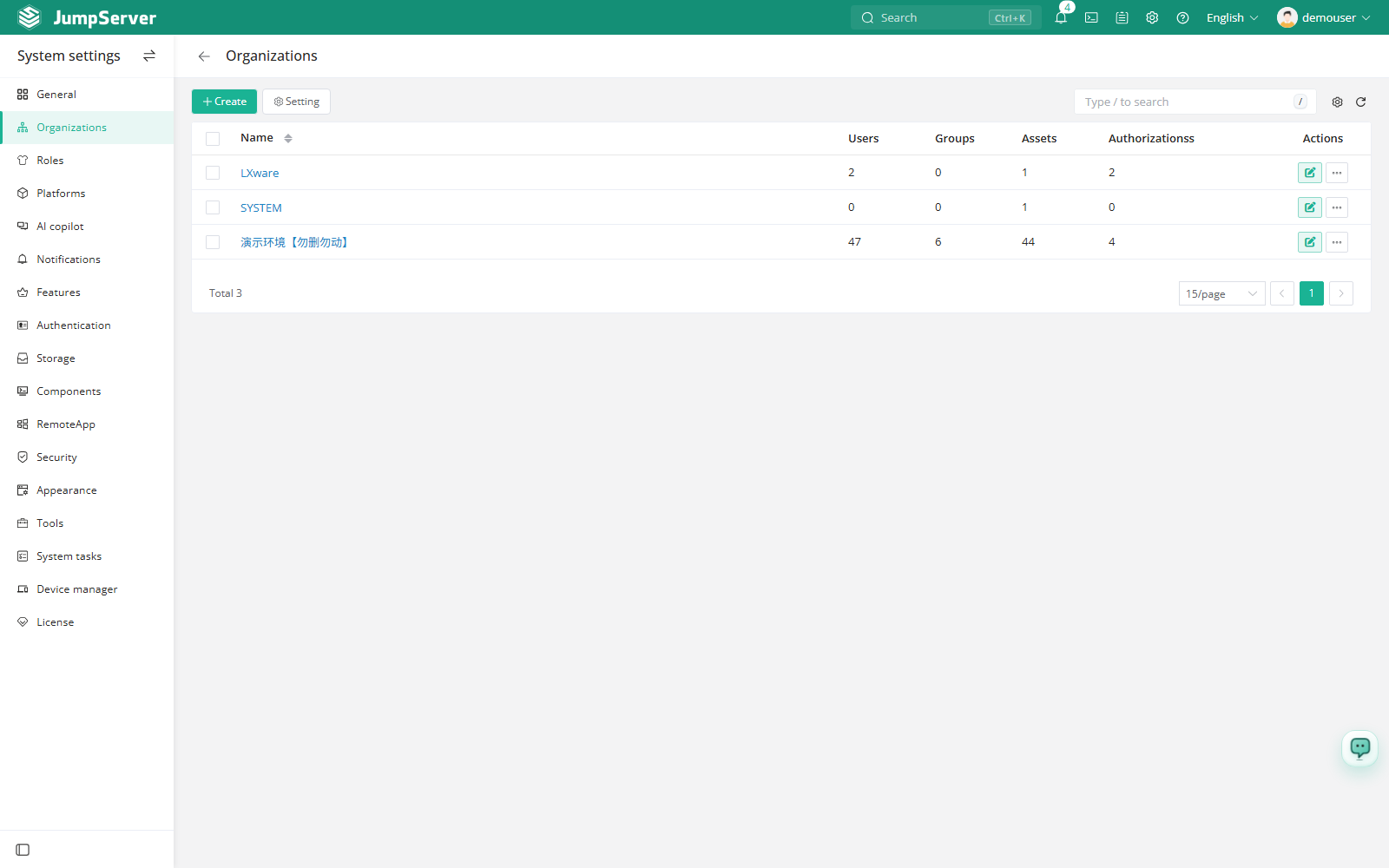
The Organizations page lists every organization in the deployment together with
a resource summary: the number of users, user groups, assets, and authorization
rules that belong to it. The default organization is named DEFAULT unless a
global display name has been configured.
Most day-to-day work happens inside an organization, not on this page. After you create an organization, switch to it from the organization selector at the top of the page, then create and manage resources there. Updates and deletions of organization resources must be performed in the organization that owns them.
Create an organization
In the right area of the top navigation bar, click .

In the left menu, click Organizations.
Click Create.
Type the organization Name and an optional Description.
Click Submit.
Change the global organization display name
In the right area of the top navigation bar, click .
In the left menu, click Organizations.
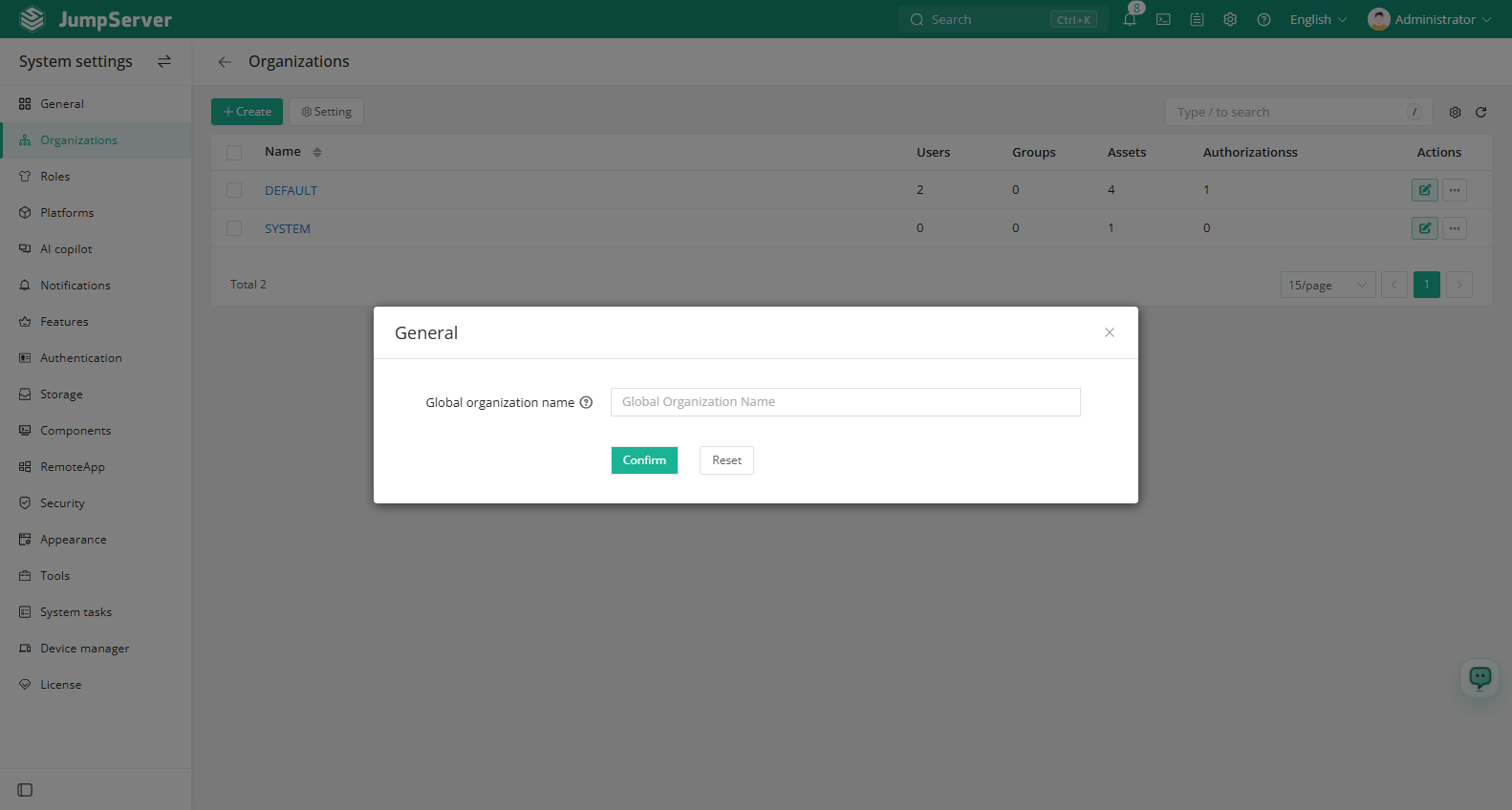
Click Setting above the table.
Enter the new name in the Global organization display name field.
Click Confirm.
Field reference
Work inside an organization
- Switch organizations from the selector in the page header before you edit users, assets, or authorizations. Changes made while one organization is selected apply only to that organization.
- Every organization keeps its own users, assets, and authorizations.
- An organization can be deleted only after its users, user groups, assets, nodes, labels, zones, authorizations, and account templates have been removed.