

Asset Sessions
Asset Sessions records every connection that users make to assets through JumpServer. Auditors use it to confirm who connected to which asset, with which account and protocol, and when, and to close a live connection when it is no longer needed.
Open the page from Audits > Sessions > Asset Sessions.
Overview
The page has two tabs:
- Online sessions lists connections that are still open. You can terminate selected sessions.
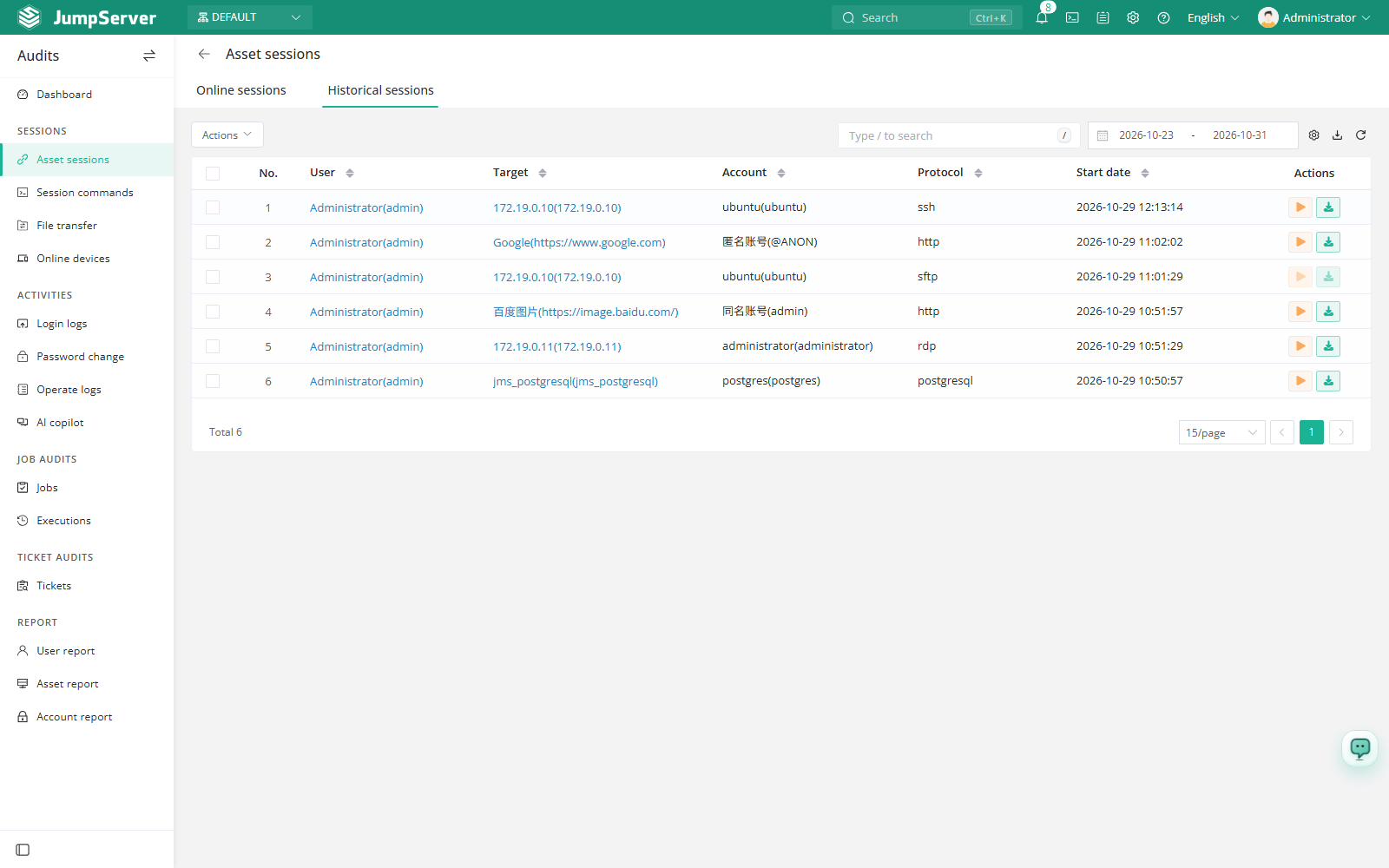
- Historical sessions lists connections that have ended. Historical rows can be replayed and their recordings downloaded when recording storage is configured.
Both tabs share the toolbar: search, date range, column settings, refresh, and export. Click the row number to open the session detail, which includes tabs for basic information, commands, collaboration records, and file transfers.
Prerequisites
- Sign in with an account that has the
terminal.view_sessionpermission, such as a system administrator or auditor. - At least one user must have connected to an asset.
- Session recording storage must be configured before replay or download is available.
Terminate online sessions
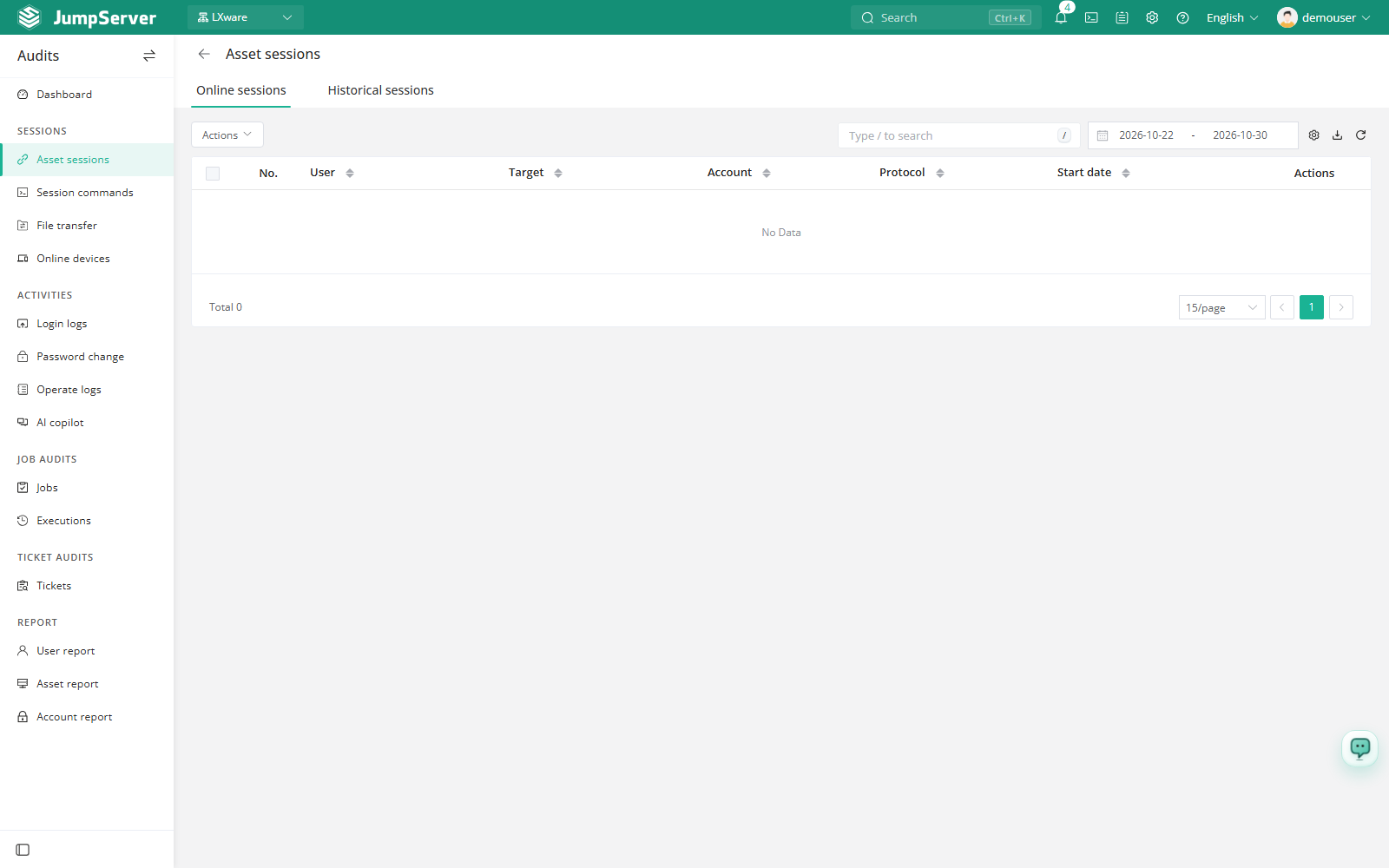
Terminating a session disconnects the user immediately. Make sure the connection is no longer needed before you confirm.
Review historical sessions
Click the row number, a username, or the target to open the session detail and review commands and file transfers.
Use the replay action to play the recording, or download the recording for offline review.
Download recordings in batch
New in v5.1.0You can download several session recordings at the same time instead of downloading them one by one. Recording storage must be configured before the download actions are available, as with single-session downloads.
Use the download action to download the selected recordings as a batch.
Customize columns and export
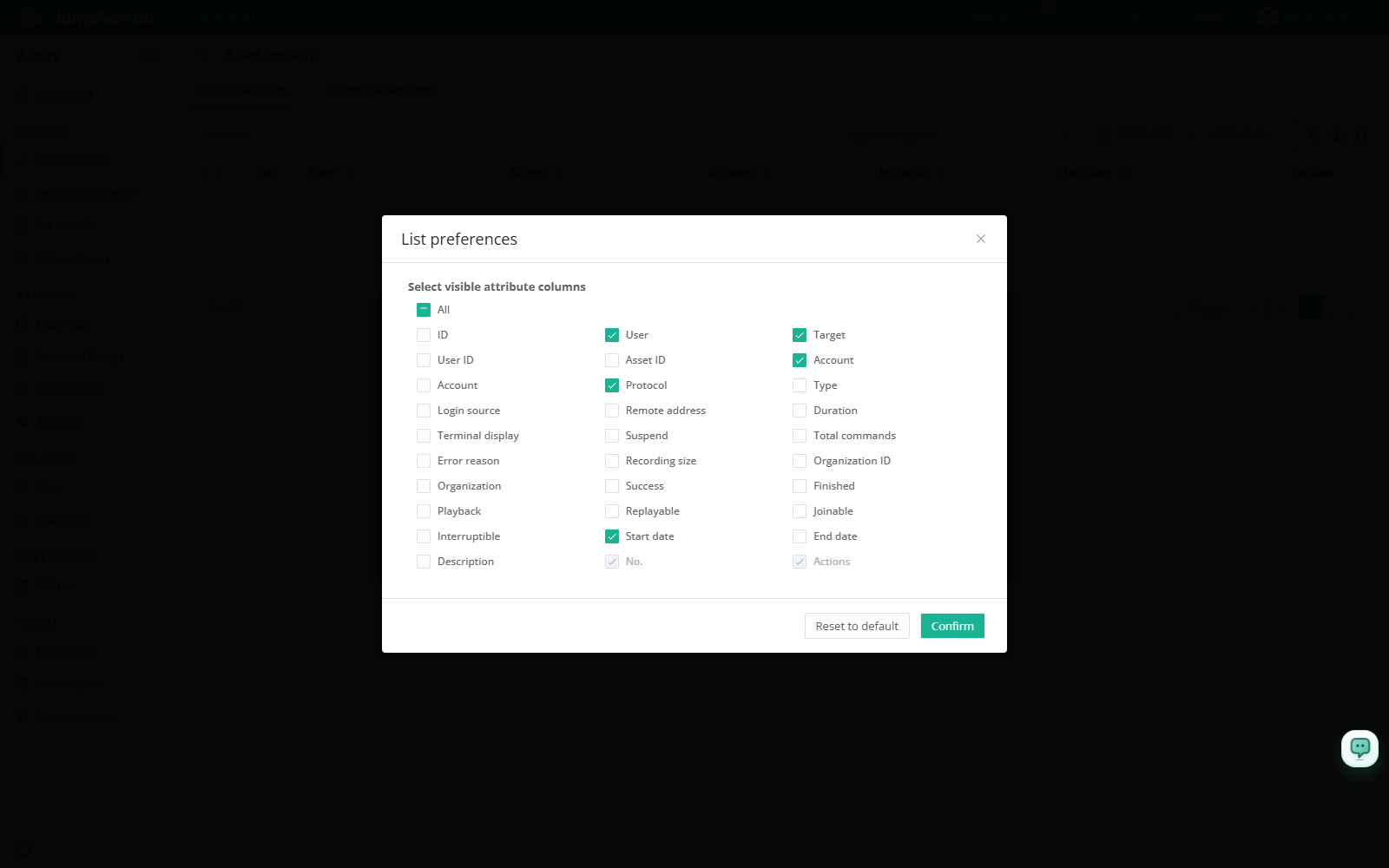
Open List preferences from the column settings icon, select the extra columns you need, and click Confirm. Restore defaults returns to the standard column set. Extra columns include the remote address, duration, replay availability, login source, and session lock state.
Click Export, choose CSV or Excel, then select Export all, Export selected, or Export search results, and click Confirm.