

Operate Logs
Operate Logs records administrative changes made on the JumpServer platform, such as creating users, updating assets, changing authorizations, or deleting resources. Use it to answer who changed what and when, and to see the exact fields that changed.
Open the page from Audits > Activities > Operate Logs.
Overview
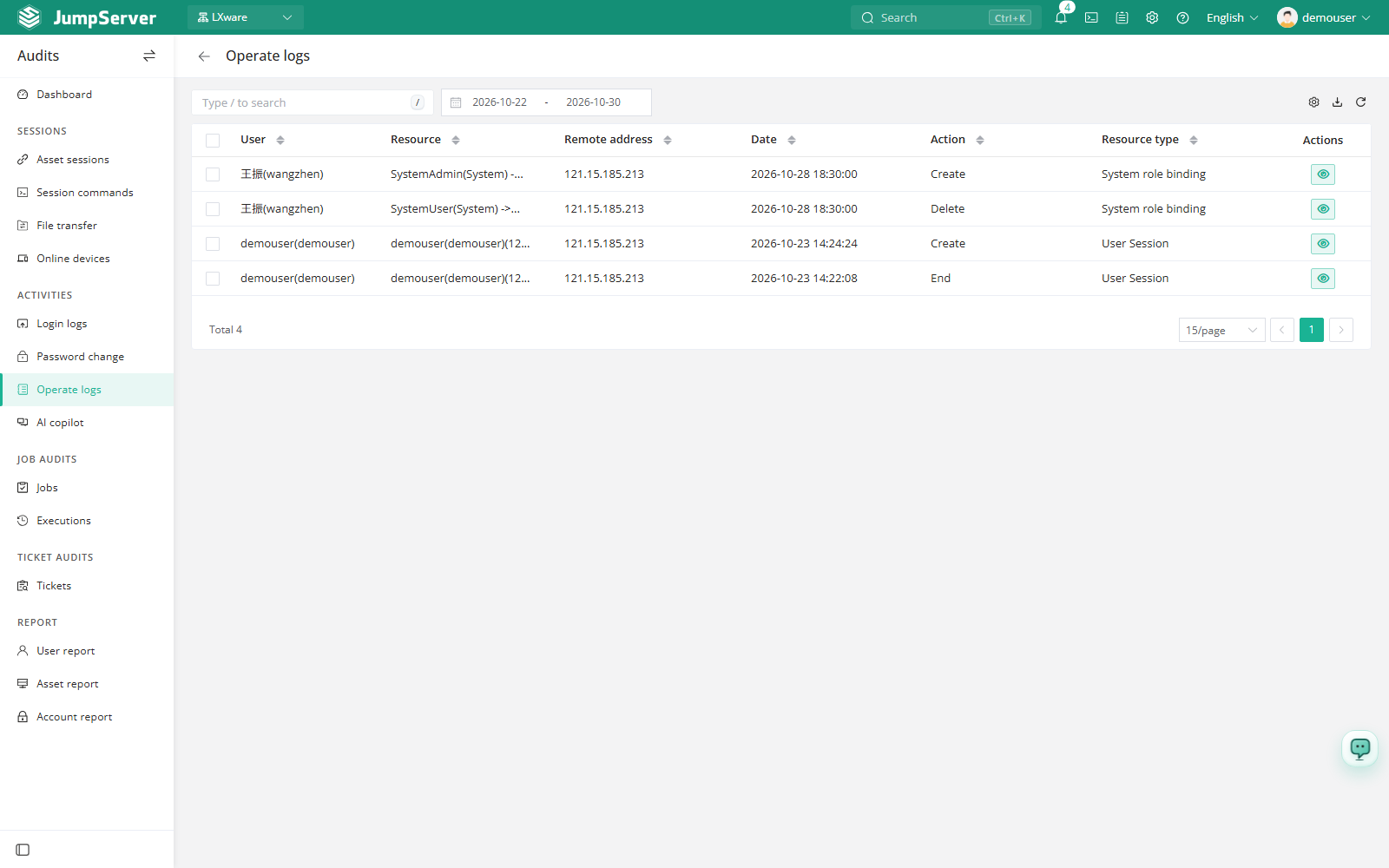
Each row shows the operator, resource, remote address, date, action, resource type, and an action to open the change detail. The list is read-only and keeps a historical record of platform changes.
Prerequisites
- Sign in with an account that has the
audits.view_operatelogpermission, such as a system administrator or auditor. - At least one auditable resource change must have been performed.
Inspect a change
Set the date range, or search for a user or resource.
Click View in the row actions.
In the detail dialog, compare the Before change and After changes values for each Change field.
The change dialog lists one row per changed field:
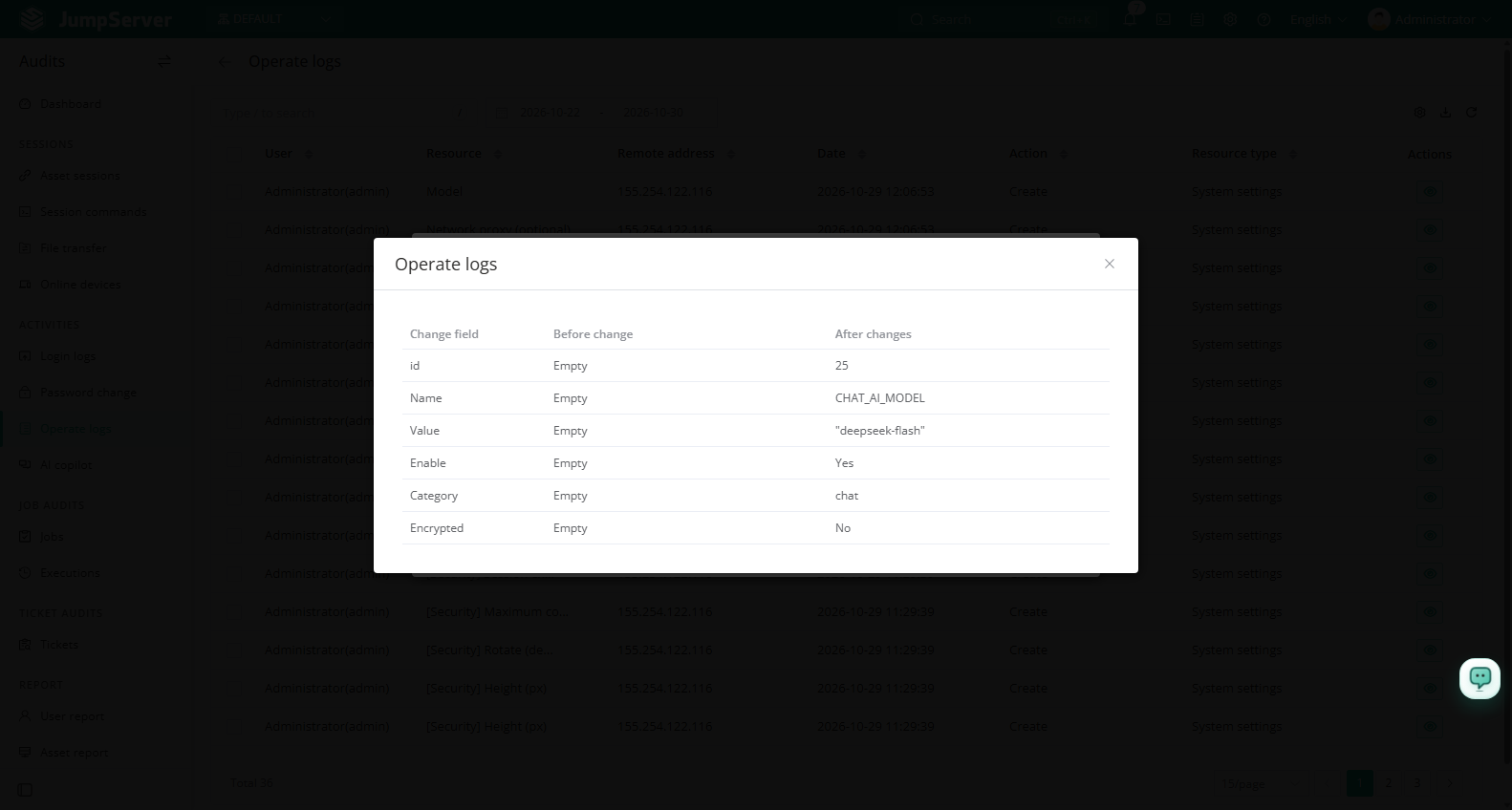
Sensitive values are masked when the log is written, so the change detail may show an asterisk pattern instead of the original secret. The audit record never exposes stored passwords or keys.
Customize columns and export
Open List preferences, select the columns to display, and click Confirm. Extra columns include ID, organization ID, and organization name. Restore defaults resets the list.
Click Export, choose CSV or Excel, select Export all, Export selected, or Export search results, and click Confirm.
Field reference
Notes
When operation logs are stored in Elasticsearch, use the search box to query large volumes of records. Storage is configured in Storage.