

Workspace, Files, and Scripts
The JumpServer Client workspace organizes open sessions, files, and scripts in the desktop client. These tools live in the client window, so you can use them beside the connection you are working in without switching to another application.
The workspace arrived with the refreshed client, together with the unified connection entry for SSH, RDP, Kubernetes, database, and RemoteApp assets. This page covers split views, the file workspace, the script library, and SFTP Server connections. For the connection flow itself, see Asset Connection.
Overview
Before you begin
- JumpServer Client is installed and you are signed in.
- Your account is authorized for the asset and account you connect to.
- The asset platform enables the protocol you need, such as SFTP.
- For file operations, your authorization includes the actions you intend to use.
Split views
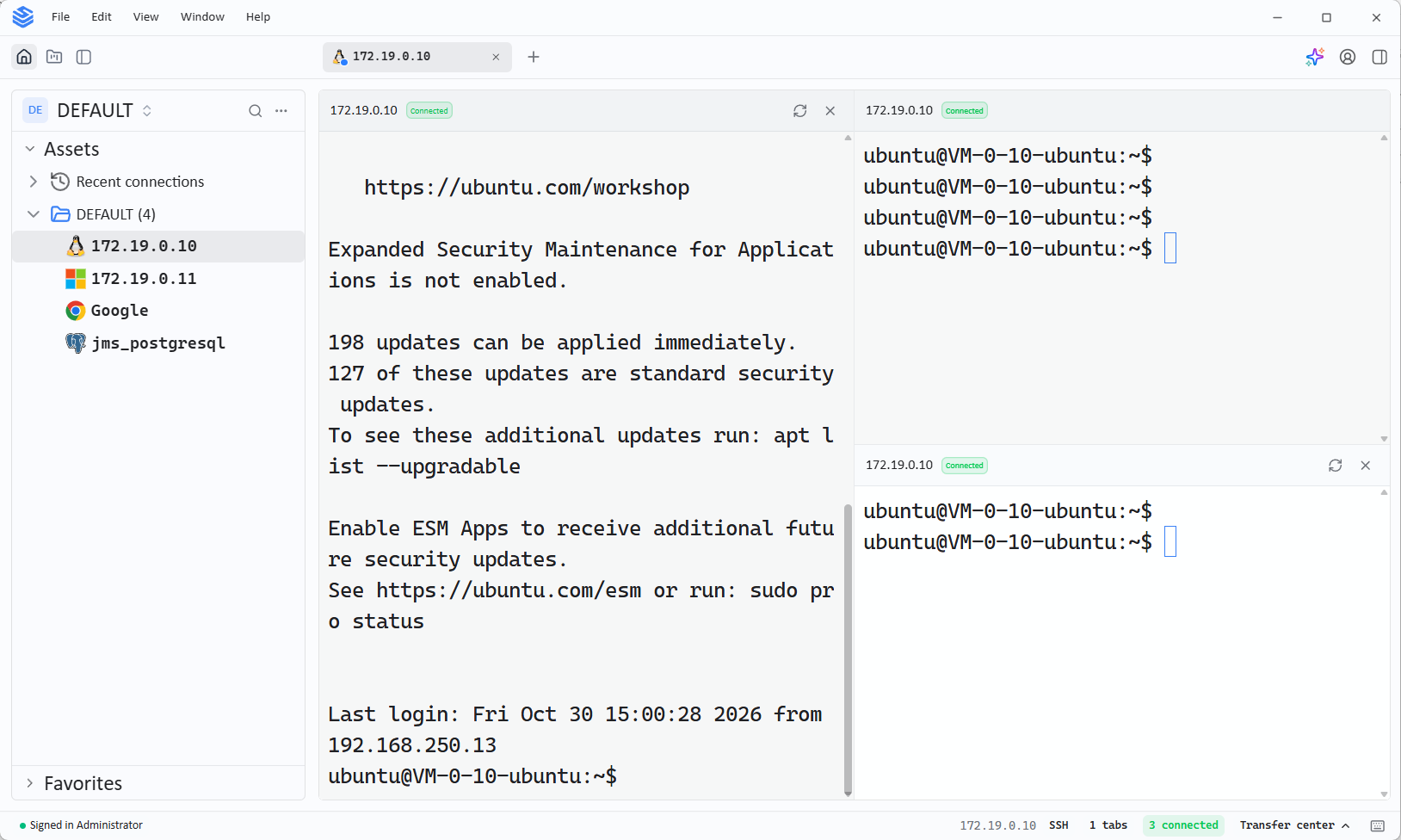
New in v5.0.0Split views place more than one session in the client window at the same time. Use them to compare output from two assets, copy a command from one session to another, or keep a file view visible while you work in a terminal.
Each part of a split view keeps its own connection, account, and session state, so you can work in one view without interrupting the other.
File workspace
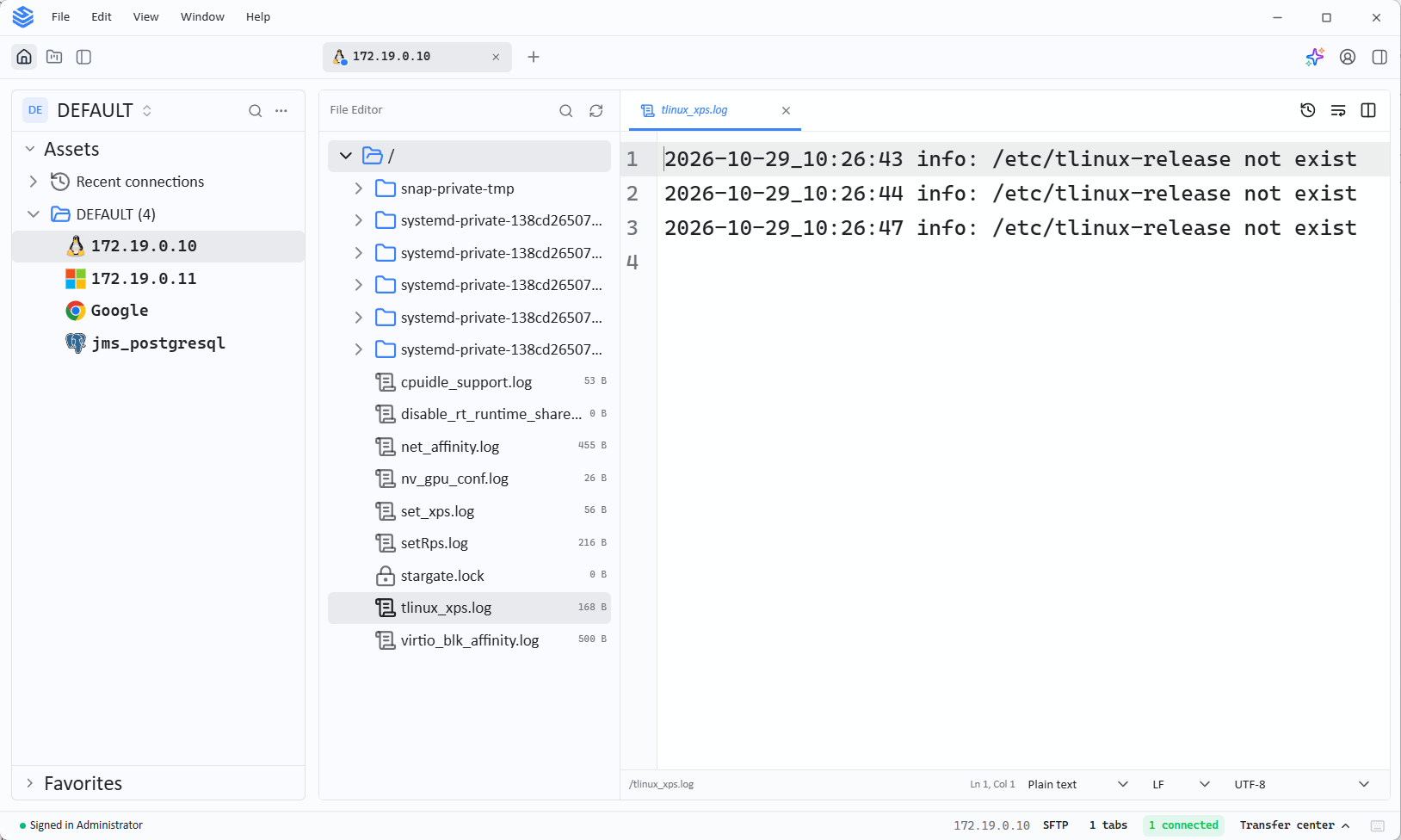
New in v5.0.0The file workspace is the file view inside JumpServer Client. It shows the directories and files of the asset you are connected to, and moves files between the local computer and that asset.
- Browse the remote directory tree and open a directory to list its files.
- Upload files from the local computer to the current remote directory.
- Download files from the remote directory to the local computer.
File operations use the same authorization and account as the session they belong to. A directory the account cannot read shows no files, and an action the authorization does not allow fails at the server, not in the client.
Script library
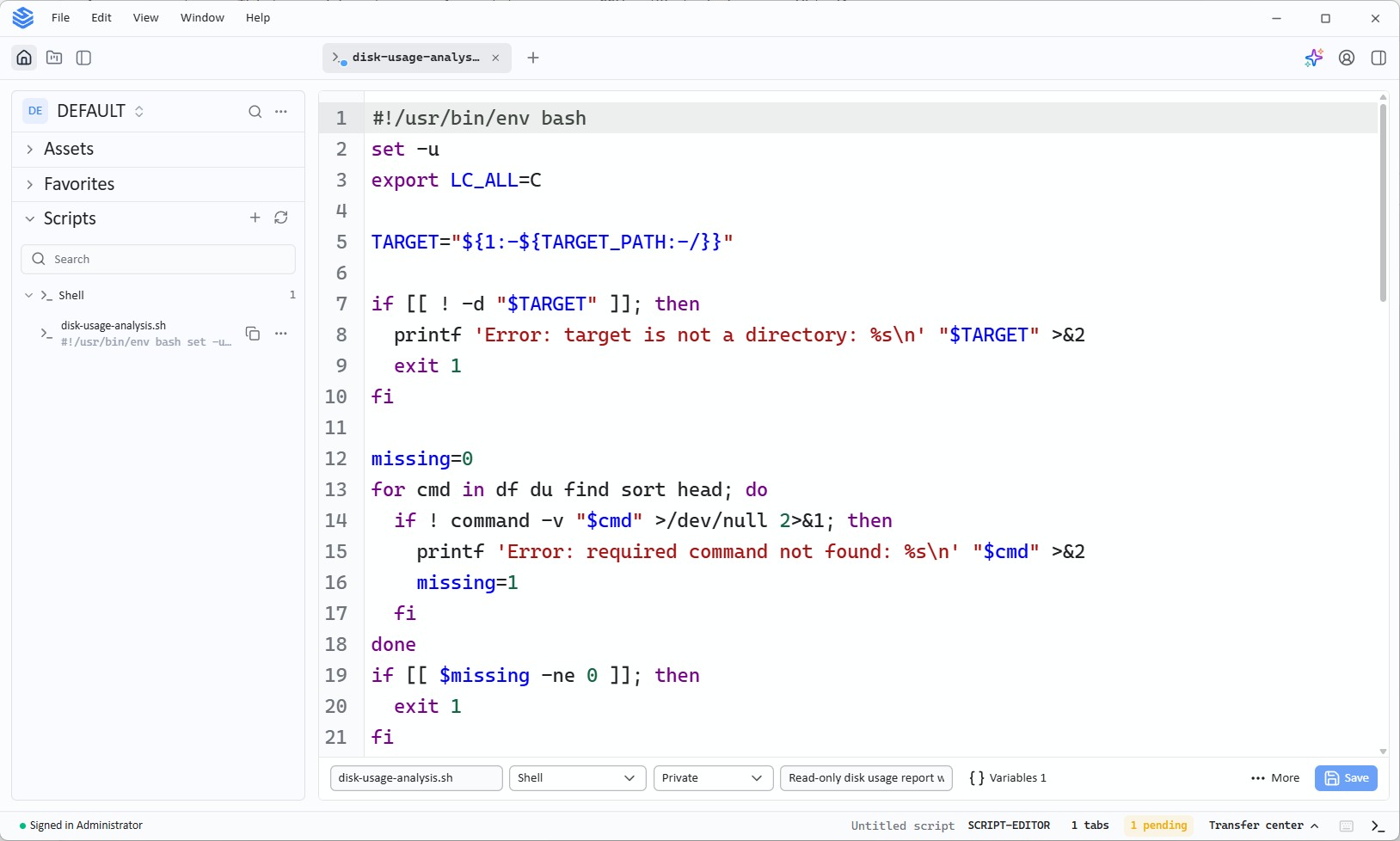
New in v5.0.0The script library keeps scripts in the client so you can reuse them across sessions. Instead of typing the same commands again, select the saved script and send it to the active terminal session.
Scripts run in the session with the permissions of the account used for the connection. Review a script before you send it to a production asset.
SFTP Server connections
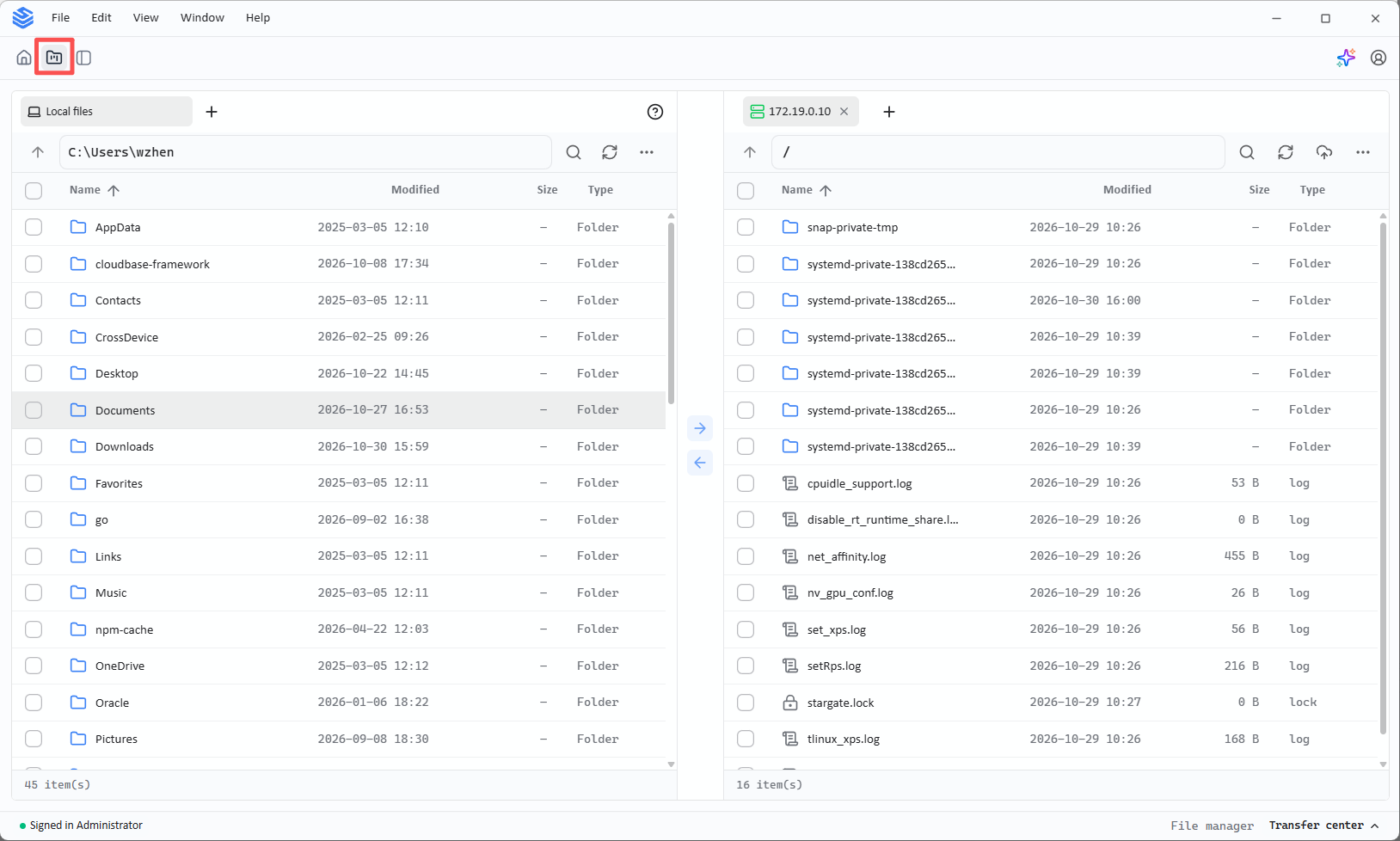
New in v5.0.0An SFTP Server connection works on files only. It connects your client to an SFTP service and opens the file workspace, so you can browse directories and transfer files without opening a terminal session on the target.
Use an SFTP Server connection when you need to move files to or from a server and do not need a shell. Select the authorized account for the connection, then work with the files in the file workspace.
Notes
- Split views, the file workspace, and the script library are client-side tools. They do not change the authorization, command filter, or recording behavior configured on the server.
- SFTP Server connections need an account and an authorization that allow SFTP access to the target.
- If a file action fails, confirm the account permissions on the asset and the actions allowed by your authorization before repeating the operation.