

Organizations
Multi-organization management and organization isolation require JumpServer Enterprise Edition.
JumpServer separates data by organization. Users, user groups, assets, accounts, labels, and authorizations all belong to an organization. When you are a member of more than one organization, use the organization selector to change the active context.
Switch organizations
- In the top navigation, select the current organization name.
- In Change organization, choose another organization.
- The page reloads and every list, search, and permission check now uses the new organization.
The current organization is highlighted in the selector. Switching organizations does not change your login session, password, or personal preferences, but it can change which menus and actions are available because your role may differ between organizations.
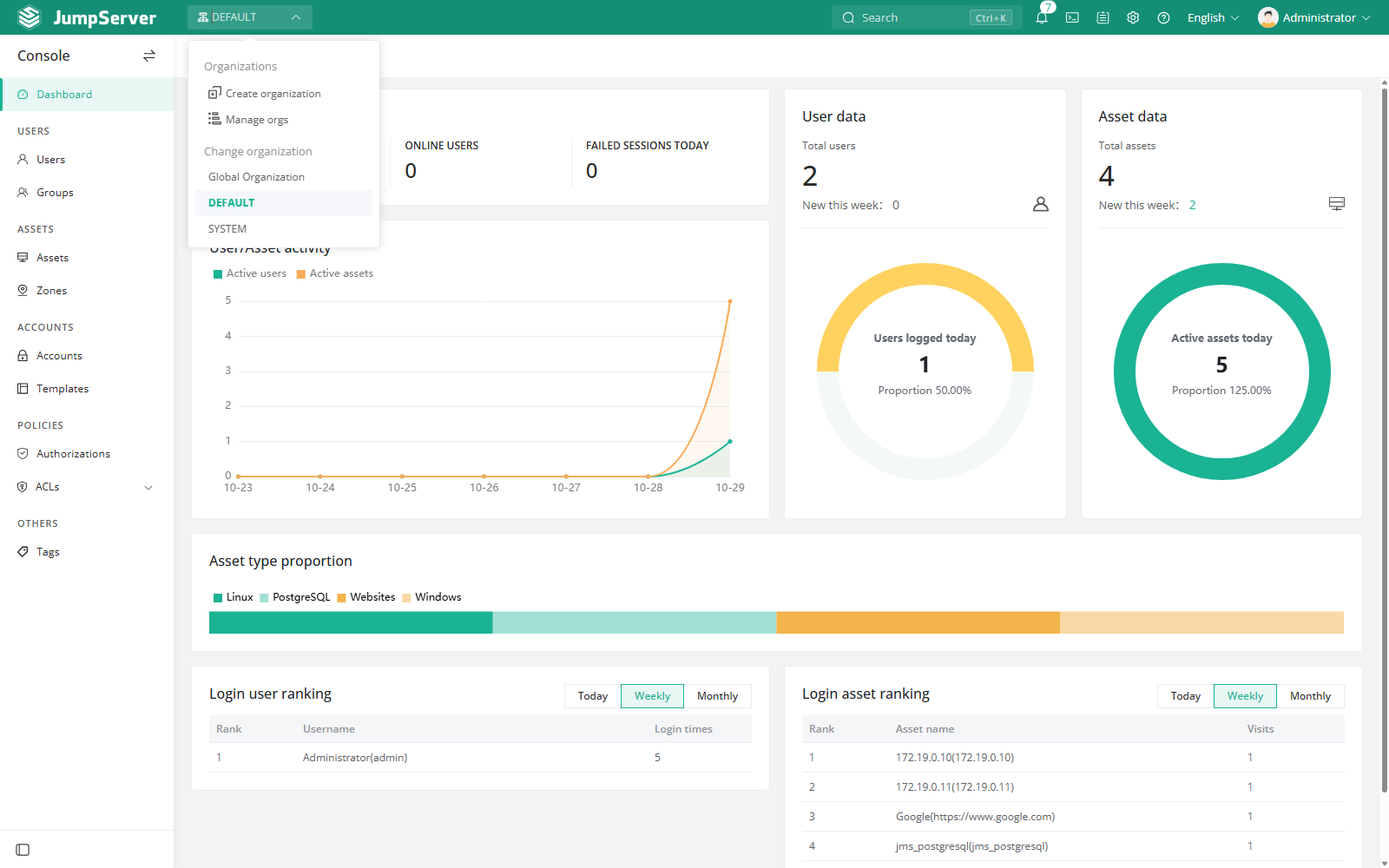
Manage organizations
Users with the required system permission can use Manage orgs and Create organization from the same selector. Organization management is also available under System Settings > Organizations. See System Settings > Organizations for the administrative workflow.
Missing organizations
Organizations are isolated. If an organization does not appear in the selector, you have not been added to it. An administrator of that organization must invite you and assign an organization role before you can switch to it. The special Global organization is visible only to system administrators.
Web terminal organization scope
The Web terminal (Luna) has its own organization selector in the left panel. The All organizations option aggregates assets that are authorized to you across organizations. Use it when you need one place to find an authorized asset, and use a specific organization when you want to stay within one scope.
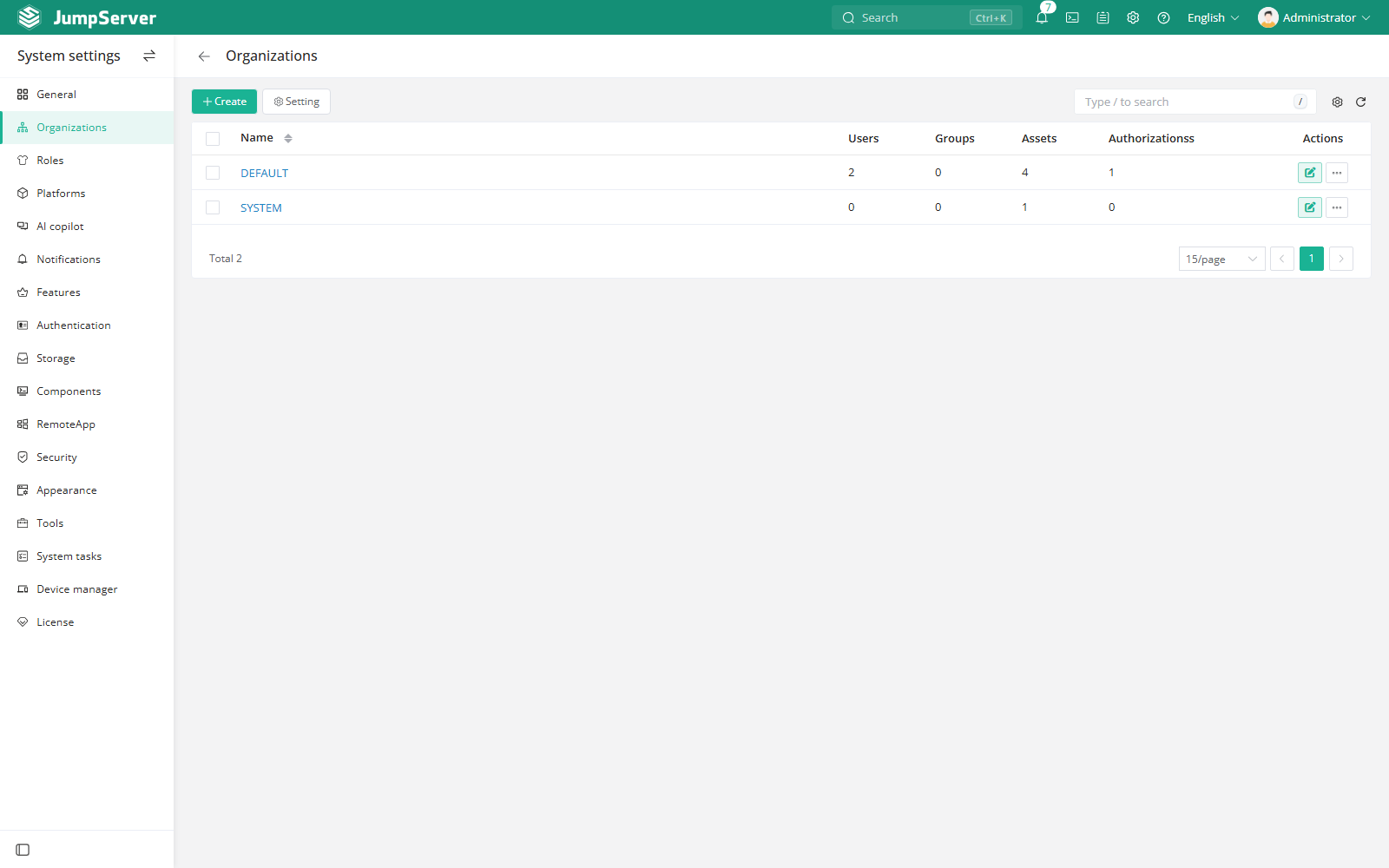
Notes
- Perform create, update, and delete operations in the organization that owns the record.
- If menus change immediately after switching, that is expected: the active organization determines your effective role and permissions.