

Backup Accounts
SFTP account backup requires JumpServer Enterprise Edition. Email backup is included in Community Edition.
Backup Accounts exports the secrets of the accounts that JumpServer manages so that the credentials survive accidental deletion, storage corruption, or an environment rebuild. Backups are selected by platform type, can be split between two recipients or two SFTP servers, and can run on a schedule.
Prerequisites
- Access to PAM > Automation > Backup Accounts with permission to view and change backup tasks.
- For an Email backup, at least one recipient user exists and has a usable email address.
- For an SFTP backup, an SFTP storage is configured. See Storage.
Overview
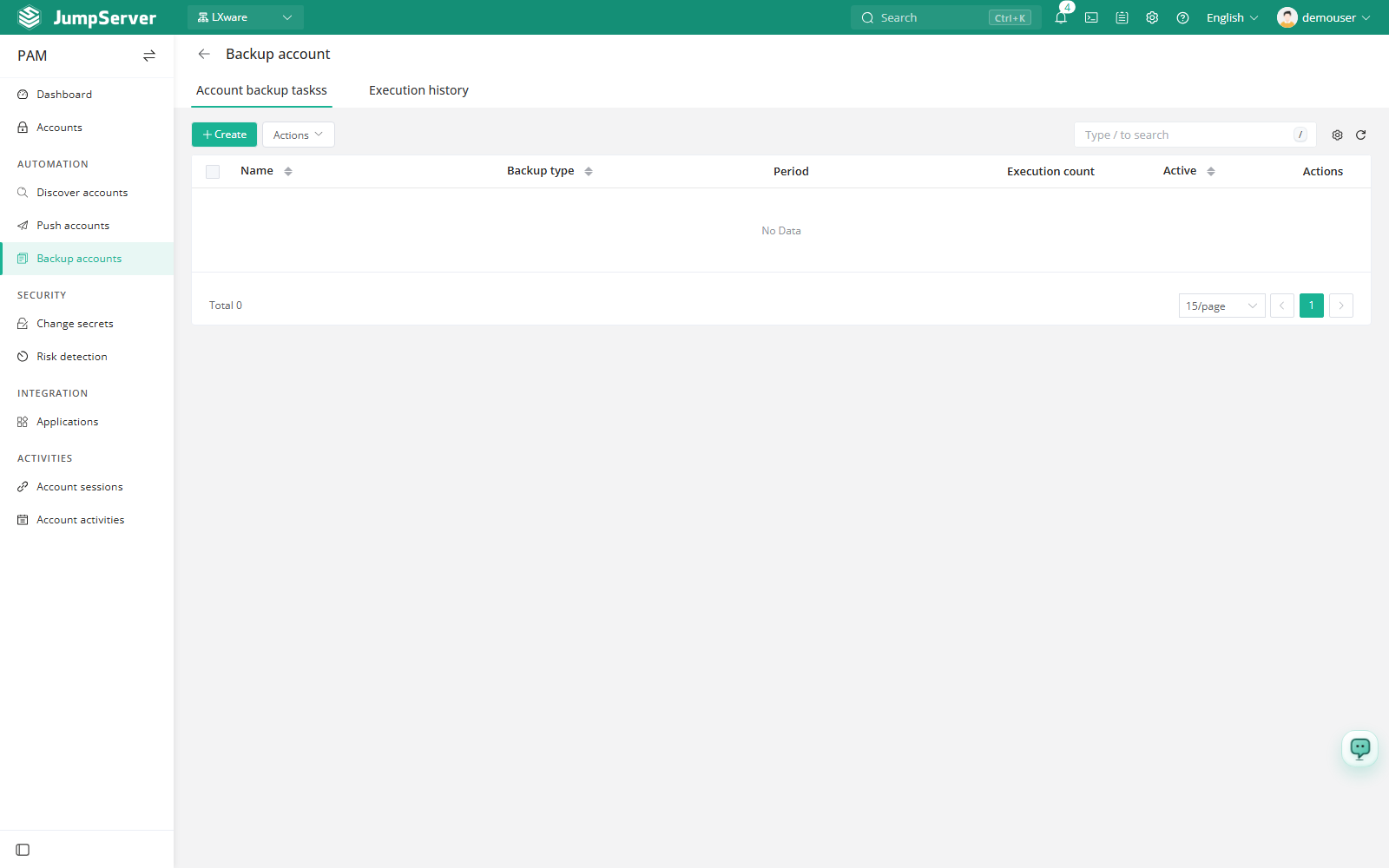
The page contains two tabs:
- Account backup tasks – backup definitions and their schedule.
- Execution history – one row per run, with trigger mode, timing, status, and log.
Create a backup task
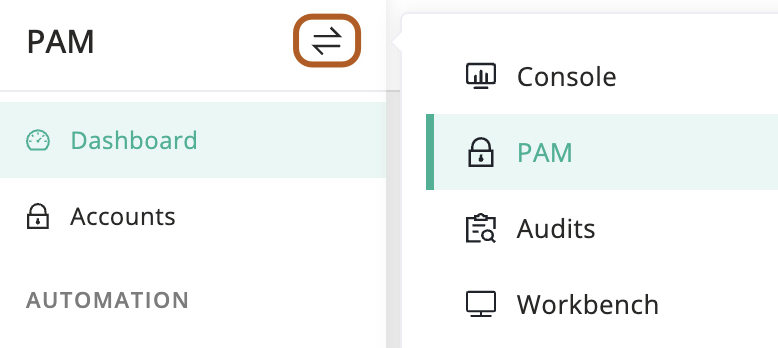
At the top-left of the page, select , then click PAM.
Open Automation > Backup Accounts and stay on the Account backup tasks tab.
Click Create.
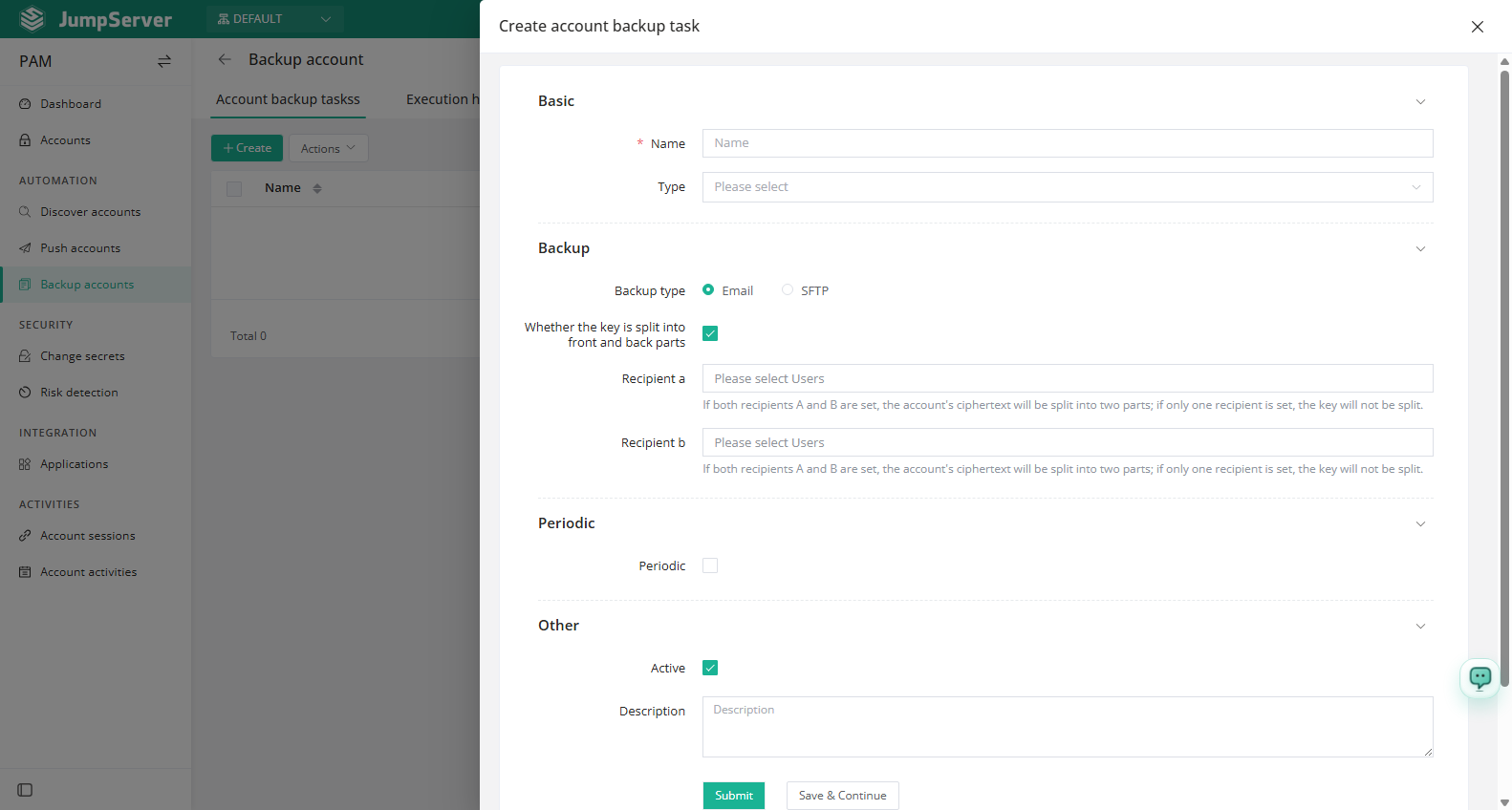
In the Name field, type the task name.
In the Type field, select the platform types to back up, for example host, network device, database, web, cloud service, or custom. The field is a cascading multi-select, so one task can cover several platform types.
Choose the Backup type, Email or SFTP.
Leave Password divided enabled if the key should be split. For email, select Recipient A and optionally Recipient B; for SFTP, select Receiving server A and optionally Receiving server B.
For SFTP only, set the Zip encrypt password used to encrypt the exported file.
Optionally enable Periodic and set Interval or Crontab, keep Active selected, and click Submit. Use Save & Continue to create several tasks in a row.
Field reference
Run and maintain tasks
Use the green run button in the row to execute a backup immediately, or open the task and use the manual execution action. The More menu provides Edit, Delete, and Duplicate; the edit drawer is titled Update account backup and supports Submit and Restore.
A backup run exports account secrets to the configured recipients or SFTP servers. Confirm the backup type, delivery targets, and encryption settings before running against production data, and restrict who can view the task.
Execution history
The Execution history tab lists task, trigger mode, start and end date, automation snapshot, status, duration, and actions. Open a row to read the log for that run.
Execution history is populated by executed tasks. If the tab is empty, create a task and run it once.