

Ticket Audits
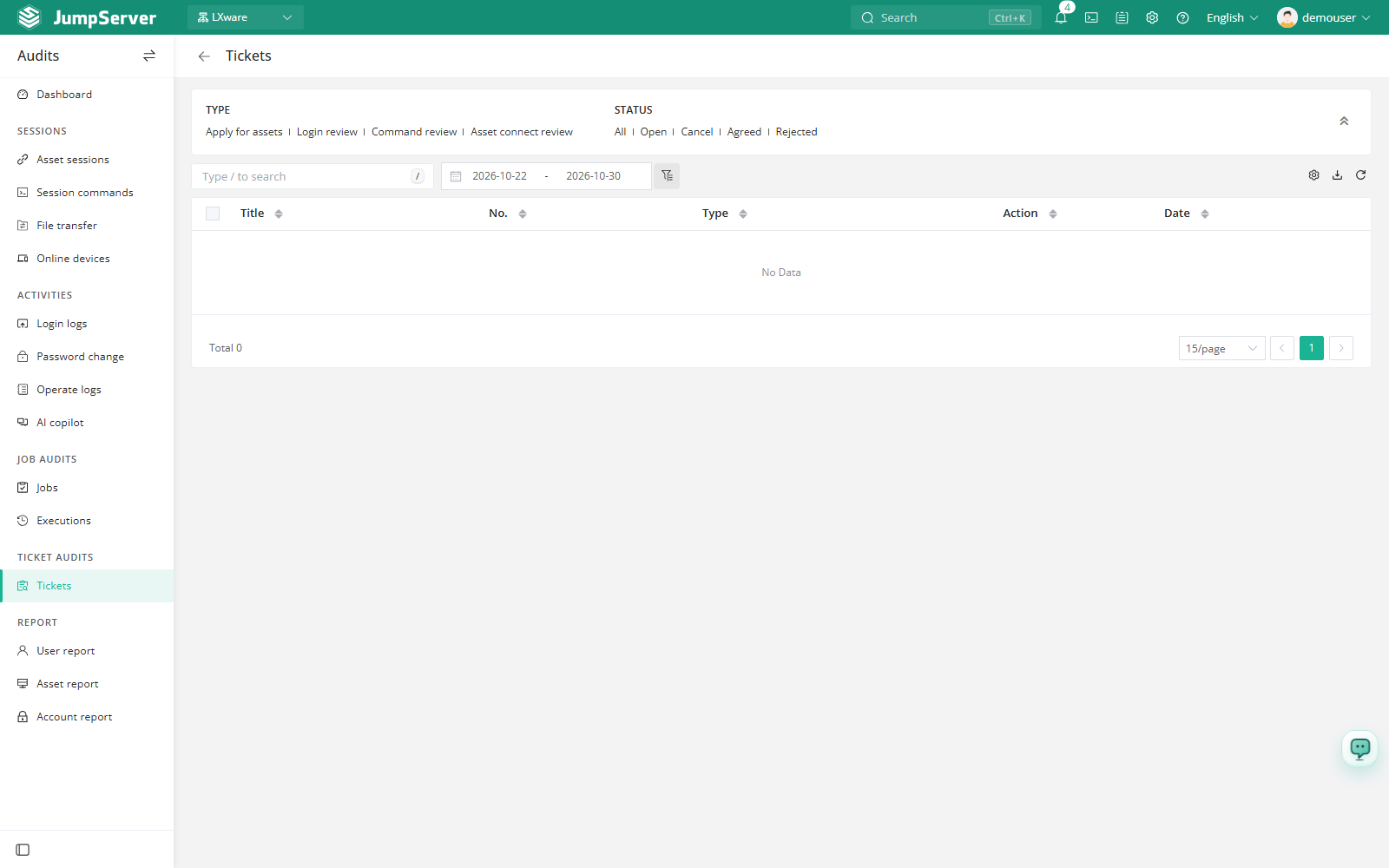
Ticket Audits is the read-only ticket history for the current organization. It covers tickets that users submit for asset access and for login or command approvals, and it preserves the approval flow, handler actions, and timeline for later review.
Open the page from Audits > Ticket Audits.
Overview
Tickets can be filtered by type and status, and each row shows the title, ticket number, type, current action/state, and date. Use the search box to find a ticket by title or number.
Available type filters:
- Apply for assets — requests for asset access.
- Login review — sign-in approval requests.
- Command review — command approval requests.
- Asset connect review — asset connection approval requests.
Available state filters: All, Open, Cancel, Agreed, and Rejected.
Prerequisites
- Sign in with an account that has ticket audit permission, such as a system administrator or auditor.
- Users must have submitted at least one ticket.
Review a ticket
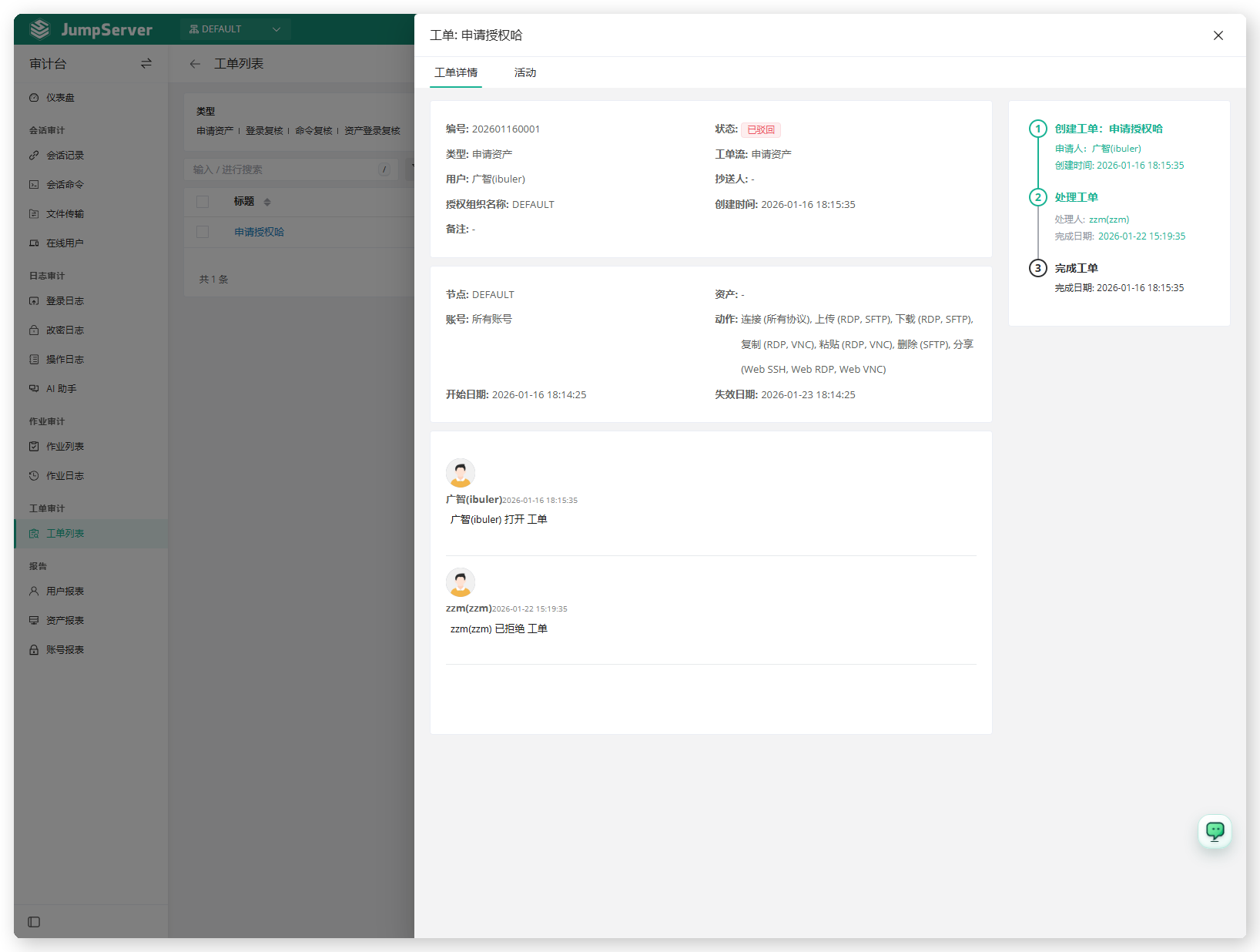
On the Ticket details tab, review the ticket flow, applicant, handler, node, assets, accounts, action, start date, and expiration date.
Use the Activities tab to read the processing records, including comments and approvals.
The right side of the detail shows the processing progress: Create ticket, Handle ticket, and Complete ticket. Completed steps show the handler and completion time.
Field reference
Export
Changed in v5.1.0Click Export, choose CSV or Excel, select Export all, Export selected, or Export search results, and click Confirm.
Exported ticket data renders approval workflows, approvers, approval statuses, and related resources as readable text instead of raw identifiers. This export formatting requires JumpServer Enterprise Edition.
Filter and export by creation time
New in v5.1.0Filtering and exporting ticket audits by creation time requires JumpServer Enterprise Edition.
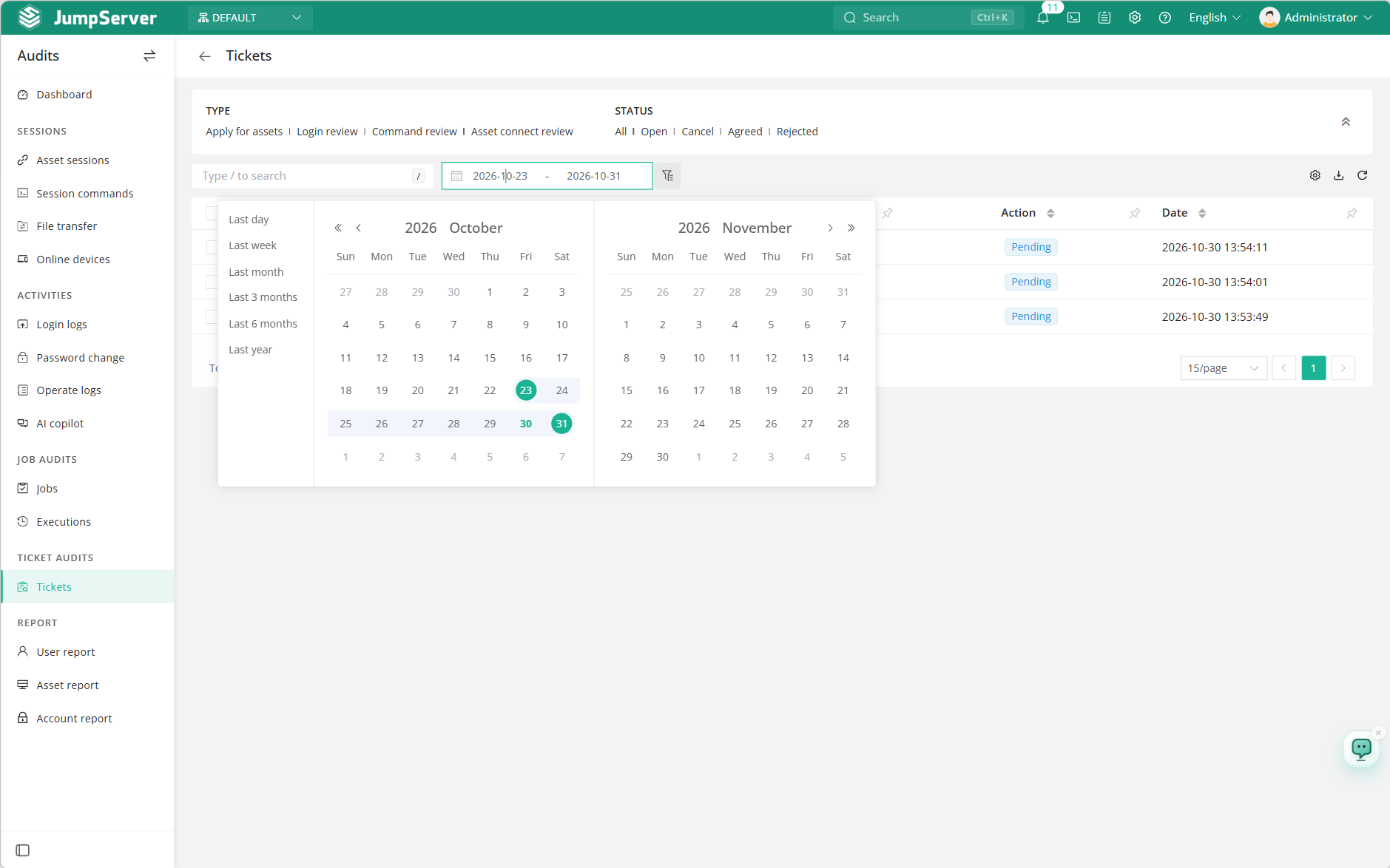
You can narrow the list to a ticket creation time range and export the tickets that match it.
Open Audits > Ticket Audits.
Set the creation time range for the tickets you need.
Review the filtered list, then click Export to export the matching tickets.
Notes
Ticket Audits is read-only. Users create tickets and handlers process them in the Workbench under Submitted, Assigned, and Flow Setup.