

Groups
A group is a collection of users. When an asset or node is authorized to a group, every member of that group inherits the authorization, which keeps access policy compact as teams change. A user can belong to several groups, and a group can hold many users.
Open the page from Console > Groups.
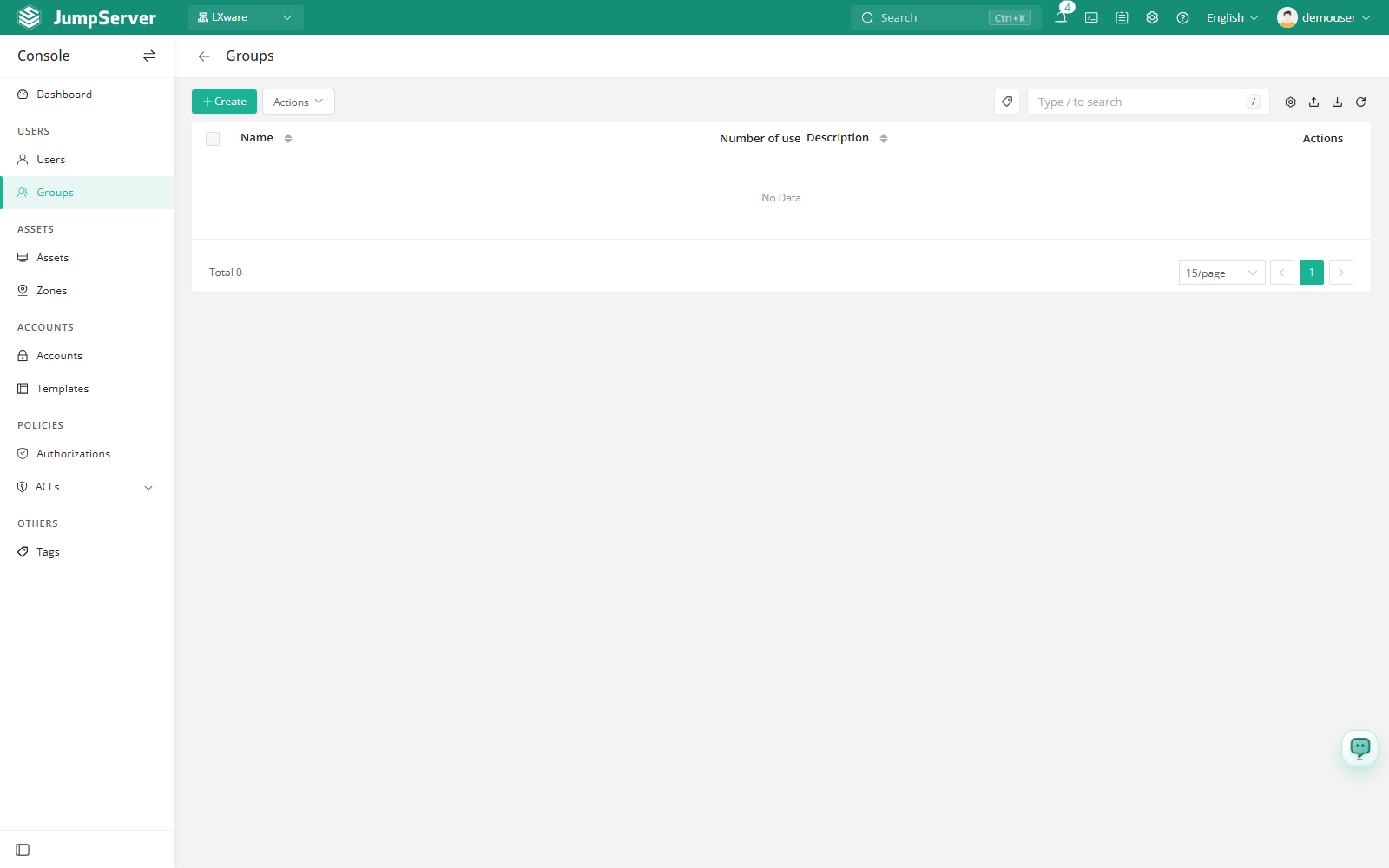
Overview
The list columns are Name, Number of users, Comment, and Actions. The toolbar above it provides search, column settings, import, export, and refresh.
Groups are scoped to the current organization: the list shows only groups in the active organization, and authorizations granted to a group apply only to members who are also in that organization.
Before you begin
- Sign in with an account that can manage users and groups.
- The users you want to add must already exist in the current organization. See Users.
Create a group
Click Create.
In the Create group drawer, type a Name and, optionally, select the Users that should join the group.
Click Submit, or Save and continue adding to create another group.
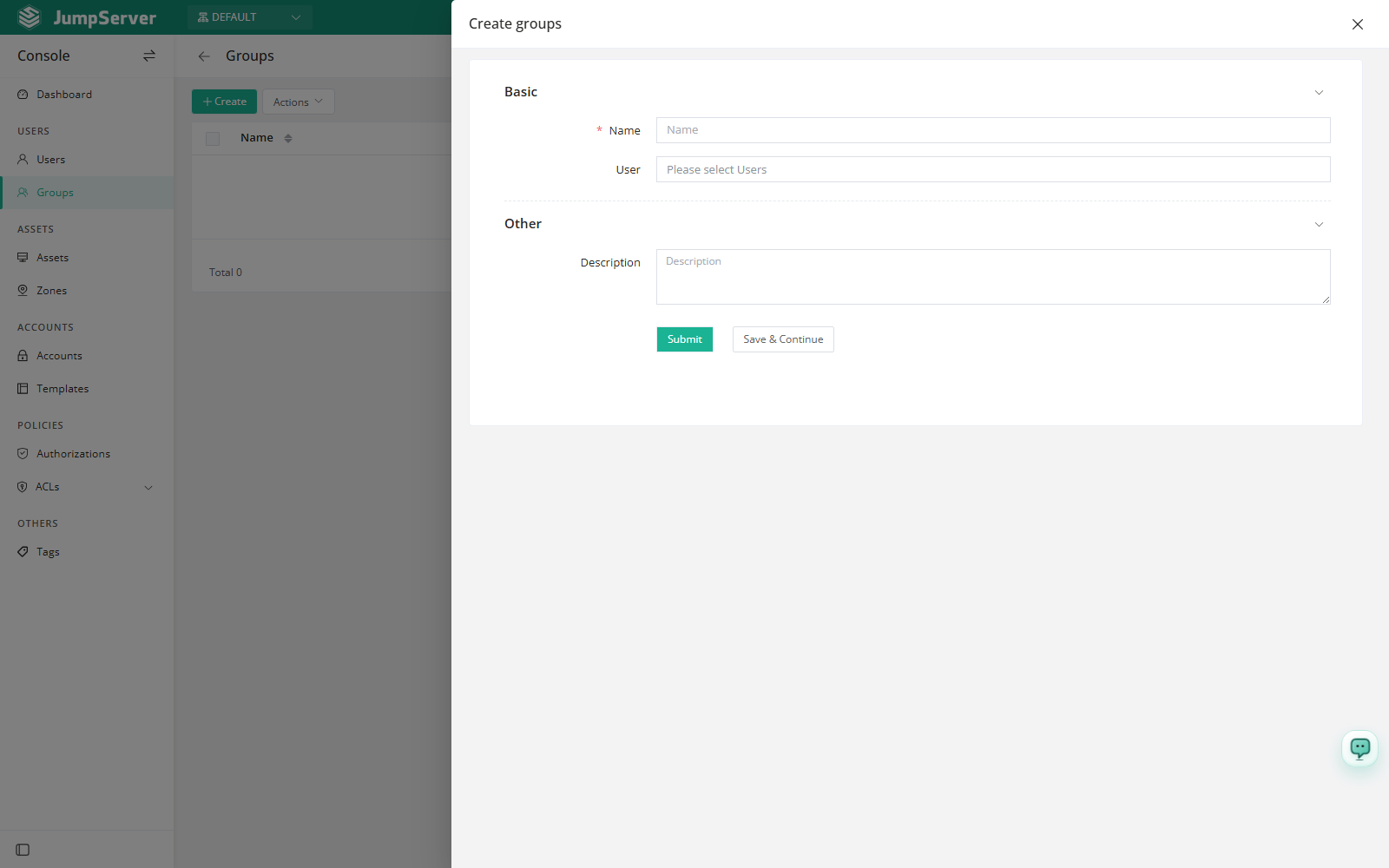
Field reference
Group details
Click a group's Name to open the detail drawer. Tabs include Basic, Users, and Activity, with Edit and Delete in the upper right corner.
Basic
The Basic tab shows the group ID, name, tags, organization, creation date, comment, and creator.
Users
The Users tab lists current members on the left. Use the Members area on the right to select users and click Add to add them to the group.
Activity
The Activity tab shows the group's most recent operations, such as views and updates, limited to the last 30 records.
Edit, duplicate, and delete
Use the edit icon in the Actions column, or Edit in the detail drawer, to open Update group. Change the name, members, or comment and click Submit. Reset discards unsaved changes.
The row menu (...) provides:
- Delete: remove the group from the current organization. Irreversible.
- Duplicate: clone the group as a new one, then adjust the differences.
Select the checkboxes in front of several groups and click More actions to delete them in a batch.
Deleting a group does not delete the user accounts inside it. However, any authorization granted only to that group stops applying to its former members, so they may lose access immediately.