

Password & SSH Key
Password and SSH key are the two user-managed credentials for signing in to JumpServer. Open Profile > Authentication Settings to maintain them.
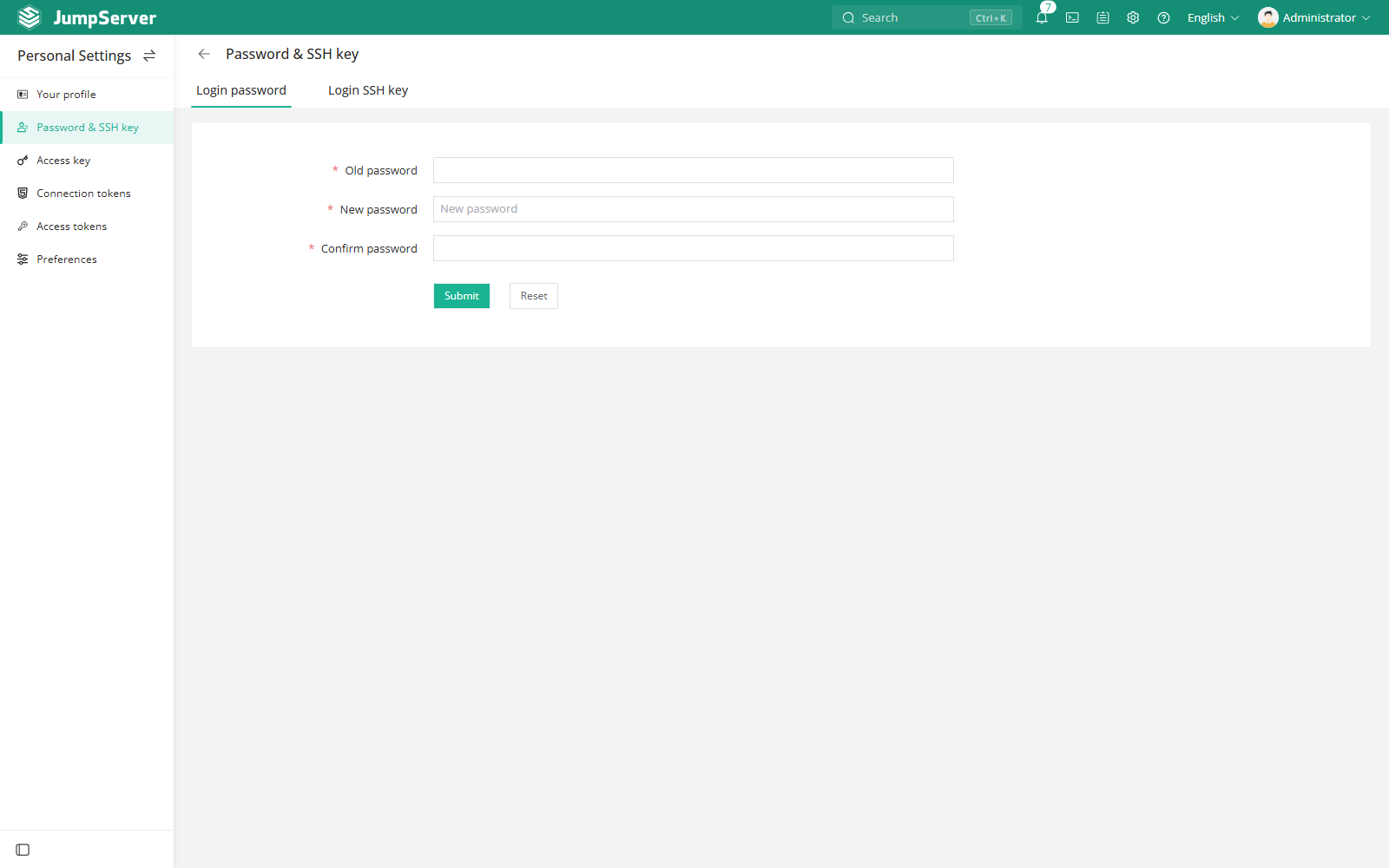
Change the login password
- Open Profile > Authentication Settings > Login Password.
- Enter the current password, the new password, and the confirmation.
- Select Submit. Select Reset to discard unsaved input.
Password rules are enforced by the platform security policy. If your password has expired or an administrator requires a change at next login, complete the change before continuing.
Manage the SSH public key
- Open Login SSH Public Key.
- Upload or paste the public key, or download the current key.
- Save the change.
Use the matching private key when connecting to the JumpServer SSH gateway. The public key is associated with your account, not with an individual asset.
Use cases
When your administrator permits SSH key login, use the public key to authenticate
to the JumpServer SSH gateway on port 2222 without entering your account
password.
- Daily terminal access: connect from a local terminal with the private key that matches the uploaded public key, then choose an authorized asset from the JumpServer menu.
- Automation and scripts: authenticate a terminal-based workflow with a key instead of storing your JumpServer password in the script.
- Key rotation and recovery: replace the uploaded public key when a device or key is lost, without changing the credentials of the asset accounts behind JumpServer.
The key authenticates your JumpServer account only. It does not bypass asset authorization, ACL, or auditing; the assets and accounts available after login are still determined by your permissions. If MFA or login confirmation is enabled, complete that step after key authentication.
For the SSH connection command, interactive asset menu, direct asset login, and troubleshooting, see SSH Terminal.
Changing your password or SSH public key takes effect immediately. Make sure the new credential is saved before you close the session.
Notes
- Access keys and connection tokens are separate credentials; see Access Keys and Tokens.
- If MFA is enabled, a password change does not remove the second factor.
- Administrators can reset passwords or keys when a user loses access.