

Connect Method
Connection method control requires JumpServer Enterprise Edition.
Connect Method controls which connection methods a user may use to log in to assets. Connection methods are the ways a connection can be launched, such as the web terminal or native clients. The controls on this page are global: the organization switcher shows Global organization, and the rules apply to every organization.
Open the page from Console > ACLs > Connect Method.
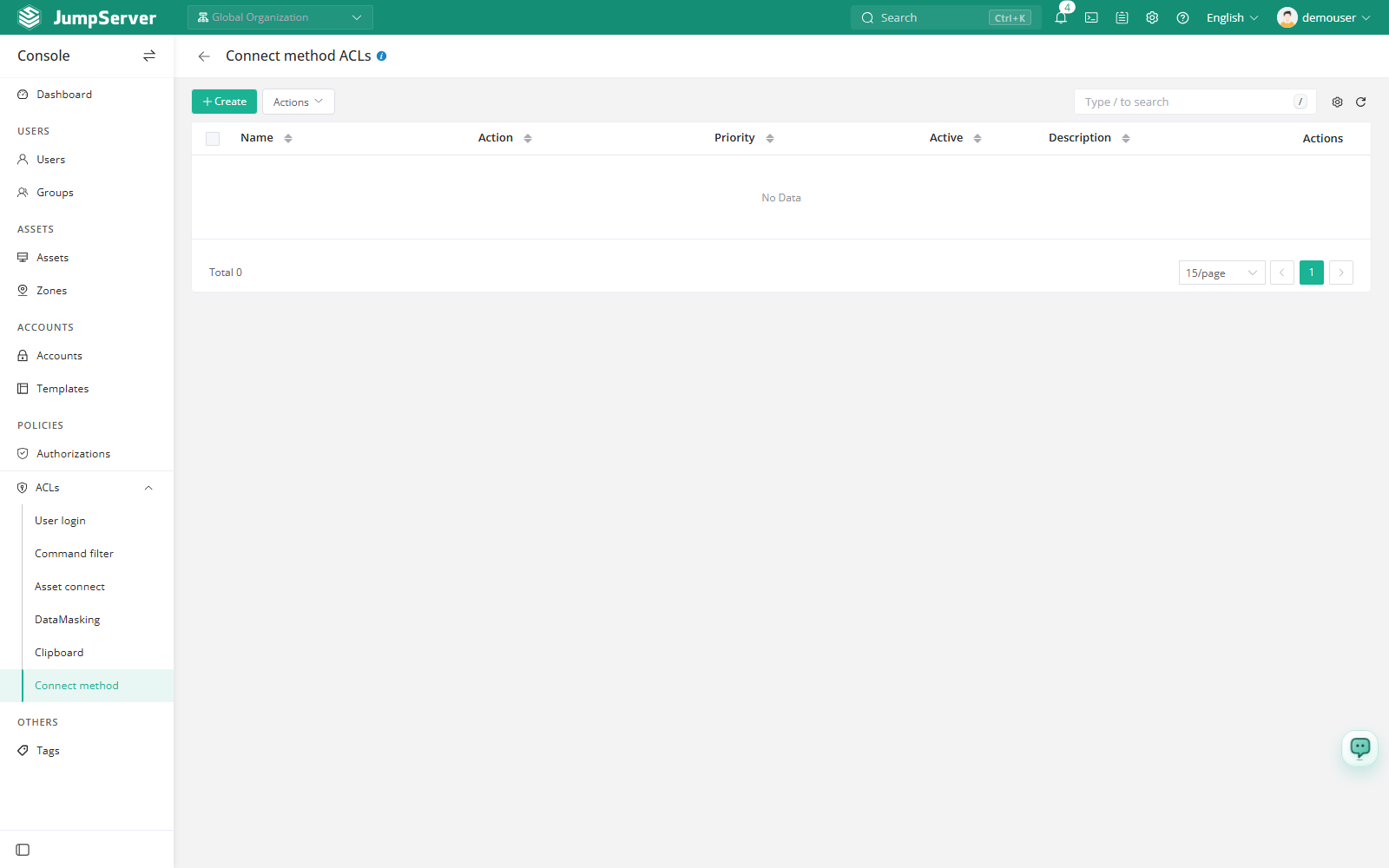
Overview
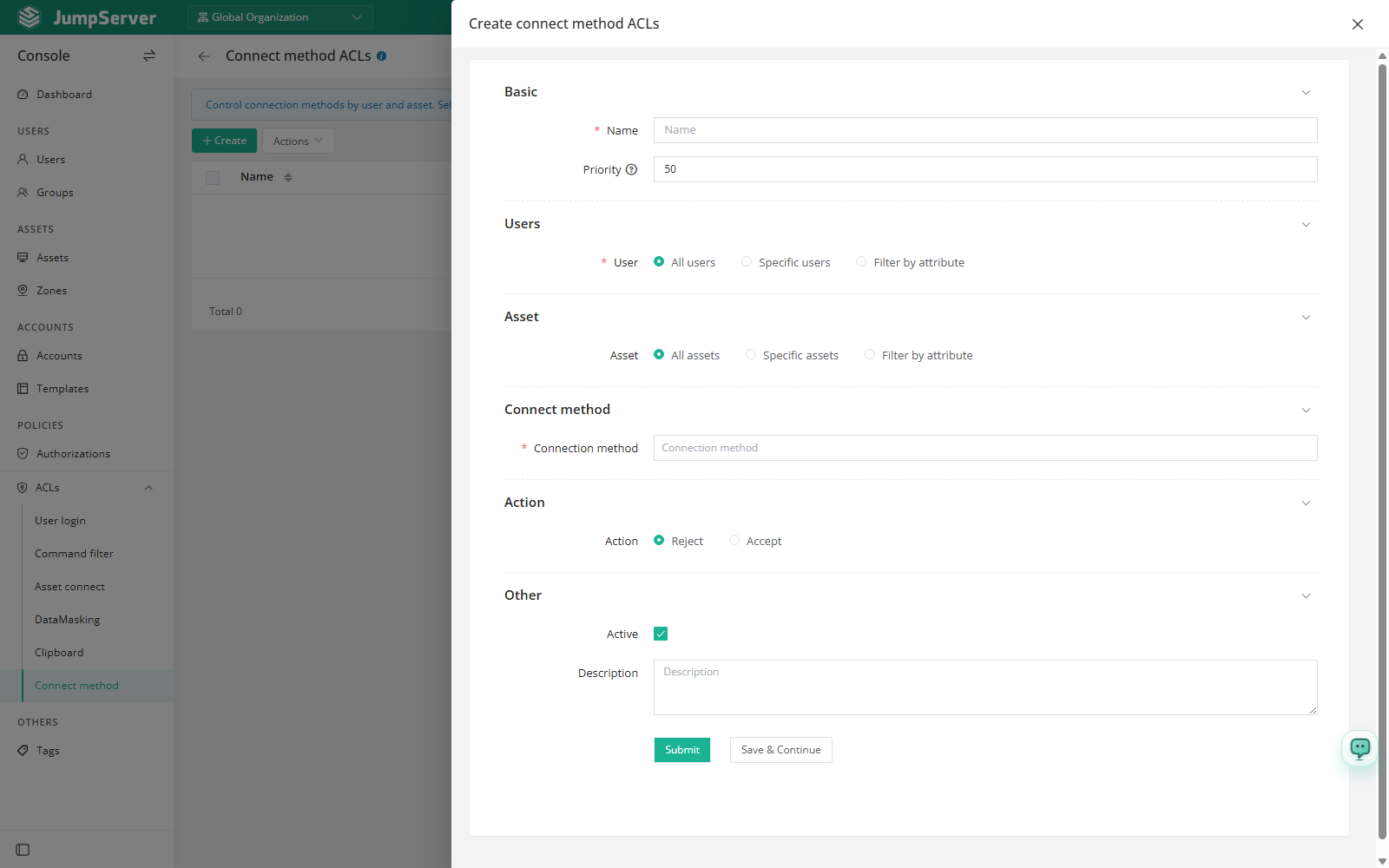
A rule selects users (all, specified, or by attribute), one or more connection methods, and an action. Rules can also select the assets they apply to, as described in Select assets for a rule. When the rule matches, the action decides whether the selected method is accepted or rejected. The list columns are Name, Priority, Active, Action, and Actions.
Before you begin
- Sign in with an account that can manage ACLs.
- Confirm which connection methods are available in the environment. The list is provided by the enabled components and may include web methods, native clients, applets, and virtual applications.
- Tell affected users in advance when a method is going to be rejected.
Create a connect method control
Click Create.
Click Submit.
Field reference
Select assets for a rule
New in v5.1.0Asset-based selection for connection methods requires JumpServer Enterprise Edition.
A control can select the assets it applies to. With assets selected, the rule restricts the chosen connection methods only for connections to those assets, so a restriction can target one group of hosts instead of the whole deployment.
- Combine asset selection with users and connection methods to keep the rule as narrow as the scenario requires.
- Review the selected assets before activating the rule, because a rejected method blocks that method for every matched user on those assets.
Choose methods carefully
Connection method names describe how the connection starts, and the available set depends on the deployment:
- Web methods such as Web GUI, Web CLI, and Web SFTP.
- Native clients such as SSH Client, SFTP Client, Remote Desktop, VNC Client, and their setup guides.
- Applets and virtual applications, when those components are published.
Rejecting a method can force users onto another approved path, for example allowing only the web terminal for a group that must be audited in the browser.
A Reject rule prevents matched users from using the selected connection methods, even when they are authorized to the asset. Because these controls are global, review the users and methods before activating a rule; a mistaken scope can block access across the whole deployment.
Global controls cannot be overridden by organization-level settings. If only one team needs a restriction, prefer Specified users over All users.