

Access Keys
Access keys authenticate API requests with a signed request header. They are available from Profile > Access Keys and are scoped to your current user and permissions.
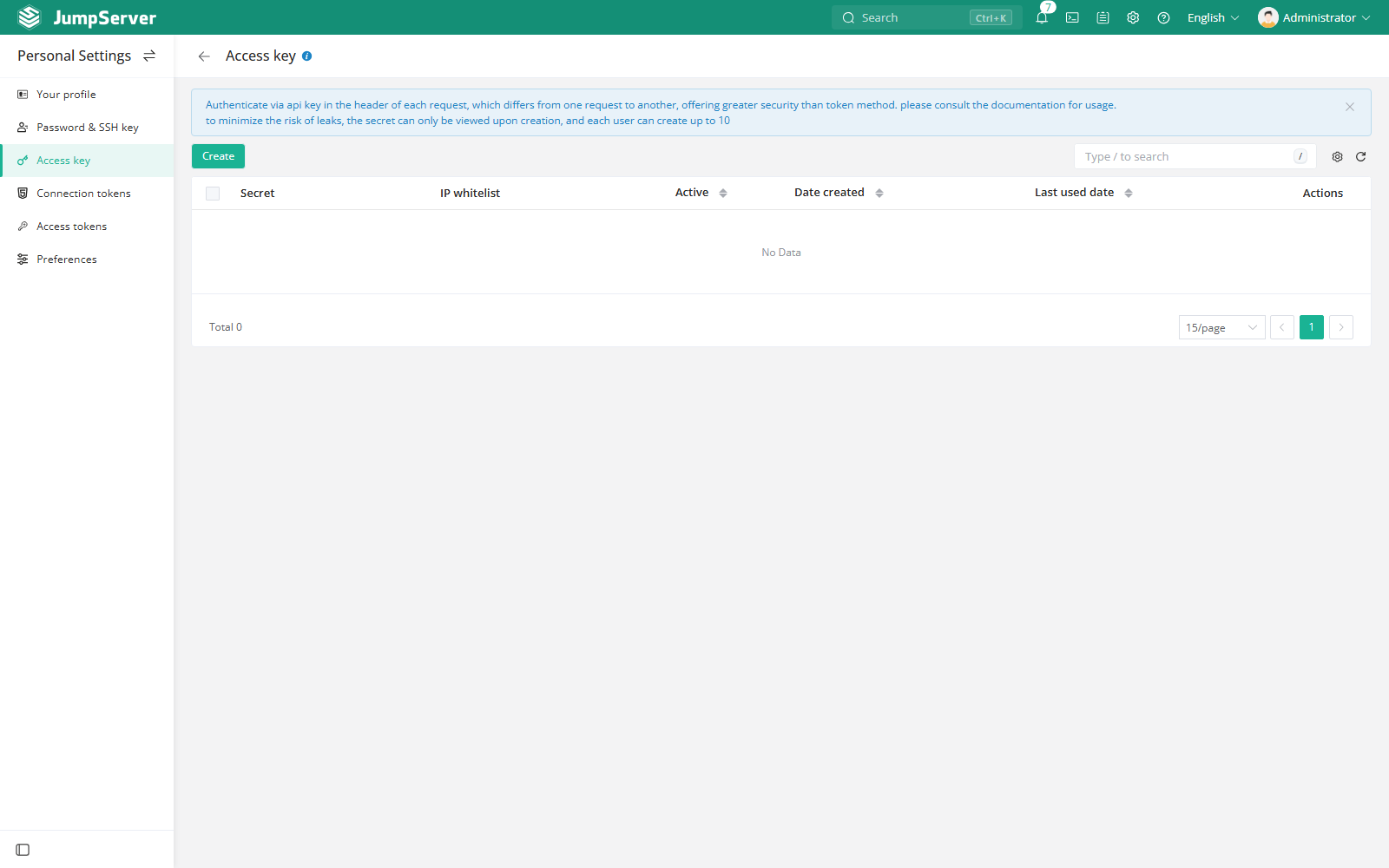
Create an access key
- Open Profile > Access Keys.
- Select Create.
- Optionally restrict the key with an IP allowlist.
- Save the key and copy the Secret immediately.
The list shows the secret (only at creation), IP allowlist, active state, creation time, and last-used time. A user can create up to 10 access keys.
Use an access key
Use the access key and secret to sign API requests. The API reference is available
at /api/docs/ on the JumpServer host. The key inherits the permissions of the
current user; it cannot grant more access than the user already has.
Token format validation
Changed in v5.1.1When a request authenticates with a Bearer Token, JumpServer validates the token format and rejects tokens whose format is invalid. Format validation preserves fallback compatibility with other Bearer Token authentication methods, so existing API clients that authenticate with those methods keep working.
Security notes
- The secret is shown only once. Store it in a password manager or secret store.
- Never put a secret in documentation, screenshots, or source control.
- Revoke a key immediately if it is exposed or no longer needed.
- Access keys are not the same as connection tokens used by native clients.
Related: Tokens and Developer Guide > REST API.