

Applications
Applications let an external system retrieve asset account secrets from JumpServer through an API instead of storing credentials of its own. Each application defines which accounts it may read, which source addresses may call it, and the key pair used to authenticate the request.
Typical uses include CI/CD pipelines that need a deployment account, monitoring systems that must log in to managed hosts, and internal tools that would otherwise keep their own copy of a privileged password.
Prerequisites
- Access to PAM > Integration > Applications with permission to view integration applications.
- The caller can reach the JumpServer API endpoint and is allowed by the application's IP restriction.
- The target asset and account names are known to the caller, because the API request identifies the account by name.
Overview
The page has three tabs:
- Applications – application definitions, their masked secret, account scope, and last-used date.
- Call Records – every API call, with the application, asset, account, remote address, and date.
- Documentation – ready-to-use cURL, Python, Go, Java, and Node.js examples.
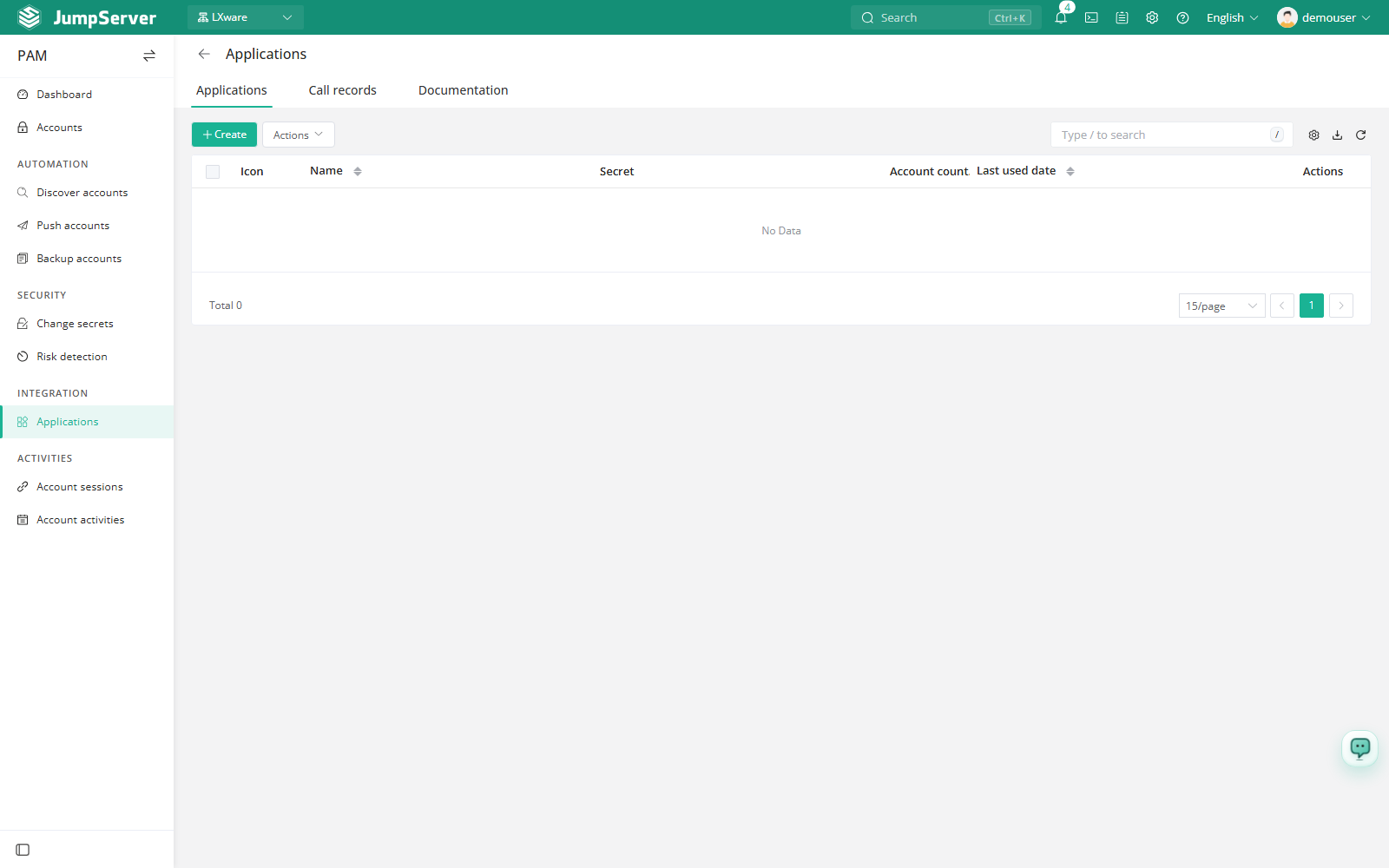
Create an application
At the top-left of the page, select , then click PAM.
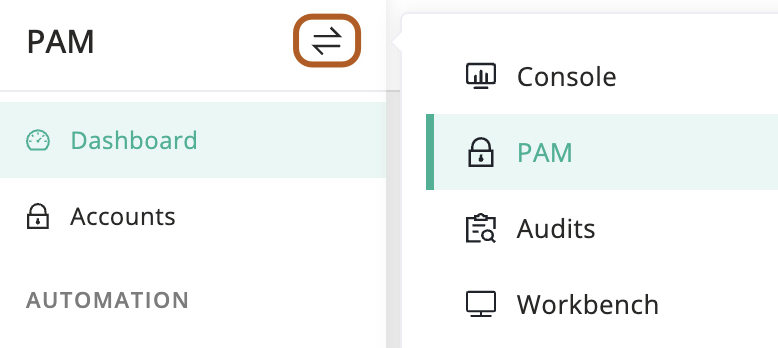
Open Integration > Applications.
Click Create.
In the Name field, type a name that identifies the consuming system, for example Deploy pipeline.
Optionally upload a Logo with Select file to make the application recognizable in the list.
In the Account policy field, choose All accounts, Specified accounts, or Filter by attribute. Specified accounts lets you select individual accounts; Filter by attribute builds rules from attribute name, match type, and value and shows the matching accounts.
In the IP group field, enter the source addresses that may call the API. The default * matches every address. Press Enter after each entry; single addresses, CIDR ranges, address ranges, and IPv6 are accepted.
Leave Active enabled, optionally add a Comment, and click Submit.
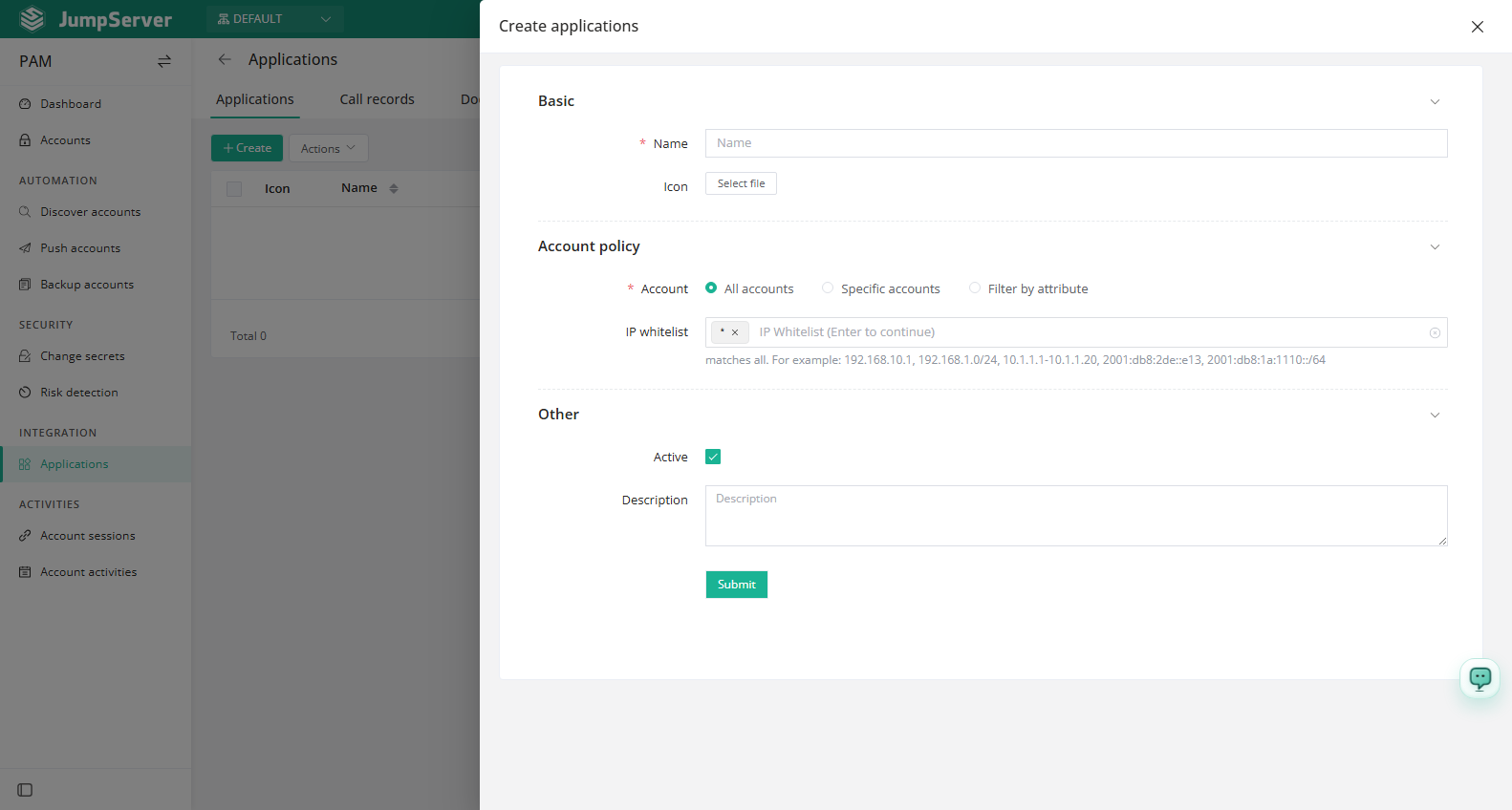
Field reference
Maintain applications
The pencil action in a row opens the editor. The More menu contains Delete and Refresh secret; refreshing replaces the application secret, so any caller using the old value must be updated.
Click the application name to open its detail page. The tabs are Basic, Accounts, and Call Records. The Accounts tab lists every account the application can read, with name, username, secret state, asset, platform, and connectivity. On the Basic tab, the Secret quick action offers a Generate button that displays the application secret; MFA confirmation is required.
Call the API
The Documentation tab documents the account secret endpoint:
- Method and path:
GET /api/v1/accounts/integration-applications/account-secret/ - Required parameters:
asset(asset name) andaccount(account name) - Response format: JSON
Create an application to generate its KEY_ID and KEY_SECRET, and sign requests with those values. Never use the placeholder keys from the documentation examples. For the general API conventions, see REST API.
KEY_SECRET grants read access to the account secrets in the application scope. Treat it as a credential: store it in a secret manager, restrict the IP group as tightly as possible, refresh it on a schedule, and delete applications that are no longer used. Review Call Records to detect unexpected callers.