

Execution History
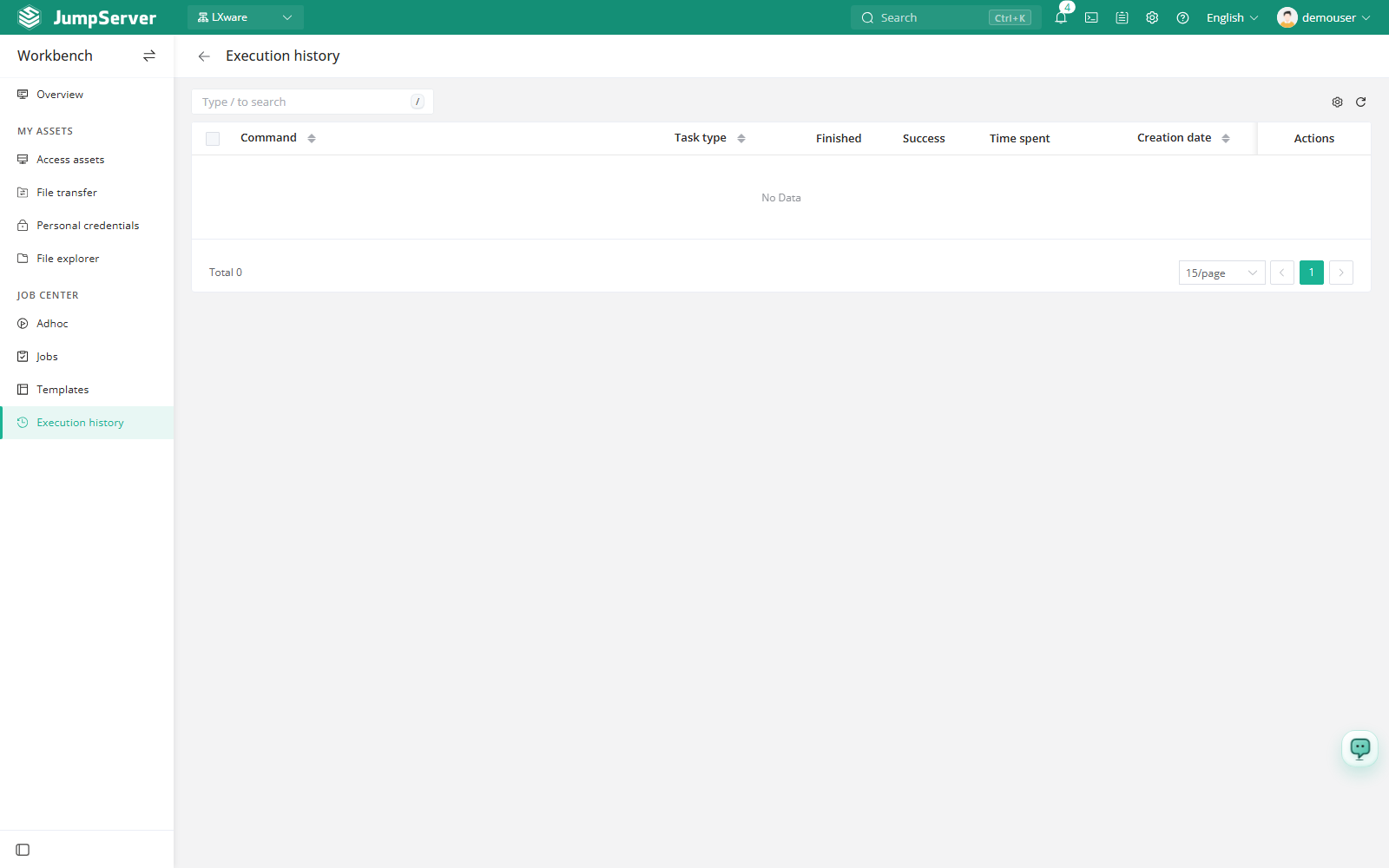
Execution History records the Job Center tasks you started. Use it to trace what a batch operation ran, whether it finished, whether it succeeded, and how long it took. When a bulk command or job returns an unexpected result, this page is the first place to check.
Prerequisites
- The Job Center feature is enabled in Feature Settings.
- Your role grants access to execution records.
- You have already run an Adhoc command or a job. The list is empty before the first execution, and it only shows executions you started yourself.
Inspect an execution
Open Job Center > Execution History in the Workbench.
Use the search box to find a command or task, and sort by the column headers to bring the newest or slowest run to the top.
Click the Output action in the row to open the task page with the full log of that execution.
Column settings control which fields are visible, and the refresh icon reloads the list after a run finishes.
Column reference
What appears here
Executions come from actions that use the Job Center execution channel, including Adhoc commands, saved jobs, and file transfers. Because only your own executions are listed, another user's runs never appear on this page. For a complete, audit-oriented view, auditors use Job Audits and Job Executions, which are available from the Audits module.
An execution is created when the run starts, not when it is scheduled. A periodic job that has never run has no history entry, and a currently running task shows an incomplete result until it finishes.
Compare the Duration column with previous runs of the same command. A sudden increase often points to an unreachable asset, a slow network path, or a job that is waiting on a timeout.