

Accounts
Accounts are the login identities hosted for your assets: a username plus a secret such as a password, SSH key, certificate, token, or access key. The Console lists every account registered against an asset, lets you create and maintain credentials, and provides the entry point for account discovery and password changes. Lifecycle automation and security checks are covered in PAM.
Open the page from Console > Accounts.
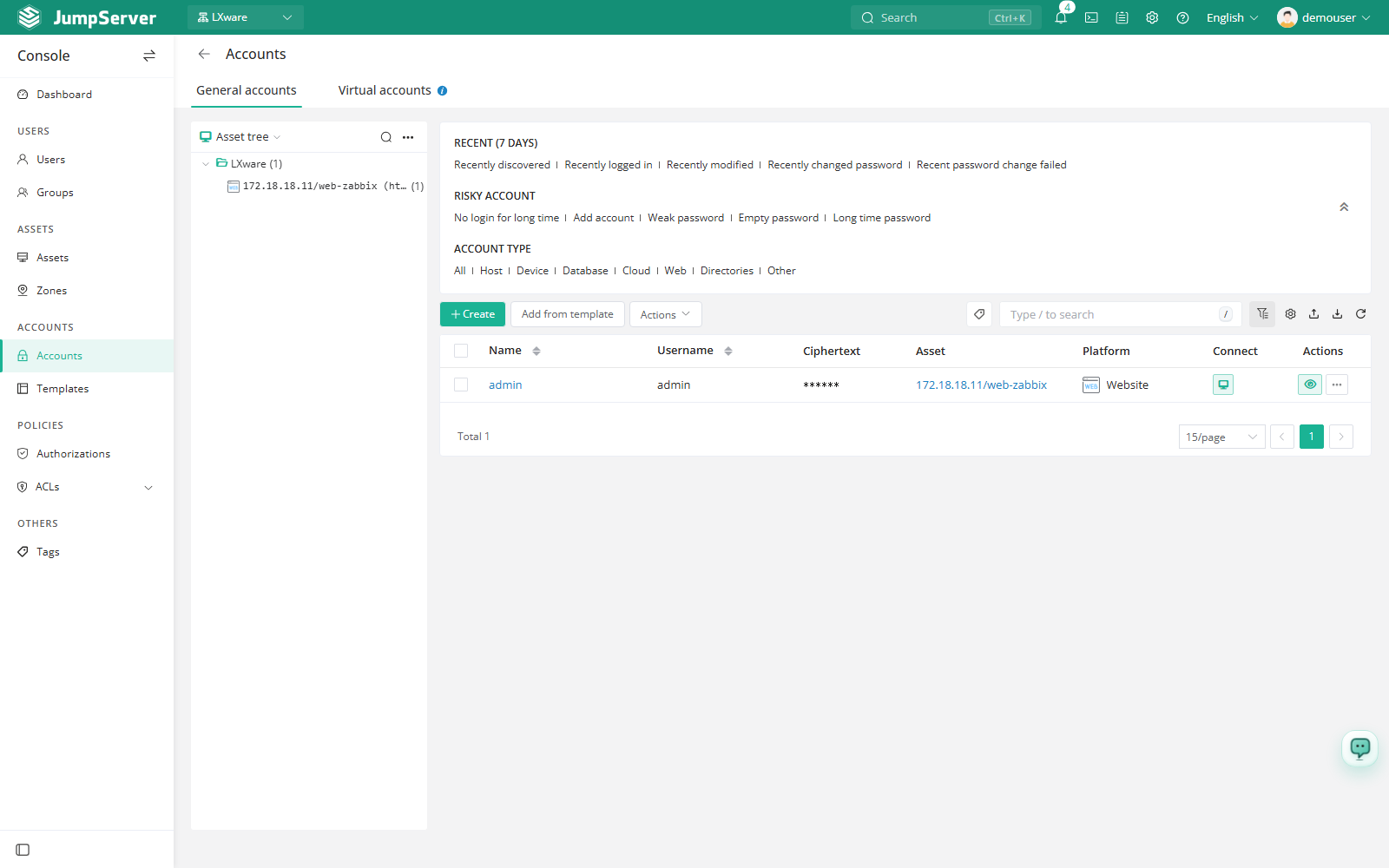
Overview
The page has two tabs: Normal accounts and Virtual accounts. Normal account columns are Name, Username, Secret type, Asset, Platform, Connectivity, and Actions.
Filters:
- Last 7 days: Recently discovered, logged in, modified, changed, or failed password change.
- Risky accounts: Long time no login, new accounts, weak password, empty password, and long time no password change.
- Account type: All, Host, Network device, Database, Cloud, Web, Directory service, and Other.
The left panel shows an asset tree; switch it to a type tree to browse accounts by asset type.
Before you begin
- Sign in with an account that can manage accounts.
- The target asset must exist in the current organization; see Assets. To use Add from template, create the template first in Templates.
The list shows only accounts in the current organization. Asset filters, imports, and authorizations also apply within the active organization.
Create an account
Click Create.
In the Add account drawer, fill in the fields below.
Click Confirm.
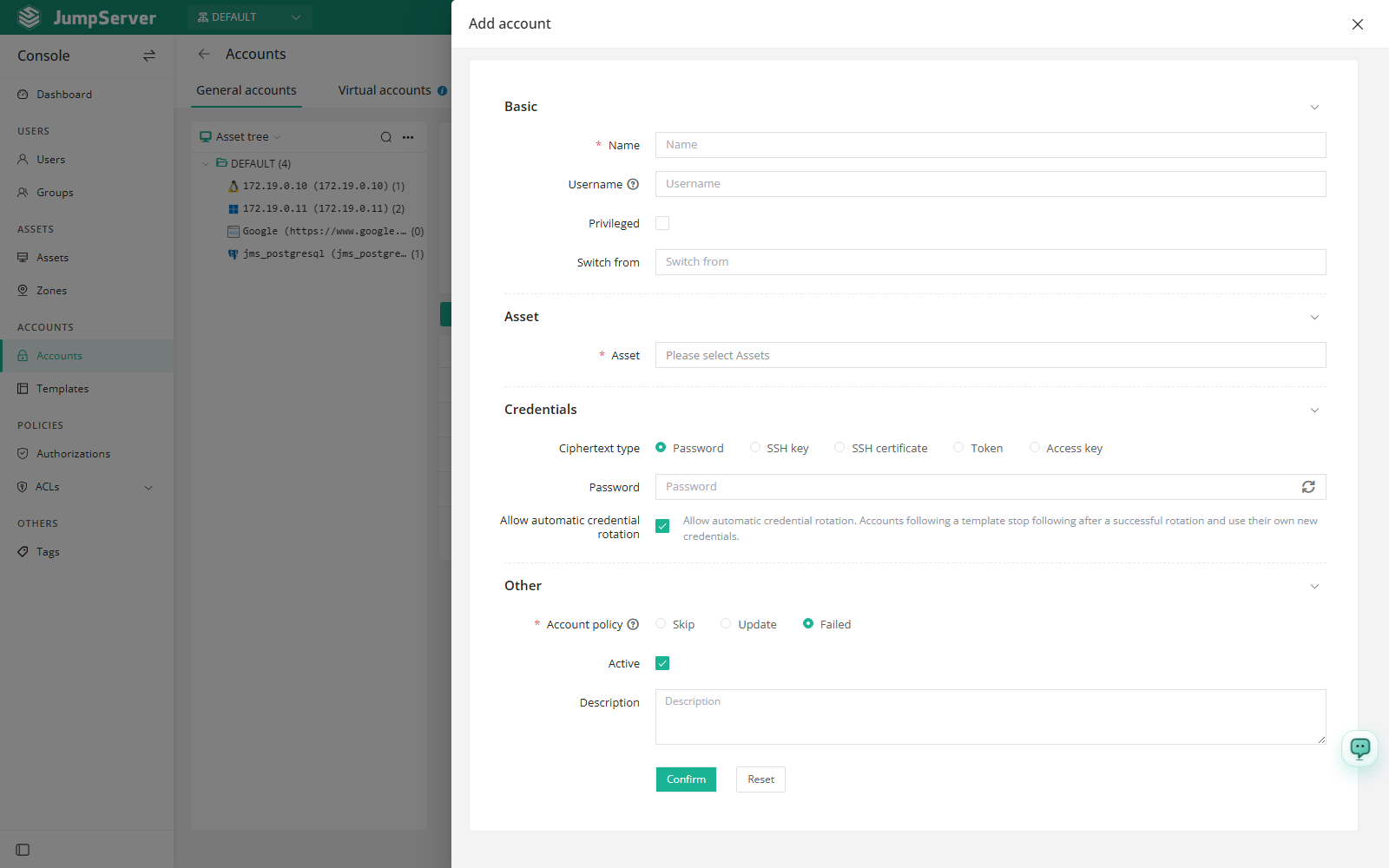
Field reference
Add accounts from a template
Click Add from template.
Select one or more Templates, then choose whether to add accounts to Nodes or Assets.
Adjust Can change password, Account policy, Active, and Comment, then click Confirm.
Import and export
The toolbar provides export, import, and refresh. Import opens the Import & create dialog: choose Create or Update, download the template, and upload a CSV or XLSX file up to 10 MB.
Viewing secrets and exporting accounts require MFA verification for the current user. If MFA is not enabled, the page asks you to enable and configure it first.
Account details
Click an account's Name to open the detail drawer. Tabs include Basic and Activity.
Quick update on the Basic tab provides:
- Active and Privileged: toggle account state and the privileged flag.
- Test connectivity: check whether the account can reach the asset.
- Push: push the account to the asset.
- View secret or Clear secret: reveal the stored secret after MFA, or remove it.
Row actions and bulk actions
The row menu (...) provides Delete, Edit, Edit secret, Duplicate, Verify secret, Clear secret, Password history, Copy to asset, and Move to asset.
Select several accounts to test, clear secrets, edit, or delete them in bulk.
Deleting an account is irreversible, and clearing a secret means the credential must be entered or pushed again before the account can be used.
Virtual accounts
The Virtual accounts tab lists built-in identities that can be selected in an authorization instead of creating matching system users on every asset:
- Manual input (
@INPUT): the user enters credentials at connection time. - Same-name account (
@USER): the username matches the JumpServer user's. Useful for LDAP or AD users. - Anonymous account: connects without a username or password. Web and custom asset types only.
- Specified account: the account chosen in the authorization.