

Job Executions
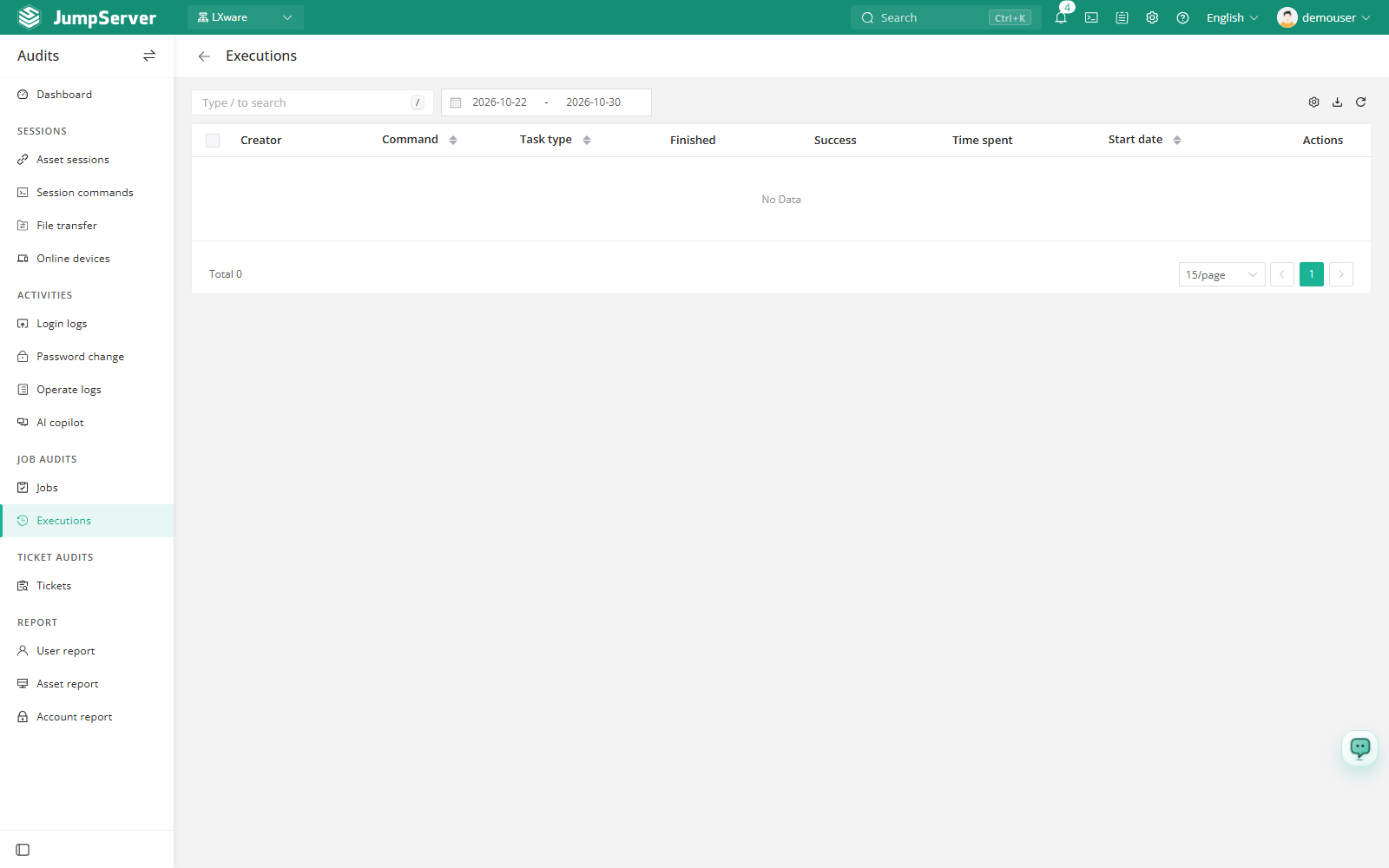
Job Executions records each run of a job created in the Workbench Job Center. Use it to confirm that scheduled jobs ran, to find failed runs, and to inspect the execution output for troubleshooting.
Open the page from Audits > Job Audits > Job Executions.
Overview
Each row shows the creator, command, job type, completion state, success state, duration, start date, and available actions. A running job shows a spinner in columns that are not final yet. Failed runs are marked with a red cross and successful runs with a green check.
The toolbar provides search, a date range, column settings, export, and refresh.
Prerequisites
- Sign in with an account that has the
audits.view_joblogpermission, such as a system administrator or auditor. - A quick command or job must have been executed from the Workbench Job Center.
Review executions
Set the date range to the period you want to review.
Search for a creator or command to narrow the list.
Click View in the row actions to open the execution output.
For a running job, click Stop to terminate it when it should no longer run.
Stop terminates a running job and may leave part of its work unfinished. Use it only when the job must be interrupted, and tell the job owner afterward.
Customize columns and export
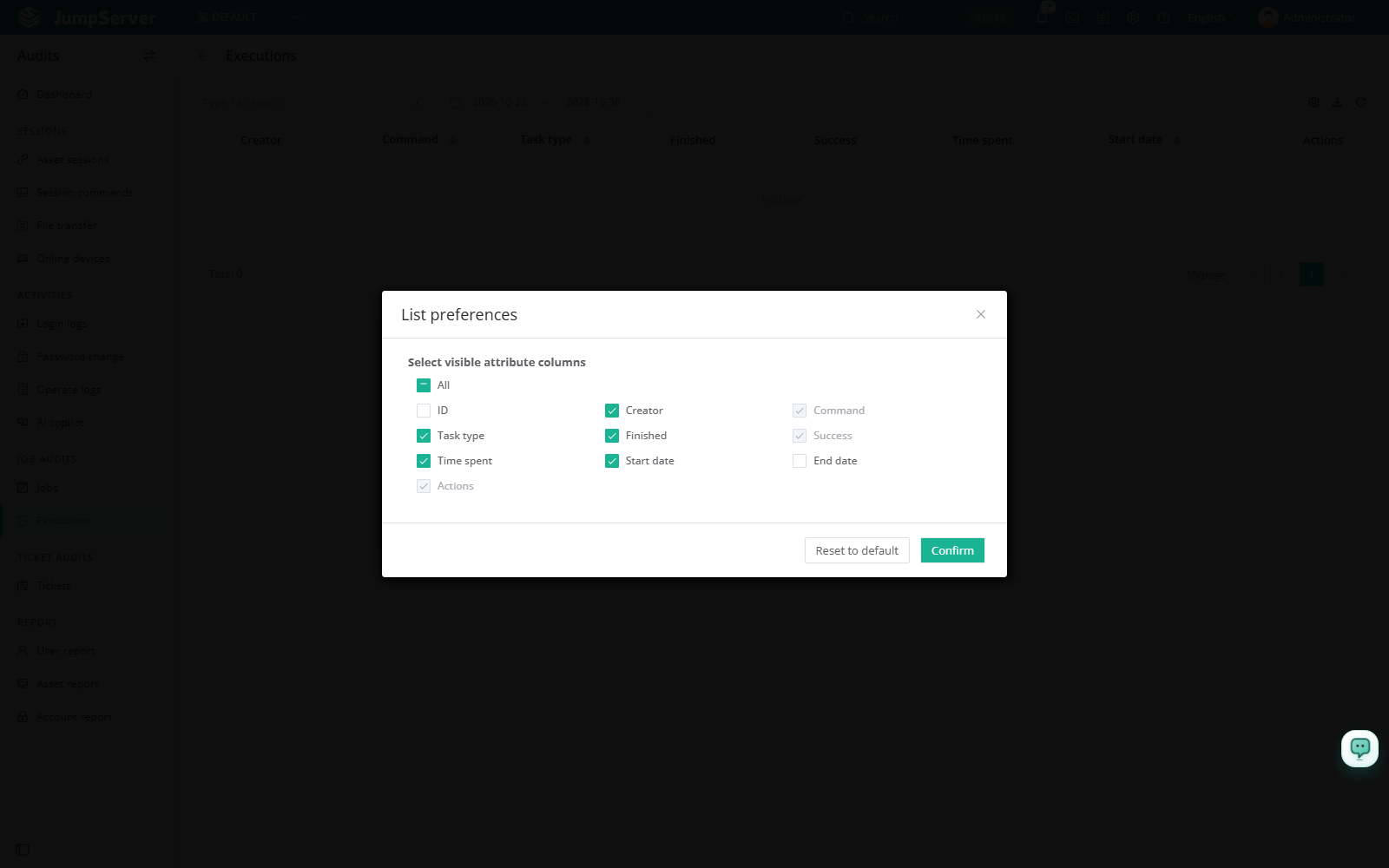
Open List preferences, select the columns to display, and click Confirm. Extra columns include ID and completion date. Restore defaults resets the list.
Click Export, choose CSV or Excel, select Export all, Export selected, or Export search results, and click Confirm.
Field reference
Notes
For failed runs, open the output first and then check the job definition in Job Audits to see whether the failure came from the command, the target assets, or the account.