

Client Overview
JumpServer Client is a cross-platform desktop application for Windows, macOS, and Linux. It connects to assets managed by JumpServer and provides the local workspace for SSH, SFTP, RDP, VNC, database, and web sessions.
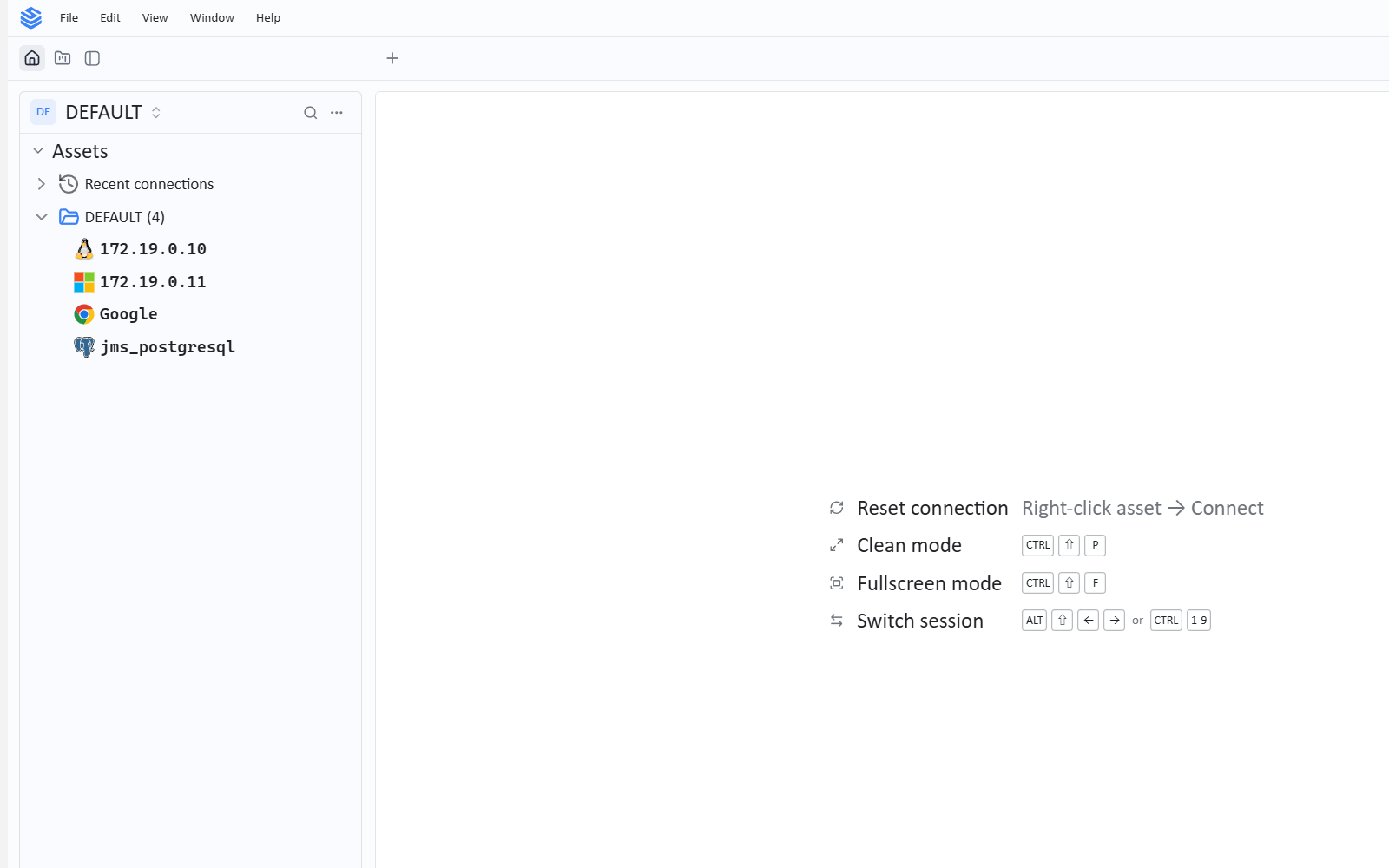
V5 client workspace
New in v5.0.0The refreshed client uses a unified entry point for SSH, RDP, Kubernetes, database, and RemoteApp assets. It adds split views, a file workspace, a script library, and SFTP Server connections, so several sessions, files, and scripts are managed from the same client window. See Workspace, Files, and Scripts.
Features
- Unified connection entry — connect to SSH, RDP, Kubernetes, database, and RemoteApp assets from the same asset list. See Asset Connection.
- Workspace, files, and scripts — arrange sessions in split views, browse and transfer files in the file workspace, reuse scripts from the script library, and open SFTP Server connections. See Workspace, Files, and Scripts.
- Asset connection — connect to Linux assets over SSH, SFTP, or VNC; connect to Windows assets over RDP, VNC, SSH, or SFTP. After connecting, run commands and upload or download files.
- Database connections — launch a local database client from JumpServer Client after configuring its application path.
- Web assets — open a website asset in the built-in browser. The built-in browser is available only in the desktop client, not in the browser-based Web terminal.
- Connection settings — set language, character set, terminal behavior, resolution, appearance, font, and local application launch paths.
- AI Assistant — open the assistant from the client window to query assets, inspect an active connection, and prepare operations. It uses the same server-side assistant configuration as the Web Terminal. See AI Assistant.
- Recording tools — play downloaded session recordings and transcode a
.tarrecording package to MP4.
JumpServer Client uses the same connection methods as the Web terminal, but runs them from the desktop. A connection still requires an authorization and an available account; the client does not bypass JumpServer access control.
In this section
Requirements
- A supported Windows, macOS, or Linux desktop.
- Network access to the JumpServer server.
- A JumpServer account with access to at least one authorized asset.
- The matching client version shown on the server download page.
The JumpServer Client is separate from the browser-based Web terminal. Use the desktop client when you need native protocols, local applications, or local recording tools; use the Web terminal for browser-only access.