
For AI agents: the complete documentation index is available at https://www.jumpserver.com/docs/llms.txt, the full documentation bundle is available at https://www.jumpserver.com/docs/llms-full.txt, and this page is available as Markdown at https://www.jumpserver.com/docs/features/console/policies/acls/user-login.md.
๐ŸŽ‰ JumpServer v5.1.1 is available. See what's new โ†’

User Login

Enterprise Edition

Login review requires JumpServer Enterprise Edition. Reviewers must be members of the organization, and matched sign-ins wait for approval.

Request 14-day free trial

User Login audits sign-in attempts against a user's source IP address and the time of day, then decides whether the sign-in is allowed. The controls on this page are global: the organization switcher shows Global organization, and the rules apply to every organization in the deployment.

Open the page from Console > ACLs > User Login.
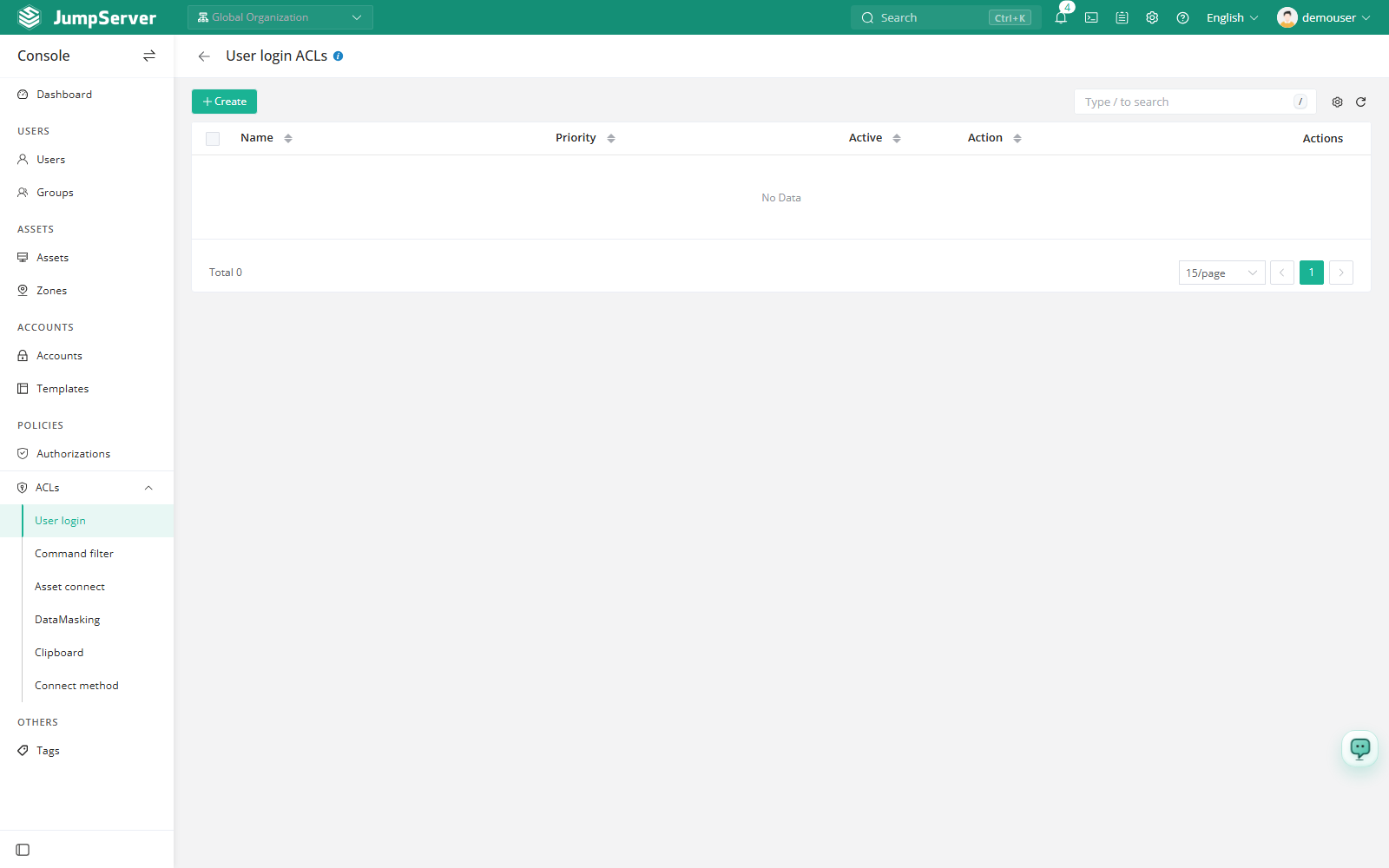
Figure 1: User Login list with priority, activation state, and action.

Overview

The list columns are Name, Priority, Active, Action, and Actions. Rules are matched by priority: the lower the number, the earlier the rule is evaluated. The first matching rule supplies the action; when no rule matches, this control does not restrict the sign-in.

Before you begin

  • Sign in with an account that can manage ACLs, such as a system administrator.
  • Know which users, IP ranges, and time windows should be restricted.
  • For the per-user variant, see the login rules on the Users detail page.

Create a user login control

1

Click Create.

2

In the Create user login control drawer, fill in the fields described below.

3

Click Submit, or Save and continue adding to create another rule.
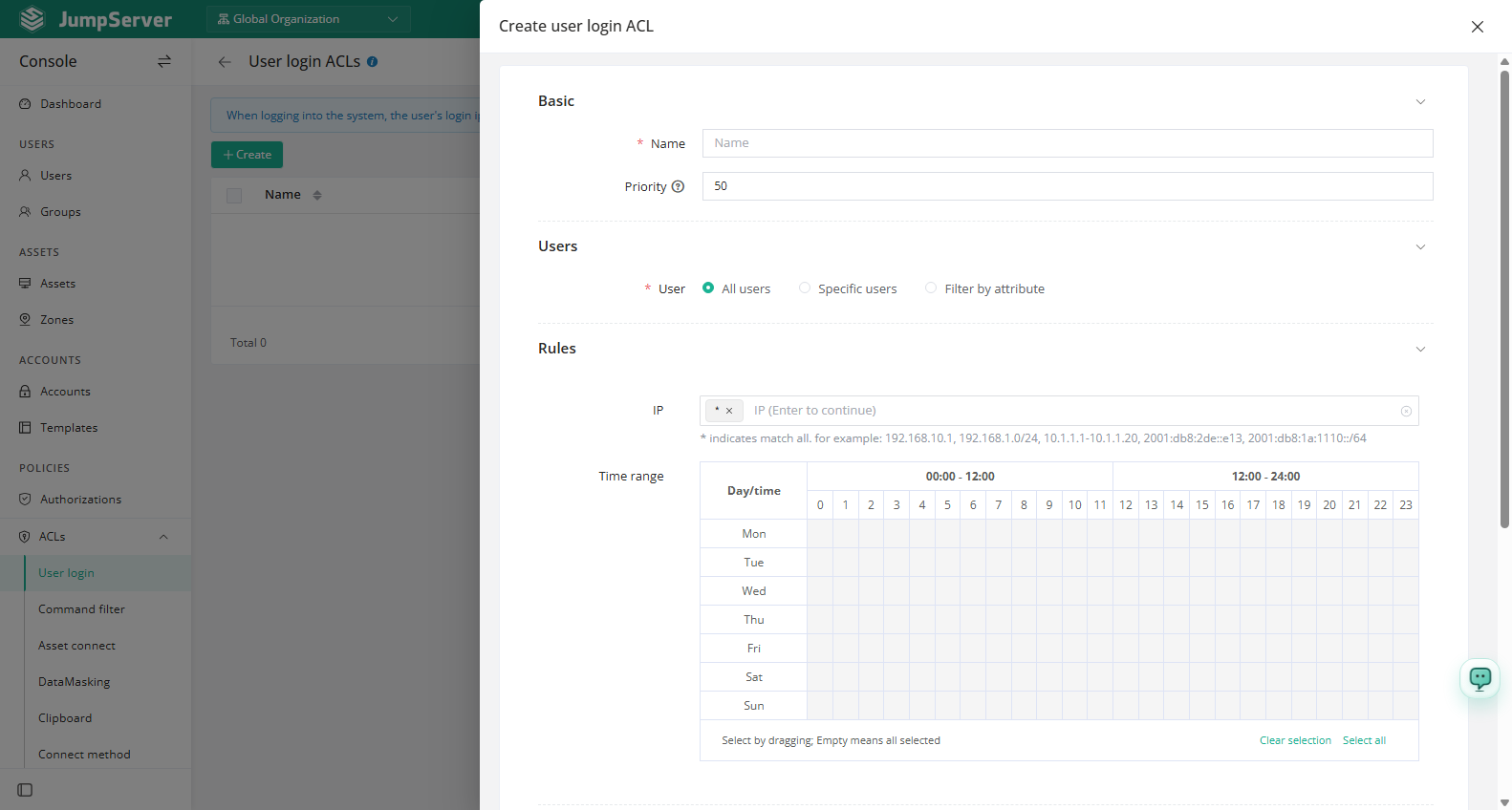
Figure 2: Create user login control with users, IP, time period, and action.

Field reference

GroupFieldDescription
BasicNameRequired. Rule name.
PriorityInteger from 1 to 100. Defaults to 50; the lower the value, the earlier the rule is matched.
UsersUsersAll users, Specified users, or Attribute filter.
RuleIPSource IP restriction. * matches all. Single addresses, CIDR ranges, address ranges, and IPv6 are supported, for example 192.168.10.1, 192.168.1.0/24, 10.1.1.1-10.1.1.20, or 2001:db8:2de::e13. Press Enter to add each entry.
Time periodDrag to select weekdays and hours on the grid. No selection is treated as all day, every day. Use Clear or Select all to reset.
ActionActionReject, Accept, Review, or Notify.
OtherActiveWhen selected, the rule takes effect.
CommentOptional.

Action behavior

ActionEffect on a matched sign-in
RejectThe sign-in is denied.
AcceptThe sign-in is allowed.
ReviewThe user must be approved before signing in. Requires an Enterprise license and at least one reviewer.
NotifyThe sign-in is allowed and a notification is produced.
Warning

A Reject action blocks every matched sign-in while the rule is active. Before enabling a broad rule, test it with a small user group or a narrow IP range so that administrators are not locked out.