

Device Manager
Device Manager (JDMC) requires JumpServer Enterprise Edition. The entry is available only when the deployment includes JDMC and the license permits it.
Device Manager opens JDMC, an independent operations console that is deployed alongside JumpServer. JDMC manages the server that hosts JumpServer rather than the assets protected by JumpServer: network configuration, disk expansion, license, high availability, backups, and container lifecycle.
For operational scenarios and a capability overview, see Device Manager.
JDMC operates on the host system and its containers. Changes made there affect the whole deployment and can interrupt running sessions. Restrict access to administrators who are authorized to manage the JumpServer server, and back up the deployment before you change network, disk, or high-availability settings.
Open JDMC
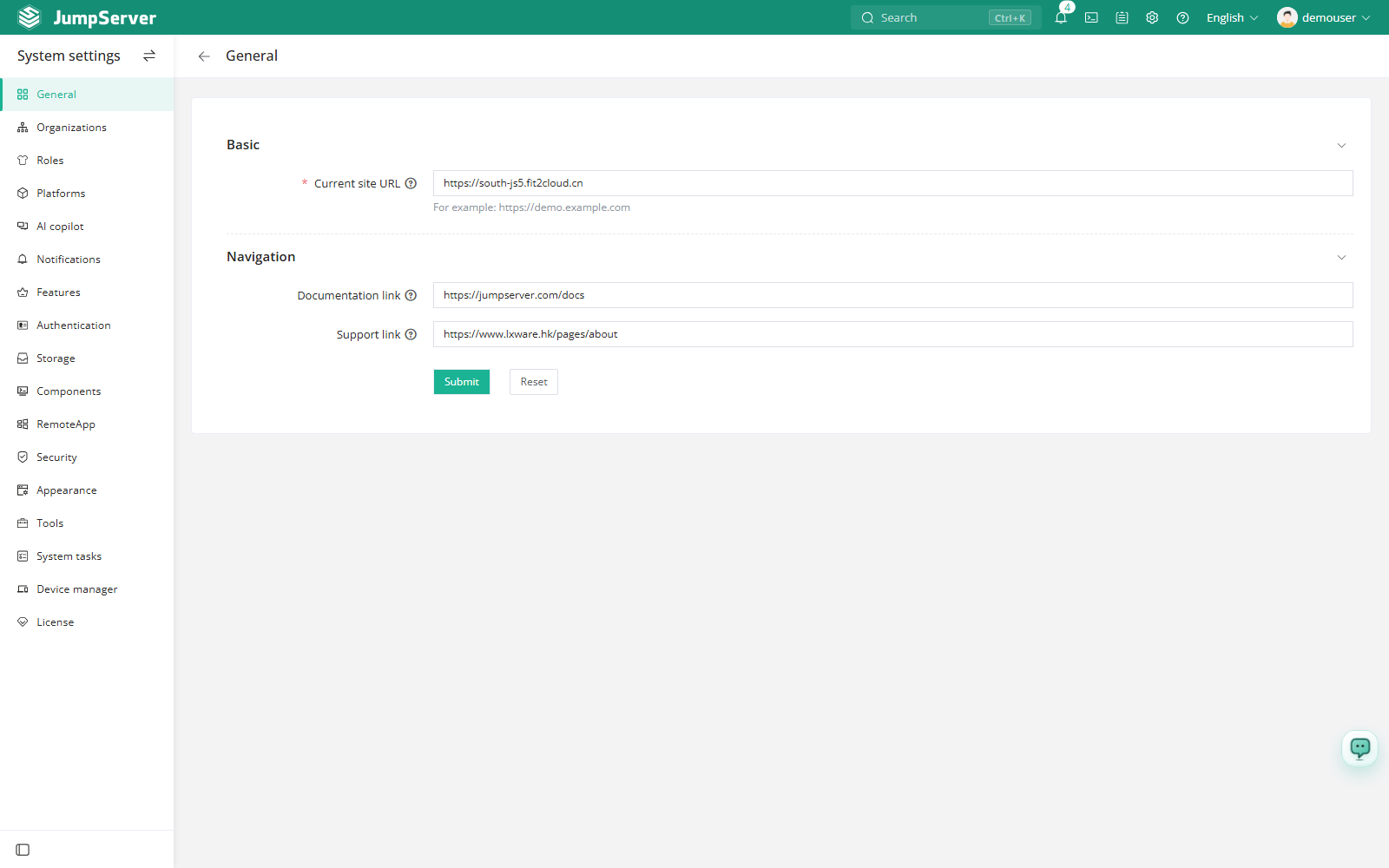
In the right area of the top navigation bar, click .

In the left menu, click Device manager. JDMC opens in a new browser tab and uses the current JumpServer sign-in.
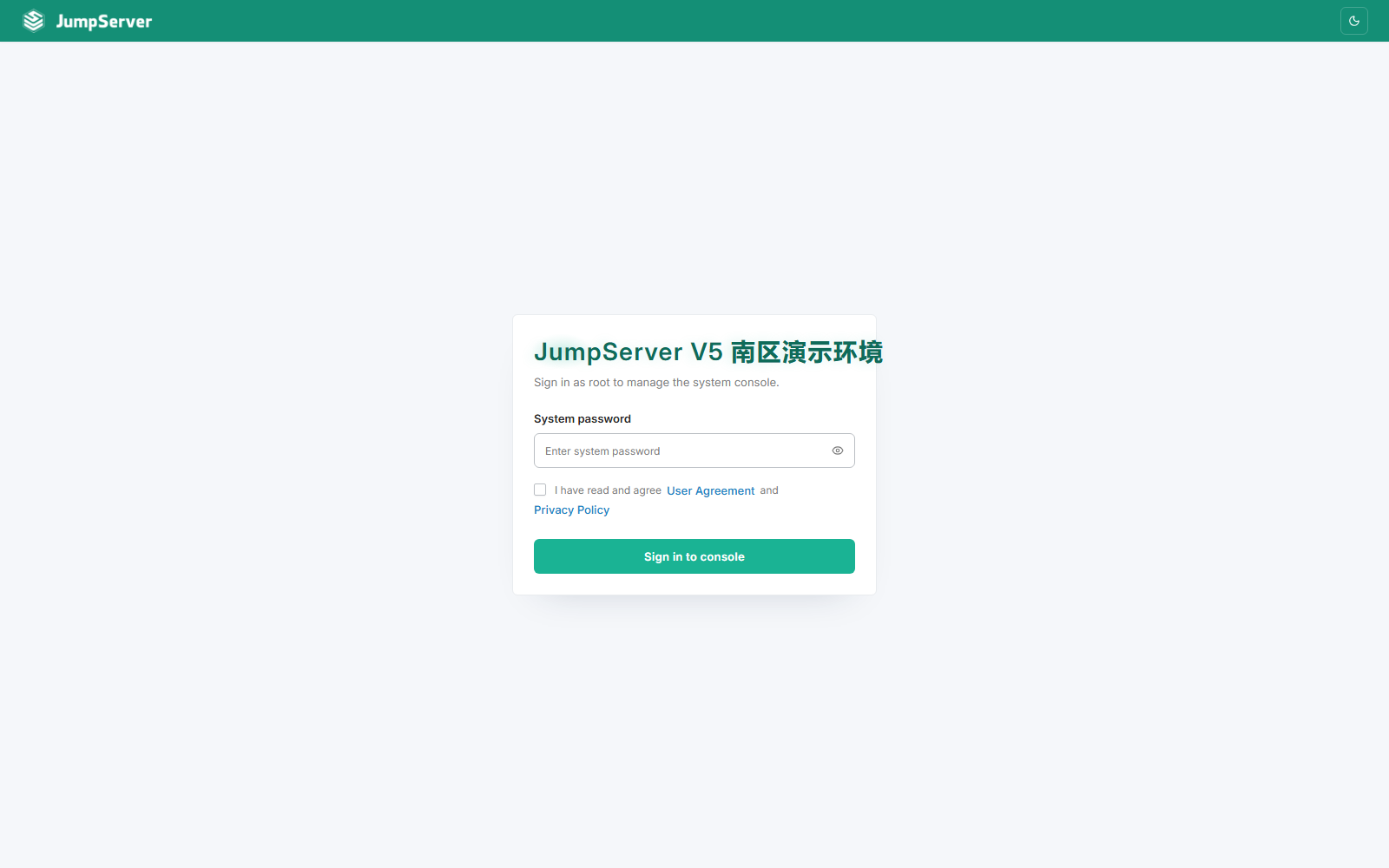
If you open the console directly by browsing to /jdmc/, sign in with the
root password of the server, accept the user and privacy agreements, and click
Log in to the console.
The entry is shown only when JDMC is enabled in the deployment and the account
has the required permission. JDMC shares the JumpServer host name and serves
under the /jdmc/ path, for example https://jumpserver.example.com/jdmc/.
Interface structure
Maintenance and high availability
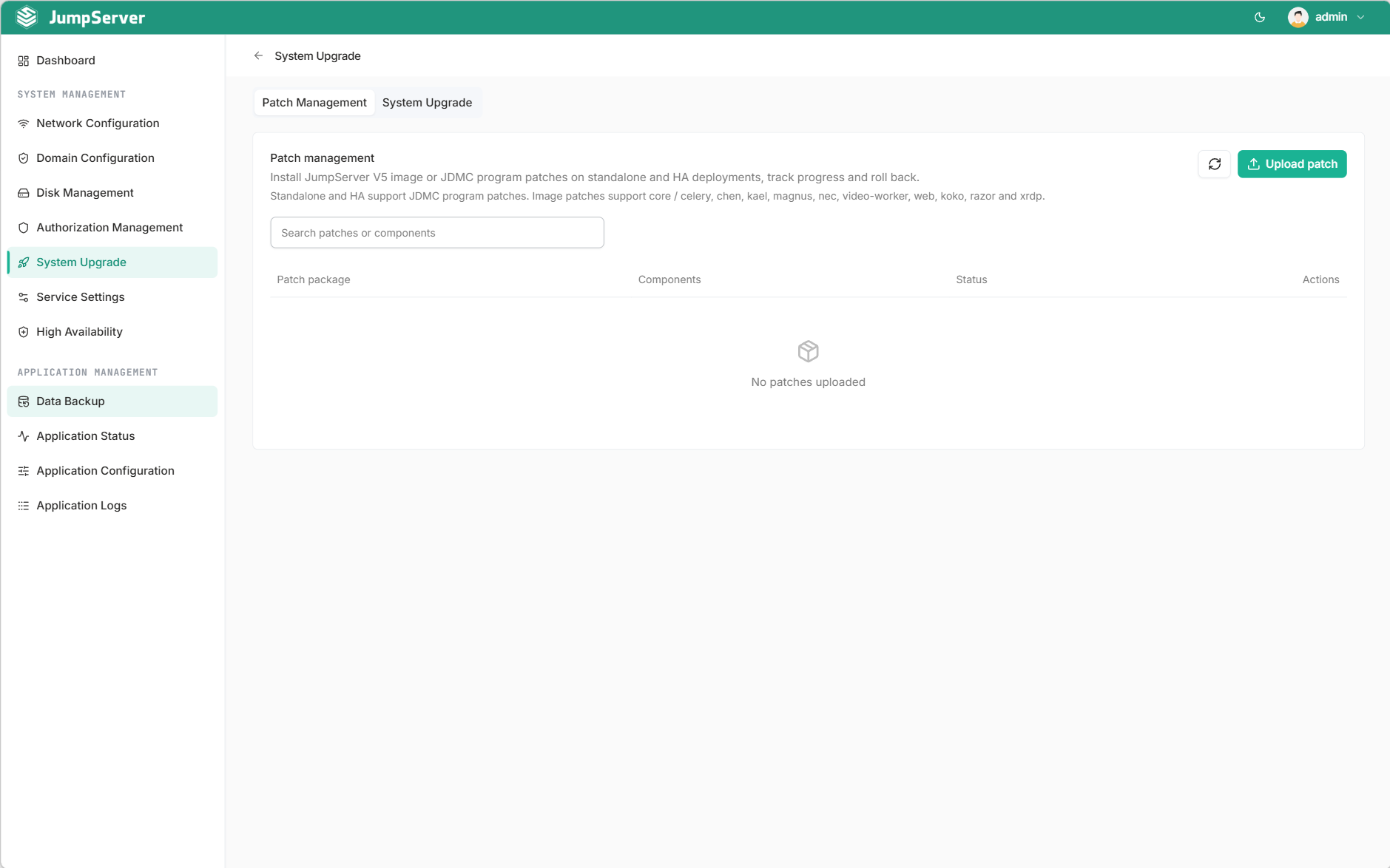
New in v5.1.0JDMC adds primary and standby management, system upgrade management, and patch package management. Use primary and standby management to inspect and configure a two-node high-availability cluster, system upgrade management to upgrade the JumpServer deployment, and patch package management to manage patch packages for the deployment.
Reliability in high availability deployments
Changed in v5.1.1In high availability deployments, stronger persistent write protection applies to databases and Redis across container restarts, re-creation, and failure recovery. Redeployment completion checks tolerate normal replication lag, and switchover waits and recovery coordination are refined to reduce false failure detection.
Runtime environment check
Every page except the dashboard shows a runtime check result. When the check passes, it reports Runtime environment normal; open the details to see each required and optional dependency and the executable path that was found. Click Re-check to run the test again after you install a missing dependency.
A missing required dependency, such as chronyc on the system time page,
blocks only the operations that need it. Install the dependency and re-check
before you continue. JDMC actions are not available in deployments that do not
ship the console.