

Push Accounts
Push Accounts sends a defined account and secret from JumpServer to one or more assets, creating the account when it does not exist and updating it when it does. It is the standard way to roll out a service or administrative account across a large asset group without logging in to each host.
JumpServer needs a working privileged account on the target asset to create or update other accounts during a push.
Prerequisites
- Access to PAM > Automation > Push Accounts with permission to view and change push tasks.
- The target assets or nodes already exist. See Assets.
- A privileged account is available on each target asset and the asset platform supports account push.
Overview
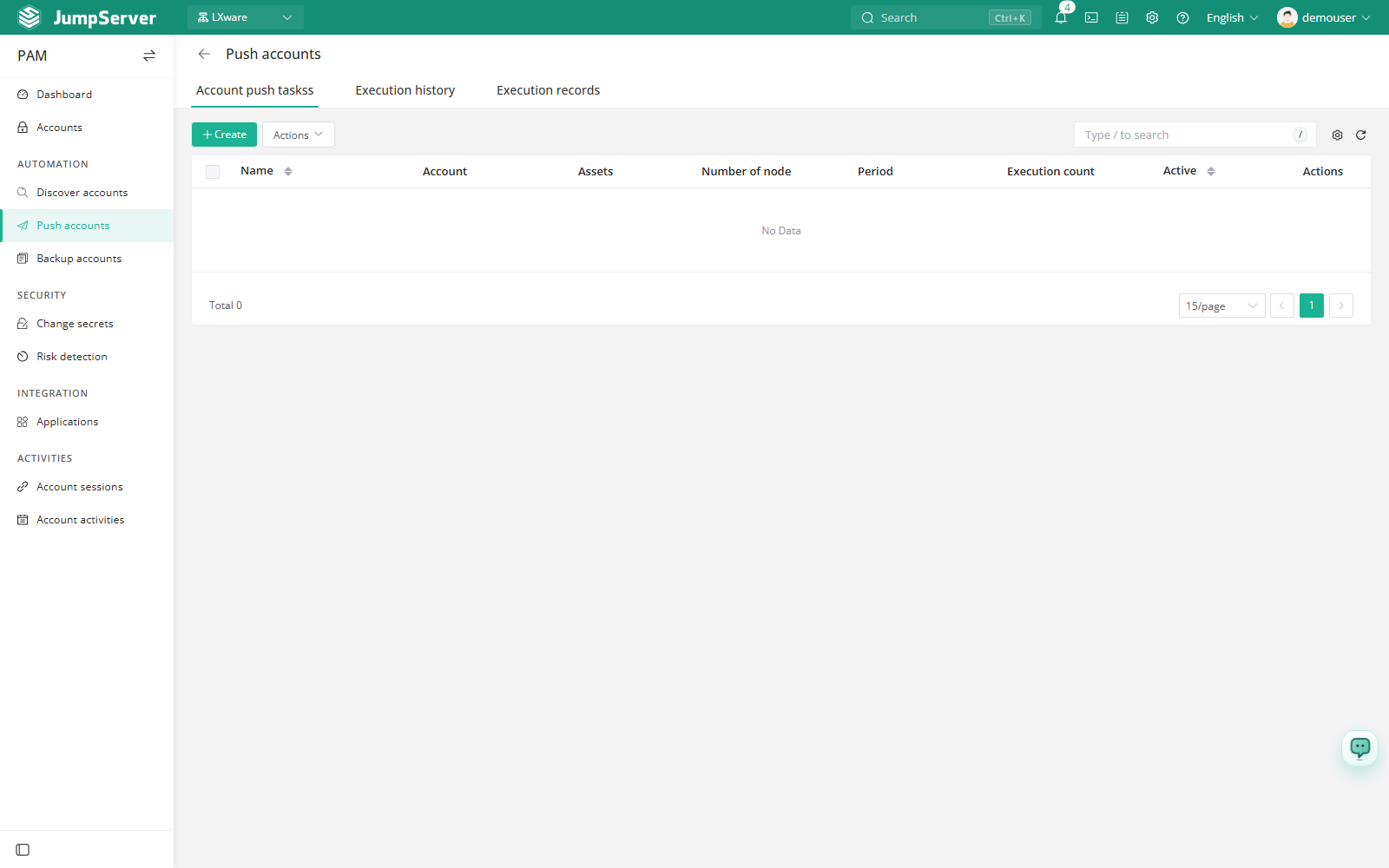
The page has three tabs:
- Account push tasks – task definitions, their scope, and schedule.
- Execution history – one row per run, with trigger mode, timing, status, and log.
- Execution records – per-asset, per-account push results, including the failure reason.
Create a push task
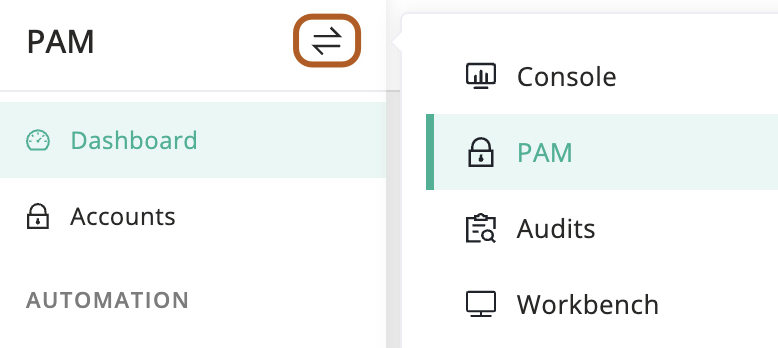
At the top-left of the page, select , then click PAM.
Open Automation > Push Accounts and stay on the Account push tasks tab.
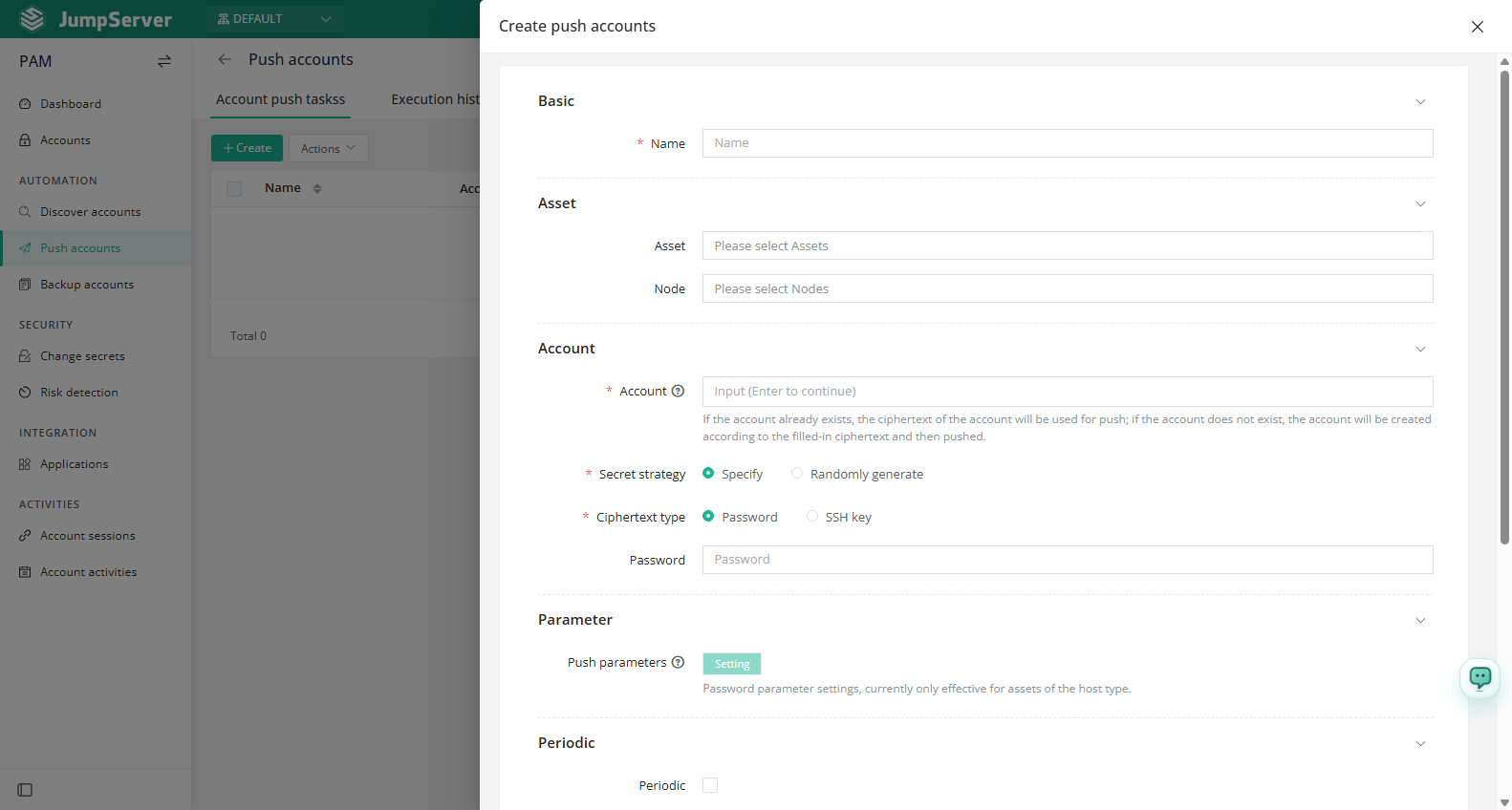
Click Create.
In the Name field, type the task name.
In the Assets and Nodes fields, select where the account should exist. The two fields can be combined.
In the Accounts field, type one or more usernames and press Enter after each. If the username already exists on the asset, the account secret is updated; otherwise the account is created with the configured secret and then pushed.
Choose a Secret strategy: Specific secret to supply the value yourself, or Random generate to let JumpServer create it. With Random generate and Password, set the Password rules such as length and character classes.
Choose the Secret type, Password or SSH key. For an SSH key, provide the Private key and optional Key password.
Optionally open Push parameters and configure platform-specific settings. This applies to host-type assets only: on Windows you can set the target user group, and on Unix-like assets you can set sudo, shell, home directory, groups, and user ID.
Optionally enable Periodic and set Interval or Crontab. Keep Check connection after change enabled so JumpServer verifies the new secret by connecting, leave Active selected, and click Submit.
Field reference
Run and maintain tasks
Use the green run button in the row to execute a task immediately, or open the task and use the manual execution action. The More menu provides Edit, Delete, and Duplicate.
Executing a push creates or overwrites account information on the selected assets. Confirm the asset and node scope, the usernames, and the secret strategy before running a task against production assets, and validate with a small scope first.
Review results
Open Execution history to see whether a run succeeded, which trigger started it, and how long it took; the log explains failures. Then open Execution records for the per-account view: Asset, Username, End date, Success, Error, and actions. A failed record shows the reason in the Error column, while a successful record leaves it blank.
If a pushed account cannot connect, verify the platform settings in Push parameters and check that the privileged account used for the push still works on the asset.