

File Transfer
File Transfer lists the file operations performed through JumpServer sessions, including uploads, downloads, deletes, and renames. Use it to confirm which files moved between a user and an asset, and to retrieve a retained file when file storage is enabled.
Open the page from Audits > Sessions > File Transfer.
Overview
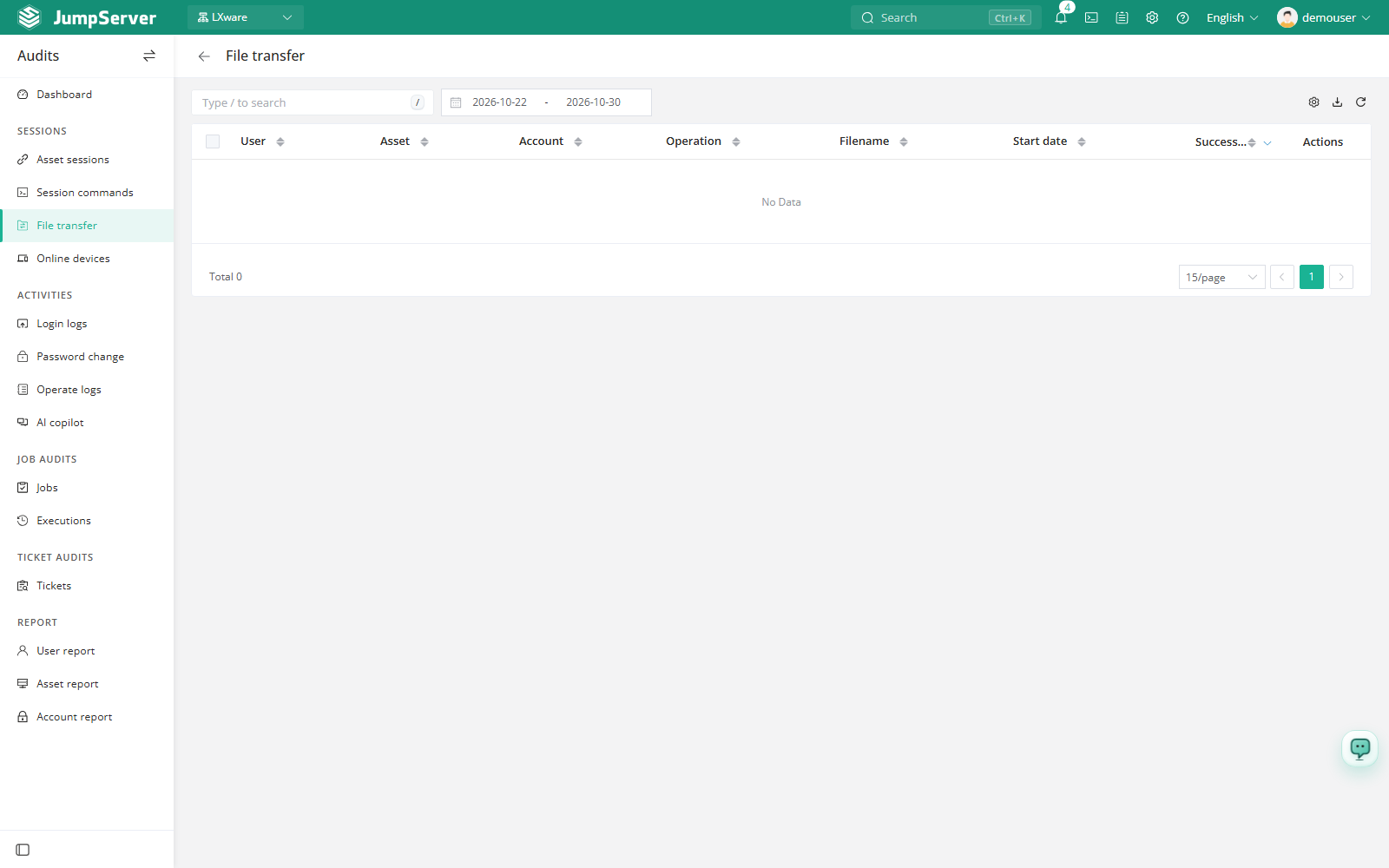
Each row records the user, asset, account, operation, file name, start time, and result. The row action Download retrieves the stored file when the file was retained. The toolbar provides search, a date range, column settings, export, and refresh.
Prerequisites
- Sign in with an account that has the
audits.view_ftplogpermission, such as a system administrator or auditor. - At least one file operation must have been performed through JumpServer.
- File storage and file retention must be enabled before files can be stored and downloaded from this page.
Review and retrieve transfers
Filter the list by date range, or search for a user, asset, or file name.
Check the Operate and Success columns to confirm the direction and result of the transfer.
Click Download in the row actions to retrieve a retained file.
Customize columns and export
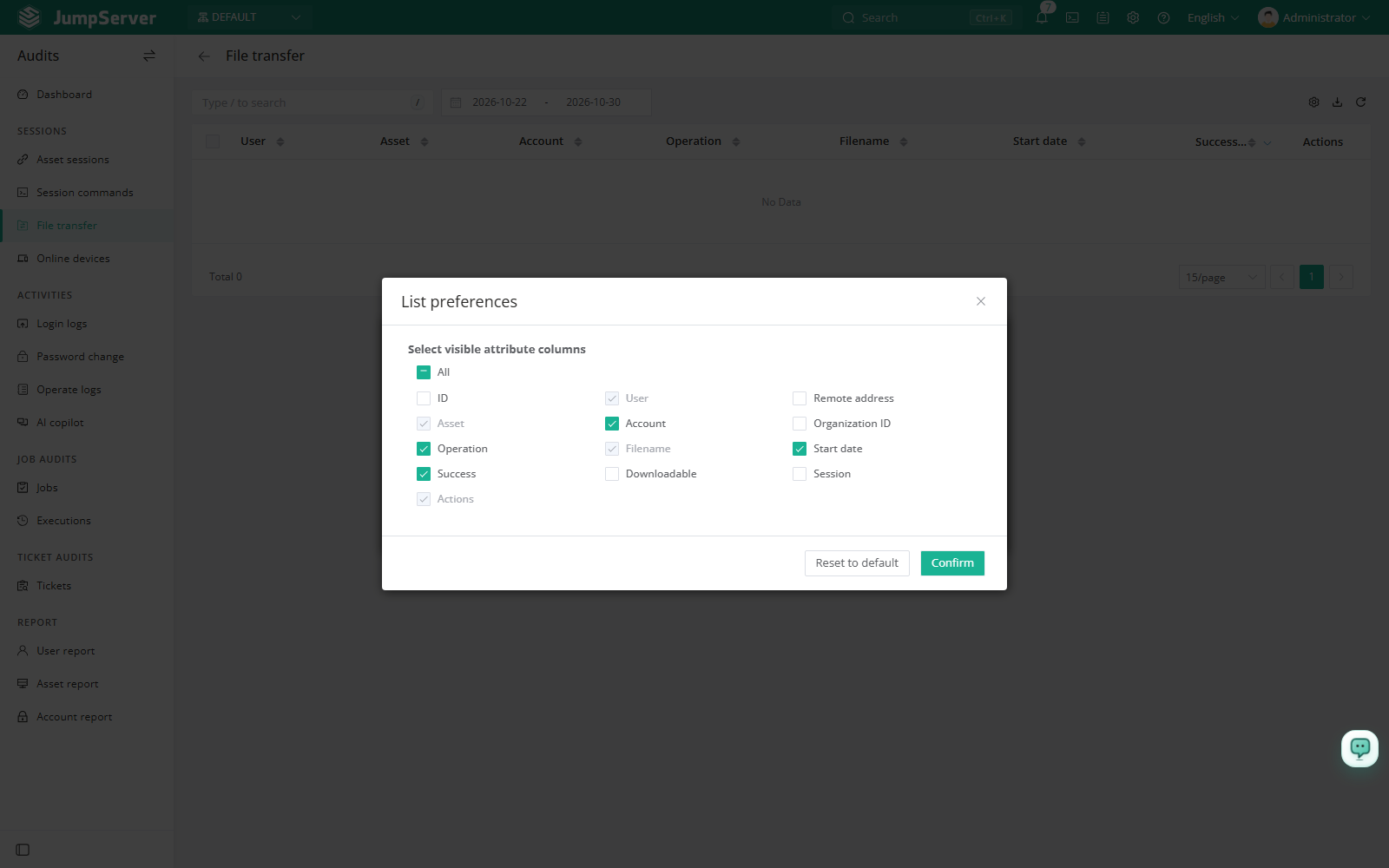
Open List preferences, select the extra columns you need, and click Confirm. Extra columns include ID, remote address, organization ID, download availability, and session. Restore defaults resets the list.
Click Export, choose CSV or Excel, then select Export all, Export selected, or Export search results, and click Confirm.
Field reference
Notes
The Download action is available only when file storage is enabled and the file is still retained. If file storage is disabled or the retention limit was reached, the record remains visible but the file cannot be retrieved. Configure retention in Storage.