

Zones
A zone represents where an asset lives: a data center, a public cloud, or a VPC. A zone can contain one or more gateways, and when JumpServer cannot reach an asset directly, it connects through a gateway in the asset's zone. Use zones whenever assets sit behind a jump host or in a segmented network.
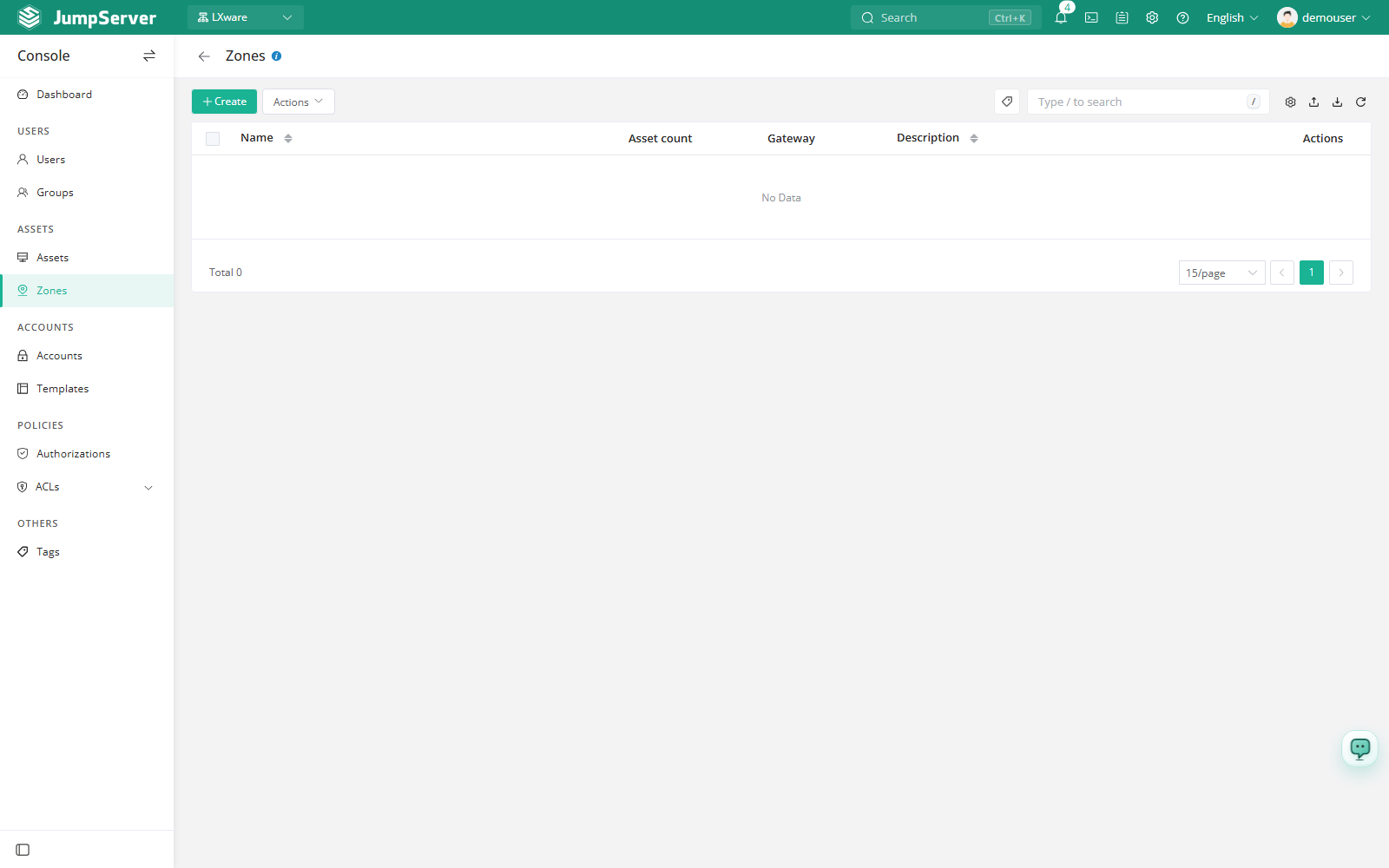
Open the page from Console > Zones.
Overview
Each network location is modeled once, and assets are assigned to it. The gateway then acts as the connection entry point for every asset in that zone, so you do not need a separate route for each host. The list columns are Name, Number of assets, Number of gateways, Comment, and Actions.
Before you begin
- Sign in with an account that can manage assets.
- Create the assets first, or add them to the zone after it is created. See Assets.
- Prepare at least one host that can act as a gateway and is reachable from JumpServer.
Zones are scoped to the current organization: the list shows only zones in the active organization, and gateway forwarding applies only to assets in that organization.
Create a zone
Click Create.
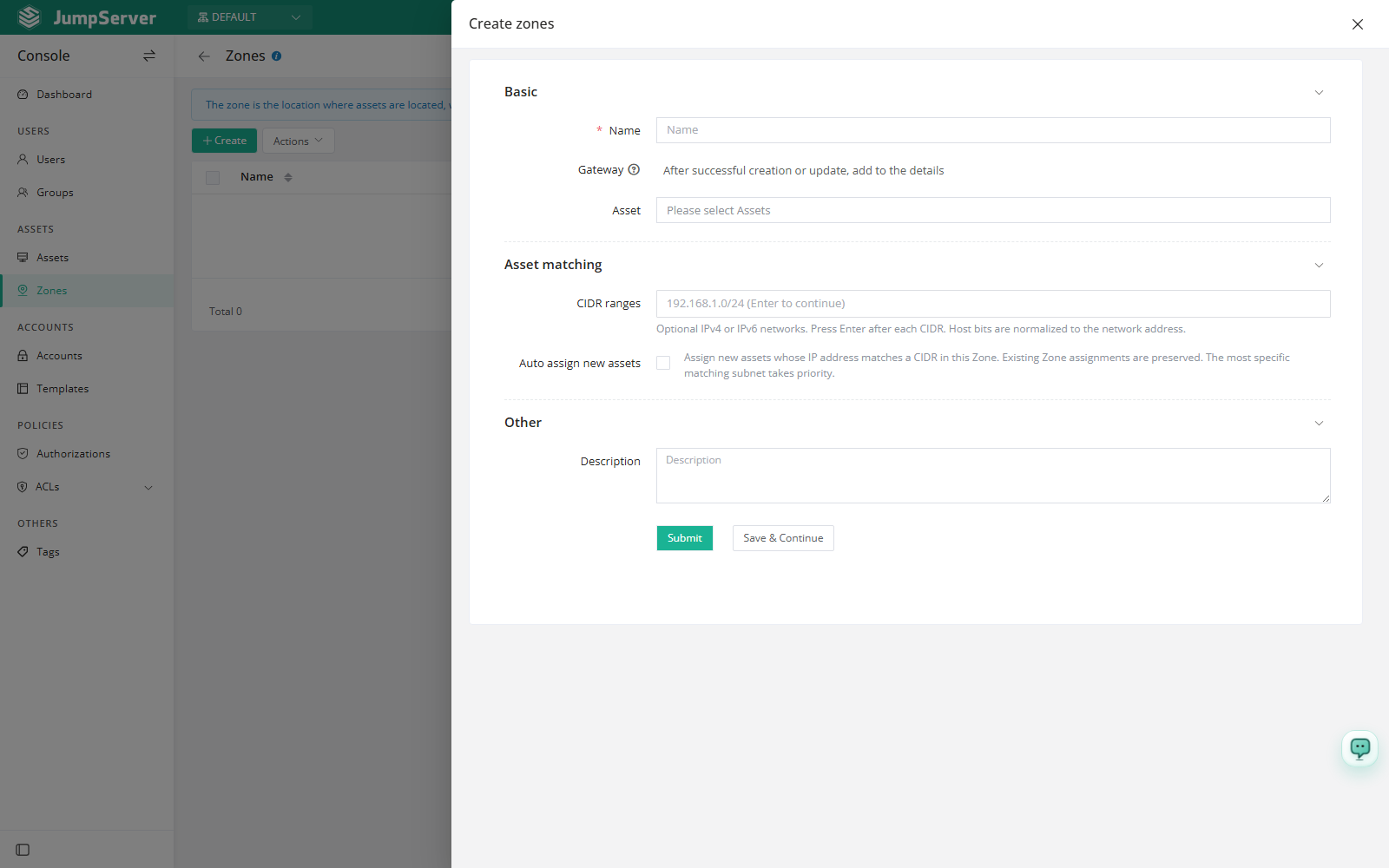
In the Create zone drawer, type a Name and, optionally, select the Assets that should be reached through this zone.
Click Submit, or Save and continue adding to create another zone.
Field reference
Assign assets by CIDR
New in v5.1.0A zone can define one or more CIDR blocks in addition to a manual asset list. When an asset's address falls inside a block, JumpServer assigns the asset to the zone automatically, so assets that are imported or synchronized in bulk do not need to be selected by hand.
- Set the CIDR blocks in the same drawer used to create or edit the zone.
- CIDR matching is based on the asset's address.
- Assets that are selected manually remain in the zone, and CIDR matching adds the assets whose addresses match.
- Review the Assets tab of the zone after you change its CIDR blocks.
Create a gateway
Open the zone by clicking its Name, then select the Gateways tab.
Optionally use Add on the Gateways tab to attach an existing gateway asset instead of creating a new one.
Gateway field reference
The gateway platform must start with Gateway, and available protocols come from that platform. Do not use a normal host platform for a gateway asset.
Zone details
Click a zone's Name to open the detail drawer. Tabs include Basic, Gateways, Assets, and Activity.
- Basic shows the name, asset and gateway counts, creation date, and comment.
- Gateways lists gateways with name, IP/host, connectivity, and actions.
- Assets lets you add existing assets to the zone with Add.
- Activity shows the most recent 30 operations.
Edit, duplicate, and delete
Use the edit icon in the Actions column, or Edit in the detail drawer, to open Update zone. Change the name, assets, or comment, then click Submit. Gateways are still maintained from the Gateways tab.
The row menu (...) provides Delete and Duplicate. Activity shows recent operations for the zone. To remove a single asset or gateway, use the corresponding tab instead of deleting the zone.
Deleting a zone is irreversible and removes its gateway routing configuration. Remove individual assets or gateways from the tabs when you only want to detach them.