

RemoteApp
Desktop RemoteApp, advanced RemoteApp, and VirtualApp require JumpServer Enterprise Edition. Web-based RemoteApp access is included in Community Edition.
RemoteApp extends JumpServer beyond terminal sessions by publishing full applications. Windows applications run on a RemoteApp machine and are delivered to the user's browser, while Linux applications run as containers managed by the Panda application provider.
Overview
RemoteApp machine requirements
Create a RemoteApp machine
In the right area of the top navigation bar, click .

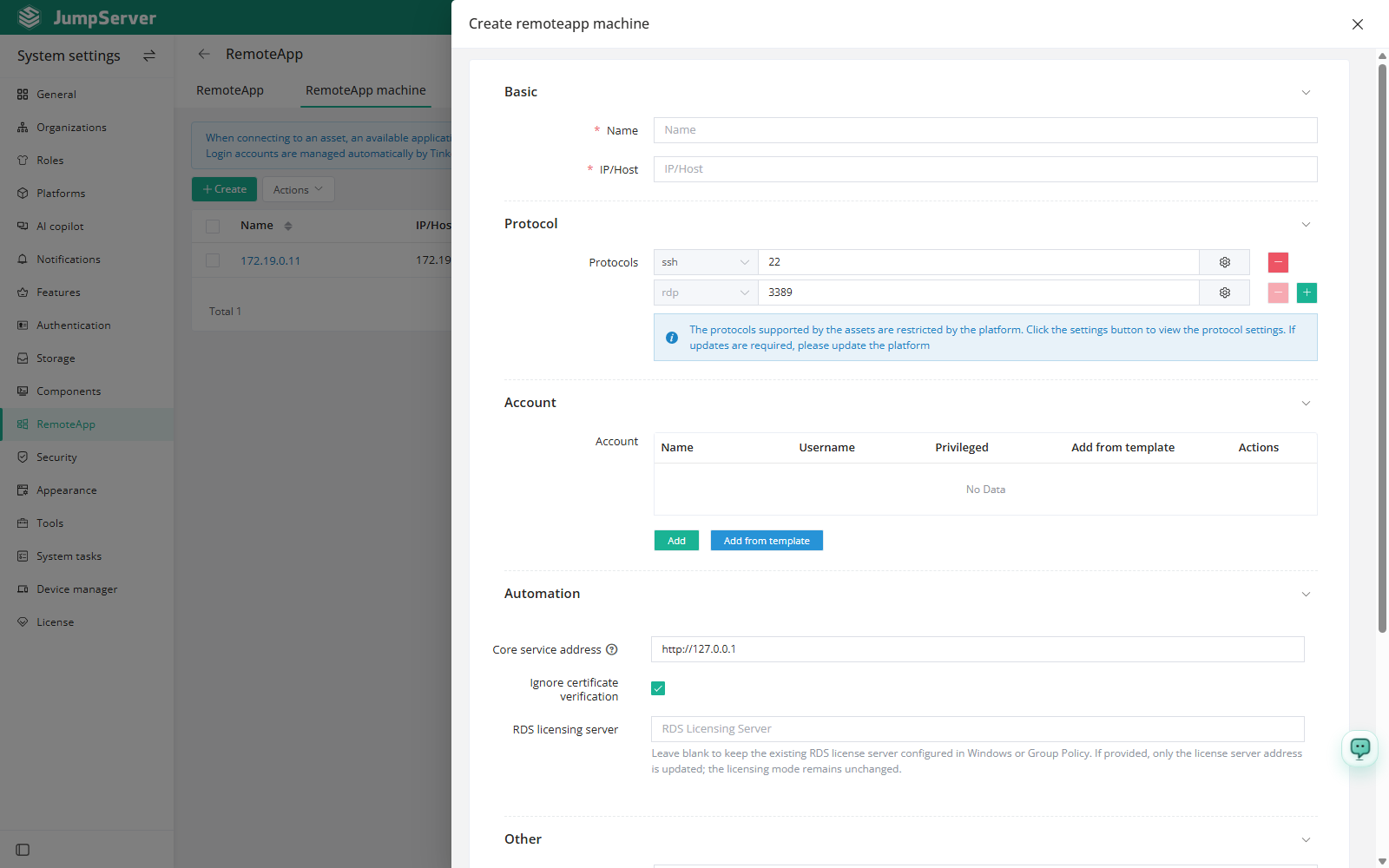
Enter a name and the IP address or host name. Add the rdp protocol for user
sessions and either ssh or winrm for management; JumpServer prefers SSH
when both are present.
Add at least one account in the Windows Administrators group and enable the privileged option for it.
Optionally enable automatic account creation, set the number of shared accounts, and set the Core service address that Tinker uses.
Configure the RDS license if you have one, otherwise keep the trial license. Select a zone only when zones are in use, then click Submit.
Deploy and upload applications
Open the machine detail page and select the Deploy RemoteApp machine tab.
In the quick update card, click Deploy and publish to initialize the machine and publish all RemoteApp.
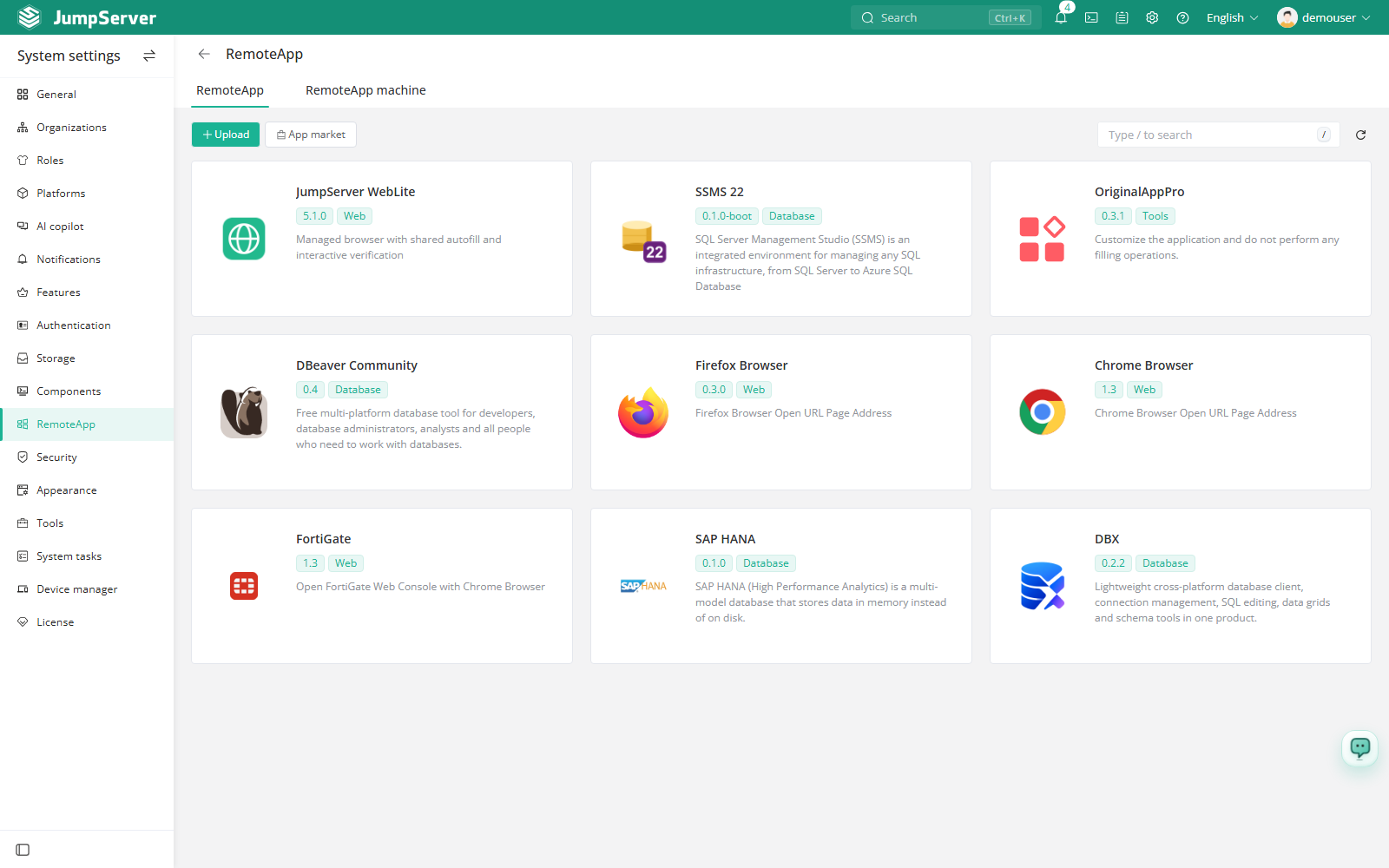
Open the RemoteApp tab, use the app market to download an application package, and click Upload to add it.
VirtualApp
VirtualApp uses Linux systems as application providers, which is useful for domestic OS environments.
Enable VirtualApp in Features.
On the JumpServer host, set PANDA_HOST_IP to the address of the Linux
application provider in /opt/jumpserver/config/config.txt, then run jmsctl restart.
Open Application providers to confirm that the Panda component is registered, and open its detail page to inspect VirtualApp images and containers.
Open the VirtualApp tab and upload an application package. The built-in Chrome and Firefox images are already available.
Users connect to VirtualApp through a Website asset and choose the virtual application connection method in the web terminal. Panda refreshes the list of uploaded applications every five minutes.
Deployment and application publishing run as tasks. Open the task page to follow progress, and check the machine account list if deployment fails. For client-side connection details, see Client Overview.