

Change Secrets
Change Secrets requires JumpServer Enterprise Edition. Without a license, the Security > Change Secrets tabs are disabled.
Change Secrets rotates the credentials of accounts stored in JumpServer. A change-secret task can run immediately or on a schedule, generate a specific or random secret, and notify recipients by email when it finishes.
A change-secret task authenticates through a privileged account on the asset, so the asset's account list must contain a working privileged account.
Prerequisites
- Access to PAM > Security > Change Secrets with permission to view change-secret tasks.
- The target assets or nodes already exist. See Assets.
- Each target account has secret change enabled. See Accounts.
- A privileged account is available on the asset and can authenticate to it.
Overview
The page contains five tabs:
- Overview – summary counts, success and failure trend, and failed-account list.
- Change secret tasks – task definitions and schedules.
- Execution history – one row per run with status, duration, and log.
- Execution records – per-account results, with old and new secret access.
- Change secret status – in-progress changes, shown when the change-after-session setting is enabled.
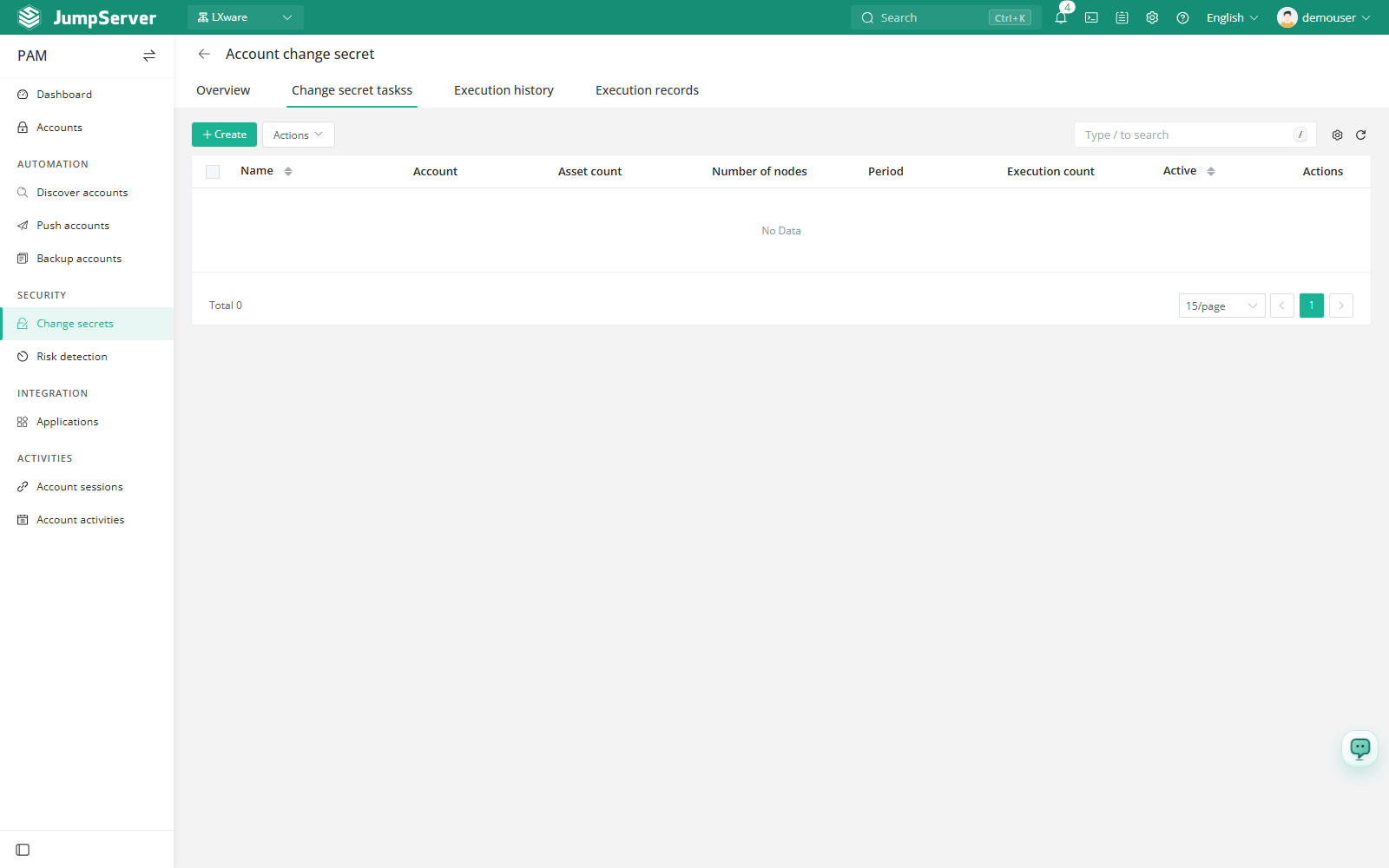
Create a change secret task
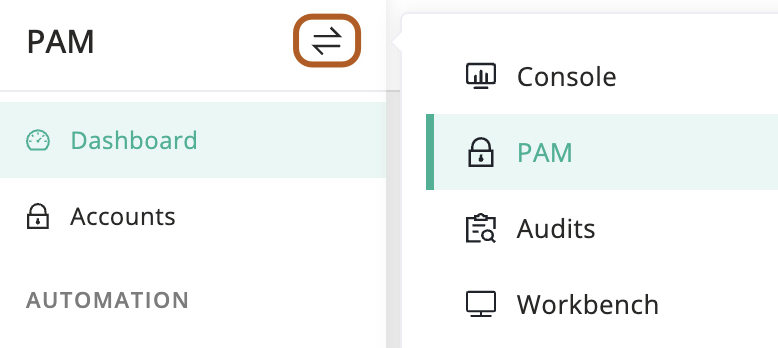
At the top-left of the page, select , then click PAM.
Open Security > Change Secrets and select Change secret tasks.
Click Create.
In the Name field, type the task name.
In the Accounts field, type the usernames to rotate and press Enter after each.
In the Assets and Nodes fields, select the targets. The two fields can be combined.
Choose the Secret strategy (Specific secret or Random generate), the Secret type (Password or SSH key), and then supply the Password, Private key, and optional Key password, or the Password rules for random generation.
Optionally configure Parameters for the platform, enable Periodic to schedule the task, keep Check connection after change enabled, leave Active selected, and add Recipients for email notification.
Click Submit.
Field reference
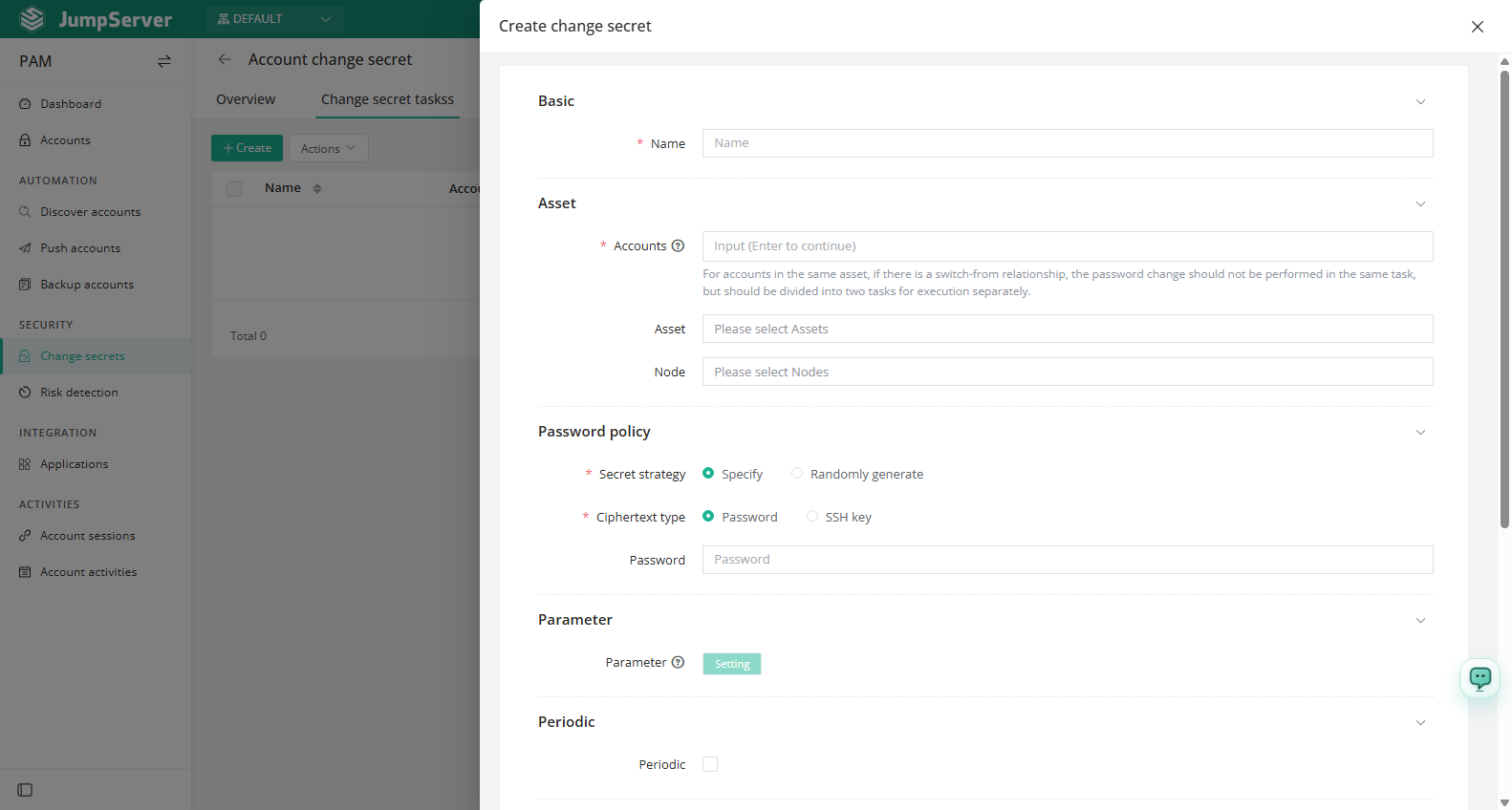
Do not place accounts that share a switch from relationship on the same asset into one task. Split them into two tasks and rotate them separately, because the first change can invalidate the account that the second change depends on.
How privileged accounts are handled
By default JumpServer does not change the secrets of privileged accounts, nor of accounts named root or administrator, and it excludes the privileged account used to run the task. To allow privileged-account rotation, set CHANGE_AUTH_PLAN_SECURE_MODE_ENABLED=false in the configuration file and restart the JumpServer service.
Because this changes a high-risk credential, use a separate, controlled task for privileged accounts and test it on a non-production asset first.
Run and review
Use the green run button in the row, or open the task and use the manual execution action, to start a change. The More menu provides Edit, Delete, and Duplicate.
The Overview tab summarizes today, the last 7 days, or the last 30 days: task counts (total, periodic, asset management), execution counts (total, success, failed), and running changes. The Account secret change success/failure chart plots success against failure, and the failed-account list shows each failure with its error.
Execution records lists the changed accounts with asset, username, end date, success, test, and error. Opening a record requires MFA verification before the old and new secrets are shown, and a failed change can be retried from there.