

Account Sessions
Account Sessions lists the connections that were opened with accounts managed in PAM. Use it to see which privileged accounts are in use right now, and to review how they were used after a session ends.
This page is separate from Asset Sessions: account sessions focus on the account side of the connection, while asset sessions describe the user-to-asset connection from the audit point of view.
Overview
Go to PAM > Activities > Account Sessions. The page contains two tabs:
- Online sessions – sessions that are currently running. This tab opens by default.
- Historical sessions – sessions that have already ended.
Both tabs use the same columns: No., User, Asset, Account, Protocol, Start date, and Actions.
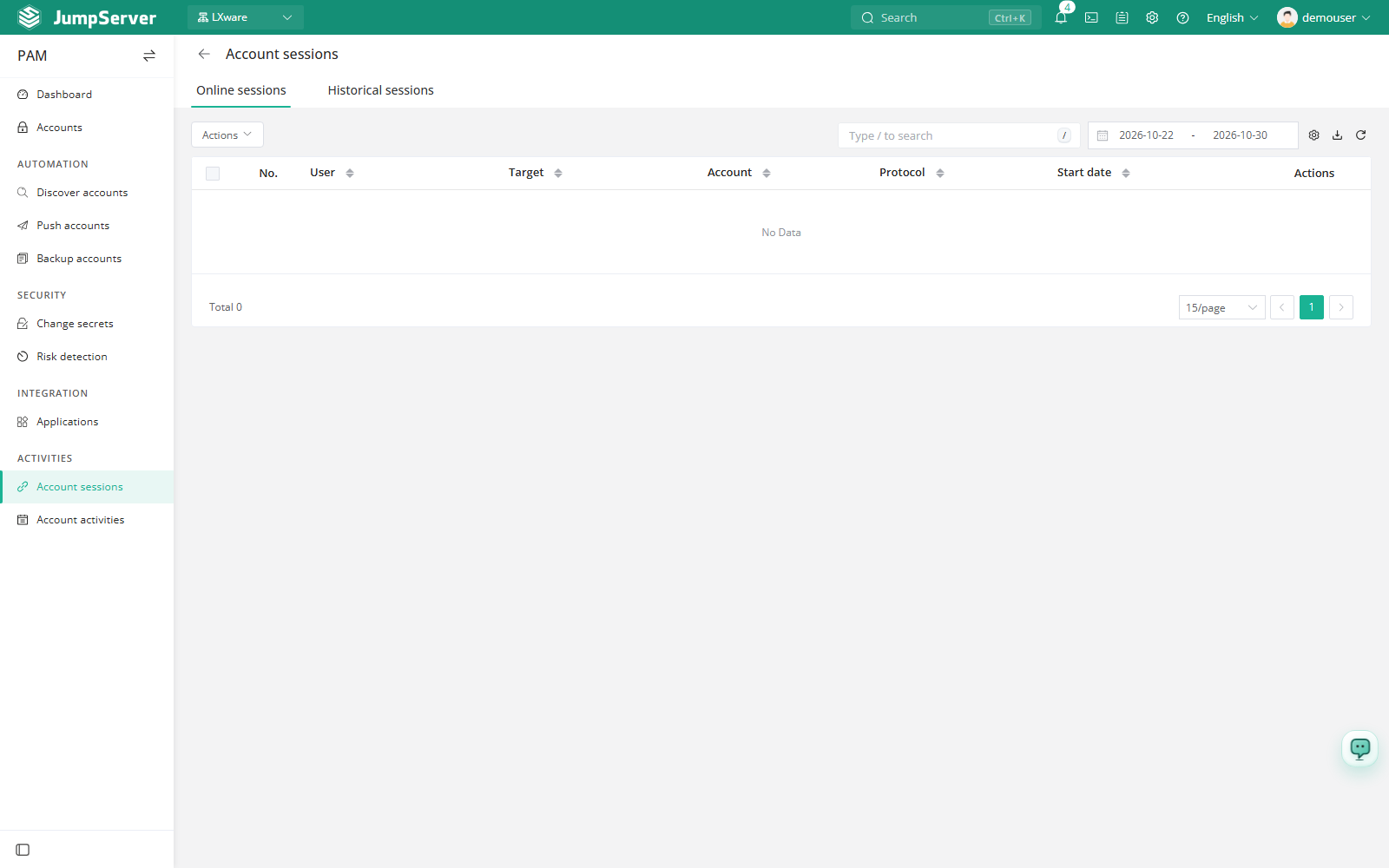
Online sessions
The Online sessions tab shows the active PAM account sessions. When nothing is running, the list shows an empty state instead of rows.
Row actions depend on your permissions and on the protocol of the session:
Termination and monitoring are privilege-sensitive. Grant them only to roles that are expected to intervene in live privileged sessions.
Historical sessions
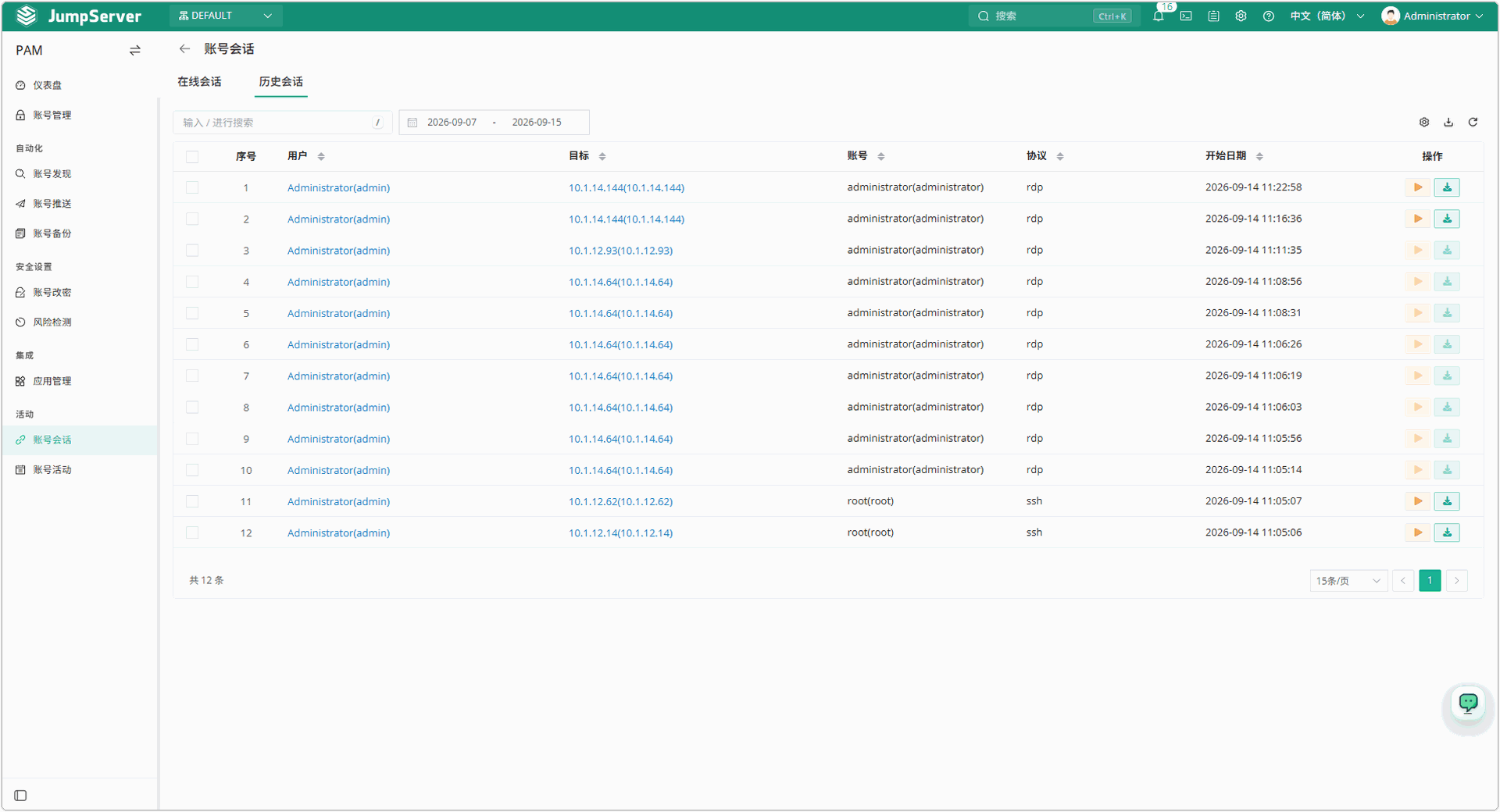
The Historical sessions tab lists completed sessions with the same columns, which makes it straightforward to answer questions such as which accounts were used against a given asset in a period.
Open a row's Actions menu to:
- Replay the session recording in the browser.
- Download the session recording for offline review.
Recording availability depends on the session protocol and the storage configured for replay files. Some database protocols do not support playback.
Session visibility follows organization and permission rules. If a session is missing, confirm the current organization and check that your role can view account sessions.
For the user-side session audit, including command records and file transfers, continue with Asset Sessions and Session Commands.