

Tags
A tag classifies resources such as assets so they can be searched and filtered more easily. Each tag combines a name and a value and can have a color. Names may repeat, and a single resource can carry several tags.
Open the page from Console > Tags.
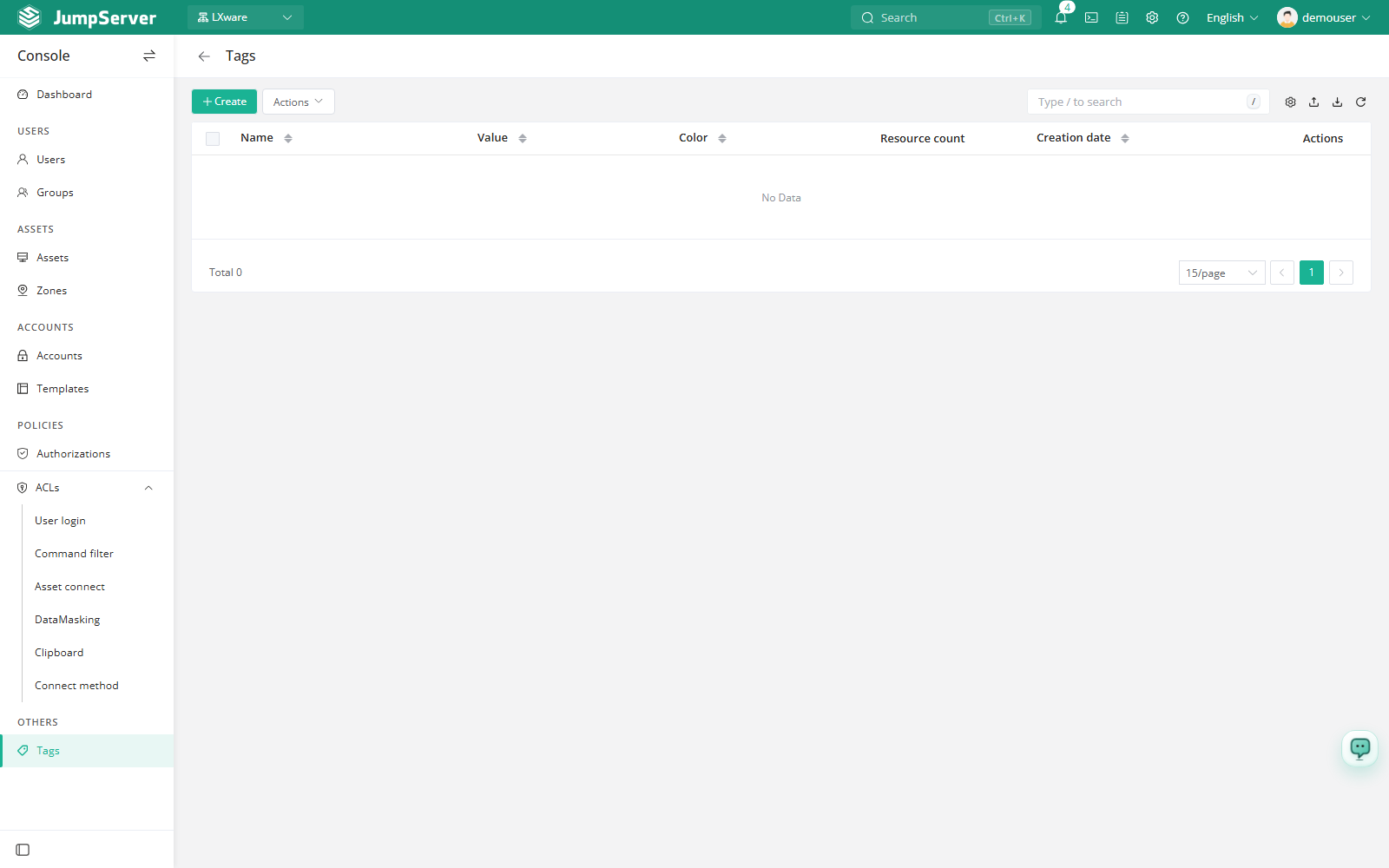
Overview
The list columns are Name, Value, Color, Resources, Creation date, and Actions. The Resources column is the number of resources currently bound to the tag. The toolbar provides search, column settings, export, import, and refresh. More actions offers Delete selected only.
Tags are scoped to the current organization. They are often used to record the department, owner, environment, or purpose of a resource.
Create a tag
Click Create.
In the Create tag drawer, fill in the fields below.
Click Submit, or Save and continue adding to create another tag.
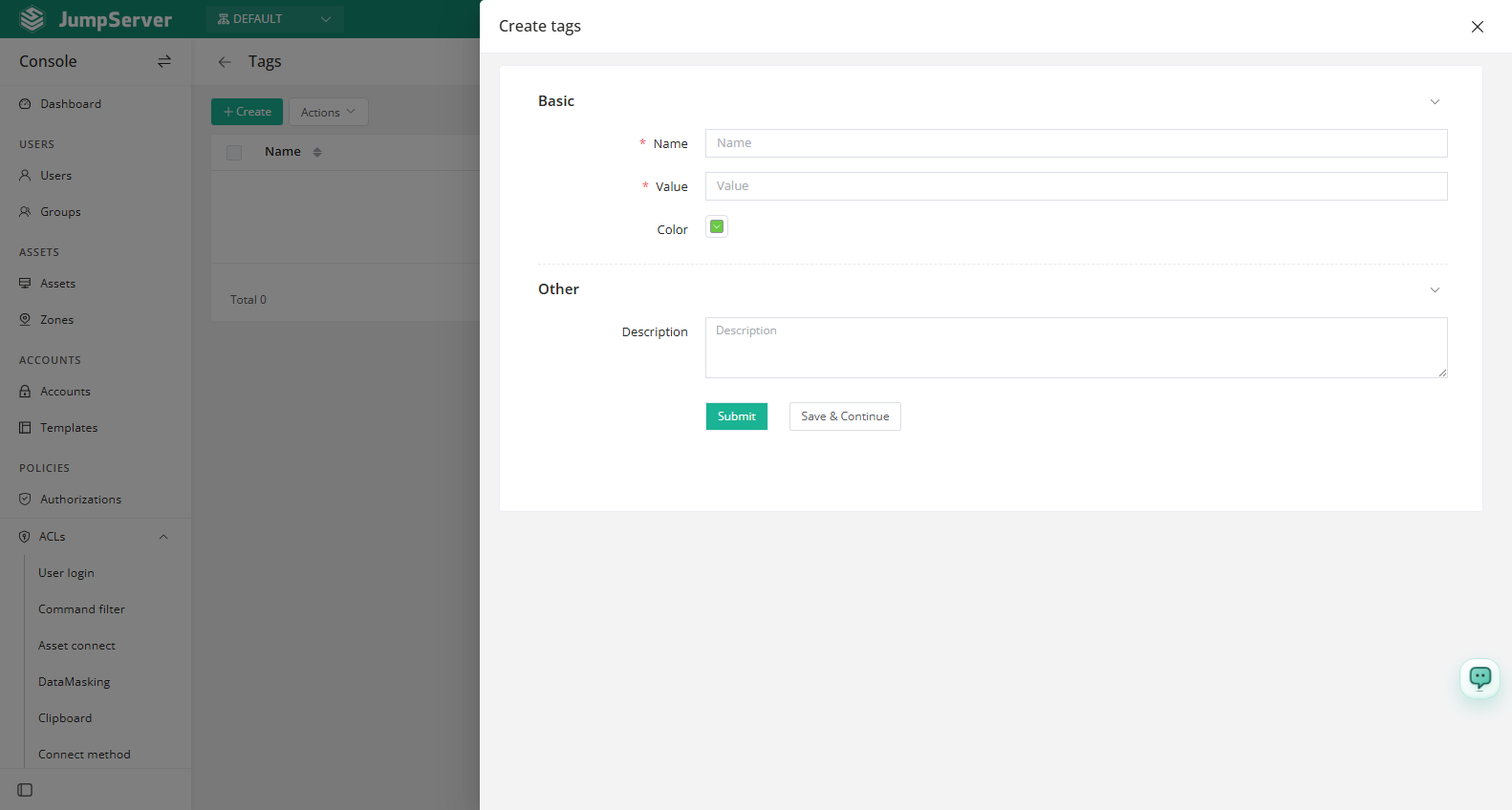
Field reference
Attach tags to resources
There are three ways to bind a tag:
- From the tag: click the number in the Resources column to open Associate resources and review what is already bound. You can add more or remove existing bindings from that dialog.
- From the row menu: click ... and choose Associate resources, select a Resource type, move resources from the left list to the right, and click Confirm. No resources are selectable until a resource type is chosen.
- From the asset: select tags in Other settings while creating an asset, or add them from the Tags area on the asset's Basic tab in Assets.
Edit, duplicate, and delete
The Actions column provides:
- Edit: open Update tag. Fields are the same as for creation.
- Duplicate: copy the tag as a new one.
- Associate resources: bind or unbind resources.
- Delete: remove the tag.
Select several tags and use More actions > Delete selected to delete them in a batch.
Deleting a tag removes it from every resource that carried it, but the resources themselves are not deleted. Tags are not used for access control; use Authorizations for that.