

Recording Tools
JumpServer Client includes local tools for working with session recordings that you have downloaded from Audits > Asset Sessions.
Open the tools
Select My Files at the top-right of the client, open System Tools, and choose the tool you need.
Player
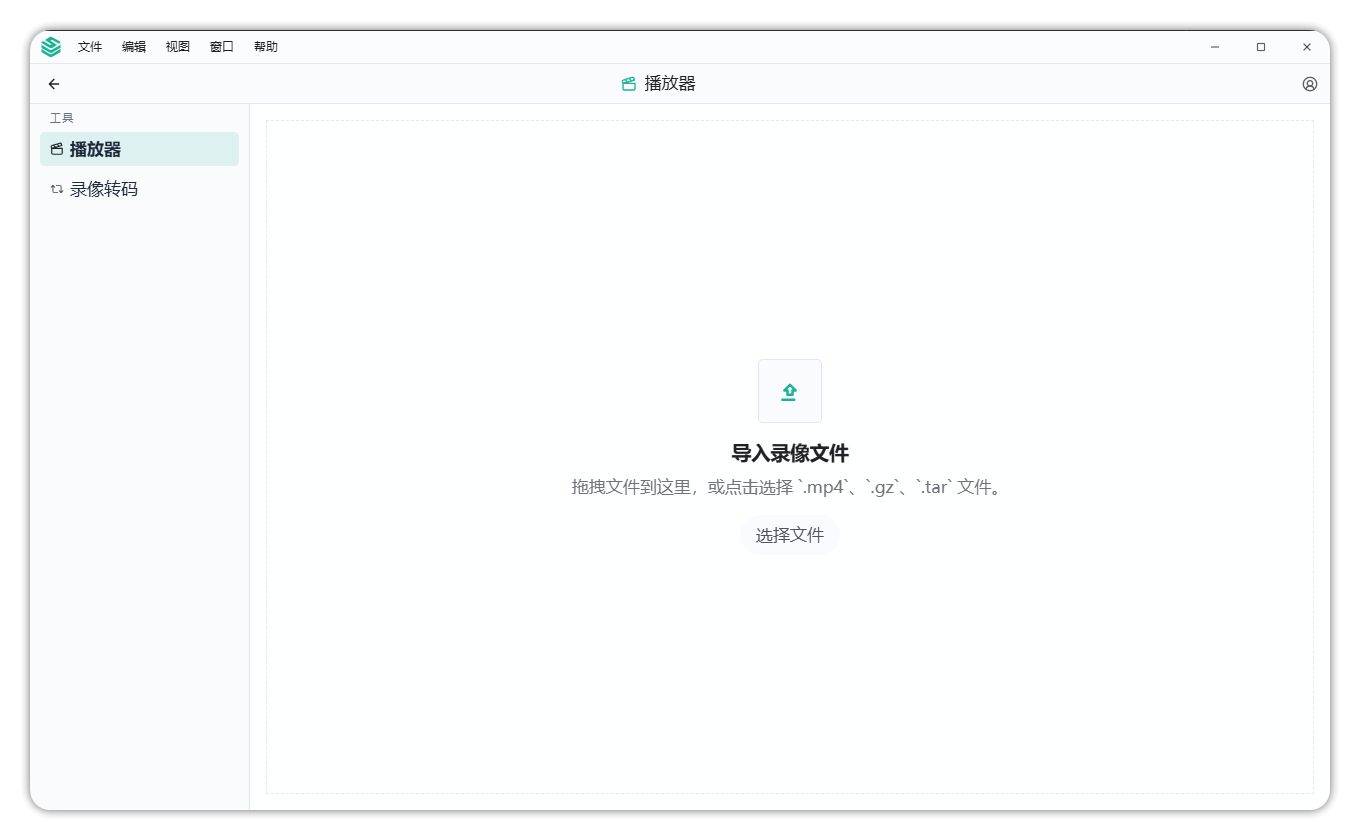
The player opens a downloaded session recording for local playback.
- Select My Files > System Tools > Player.
- Open the recording file or archive.
- Use the playback controls to review the session.
Recording transcoding
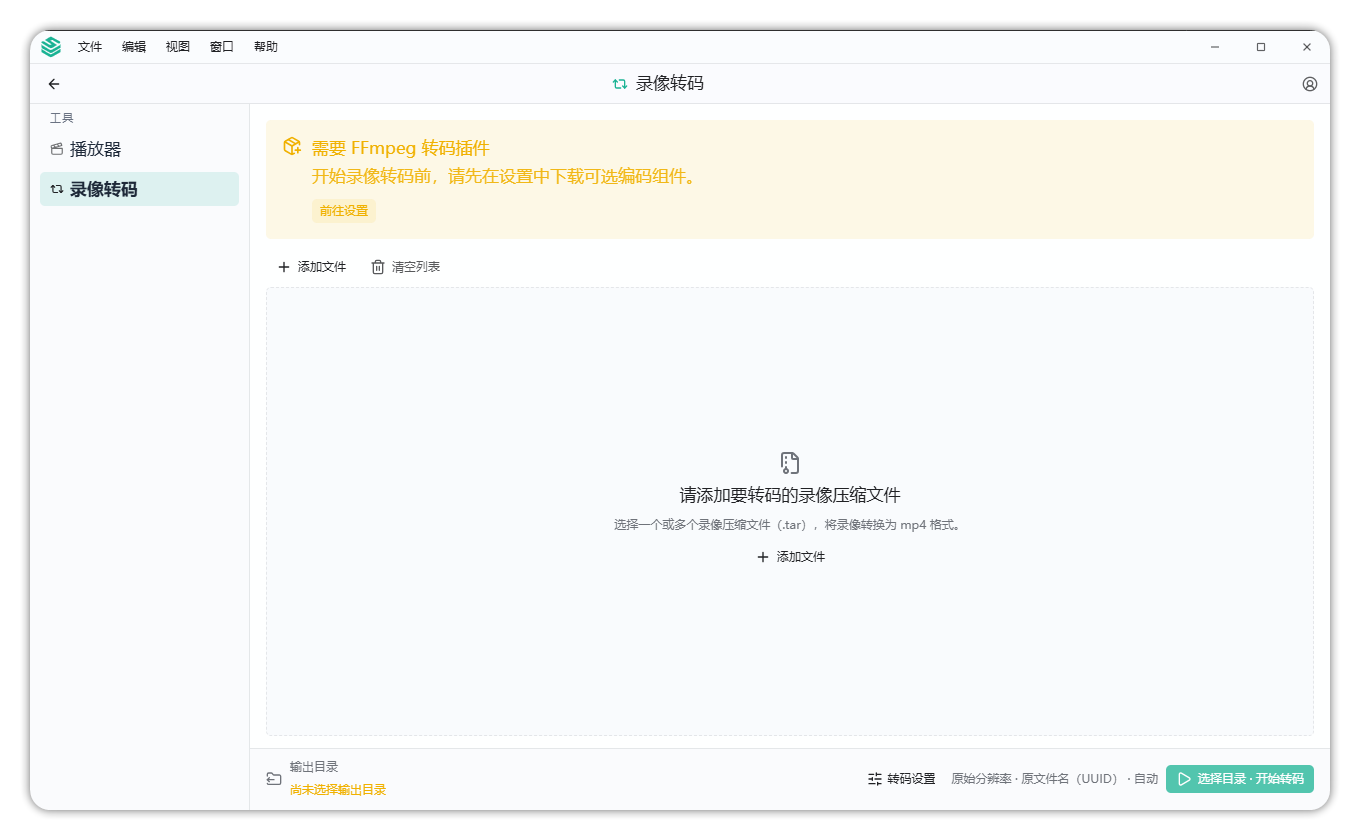
Recording transcoding converts a downloaded .tar recording package to MP4.
- Select My Files > System Tools > Recording Transcoding.
- Select the downloaded recording file.
- Open Transcoding Settings to configure:
- Output directory
- File name style
- Output resolution: 360p, 720p, or 1080p
- Select Start Transcoding and wait for the process to complete.
Notes
- Download recordings from Audits > Asset Sessions > Historical Sessions.
- Transcoding can take time for long sessions; keep the client open until it finishes.
- Store recordings and transcoded files according to your organization's evidence retention policy.