

Web Terminal Overview
The Web Terminal (Luna) connects you to authorized assets directly in the browser. It requires no local plugin and is the workspace that opens when you start a connection from the Workbench.
Open it from the Workbench entry or the Web Terminal icon in the top navigation.
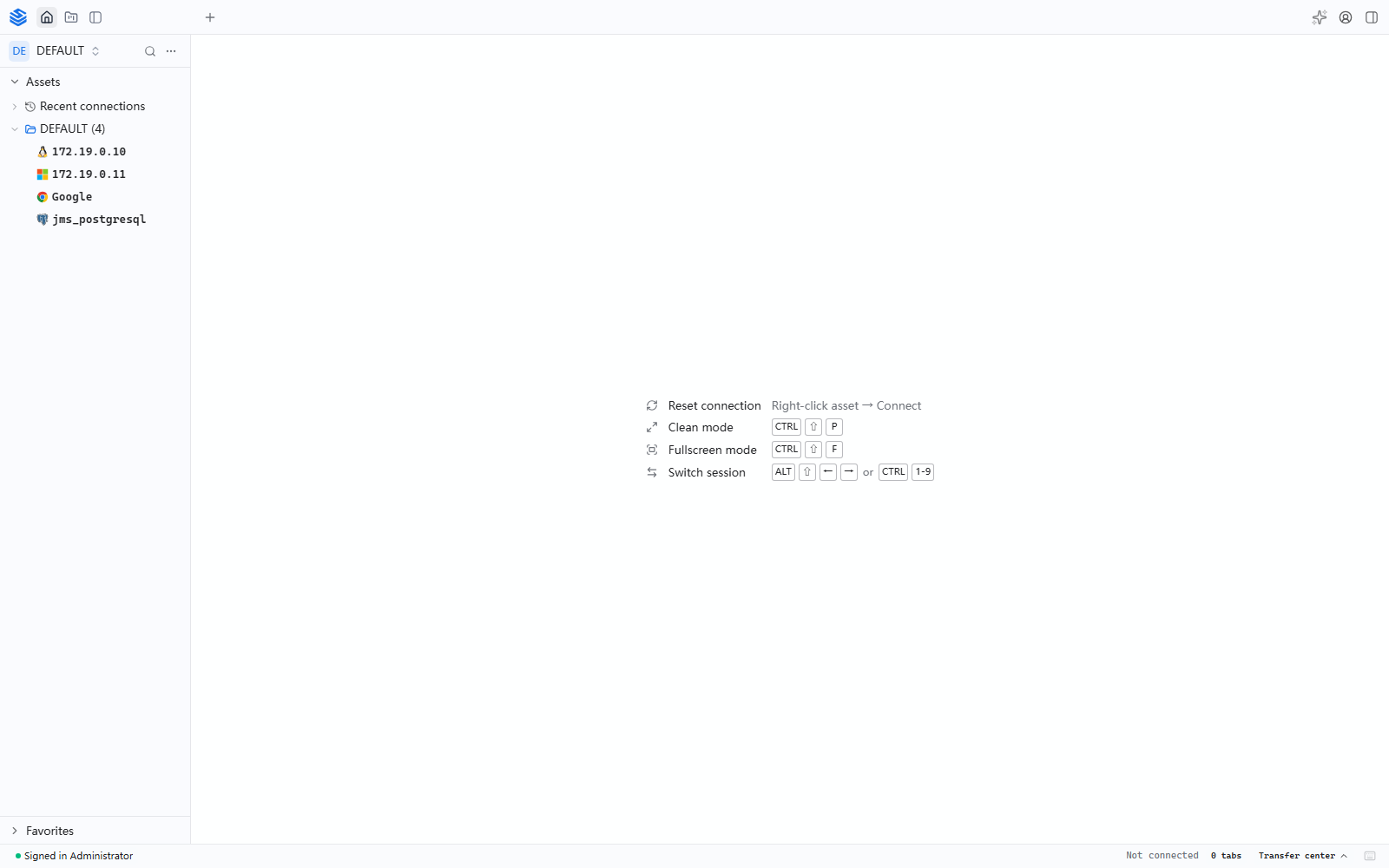
Workspace layout
My Assets
The left sidebar lists assets authorized to your account in the current organization. Use search and favorites to find a target, then select an asset to open its connection dialog. An empty list usually means the asset is not authorized or you are in the wrong organization.
See Access Assets for the asset list, account inspection, and favorites.
Connect to an asset
Select an asset in the sidebar, choose a protocol, account, and connection method, then select Connect. The connection opens as a tab in the session area.
See Connect Assets for the full connection flow, available methods, and session shortcuts.
AI Assistant
Select the AI Assistant button in the top toolbar to open the assistant in the right panel. It works with the active session, so you can ask about terminal output, a database schema, a file operation, or a script without leaving the Web Terminal.
See AI Assistant for entry points, session context, and prerequisites.
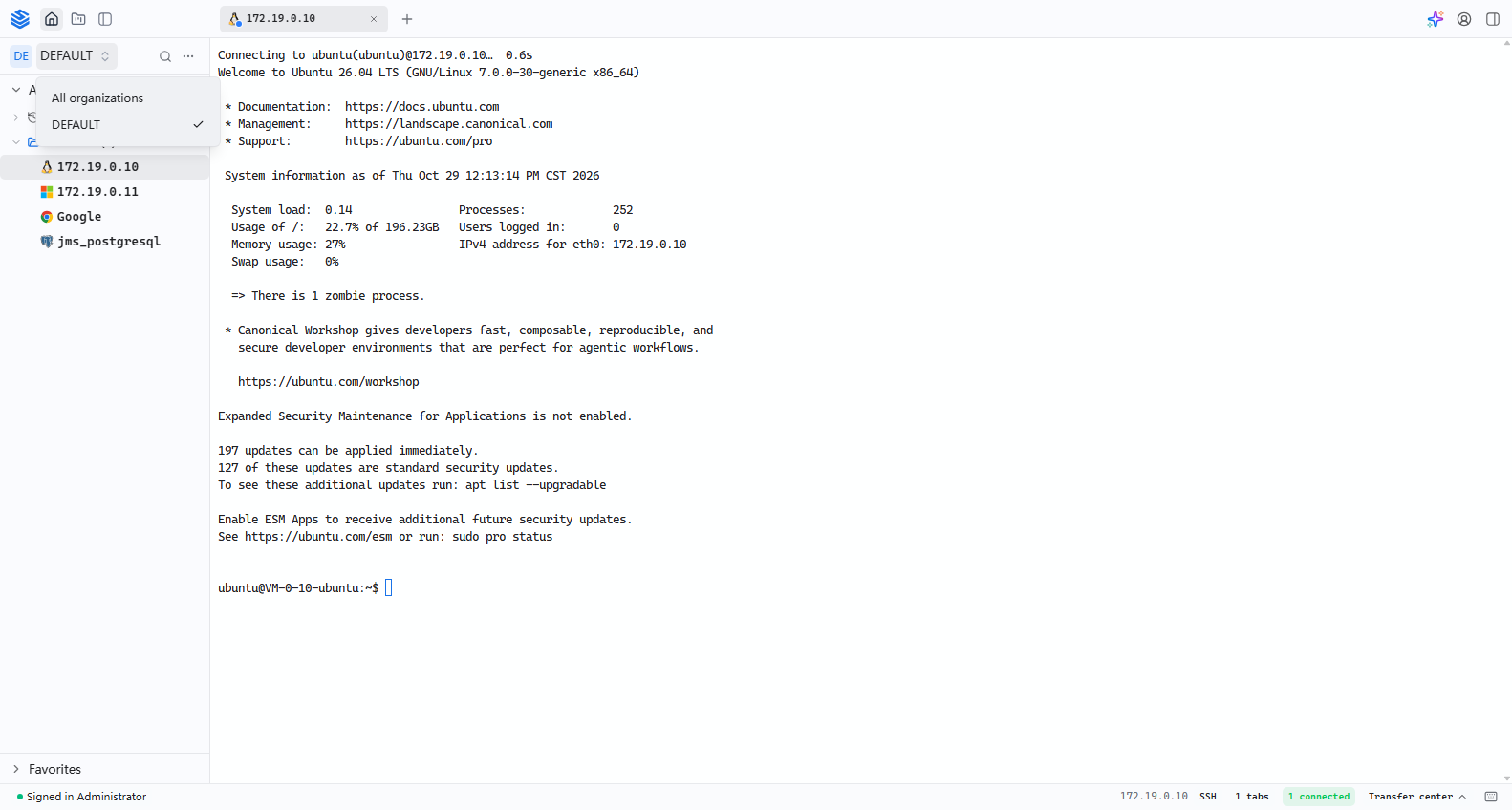
Organization switching
The current organization is shown at the top of the sidebar. Select it to switch to another organization, or choose All organizations. The asset list reloads for the selected organization, so an authorization created in one organization is not visible in another.
File Manager
Select File Manager in the top toolbar to open the file view:
- Local upload — drag or upload files from your computer.
- Connect remote asset — open an SFTP session to an authorized asset and upload files to its current directory.
After a session starts, use Transfer Center in the status bar to review the queue and progress. See File Transfer for the separate multi-asset transfer job.
Personal menu
Select your avatar in the top-right to open the personal menu:
- Language — switch between Simplified Chinese and English.
- Theme — system, light, or dark.
- Settings — configure connection defaults and appearance.
- Client Download — open the download page for JumpServer Client and related tools.
- Sign out — end the current session.
See Web Terminal Settings for the settings pages.
The Web Terminal shows only assets authorized for your account in the active organization. If a connection method is missing, the protocol, enabled components, license, or your assigned connection methods may not allow it.