

Command Filter
Command Filter inspects commands sent during an asset session and compares them with command groups. When a command matches, the rule's action decides what happens; the default is to reject the command. Filters can target all users, specific users, or users matched by attributes, and can be limited to particular assets and accounts.
Open the page from Console > ACLs > Command Filter.
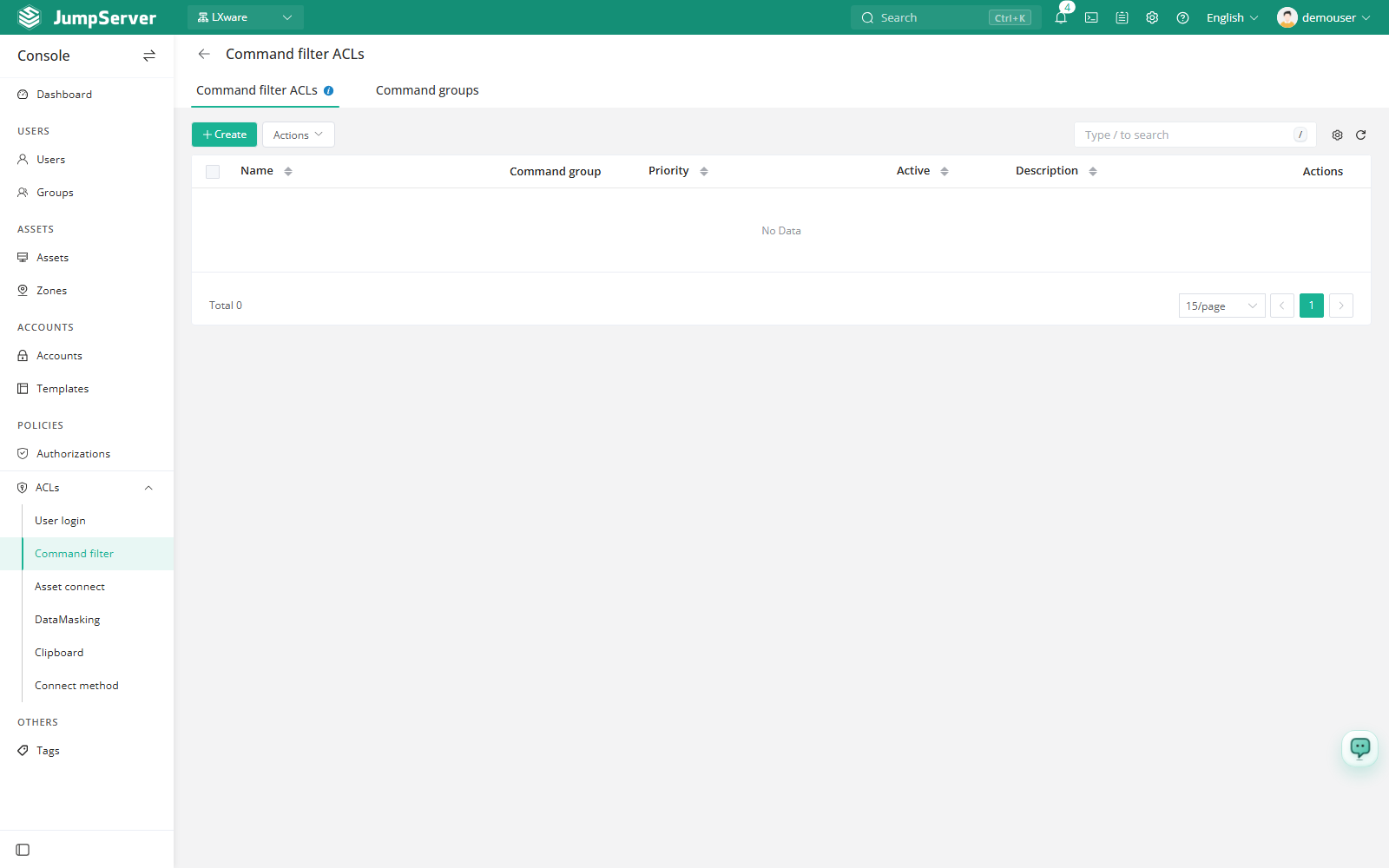
Overview
The page has two tabs:
- Command Filters: rules that bind users, assets, accounts, and command groups together with an action.
- Command Groups: reusable sets of commands or regular expressions that filters reference.
Command filters are scoped to the current organization. The filter list columns are Name, Command group, Priority, Active, Comment, and Actions.
Before you begin
- Sign in with an account that can manage ACLs.
- Create at least one command group. A filter cannot be saved without one.
Create a command group
Open the Command Groups tab and click Create.
In Create command group, enter a name, choose a type, and list the commands or expressions.
Click Submit.
With the Command type, each line is matched as a command, with word boundaries applied where appropriate. Use Regex when you need an expression that the literal type cannot express.
Create a command filter
Open the Command Filters tab and click Create.
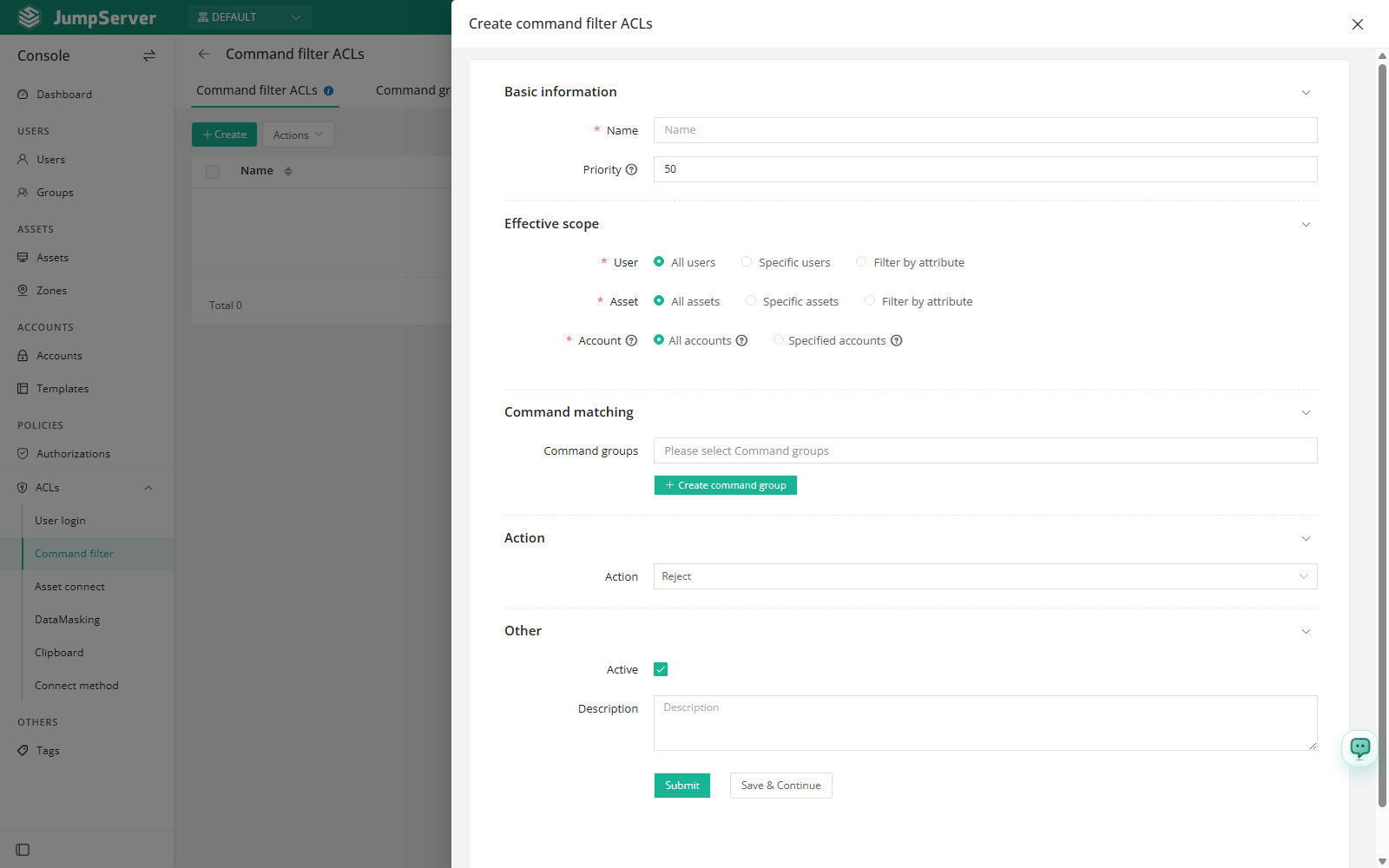
In Create command filter, fill in the fields below and select the command groups to match.
Click Submit.
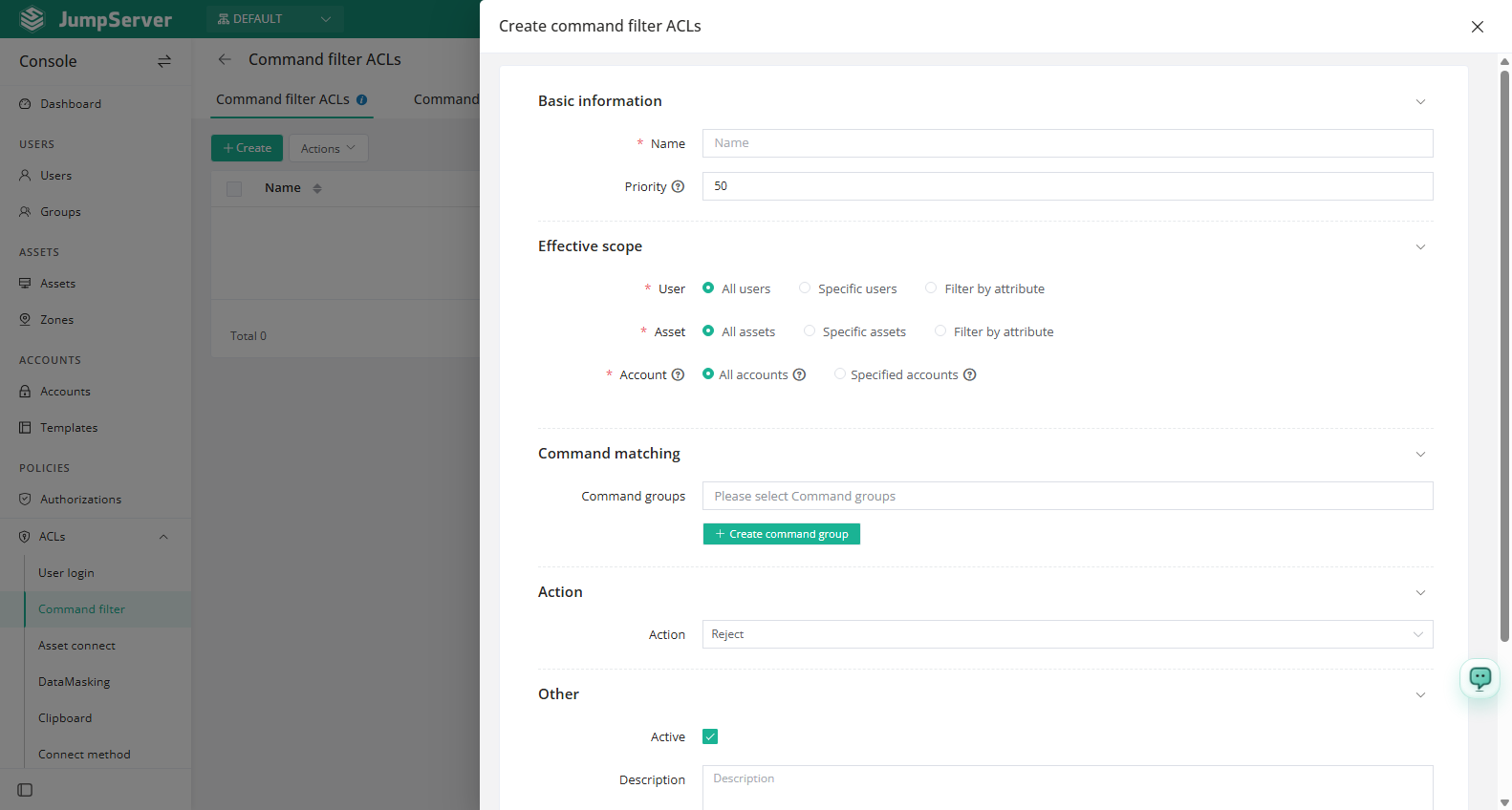
Field reference
The Command group drop-down stays empty until at least one command group exists. Create the group first, then return to the filter.
Create rules with the AI assistant
New in v5.1.0Command filter rules support AI-assisted drafting and conversational creation through the AI assistant. Describe the commands to block and the users, assets, and accounts in scope, and the assistant drafts the rule. The configuration experience for command filter rules and command groups.
Review the command groups the rule references, its scope, and the action before you enable it.
Before you begin:
- An administrator has enabled the AI assistant and configured the model connection. See AI Assistant.
- Your role includes the Chat AI permission.
- You can manage ACLs, and the command groups the rule references already exist.
Check filtered commands
Commands rejected by a filter are not executed on the asset. Review them, together with commands that were allowed, in Session Commands. When a rule uses review or another approval action, the request appears in the ticket workflow.