

Discover Accounts
Discover Accounts scans managed assets for local accounts and brings the results back into JumpServer as discovered accounts. Reviewing that list is the fastest way to close the gap between the accounts you think exist and the accounts that actually exist on the servers.
Discovery is an automation task. It runs against the assets or nodes you select, and you can run it once or on a schedule.
Prerequisites
- Access to PAM > Automation > Discover Accounts with permission to view discovered accounts and discovery tasks.
- The target assets are already managed in JumpServer. See Assets.
- Each target asset has a privileged account that JumpServer can use to enumerate other accounts. Without a working privileged account the task has nothing to authenticate with and reports errors.
Overview
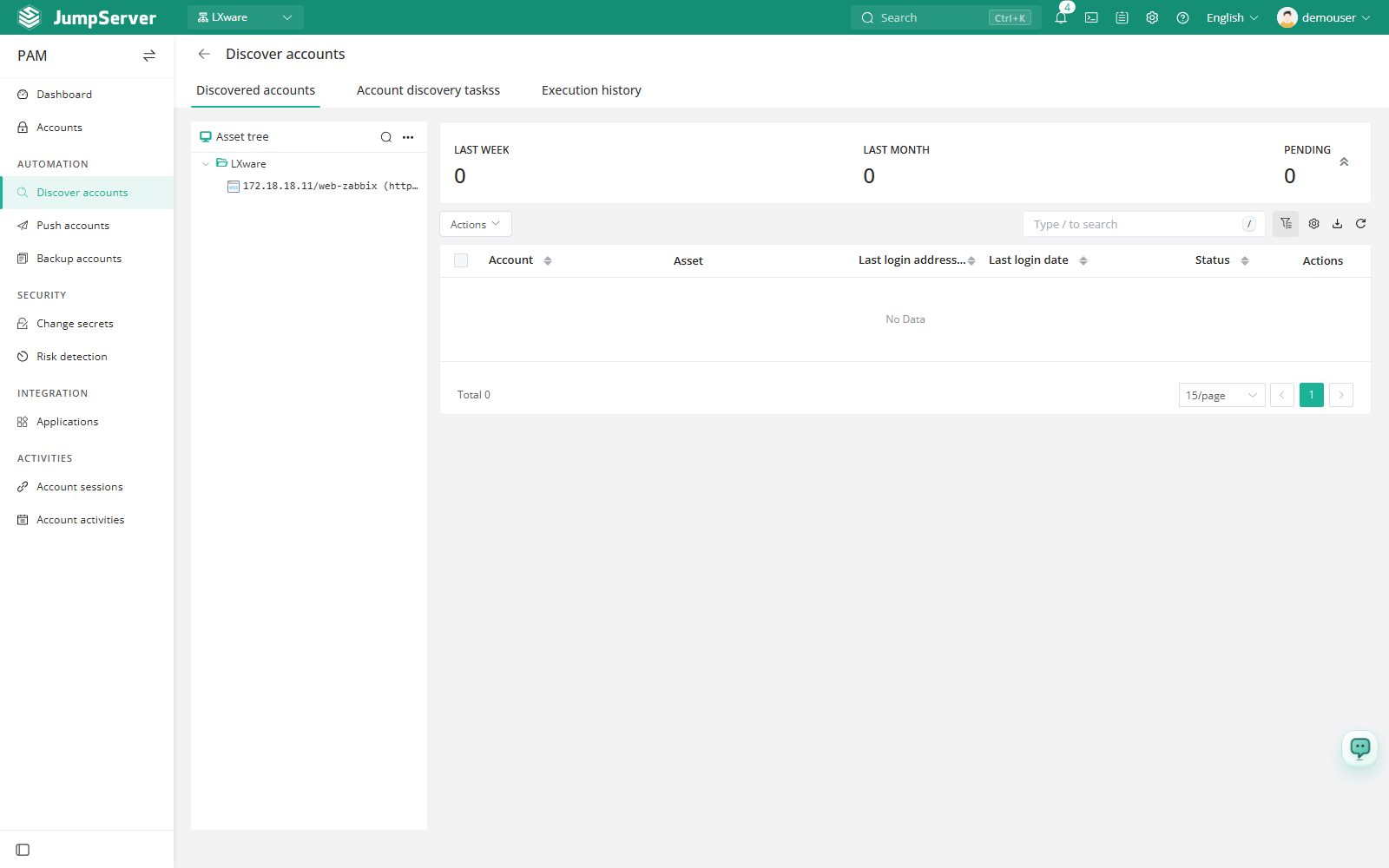
The page has three tabs:
- Discovered accounts – results collected by executed tasks.
- Account discovery tasks – task definitions and their schedule.
- Execution history – per-run status, logs, and reports.
The Discovered accounts list only contains results from tasks that have already run. On a fresh environment the tab is empty until you create and execute a discovery task.
Create a discovery task
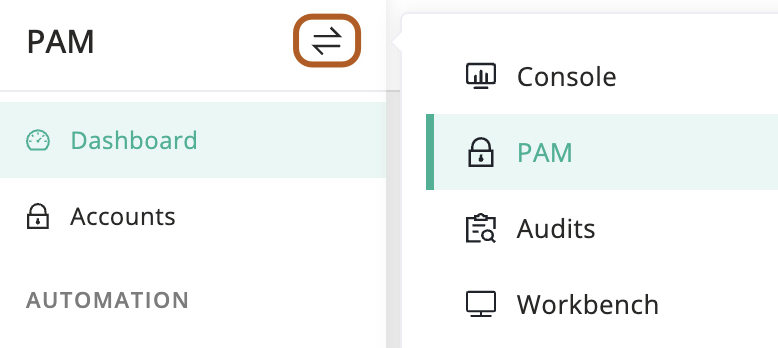
At the top-left of the page, select , then click PAM.
Open Automation > Discover Accounts and select the Account discovery tasks tab.
Click Create.
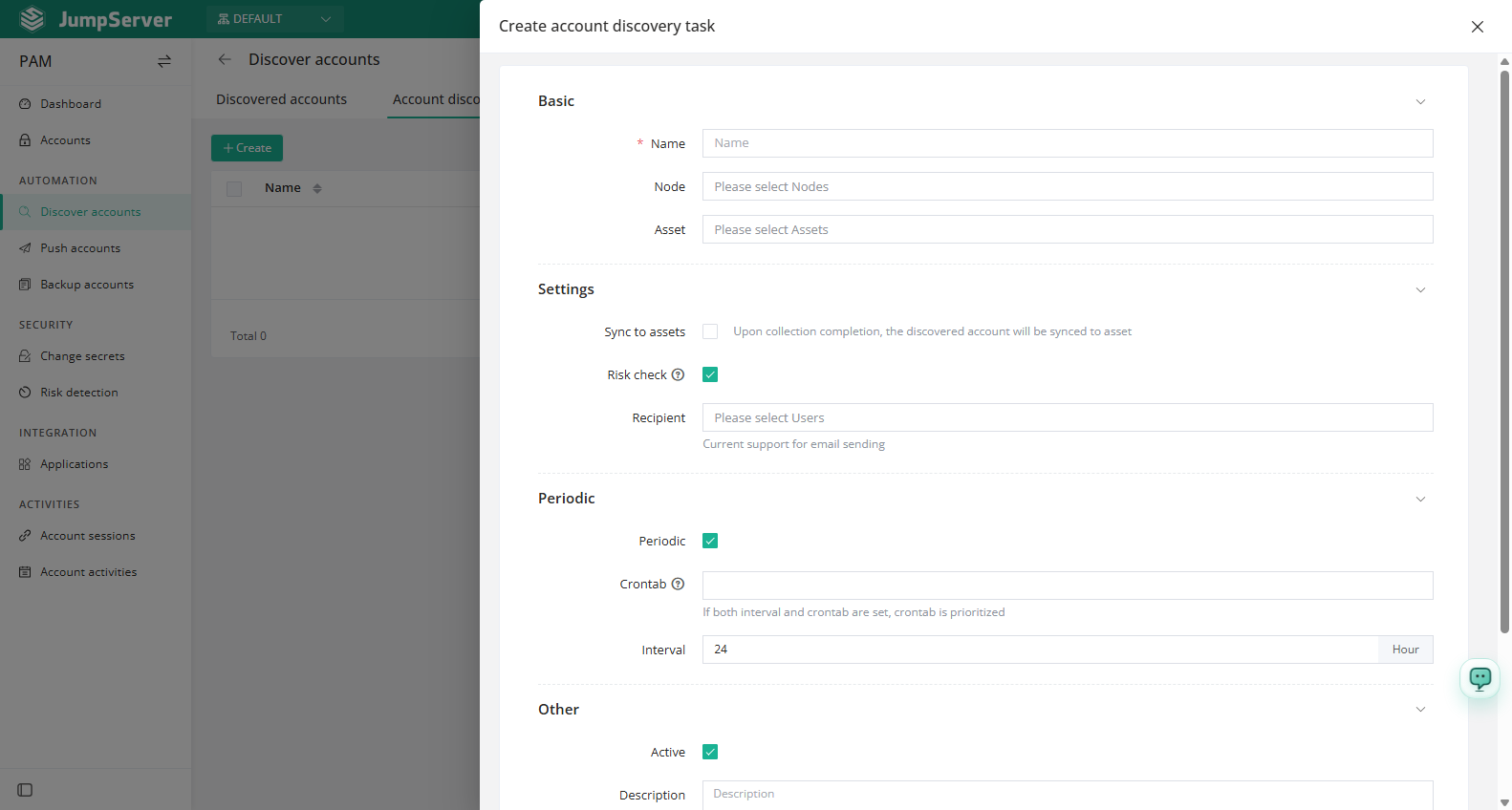
In the Name field, type a name that identifies the scope, for example Linux core zone.
In the Nodes and Assets fields, select the scope to scan. You can combine both; nodes include their subnodes.
Optionally enable Sync to assets so that discovered accounts are written to the matching asset account list automatically.
Keep Check risk enabled to flag discovered accounts for risk review, and select Recipients if the result should be emailed. Only email delivery is supported.
Enable Periodic if the inventory should be refreshed on a schedule, then set Interval or Crontab. If both are set, crontab wins.
Keep Active selected and click Submit. Use Save & Continue to create several tasks in a row.
Field reference
Review and sync results
After a task runs, open the Discovered accounts tab and select the accounts you want to act on, then use the More menu:
- Sync selected – create or update the matching accounts on the assets so that PAM can manage them.
- Sync deletion selected – remove the account from the asset and drop the discovered record.
- Remove selected – discard the discovered record only, leaving the account on the asset untouched.
Choose the deletion option carefully: it changes the remote asset, while Remove selected is local to the discovery list.
Execution history
The Execution history tab shows each run with its trigger mode, start and end time, automation snapshot, status, and duration. Open the run to read the Log, or open the Report for asset counts, success, failed and unsupported totals, duration, and the list of newly discovered accounts.
Once accounts are synced, they appear under Accounts and on the asset's account list.